0:28
Explore
Introducing OpenEvidence Learn: free, personalized medical education
OpenEvidence · Nov 2026 · 0:57 · Full motion · AI-annotated
- Length
- 0:57
- Scenes
- 20 · 2.9 s avg
- Product on screen
- 0:00
- Features shown
- 3
- Voiceover
- No
- Views
- 340 on YouTube
as of November 28, 2026
00:00:00 / 00:57:03
- Length
- 0:57
- Scenes
- 20 · 2.9 s avg
- Product on screen
- 0:00
- Features shown
- 3
- Voiceover
- No
- Views
- 340 on YouTube
as of November 28, 2026
OpenEvidence’s 0:57 launch film runs 20 scenes, about 2.9 s each. The product is on screen from the first frame and 3 features are revealed. There is no explicit call to action. The video opens on the Learn hub, then tours three modules (Test Prep, Preceptor, Flashcards) using camera-like zooms into panels and crossfades back to the hub between each, closing on the OpenEvidence Learn logo and tagline. Its signature is continuous motion on a static cream canvas: count-up stats, ticking progress bars, and serif headlines over a clean sans-serif interface.
No filming indicatedEstimated needs: 5 capture groups — your screens or recordings · 1 official logo — reused across the film
Is this your launch? to your site or press kit.
More like this



Similar soundtrack
Films whose music sounds like this one, voice left out
0:51

Introducing ChatGPT for Excel and Google Sheets
OpenAI · Instrumental electronic and cinematic
0:38
Ben Springwater - Introducing Halo — the habit app with an AI coach. It's like James C
Halo · Modern cinematic orchestral
1:10


Text to Video: Early Access Waitlist | Runway
Runway · Modern commercial instrumental
Introducing OpenEvidence Learn: free, personalized medical education, scene by scene
· 20 scenes as text
01 · Product intro · 0:00–0:04
A light Learn dashboard fills the frame: Test Prep, Preceptor, Flashcards and CME cards beside a right streak panel with a calendar. Stat numbers count up and dates light up, then the view zooms out as a Test Prep form scales in at the center.
Techniques: UI zoom
Camera: Push in
02 · Feature reveal · 0:04–0:07
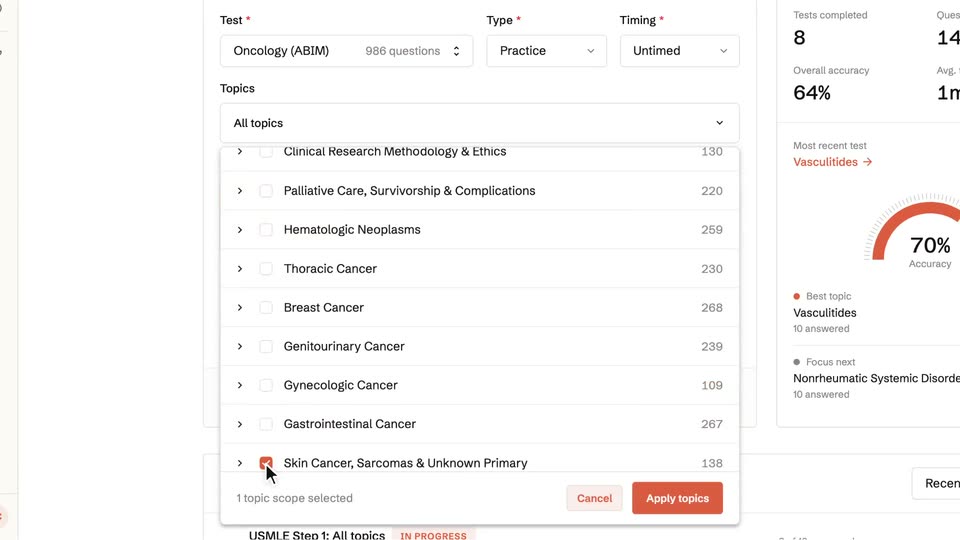
A light product dashboard tightens on a practice-test builder. A cursor clicks the Topics dropdown, a topic list expands, and the cursor checks Skin Cancer before moving to Apply topics.
Techniques: UI zoom, Cursor demo
Camera: Push in
03 · Feature reveal · 0:07–0:08
Inside the app, a practice-test form and a performance panel with a 70% gauge slide in as a cursor rests on the Build test button. The view then cuts to a question screen: a clinical vignette left, a chest CT right, and a numbered list beside it.
Techniques: Cursor demo
Camera: Pull out
04 · Feature reveal · 0:08–0:18
A screen recording of a medical exam interface scrolls down a question with two chest CT scans; the cursor selects an answer and a green feedback panel with statistics appears. The view then jumps to two more questions, highlighting the chosen and correct options in red and green.
Techniques: Cursor demo
Camera: Push in
05 · Feature reveal · 0:18–0:19
A static medical quiz screen holds on a multiple choice question. Option A sits in a green row with a check mark, a green Correct bar reports 64 percent and 1m 08s, and an explanation panel sits below. No motion occurs.
Camera: Static
06 · Demo · 0:19–0:20
A multiple-choice quiz screen with a green correct-answer banner dissolves into a Learn dashboard, where four feature cards and a calendar sidebar fade in.
Camera: Pull out
07 · Feature reveal · 0:20–0:21
A medical education dashboard with four feature cards and a calendar widget crossfades into a preceptor view showing a list of patient cases and a performance sidebar.
Techniques: Cursor demo
Camera: Push in
08 · Feature reveal · 0:21–0:24
A white medical-case dashboard fills the frame. A cursor opens the Training level dropdown and changes the filter from Clerkship to Fellowship, the case list refreshes, then the view changes to a case detail page showing the patient history and a goals panel on the right.
Techniques: Cursor demo
Camera: Push in
09 · Feature reveal · 0:24–0:26
A medical case UI fills the frame. A cursor glides across the top tabs while the left panel swaps from chief complaint to HPI notes, then the view zooms in on the central symptom list and the reply field.
Techniques: Cursor demo, UI zoom
Camera: Push in
10 · Feature reveal · 0:26–0:29
The view starts on a clinical list and an input field, then zooms out to the full chat layout as a cursor types and sends a diagnosis. A reply bubble slides in and a right-panel objective flips to completed.
Techniques: UI zoom, Cursor demo
Camera: Pan
11 · Feature reveal · 0:29–0:34
A close-up of a feedback card zooms out to reveal a three-column medical case interface. A cursor types 'pregnancy test' into the input box, then a lab-results table slides in and the objectives counter ticks from 1 to 2 of 6 as the highlighted goal moves down the list.
Techniques: UI zoom, Cursor demo
Camera: Pull out
12 · Feature reveal · 0:34–0:37
A three-column medical case interface. The center lesson panel blurs and swaps from a lab-results table to a closing summary, while the right sidebar updates from initial results, 2/6, to postoperative reassessment, 6/6, with objectives checked off.
Camera: Static
13 · Feature reveal · 0:37–0:42
The full case interface zooms into the central tutor response, enlarging the discharge advice and the CODA study summary until it fills the frame. The view then pulls back to the whole screen as a hand cursor hovers over the Rephrase button.
Techniques: UI zoom, Cursor demo
Camera: Pull out
14 · Feature reveal · 0:42–0:43
A medical education dashboard titled Learn, with four feature cards and a streak calendar, crossfades into a Flashcards detail view showing a generate panel and a review activity chart, while a cursor moves across the screen.
Techniques: Cursor demo
Camera: Push in
15 · Feature reveal · 0:43–0:44
A light flashcards dashboard with a sidebar and two stat cards fills the frame. The view zooms in toward the review activity chart and the generate flashcards bar, while a cursor rests at the chart's right edge.
Techniques: UI zoom
Camera: Push in
16 · Feature reveal · 0:44–0:45
A light dashboard shows a row of three buttons and an activity chart. A cursor moves up and presses the middle button, which fills gray.
Techniques: Cursor demo
Camera: Static
17 · Feature reveal · 0:45–0:46
On a cream background, a loose cluster of white rounded cards reflows and settles into a flashcard review screen. The header, progress line and bottom controls fade in while two text cards align side by side.
Camera: Static
18 · Feature reveal · 0:46–0:51
A flashcard review screen shows a rheumatology question. The cursor clicks Show answer, the view zooms in as the answer and four rating buttons appear, then clicks Good. The card swaps to the next question and the orange progress bar advances with each step.
Techniques: UI zoom, Cursor demo
Camera: Pull out
19 · Outro · 0:51–0:52
Two centered lines of dark serif text slide onto a plain cream background and hold in a locked-off frame.
On-screen text: “Personalized medical education platform”, “for every stage of a clinician's career.”
Techniques: Kinetic type
Camera: Static
20 · Outro · 0:52–0:57
On a plain cream background, a centered black serif tagline slides down slightly as the OpenEvidence logo with its orange arc and orange 'Learn' wordmark fades in above it, then holds.
On-screen text: “Personalized medical education platform for every stage of a clinician's career.”
Camera: Static