2:59
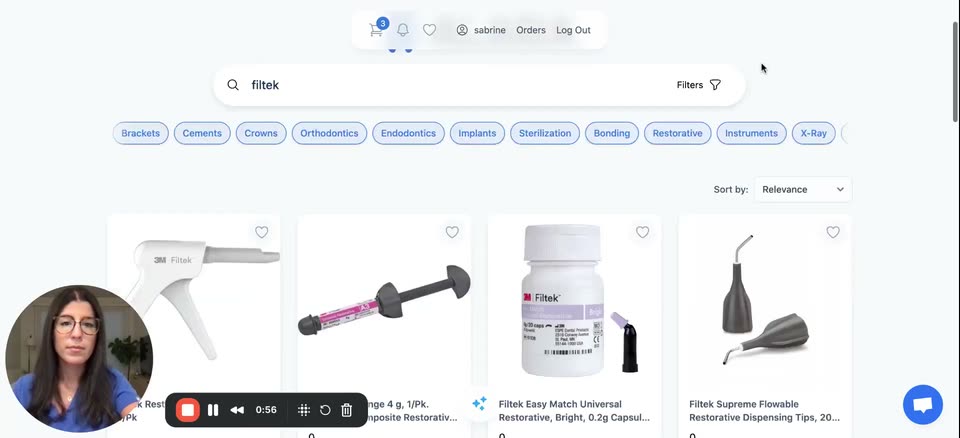

Alara Dental - Transforming Dental Supply Purchasing
Alara · B2B · Aug 2025
Microsoft · Mar 2026 · 1:49 · Full motion · AI-annotated
Microsoft’s 1:49 launch film runs 18 scenes, about 6.1 s each. The product is on screen from the first frame. There is no explicit call to action; a voiceover carries the film. Built as one continuous UI walkthrough: the camera zooms and pans across the Copilot window to follow a single meeting-prep workflow from prompt to finished deliverables, using a blue cursor ring to mark each click and a fade-to-white beat to separate phases. Pacing is slow with long holds, so the motion work is smooth, deliberate camera moves over static screens rather than animated elements, capped by static logo cards on black.
Is this your launch? to your site or press kit.
Alara · B2B · Aug 2025
Muse · Nov 2026
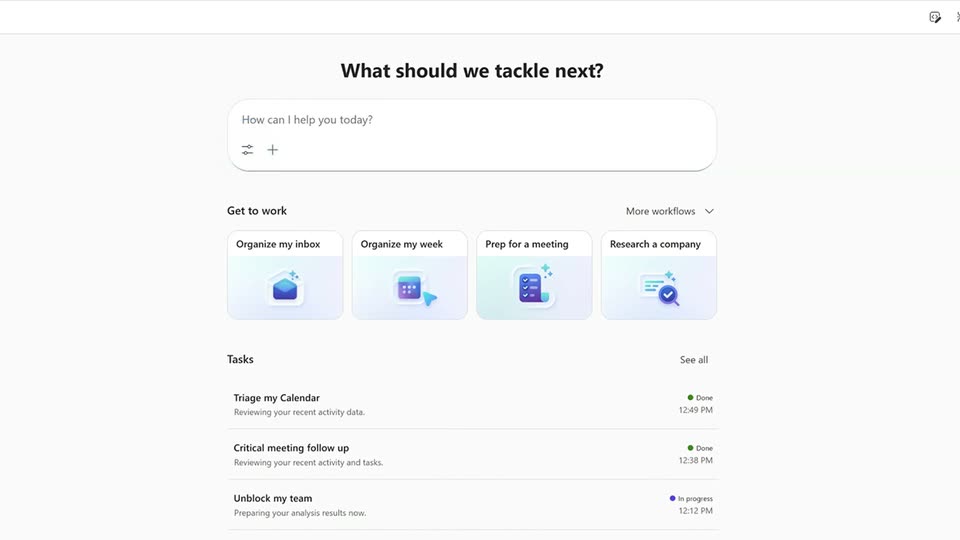
A Copilot home screen holds, then the view zooms into the left sidebar. A blue cursor taps the Cowork (Frontier) row, and the main panel swaps to the Cowork agent view with task cards and a prompt field.
Techniques: UI zoom, Cursor demo
Camera: Push in
The interface zooms in on the prompt box as a blue ring highlights the settings icon and a sources panel drops open, then closes. A long prompt with two file attachments fills the box, the send button is ringed, and the view pulls back to the full screen.
Techniques: UI zoom
Camera: Pull out
The Copilot chat screen streams rows of file reads and searches below the prompt, while a details panel on the right expands to list three subtasks. The view zooms into the chat column as a second prompt is typed into the message box, a blue cursor dot hovering beside it.
Techniques: UI zoom, Cursor demo
Camera: Push in
A close-up of the Copilot chat zooms out to the full interface as the assistant streams new action rows and a meeting form titled Focus Time: Zava Meeting Prep. The view then zooms in on the form, a ring highlights the Create button, and the thread continues with calendar lookups.
Techniques: UI zoom, Cursor demo
Camera: Static
A light product interface showing an agent's task list and response messages fills the frame, then the entire screen fades to white within a fraction of a second.
Camera: Static
The Cowork chat view scrolls down and an email draft window opens in the center, showing To, Cc and body fields with a message addressed to Ellis, staged as an editable draft.
Techniques: UI zoom
Camera: Push in
A close-up of an email draft composer sits in the assistant feed as a blue cursor ring hovers over the Save draft button. The frame then pulls back to the full window, where the right-hand progress checklist ticks off each task and the output folder lists the generated files.
Techniques: Cursor demo, UI zoom
Camera: Pull out
An agent task window scrolls from the step-by-step activity feed down to a final summary listing the Zava meeting deliverables in a status table, while the right Details panel reaches 100% progress and a cursor ring lands on an output file.
Techniques: Cursor demo
Camera: Push in
A task interface shows a document viewer on the left and a Details panel on the right. The left pane finishes loading and renders a one-page Customer Brief with a table, while a cyan ring highlights the Zava-Customer-Brief file in the Output folder.
Camera: Pull out
A Copilot chat window lists the finished Zava meeting package while a document preview on the right shows the customer brief. A blue cursor moves down the output folder and clicks the presentation file, swapping the preview to a dark navy title slide.
Techniques: Cursor demo
Camera: Static
A three-panel agent workspace shows a chat summary of a finished deck on the left, a dark navy slide preview in the center, and a details panel on the right; a cursor glides from the output file list to the slide pager.
Techniques: Cursor demo
Camera: Static
A light-themed Copilot workspace fills the frame, with a task chat on the left and a details panel on the right. In the center, a PowerPoint preview flips through slides, the page count stepping from 2 to 4 as stat cards and charts swap in.
Camera: Static
A Windows file browser and a Copilot task panel sit beside a PowerPoint slide, then the view zooms into an Excel workbook. A monthly revenue table with a line chart fills the screen, then a tab switch reveals a category table with a bar chart, held static.
Techniques: UI zoom
Camera: Push in
The Cowork home screen shows a sidebar, a prompt box and a tasks list. A blue cursor moves to See all, the frame zooms to the view toggle, and clicking the board icon slides a kanban of task cards in from the left.
Techniques: Cursor demo, UI zoom
Camera: Push in
A flat grid of white task cards with colored status pills pans left across the screen, revealing an In progress column at the left edge. The view stays level and the motion is steady.
Camera: Pan
A close-up of a task board with In progress, Needs user input and Done columns slowly zooms out to reveal the full Cowork app window, adding a left sidebar of agents, apps and chats. Cards carry status pills and short task titles.
Techniques: UI zoom
Camera: Pull out
A multicolored Copilot ribbon mark sits centered on black above two lines of white text. The lockup holds still, then the logo and text fade to black.
On-screen text: “Microsoft 365”, “Copilot”
Camera: Static
On a black background, the four-square Microsoft mark sits centered as the white Microsoft wordmark fades in beside it. The frame stays locked and static for the duration.
Camera: Static