2:39

Introducing Granola + Zapier | Your meeting notes, now connected with over 8,000 apps
Granola · Productivity · Jul 2025
ClickUp · Oct 2026 · 4:00 · AI-annotated
The video is a host-led update show: a desk intro with a bulleted headline, a logo sting, then six back-to-back feature segments, each opened by the host with a floating UI card and followed by full-screen or 3D-tilted interface demos, closing with a release-notes call to action, a logo card, and a blooper tag. Signature moves are the horizontal motion-blur wipes between the presenter and the UI, the tilted 3D app mockups, and the small floating feature cards pinned beside the host.
Granola · Productivity · Jul 2025
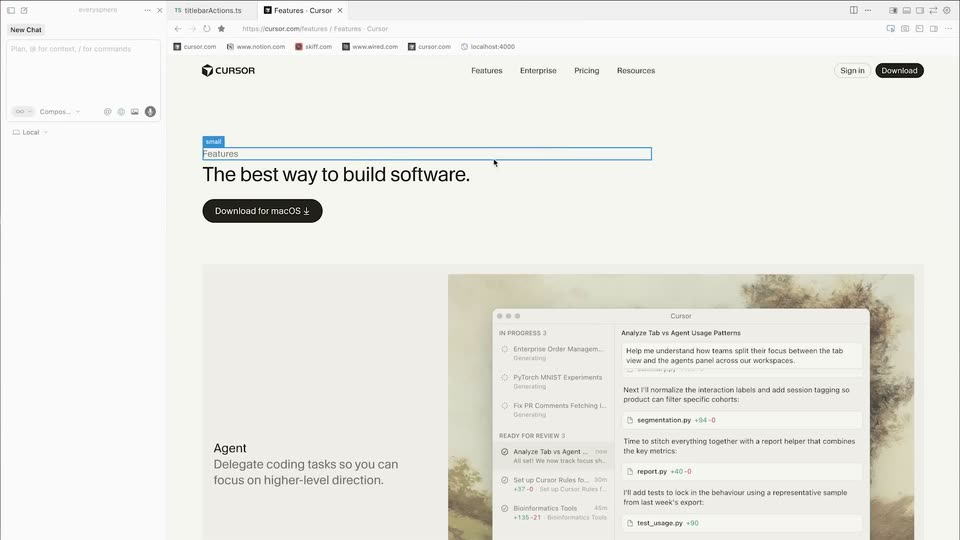
Cursor · Developer tools · Dec 2025
ClickUp · Productivity · Sep 2026
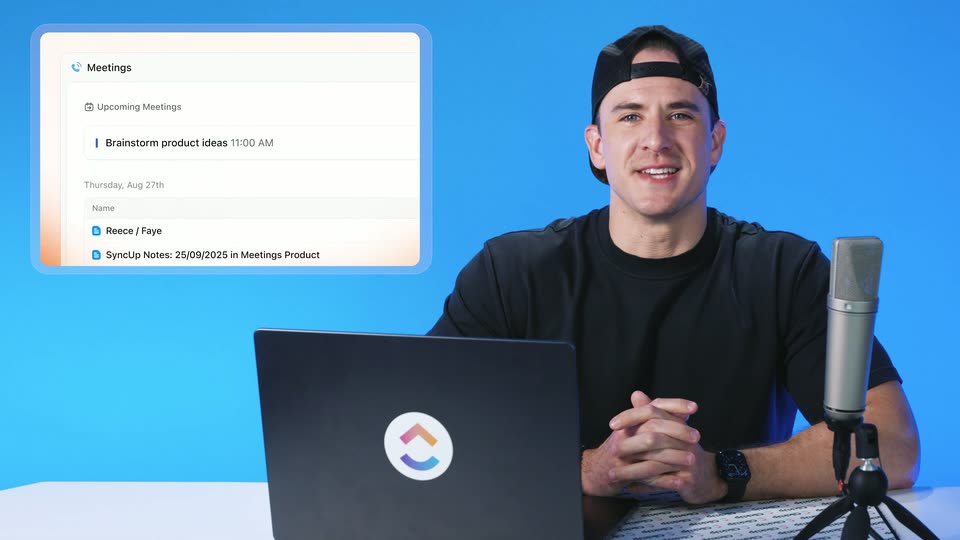
A man in a black shirt sits at a white desk against a blue wall, speaking to the camera with a laptop, microphone, and tumbler in front of him. On the left, a white headline types in and five bullet lines fade in one after another.
On-screen text: “ClickUpdates 4.09”, “• List Templates from Automations”, “• Personal Time Off Tracking”, “• Rebuilt Mentions Picker”, “• Automatic Parent Task Date Sync”, “• And More!”
Techniques: Kinetic type
Camera: Pan
A small two-part gradient logo, a pink-to-orange chevron over a purple-to-blue arc, sits centered on a plain white background. A static feature list and version title hold in place for the short sting.
On-screen text: “ClickUpdates 4.09”, “• List Templates from Automations”, “• Personal Time Off Tracking”, “Rebuilt Mentions Picker”
Camera: Static
The ClickUp logo lockup sits centered on a plain white background. The wordmark darkens from light gray to black as the gray caption Release 4.09 fades in beneath it.
On-screen text: “Release 4.09”
Camera: Static
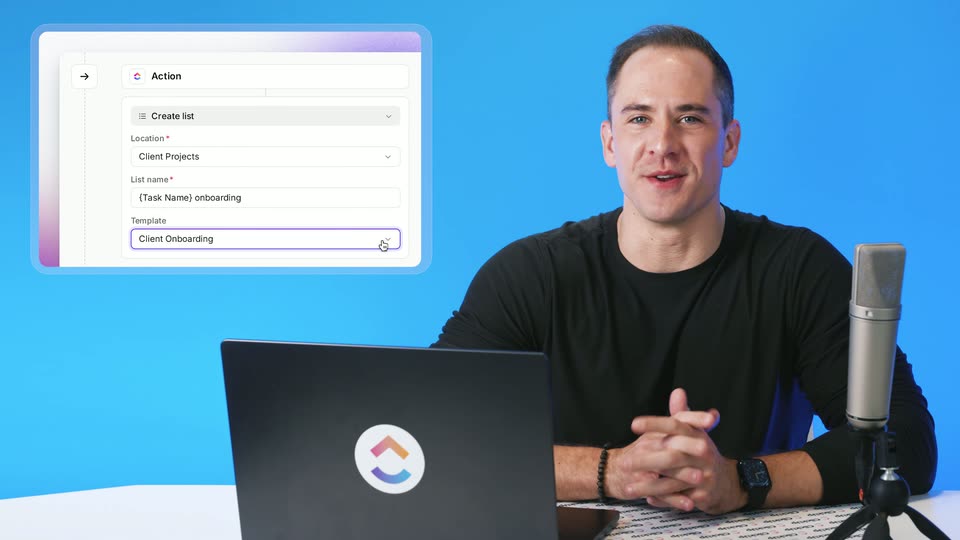
A man in a black shirt sits at a desk against a blue backdrop, speaking and gesturing. A laptop with a logo sticker and a studio mic frame him. A white Create list form card with a cursor on the template field sits at the left, sharpening from blur.
Camera: Static
A presenter in a black shirt sits at a desk with a laptop and studio mic against a blue backdrop. A UI card floats in the upper left showing a Create list form with a cursor at the Template field. The shot ends in a horizontal motion-blur wipe.
Techniques: Cursor demo
Camera: Pan
A blurred Employee Directory view sharpens into focus, then a cursor clicks the automations icon in the top bar and a side panel opens on the right listing AI Fields and automation cards.
Techniques: Cursor demo
Camera: Push in
A cursor configures an automation dialog: it sets the trigger to Status changed, from Awaiting Start to Onboarding, then picks the Create list action, chooses the Employee Onboarding location and types a list name. The screen cuts to workspace templates, where the Check New Name card is highlighted.
Techniques: Cursor demo
Camera: Pull out
A full-screen ClickUp view with a centered Template Center dialog. A cursor moves to the Use Template button and clicks it. The dialog switches to an automation setup form, then closes to reveal the Employees list grouped by status.
Techniques: Cursor demo
Camera: Static
A cursor opens a status dropdown over an employee table, hovers the options, closes it, then clicks a new-hire item in the left sidebar. The view reframes and zooms into a task list for that hire, showing sections for not started, in progress and complete.
Techniques: UI zoom, Cursor demo
Camera: Pull out
A man in a black shirt sits at a desk with a laptop and a studio microphone against a blue backdrop, speaking and gesturing. A white UI card listing team time off is pinned in the top-left corner. The shot closes with a motion-blur wipe.
Camera: Static
A tilted 3D view of a project management app on a light blue field zooms into a task list. A cursor rests on the Share button as the stage and content columns come into focus.
Techniques: 3D mockup, UI zoom, Cursor demo
Camera: Push in
A light task board interface with colored stage tags fills the frame. A cursor rests on the user avatar in the top right corner, holding open a profile dropdown that lists Settings, Notifications, Themes and Personal Tools over the list view.
Techniques: Cursor demo
Camera: Static
A tilted 3D mockup of a project app shows a profile panel for Eric. A cursor clicks Add time off, opening a date-picker modal and switching the panel to a Calendar tab reading No upcoming time off, the task list blurring behind.
Techniques: 3D mockup, Cursor demo
Camera: Pull out
A dimmed task list sits behind an Add time off modal. A cursor flips the calendar from October to November, clicks the 4th and 8th, the duration reads 3 working days, then the cursor presses Save.
Techniques: Cursor demo
Camera: Static
A project-management interface shows a task table beside a user profile panel. The view zooms in on the panel, where the Calendar tab is active and an upcoming time-off entry for Nov 4-8, 2026 sits above a date picker set to Thu, Oct 08.
Techniques: UI zoom
Camera: Push in
A task list fills the frame as the cursor clicks an empty assignee cell, opening a people picker. A dark tooltip warns the hovered member has time off on the task's dates. The view reframes to a team hub page with a members and time-off panel on the right.
Techniques: Cursor demo, UI zoom
Camera: Pan
A man in a black shirt sits at a desk with a studio microphone, hands clasped and gesturing, against a blue backdrop. A white mentions picker card floats at left listing people and tags, a cursor resting on one row; the frame ends in a horizontal motion-blur transition.
Camera: Pan
The view reframes from the full window to a comment box. Typing an @ symbol opens a mention picker that cycles through People, Tasks, Docs and Teams tabs, filtering live results for brand docs and GDrive files.
Techniques: UI zoom
Camera: Push in
Ghosted overlapping app views, a task list, a chat thread and a file panel, fade out as the New Hire FAQ document page settles into full view, framed by a dark icon rail and a top tab bar.
Camera: Pull out
A browser window frames a New Hire FAQ document. A cursor hovers at the Getting Started heading, an @ symbol types in, and a mention dropdown opens below it, listing people and agents under tabbed filters.
Techniques: Cursor demo
Camera: Static
A man in a black shirt talks to camera at a desk with a laptop and studio mic against a blue wall. A task card with an open sync menu floats at left. He gestures with clasped hands, then the frame whips into a horizontal blur.
Camera: Static
A full window of a project list zooms in on the left sidebar as a context menu opens over the list. The cursor picks More, flips the Subtask date sync toggle, and a confirmation dialog pops over the dimmed rows.
Techniques: UI zoom, Cursor demo
Camera: Push in
A white dialog titled 'Sync subtask dates' sits centered over a dimmed project list. The cursor glides from the dialog body to the dark Confirm button and clicks it.
Techniques: Cursor demo
Camera: Pan
A project task list shows three status groups, To Do, In Progress and On Hold, each with one task row. A cursor glides up from the empty space to the In Progress row, where a drag handle and three action icons fade in along the row.
Techniques: Cursor demo
Camera: Static
A close-up of a task screen scrolls to a subtasks table; the cursor edits a due date via a calendar popup, then the view pulls back to the full page in a browser window on a blue backdrop, a tooltip confirming the task now syncs subtask dates.
Techniques: Cursor demo, UI zoom
Camera: Pull out
A presenter in a black shirt sits at a desk with a laptop and microphone on a blue backdrop, speaking to camera. A chat overlay on the left shows a 'Forward to' menu, cursor on 'Marketing team.' The frame blurs out at the end.
Techniques: Cursor demo
Camera: Static
A flat project-management screen shows a task detail on the left and an AI activity feed on the right. The view zooms in on the activity panel as a cursor hovers over a triage comment.
Techniques: UI zoom
Camera: Push in
A cursor types a comment in a task thread and clicks send, then opens a Forward modal, picks a recipient from a search list, types a short note, and clicks Forward. The view pulls back to reveal the full task page.
Techniques: Cursor demo, UI zoom
Camera: Pull out
A cursor travels down the left sidebar of a workspace app, opens a direct message chat, then the view zooms into the thread to show a forwarded message with a quoted preview and a link back to the original.
Techniques: Cursor demo, UI zoom
Camera: Push in
A white Slack-style thread shows a green SyncUp banner at the top and a message from Eric above a quoted reply from You. A mouse cursor glides downward across the text, ending near the compose bar.
Techniques: Cursor demo
Camera: Static
A presenter in a black shirt sits at a desk with a laptop and a studio microphone against a blue backdrop, hands clasped, talking. A floating org chart panel with employee cards hovers at left. The scene ends with a horizontal blur wipe.
Camera: Pan
A flat product window on a pale blue field scales up from a small centered card to fill the frame, then a cursor drifts to the left sidebar and rests on the Artifacts row.
Techniques: UI zoom, Cursor demo
Camera: Push in
A tilted 3D view of a workspace app floats on a pale blue backdrop, a Teams list on the left and a task board on the right. A cursor hovers over a left-rail person icon while the angled interface holds steady.
Techniques: 3D mockup
Camera: Static
A tilted task-management interface rests on a pale blue backdrop with a soft shadow. A cursor glides up the left sidebar from the teams list to Org Chart and clicks it, and the main panel swaps the task list for a small org chart of labeled avatars.
Techniques: 3D mockup, Cursor demo
Camera: Static
A light Teams window opens on the Org Chart view with the left navigation panel, then the frame zooms into the chart canvas. Circular avatars with names link into a hierarchy under Cass Chan, Eric and Rob Wong, the connecting lines drawn in thin gray.
Techniques: UI zoom
Camera: Pull out
A white org chart interface fills the screen. A tree of avatar nodes with names and titles settles into place under the top bar, while a cursor glides across and hovers the By levels tab.
Techniques: Cursor demo
Camera: Static
A flat org chart view shows a central profile card above four colored sub-cards. The cursor glides to the top-right search field, types two letters, and a dropdown list of matching names drops in beneath it.
Techniques: Cursor demo
Camera: Static
On a white dotted-grid org chart, a cursor clears the search box and a name dropdown opens; picking a name recenters the chart on a new person and their report cards. The cursor then drifts toward the Agents button.
Techniques: Cursor demo
Camera: Static
An org chart interface in By levels mode shows a person card above a grid of member and agent cards. The view zooms out to reveal the full grid while a cursor glides from the Agents button to the top bar.
Techniques: UI zoom, Cursor demo
Camera: Pull out
A flat Teams screen shows a command bar dialog over a wall of colorful profile cards. The query go to org chart types in, and results refresh with Go to Org Chart on top. The cursor glides toward the list.
Techniques: Cursor demo
Camera: Static
A team workspace interface fills the frame, a cursor hovers over the first profile card. The view zooms out to reveal the app as a rounded window with a dark left rail on a pale blue background.
Camera: Pull out
A man in a black shirt sits at a white desk against a blue backdrop, speaking to camera and gesturing with his hands. A laptop with a circular logo, a studio microphone, and a white ClickUp tumbler sit on the desk. The locked-off medium shot stays steady.
On-screen text: “Teams”, “ClickUp”
Camera: Static
On a white background, the gradient ClickUp mark scales up from a small size at center, the bold black wordmark slides in with a soft trailing edge, and the gray tagline fades in beneath it.
On-screen text: “ClickUp”, “The everything app for work”
Techniques: Kinetic type
Camera: Static
A man in a black shirt talks to camera at a white table against a flat blue background, gesturing with his hands. A laptop with a logo sticker sits left, a silver mic and a white branded tumbler right. Locked-off shot; he smiles and glances at the laptop.
Camera: Static