1:50

The New Descript: A Better Way to Create Video, From Start to Finish
Descript · Design · Nov 2022
ClickUp · Sep 2026 · 2:51 · AI-annotated
The video is a host-led product update: a titled intro, four feature segments each opening with the presenter and a floating UI card before cutting to screen-capture demos, and a closing logo card followed by outtakes. Its signature moves are rack-focus in and out on host shots, 3D-tilted app windows that flatten to full screen, and quick zooms into interface panels.
Descript · Design · Nov 2022
Ramp · Finance · Sep 2026
Pitch · Productivity · Oct 2020
A man in a black shirt and cap sits at a white desk with a laptop and microphone, talking to camera against a blue backdrop. He gestures with his hands as a bulleted list of feature names types in on the left, one line at a time.
On-screen text: “ClickUpdates 4.08”, “Meetings Hub”, “Super Agent Cloning”, “Individual Assignee Grouping”, “ZoomInfo in the App Center”, “And More!”
Techniques: Kinetic type
Camera: Pan
On a white background, the gradient ClickUp icon starts small and centered, then settles into the logo lockup on the left. The black ClickUp wordmark appears to its right, and the gray tagline Release 4.08 appears beneath.
On-screen text: “Release 4.08”
Camera: Static
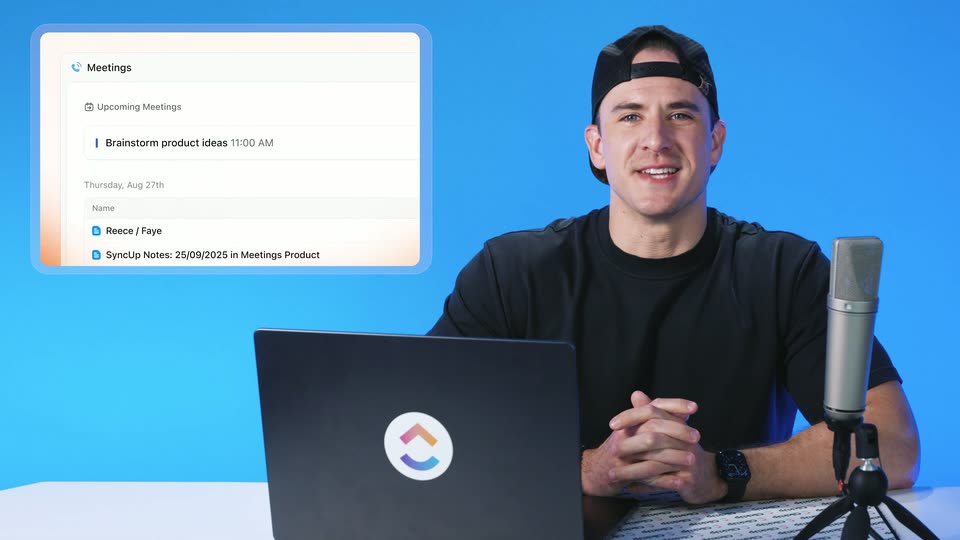
A presenter in a black cap sits at a white desk with a laptop and studio mic against a blue backdrop, hands clasped, talking to camera. A rounded Meetings panel floats at left showing an upcoming meeting and a notes row. The shot starts and ends defocused, racking into sharp focus mid-clip.
Camera: Pan
A wide dashboard of the Work app fills the frame. A cursor glides to Meetings in the left sidebar and clicks it, and the main panel switches to a Meetings page showing a greeting line and an upcoming-meetings list.
Techniques: UI zoom, Cursor demo
Camera: Push in
Cursor types a question about YouTube motion ads into the Meetings search bar and clicks send. The view pans to an AI chat panel that lists working steps, then answers with meeting notes and follow-up chips. The clip opens and closes with zooms on the app window.
Techniques: Cursor demo, UI zoom
Camera: Pull out
A man in a black t-shirt and backwards cap talks at a desk with a laptop and studio mic against a blue backdrop, while a white UI card showing an agent panel and an open Clone menu is composited at left. The shot blurs out at the end.
Camera: Pan
A product interface window sharpens from a soft blur into focus, revealing a left sidebar of agent and chat lists, a central Brain logo, a search field, and four task cards. A cursor rests in the open middle area.
Camera: Static
A locked-off view of the My Super Agents dashboard, a grid of AI avatar cards on pastel backgrounds. The cursor glides from the left sidebar to the top-right corner of the Digest Drew card, opening a small hover menu.
Techniques: Cursor demo
Camera: Static
A screen capture of an AI workspace zooms into the Digest Drew agent page. The cursor opens the three-dot menu, hovers Clone, then the view pulls back to the sidebar as the cursor selects My Agents.
Techniques: UI zoom, Cursor demo
Camera: Push in
The “My Super Agents” dashboard shows an org chart and a grid of agent cards with portraits wearing gradient glasses. The cursor slides from the sidebar to the first card, Digest Drew (Copy 2), and a small hover pill with a chat icon and ellipsis appears.
Techniques: Cursor demo
Camera: Static
A light product interface for the Super Agent Builder fills the frame, with a left navigation list and a right panel showing the 'Digest Drew (Copy 2)' agent. The view slowly zooms in toward the center while a cursor hovers in the empty middle area.
Techniques: UI zoom
Camera: Pan
A product interface shows an agent setup page with a black Activate Super Agent button and instruction text. The camera zooms into the right panel, cropping the sidebar, while a cursor sits at the left edge.
Techniques: UI zoom, Cursor demo
Camera: Pan
Screen capture of an AI agent profile page. The cursor renames the agent, clicks Activate, then opens the ellipsis menu and selects Save as template. A modal appears where the cursor types a name and description and sets visibility to Everyone.
Techniques: Cursor demo
Camera: Pan
A chat app interface tilted in 3D perspective, showing an agent list sidebar and a prompt box. A cursor glides to the Open button on a “Template created” toast and clicks it, sliding a “Template includes” panel in from the right.
Techniques: 3D mockup, Cursor demo
Camera: Pan
A close-up of a 'Template includes' list zooms out to reveal a full 'Template Center' modal with an agent profile and description.
Techniques: UI zoom
Camera: Pull out
A Template Center modal overlays a dimmed chat interface. A cursor moves up from the skills section to hover over the Use Template button in the top right corner.
Techniques: Cursor demo
Camera: Static
A cursor types a name into the Super Agent name field of a white modal, then the view pulls back to reveal the full app window with its left sidebar as the cursor moves to the Use Template button.
Techniques: Cursor demo, UI zoom
Camera: Pull out
A light-themed desktop app window fills the frame, showing a Super Agent Builder view with an agent profile, a dark Activate button, and a block of instruction text. A mouse cursor rests in the lower right of the right panel. The view holds still.
Camera: Static
A man in a black tee and cap talks to camera at a white table against a blue backdrop, a list view card floating in the upper left. It cuts to the full list view screen with colorful tags and a cursor.
Techniques: Cursor demo
Camera: Pan
A 3D-tilted window of a task app flattens to full screen. A cursor opens the group-by menu, picks Assignee and flips the one-assignee-per-group toggle, so rows re-group under each person; it then does the same with Tags before the window tilts back into 3D.
Techniques: 3D mockup, Cursor demo, UI zoom
Camera: Static
A project management interface fills a browser window on a light blue background. A task table lists rows grouped by section, each with colored status pills and small avatar icons. A mouse cursor rests near the top. The view stays static.
Camera: Static
A man in a black cap and t-shirt sits at a desk with a laptop and studio microphone, talking and gesturing against a blue backdrop. A rounded chat card for Brain² and Zoominfo floats at left, showing a query and a verified answer. The card blurs and dissolves at the end.
Camera: Static
A tilted window of the project app rests on a light blue field, then the frame zooms to the top-right corner. A cursor clicks the user avatar, opening a dropdown menu, hovers over a notifications option to reveal a submenu, then moves down to Settings.
Techniques: 3D mockup, UI zoom, Cursor demo
Camera: Push in
A tilted ClickUp preferences window floats on a blue backdrop. The view scrolls past the profile form to the two-factor section, then the cursor moves into the left sidebar and clicks App Center, expanding a dropdown of integration categories.
Techniques: 3D mockup, UI zoom, Cursor demo
Camera: Pan
A cursor clicks the App Center item in the left sidebar, opening a dropdown of categories. The dropdown fades as the view settles on the App Center page, where a grid of integration cards (Dropbox, Figma, Slack, Zoom) fills the right side.
Techniques: Cursor demo
Camera: Pull out
A light App Center window fills the frame, a sidebar of categories on the left and a grid of integration cards on the right. A cursor glides down the sidebar and clicks CRM & Support, and the Featured grid crossfades into a CRM list.
Techniques: Cursor demo
Camera: Static
A light app interface displays the ZoomInfo MCP page, with a left sidebar of integration categories and a main panel holding a connection card. A white cursor glides up from the lower panel and stops over the dark Connect button.
Techniques: Cursor demo
Camera: Static
A white setup modal loads with a spinner, then flips to a 'You're done!' heading above a list of tools with red checkboxes. The cursor hovers over rows, popping dark tooltips, while the list scrolls. The frame zooms out to reveal the ClickUp settings window with ZoomInfo MCP connected.
Techniques: Cursor demo, UI zoom
Camera: Pull out
A man in a black cap and t-shirt sits at a white desk against a blue backdrop, speaking to camera. A laptop with a ClickUp sticker, a studio microphone and a white ClickUp tumbler sit on the desk. He gestures with his hands, then clasps them.
On-screen text: “ClickUp”
Camera: Static
A white background shows the gradient ClickUp mark, which shifts left as the bold wordmark wipes in, then the tagline fades in below. The lockup holds before cutting to a man in a cap at a desk with a laptop, mic and branded tumbler on a blue set.
On-screen text: “The everything app for work”
Techniques: Kinetic type
Camera: Static
A man in a black cap and t-shirt sits at a white desk against a blue backdrop, talking to camera and gesturing. A laptop with a colorful logo sticker, a studio mic on a small tripod, and a white ClickUp tumbler sit on the desk; the frame stays locked off.
On-screen text: “ClickUp”, “The everything app for work”
Camera: Static
A man in a black t-shirt and backwards cap leans over a white desk against a blue backdrop, taps the surface with a finger, then stands and exits left, leaving the laptop, microphone and ClickUp tumbler in frame.
On-screen text: “ClickUp”
Camera: Static