2:14

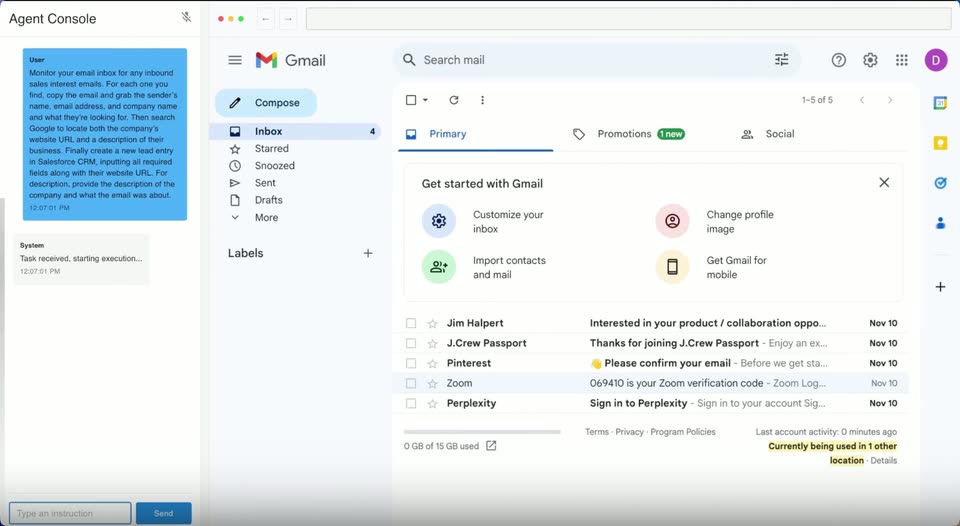
AutoComputer (YC F24) — Demo
AutoComputer · B2B · Nov 2024
Bidflow · Jan 2026 · 1:31 · Full motion · AI-annotated
Bidflow’s 1:31 launch film runs 17 scenes, about 5.4 s each. The product is on screen from the first frame. There is no explicit call to action; a voiceover carries the film. The video is one unbroken screen-capture walkthrough with no title cards, hook, or call to action; it advances by cross-dissolving and blurring between UI states while the cursor drives each step. Pacing is steady and voiceover-led, with the camera holding on static screens and punctuating key moments with quick zoom-ins and blur-to-focus reveals on the estimate cards and the proof-of-work feed.
Is this your launch? to your site or press kit.
AutoComputer · B2B · Nov 2024
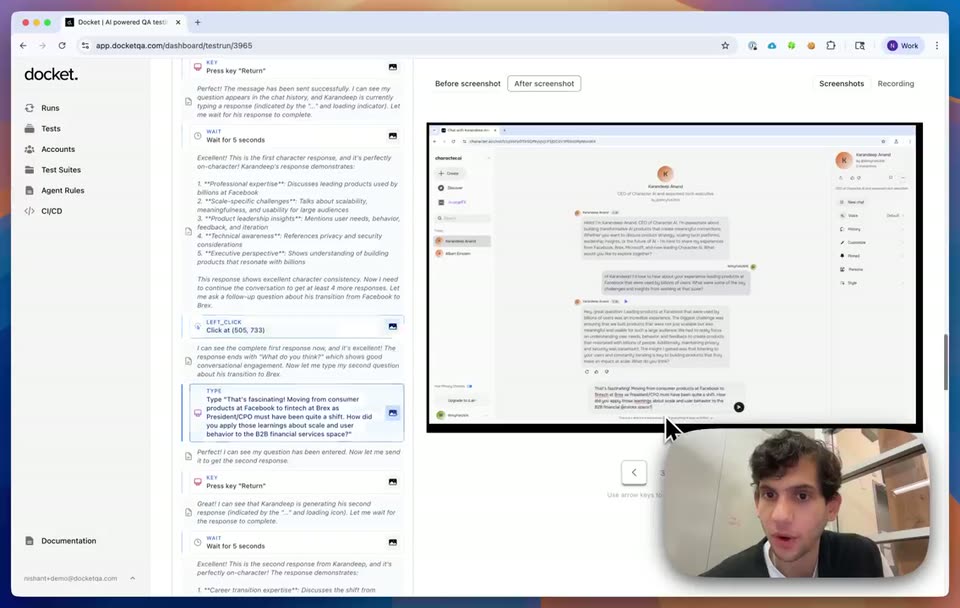
Kura AI · B2B · Nov 2024
Films whose music sounds like this one, voice left out
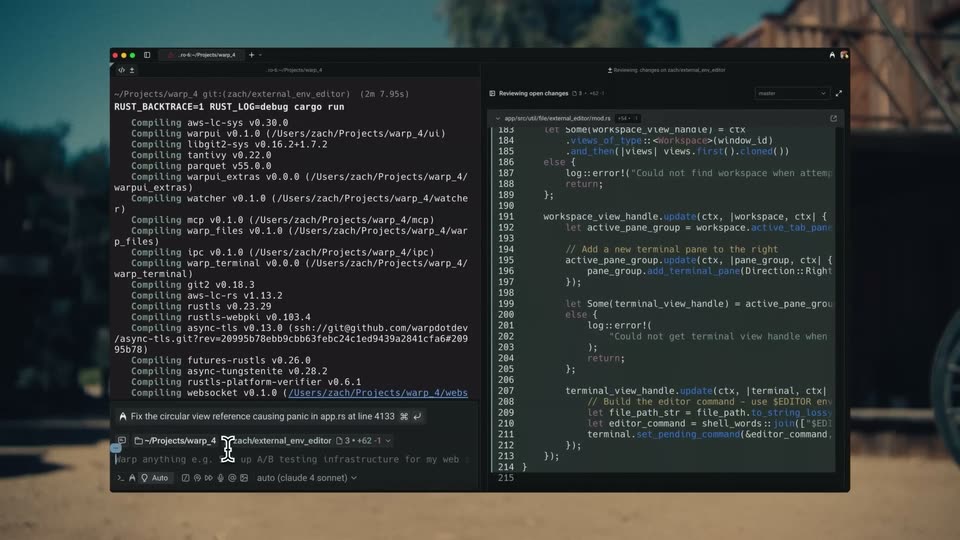
Warp · Upbeat electronic and lo-fi hip-hop
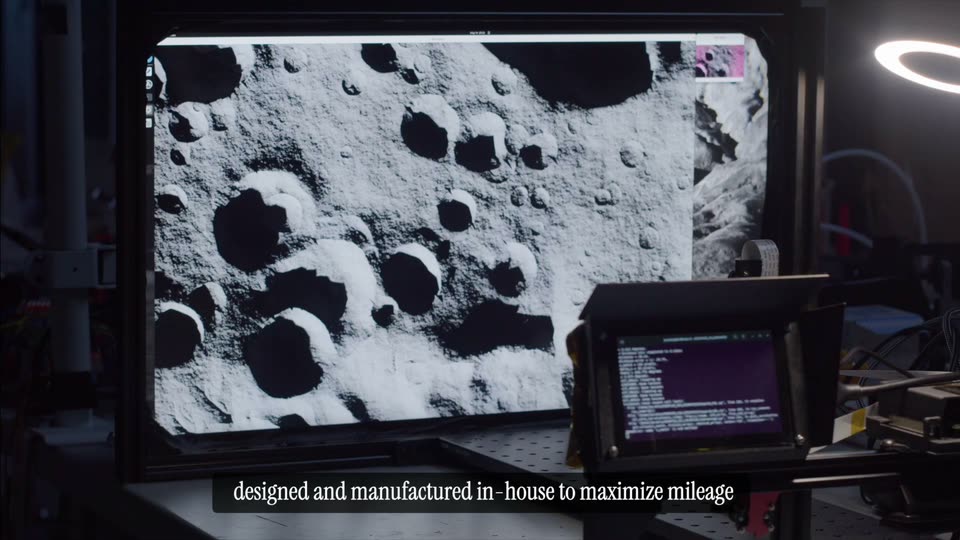
Instinct Space · Cinematic electronic
Factory · Modern electronic and rock
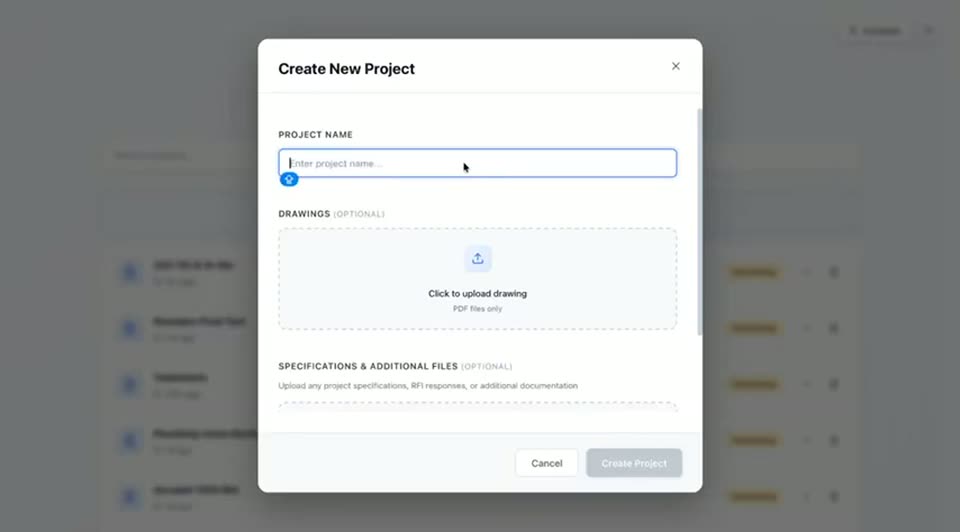
A white Create New Project dialog sits over a blurred dashboard. A cursor clicks the project name field, types Demo as a name-suggestion list flashes, then moves to the upload box while the Create Project button turns blue.
Techniques: Cursor demo
Camera: Static
A macOS file picker dialog overlays a Create New Project modal. The cursor switches the file view from a grid of folders and PDFs to a list, and the location changes to Recents, leaving a short two-line file list.
Techniques: Cursor demo
Camera: Static
A centered 'Create New Project' dialog floats over a dimmed dashboard sidebar. A dark file-browser window fades in and rises in front of it, filling the frame with a grid of PDF files and folders.
Camera: Static
A white Create New Project modal pops in over a blurred dashboard, listing two PDF files above a dashed upload zone. The blue Create Project button switches to a gray Uploading state and holds.
Camera: Static
A line-drawn architectural floor plan in a PDF viewer zooms out from a tight crop to the full isometric view. A cursor drifts across the canvas, then hovers a toolbar icon that pops a small Specifications tooltip. A right panel holds the title Demo and a question box.
Techniques: UI zoom, Cursor demo
Camera: Pull out
A blurred document page fills the screen with sharp black title text reading PROJECT MANUAL. A tooltip pops over the filename, then the view dissolves to an isometric line drawing of a floor plan beside a thumbnail sidebar.
Camera: Static
A property panel over an isometric floor plan shows a color swatch shifting from yellow to teal, a thickness slider and a Set Scale button, while a cursor hovers the button. The view then zooms into the line drawing.
Techniques: Cursor demo, UI zoom
Camera: Static
A split-screen product view: an isometric architectural drawing sits in a PDF viewer on the left while a chat panel on the right streams an italic response under a prompt bubble. The drawing reframes around the 20-second mark as status lines cycle below the prompt.
Techniques: Split screen, UI zoom
Camera: Static
A light UI screen shows a takeoff table in a right panel with line items and a blue TOTAL row, while the left canvas stays mostly blank. A small cursor hovers over a row, then a circular spinner and the words Loading estimate fade in at center left.
Techniques: Cursor demo
Camera: Static
A project estimate screen shows a line-item table left and a demo panel right. The table scrolls and its rates and rows update, revealing an Add New Item button, while the right panel scrolls down to a yellow note and numbered install steps. A cursor moves across both.
Techniques: Cursor demo
Camera: Static
The right Demo feed scrolls steadily down through cited drawing pages, highlighted notes, assembly and component lists while the left estimate table holds still. A cursor follows the scroll down the feed.
Techniques: Split screen, Cursor demo
Camera: Static
A split screen shows a project estimate table on the left and a document panel labeled Demo on the right. A cursor hovers over extracted text snippets as the right column scrolls upward.
Techniques: Split screen, Cursor demo
Camera: Static
A split product view shows a blank PDF page on the left and a Demo panel on the right listing two quoted source cards. A cursor rests on the first card as the frame holds on the static screen.
Techniques: Cursor demo
Camera: Static
A split screen pairs a scrolling PDF on the left with a static results panel on the right. The document moves vertically to center a yellow highlighted line, while the right panel keeps two page reference cards in place.
Techniques: Split screen
Camera: Pan
A project estimate screen sharpens into focus: summary cards above a line-item table, a material takeoff panel on the right with a blue total row. A cursor hovers over a highlighted row, then the camera zooms in on the top cards.
Techniques: Cursor demo, UI zoom
Camera: Static
A close-up of the estimate dashboard's rate cards and line items blurs into the full app view. A cursor hovers the Export CSV button, then the line-item table swaps to a totals row beside a side panel.
Techniques: UI zoom, Cursor demo
Camera: Static
The frame holds on a solid black screen for the entire scene. No text, logo, interface, or motion appears; the shot is a flat black field with no visible elements.
Camera: Static