1:30

Introducing Notion 3.0: Agents
Notion · Productivity · Sep 2025
Wispr Flow · Oct 2025 · 2:08 · AI-annotated
Wispr Flow’s 2:08 launch film runs 25 scenes, about 5.1 s each. The product shows up at 0:12 and 3 features are revealed. The call to action lands at 1:53 (89% in), over a voiceover. A single presenter narrates over a rapid cut of screen recordings and studio talking heads, alternating full-frame dictation demos with close-ups of the phone and mic. The look is built on clean white UI screens, a recurring black waveform pill, and a purple studio set, with a logo sting closing the piece.
Is this your launch? to your site or press kit.
Notion · Productivity · Sep 2025
Wispr Flow · Aug 2026
Wispr Flow · Sep 2024
Films whose music sounds like this one, voice left out
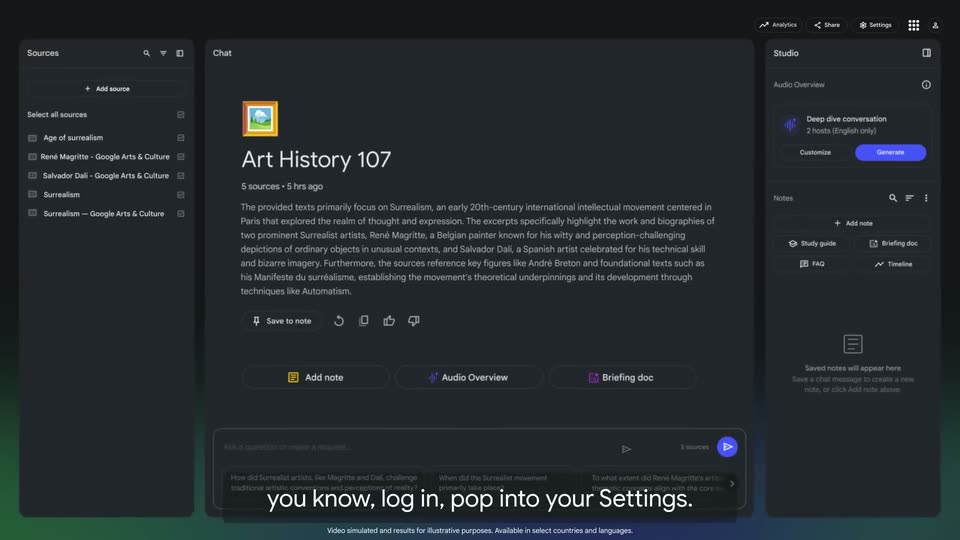
Google · Podcast
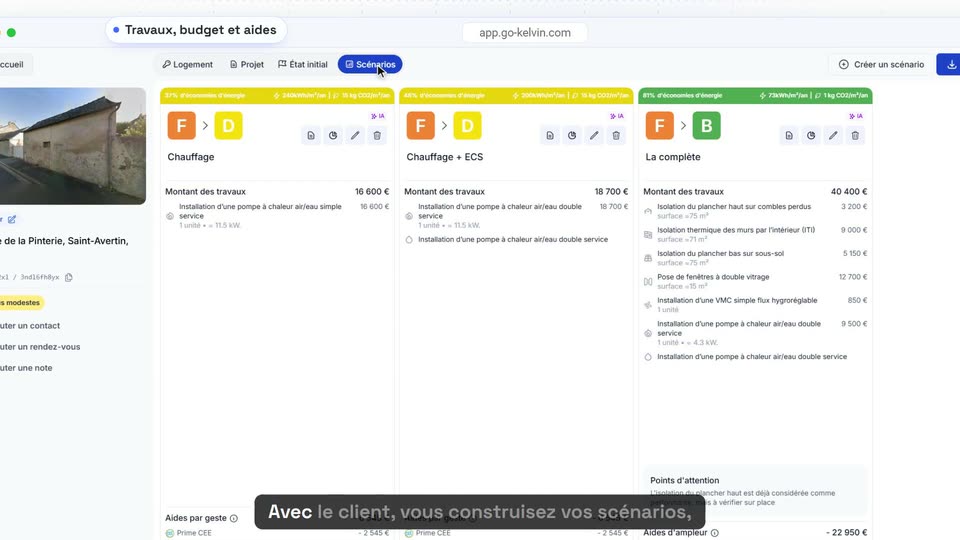
Kelvin · Corporate explainer / SaaS product demo
A white assistant screen with a small self-view tile of a man top right. Center, the line “What can I help with?” holds still. A black cursor drops onto the input bar as “how” types in.
Techniques: Cursor demo
Camera: Static
A white AI chat interface: the heading “What can I help with?” sits above an input bar where a query is typed letter by letter, suggestion rows fading in and out below. A webcam video of a man is pinned top-right. The frame zooms out to reveal the browser.
Techniques: Cursor demo, UI zoom
Camera: Pull out
A Chrome window displays the ChatGPT interface, with a video call of a man in a leather jacket pinned in the top right corner. The line 'Ready when you are.' fades into the blank center while a cursor glides down toward the input bar.
Techniques: Cursor demo
Camera: Push in
A bright product screen shows an “Ask anything” input bar with a black cursor hovering over it, while a small webcam clip of a man plays in the top-right corner. A pill caption reads “Dictating with Wispr Flow,” and the dictated sentence types itself into the field.
On-screen text: “Ready when you are.”, “With Wispr Flow”, “Dictating with Wispr Flow”, “I can just speak long prompts”
Techniques: Cursor demo
Camera: Static
A bearded man in a black leather jacket speaks into a studio microphone against a purple wall with framed illustrations and a plant. A white lower-third with his name and title fades in on the right while subtitles run along the bottom.
On-screen text: “This is Tanay from Wispr Flow”, “Tanay Kothari”, “CEO of Wispr Flow”, “and let me show you what makes”, “Wispr Flow special”
Camera: Static
A Gmail compose window fills the frame with a small face-cam inset top right; a black cursor sits idle at left while a 'Dictating with Wispr Flow' pill pulses at the bottom. Subtitles caption the narration, then the view zooms into the email body to reveal a numbered list.
On-screen text: “If you're often drowning in emails”, “you can use Wispr to respond to them”, “blazingly fast”, “Hey Sahaj”, “there's three things Wispr does really well”, “it's insanely fast”, “it's insanely accurate”, “and it gets names right”
Techniques: UI zoom
Camera: Push in
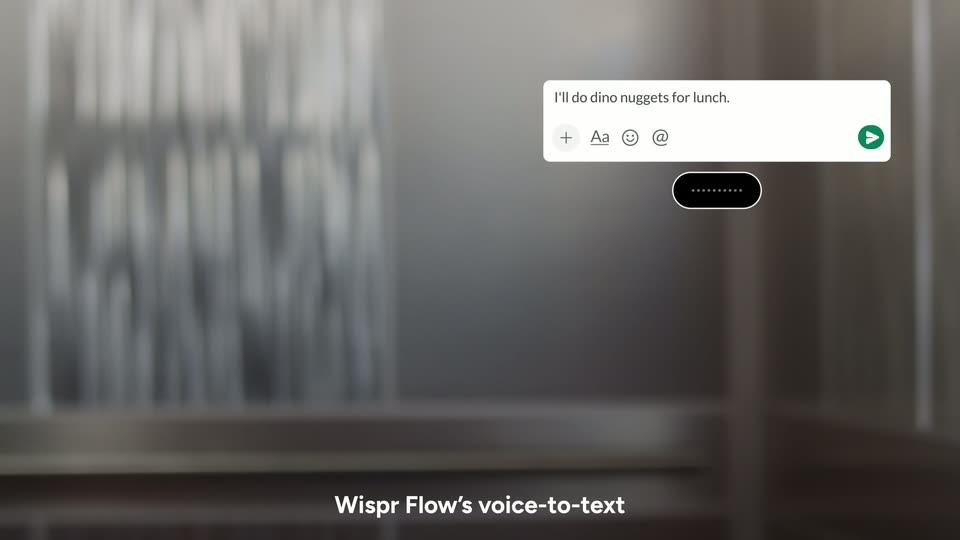
Slack DM screen with a profile header and a video call window top right. A white cursor rests on the microphone icon in the message toolbar; caption pills swap below it, a black Dictating with Wispr Flow pill with a waveform appears, and the dictated sentence types into the field.
On-screen text: “Wispr's perfect if you're often overwhelmed”, “with the number of Slack messages”
Techniques: Cursor demo
Camera: Static
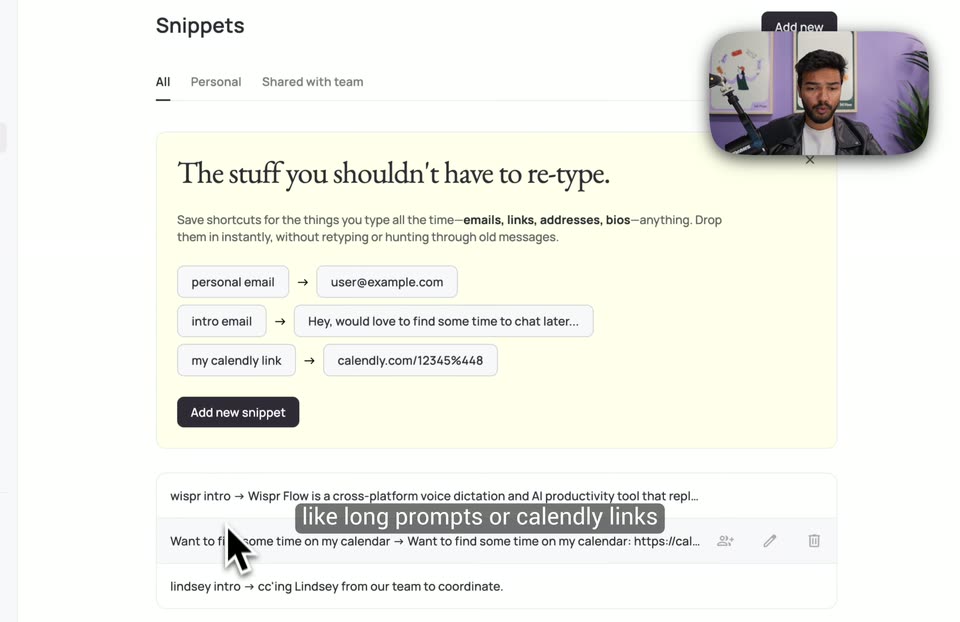
The Snippets screen zooms in from the full desktop, a yellow card listing example shortcuts at the center, presenter in a top-right inset. A cursor moves down the list while captions swap below, then the frame pulls back slightly.
On-screen text: “with our latest feature snippets”, “you can use shortcuts for things you say often”, “like long prompts or calendly links”
Techniques: UI zoom, Cursor demo
Camera: Push in
A screen recording of the Lovable prompt page with a small PiP video of the presenter top right. A dictated paragraph fills the white input box as the view zooms in, then a second line types in. White caption pills at the bottom track the voice dictation.
On-screen text: “like long prompts or calendly links”, “Dictating with Wispr Flow”, “Wispr intro”, “Can you create a dashboard to see all of the referrals?”
Techniques: UI zoom
Camera: Push in
A locked-off screen recording of a code editor with TypeScript files open and a man's webcam in the corner. Subtitles swap at the bottom as the cursor moves to the chat panel; the view zooms in on the chat box where the dictated message with file tags appears.
On-screen text: “For developers”, “Wispr seamlessly integrates with”, “all your favorite IDEs”, “Hey can you look at auth.ts”, “constants.ts”, “and fix the bugs across all of them?”, “and it also tags files”, “and gets variable names right”
Techniques: Cursor demo, UI zoom
Camera: Pull out
A man in a black leather jacket talks to the camera in a lavender-walled room, a Shure mic on a boom arm at left and framed art and a plant behind him. White subtitles sit at the bottom as he lifts a small blue device into frame.
On-screen text: “We also built an iPhone app”, “for people who do their best work on the go”, “or while commuting”
Camera: Static
A man in a leather jacket holds a smartphone up to a locked-off camera, showing a chat app with a numeric keyboard. He taps the mic key; the keyboard switches to a Listening panel with an animated waveform, then the dictated sentence fills the message box.
On-screen text: “It's actually a keyboard”, “that lets you use it in any application”, “or while commuting”, “you just tap a button speak”, “tap again”, “and text shows up”, “perfectly formatted”
Camera: Static
A presenter holds a phone up to the camera showing a chat app with an on-screen keyboard, points at the screen with the other hand, then lowers the phone to chest level and gestures while speaking. A caption sits at the bottom of the frame.
On-screen text: “perfectly formatted”, “And the best part is”
Camera: Static
A man in a black leather jacket sits before a purple wall, a Shure microphone on a boom arm at his left. He faces the camera, then holds a phone close to the mic and whispers into it to test its sensitivity.
On-screen text: “And the best part is”, “you can whisper extremely quietly”, “I'm gonna pull this mic”, “very close to my mouth”, “so you can see”, “This is sick if this works for me”, “speaking so softly”
Camera: Static
A bearded man in a black leather jacket looks at a phone, then flips it to show the blue back with a vertical camera module. A Shure mic on a boom arm frames the left foreground; a purple wall, framed art and a plant fill the background.
Camera: Static
A person in a black leather jacket holds a phone toward the camera, screen showing a chat app with a number pad. The device eases from a soft blur into focus against a purple wall with a plant and a microphone.
Camera: Static
A hand holds a phone upright against a lavender wall, its screen showing a chat thread and number keyboard in a static close-up. A Shure mic and a potted plant frame the edges. A white caption sits at the bottom.
On-screen text: “And that got it perfectly”
Camera: Static
A product dashboard fills the frame with a left sidebar and a recent-activity list, while a small webcam inset shows the presenter in the top right. A cursor hovers at the sidebar edge and a gray caption bar at the bottom cycles through phrases.
On-screen text: “if you're someone who speaks multiple languages”, “go to settings”, “languages and add”
Techniques: Cursor demo
Camera: Static
A light dashboard interface fills the frame, sidebar on the left and a video call window in the top right corner. A hand cursor rests on the Settings item at the bottom of the sidebar as a gray caption box labeled go to settings appears beside it.
On-screen text: “go to settings”
Techniques: Cursor demo
Camera: Static
The Flow settings window is open on the General page, with rows for keyboard shortcuts, microphone, and languages. A hand cursor slides from the left sidebar to the Languages row. A presenter's webcam clip is pinned in the top right, and a 'go to settings' caption sits at the bottom.
On-screen text: “go to settings”
Techniques: Cursor demo
Camera: Static
A settings modal crossfades from the General view to the Languages grid, a pixel hand cursor hovers over the selected list, a webcam bubble of a man sits top right, and a languages caption rests at the bottom.
On-screen text: “languages”
Techniques: Cursor demo
Camera: Static
A dimmed app sits behind an open Languages settings modal. A white cursor clicks the Hindi tile, which appears in the Selected list on the right, while a small webcam video of a man plays in the top right corner.
On-screen text: “and add not just one”, “but every language you speak”
Techniques: Cursor demo
Camera: Static
A Languages settings modal with flag labels fades out as a hand cursor clicks Save and close, revealing the General settings page. A small video call window with a man sits in the top right corner. A caption reads at the bottom.
On-screen text: “but every language you speak”
Techniques: Cursor demo
Camera: Static
A screen recording of the Wispr Flow website fills the frame, with a small webcam feed of a man in the top right corner. The view zooms into the browser address bar, then back out, while caption pills roll across the bottom and a cursor hovers over the page.
On-screen text: “If you're ready to get started”, “go to wisprflow.ai”, “and download it for free”, “it's available across Mac”, “Windows and iPhone”, “with Android coming soon”
Techniques: Cursor demo, UI zoom
Camera: Pull out
A white waveform mark scales up at the center of a near-black screen, then shifts left as the wordmark Flow slides in with motion blur. The URL wisprflow.ai fades in beneath, and purple Download for Mac and Download for Windows lines with platform icons appear at the bottom.
On-screen text: “Flow”, “wisprflow.ai”, “Download for Mac”, “Download for Windows”
Techniques: Kinetic type
Camera: Static