
1:11
Explore
00:00:00 / 02:24:01
- Length
- 2:24
- Scenes
- 23 · 6.3 s avg
- Product on screen
- 0:26
- Features shown
- 4
- Voiceover
- Yes
- Views
- 230 on YouTube
as of November 19, 2026
Ramp’s 2:24 launch film runs 23 scenes, about 6.3 s each. The product shows up at 0:26 and 4 features are revealed. There is no explicit call to action; a voiceover carries the film. An interview-style intro hands off to a long, slow screen demo in which yellow highlight boxes trace every click and white panel wipes swap between the presenter and the UI. The story follows one spend spike from dashboard to briefing to router and back, closing on the ramp wordmark over black.
Footage neededEstimated needs: 4 capture groups — your screens or recordings · 1 official logo — reused across the film · 7 filmed passages — shoot, supply or replace · 1 3D passage — build or supply
Is this your launch? to your site or press kit.
More like this


Similar soundtrack
Films whose music sounds like this one, voice left out
3:29
3:29

Bolt.new V2 Is Here: The Future of Building
StackBlitz · Electronic
2:17


Introducing multi-agent orchestration
Warp · Corporate Tech
AI spend x Router demo, scene by scene
· 23 scenes as text
01 · Hook · 0:00–0:05
A woman with glasses sits at a desk facing the camera, hands on a laptop. A yellow title pill with an arrow slides in over her chest, joined by a black logo tile, then both exit as a white name caption fades in at the lower left.
On-screen text: “AI Spend x Router Demo”, “Lucia Kim”, “Senior Product Marketing Manager, Ramp”
Camera: Static
02 · Problem · 0:05–0:12
A woman with long dark hair and glasses sits at a bright desk with a laptop, speaking to an off-screen interviewer. A lower-third caption identifies her for the first two seconds. The locked-off shot holds on her as she talks and gestures with her hands.
On-screen text: “Lucia Kim”, “Senior Product Marketing Manager, Ramp”
Camera: Static
03 · Problem · 0:12–0:26
A woman with glasses sits at a desk in a bright home office, talking to the camera and gesturing. A dark laptop with the lid facing the camera sits in front of her. A yellow stepped shape wipes in from the left to cover the frame at the end.
Techniques: Masking
Camera: Static
04 · Feature reveal · 0:26–0:27
White rectangular panels slide across a pale yellow background, masking and revealing a white card that holds a small vertical bar chart and a Q1 dollar figure. A second panel pushes in from the lower left.
Techniques: Masking
Camera: Static
05 · Feature reveal · 0:27–0:32
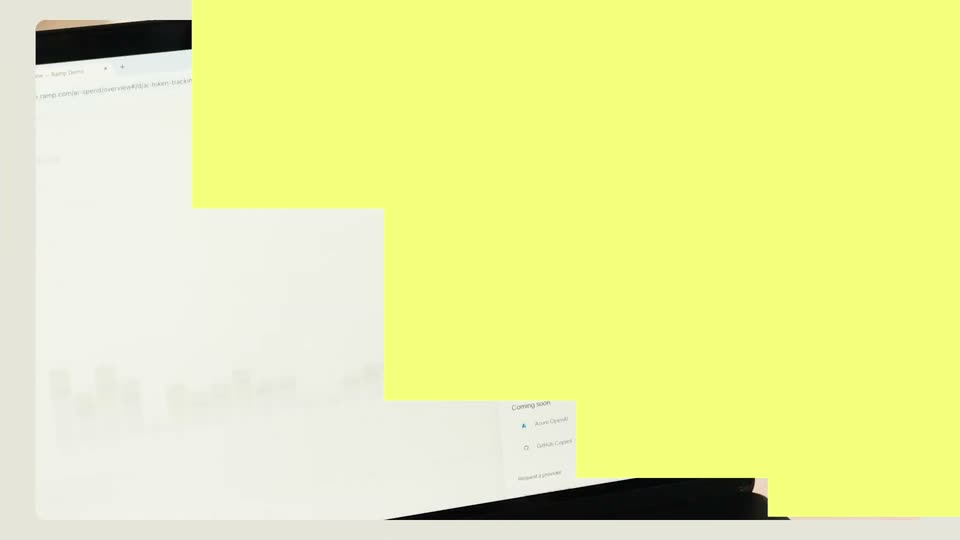
An angled laptop on a desk shows a settings page listing connected AI providers as a hand with a watch points at the rows. The view then switches to a spend dashboard with a stacked bar chart.
Camera: Static
06 · Feature reveal · 0:32–0:54
A cursor moves across a light spend dashboard, flashing yellow boxes over the metric cards, then opens a group-by menu to swap the bar chart between provider, model and task views. The page scrolls down to tables of top spenders, API keys and departments, ending on a hovered percentage.
Techniques: Cursor demo
Camera: Pan
07 · Feature reveal · 0:54–0:57
A light analytics dashboard fills the frame. A sidebar lists team members; the main panel shows a user header, a yellow alert banner, four spend stat cards, a stacked bar chart, and a data table. A cursor moves from the top-left button to the open space beside the list.
Techniques: Cursor demo
Camera: Static
08 · Feature reveal · 0:57–0:59
A light dashboard titled Overview fills the frame, showing four stat cards and a stacked bar chart of daily spend. A cursor slides from the left icon rail to the Briefing tab.
Techniques: Cursor demo
Camera: Static
09 · Feature reveal · 0:59–1:02
A light dashboard with a left sidebar and a briefing card. The cursor moves over the top tabs, then the frame zooms in on the card: a greeting, a stacked bar chart, and three stat tiles, with a savings line appearing at the bottom.
Techniques: Cursor demo, UI zoom
Camera: Static
10 · Feature reveal · 1:02–1:15
A dashboard briefing screen shows a greeting, a stacked bar chart and three stat tiles. A cursor highlights a sentence in yellow, then scrolls down a list of recommendation cards and hovers the first one, which expands into a cost-comparison table.
Techniques: Cursor demo
Camera: Pan
11 · Feature reveal · 1:15–1:20
A blurred dashboard sits in the background while a white detail panel for the Customer Support Chatbot key holds focus on the right. The frame sharpens from a soft fade, and a cursor glides from the dimmed list to the Review button.
Techniques: Cursor demo
Camera: Static
12 · Feature reveal · 1:20–1:24
A white modal for setting an API spend limit sits over a blurred dashboard. A cursor moves to the yellow Set limit button and clicks it, and the button turns gray with a small loading spinner.
Techniques: Cursor demo
Camera: Static
13 · Feature reveal · 1:24–1:26
A sharp Customer Support panel fills the right side, listing spend totals, project details and a bar chart, with a green Limit created toast at the top. The dashboard behind it is blurred, and a cursor drifts across the dimmed left area.
Camera: Static
14 · Feature reveal · 1:26–1:28
A light analytics dashboard rests on the Briefing tab, showing daily spend figures and a model-cost comparison table. A cursor drifts down from a link to hover over the Router/admin link.
Techniques: Cursor demo
Camera: Static
15 · Feature reveal · 1:28–1:32
A person's hands type on a laptop showing the router dashboard with a stacked bar chart. The frame tightens to the recommendations list, and a finger points to the bottom line about adding Astra to a block list.
Techniques: UI zoom
Camera: Static
16 · Feature reveal · 1:32–1:35
A close-up of a laptop screen shows a recommendations list; a real finger taps a checkbox, then the on-screen cursor checks it and hovers an Apply button. The camera pulls back to reveal the tilted laptop and a hand resting on the keyboard.
Techniques: UI zoom, Cursor demo, 3D mockup
Camera: Pan
17 · Feature reveal · 1:35–1:46
A laptop on a desk shows the router.ai admin interface in 3D perspective. A cursor moves from the recommendations list to the sidebar, the view switches from Welcome to Policy, then to Models & providers, and a hand points at the provider toggles.
Techniques: 3D mockup, Cursor demo
Camera: Static
18 · Feature reveal · 1:46–1:46
A laptop sits at an angle on a white desk, its screen filling the frame with the router dashboard showing a Models & providers list and green provider toggles. Two fingers rest on the keyboard at the bottom edge.
Techniques: 3D mockup
Camera: Static
19 · Feature reveal · 1:46–1:47
A static view of a dashboard interface showing an overview of AI spend, with a sidebar, stat cards, and a stacked bar chart. A cursor hovers near the top navigation tabs.
Camera: Static
20 · Feature reveal · 1:47–1:56
A dashboard briefing page scrolls down to reveal a line chart and three stat cards, then yellow highlights sweep across the first stat card and the phrase 'Fable 5.1 blocked'.
Camera: Pan
21 · Feature reveal · 1:56–2:01
The AI spend dashboard scrolls down past the stat cards to a stacked bar chart of daily spend. The cursor hovers over the Router legend item, and a yellow highlight appears over the left sidebar.
Techniques: UI zoom, Cursor demo
Camera: Pan
22 · Outro · 2:01–2:16
A woman in glasses sits at a bright home-office desk, hands pressed together in front of a dark laptop, talking to camera and smiling. She settles into clasped hands as the white ramp wordmark fades in over the center of the frame.
On-screen text: “ramp”
Camera: Static
23 · Outro · 2:16–2:24
The white ramp wordmark and swoosh mark hold centered on a black background, then scale down and fade to black over the final two seconds.
On-screen text: “ramp”
Techniques: Kinetic type
Camera: Static