
1:01
Explore
Rao — Cursor for RStudio
Lotas · Aug 2025 · 0:53 · Full motion · AI-annotated
- Length
- 0:53
- Scenes
- 30 · 1.8 s avg
- Product on screen
- 0:00
- Features shown
- 3
- Call to action
- 0:44 · 84%
- Voiceover
- No
- Views
- 506 on YouTube
as of November 23, 2026
00:00:00 / 00:53:02
- Length
- 0:53
- Scenes
- 30 · 1.8 s avg
- Product on screen
- 0:00
- Features shown
- 3
- Call to action
- 0:44 · 84%
- Voiceover
- No
- Views
- 506 on YouTube
as of November 23, 2026
Lotas’s 0:53 launch film runs 30 scenes, about 1.8 s each. The product is on screen from the first frame and 3 features are revealed. The call to action lands at 0:44 (84% in). The video alternates typed black title cards with screen-capture demos inside RStudio, building three feature beats (read files, edit code, iterate) before a typed closing tagline and URL. Its signature moves are the typewriter text with a blinking caret on black and fast motion-blur reframes between chat panels and plots.
No filming indicatedEstimated needs: 3 capture groups — your screens or recordings · 1 graphic passage — draw or supply
Is this your launch? to your site or press kit.
More like this

3:59


Claude 3 Opus as an economic analyst
Anthropic · AI · Mar 2024
0:38

Introducing OpenHack v2
OpenHack · B2B · Nov 2026
Similar soundtrack
Films whose music sounds like this one, voice left out
1:30

Introducing Webflow Campaigns – Launch While It Still Matters
Webflow · Modern electronic dance music with progressive house and future house elements
0:31

1:27

Personal Computer, by Perplexity
Perplexity · Modern electronic, ambient, and corporate background music.
Rao — Cursor for RStudio, scene by scene
· 30 scenes as text
01 · Product intro · 0:00–0:00
Two short white vertical bars appear on the left side of a black background and hold for a fraction of a second.
Camera: Static
02 · Product intro · 0:00–0:03
On a black background, a thin cursor types the white headline “Introducing Rao”, then the gray lines “Your AI Assistant in” and “RStudio” fill in line by line. The text holds centered, then the frame goes black.
On-screen text: “Introducing Rao”, “Your AI Assistant in”, “RStudio”
Techniques: Kinetic type
Camera: Static
03 · Feature reveal · 0:03–0:04
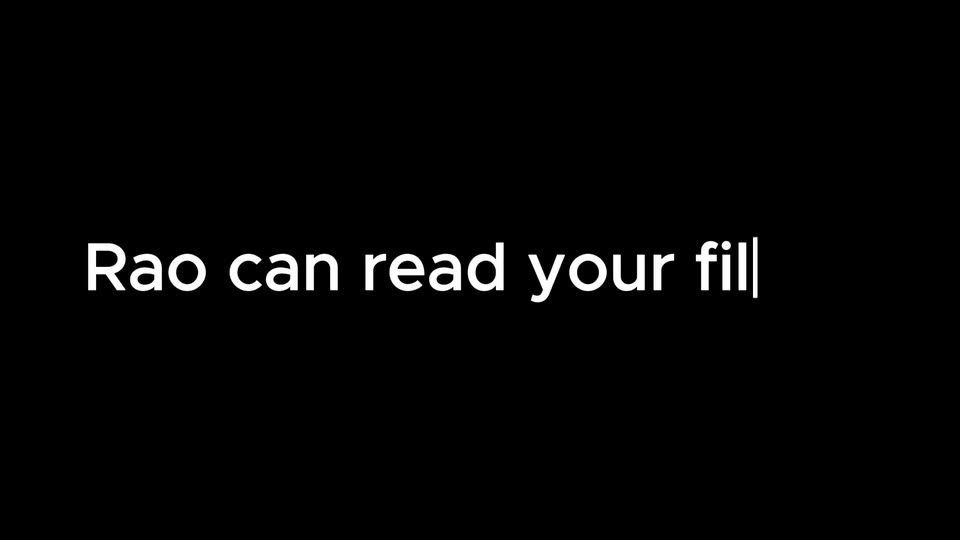
A black frame holds a single line of white text that types itself out character by character behind a thin vertical caret, building the sentence 'Rao can read your files'.
On-screen text: “Rao can read your files...”
Techniques: Kinetic type
Camera: Static
04 · Feature reveal · 0:04–0:04
White sans-serif text on a black background reads “Rao can read your files” while three dots type in one by one. A thin vertical cursor blinks at the end of the line. The frame stays locked off throughout.
On-screen text: “Rao can read your files...”
Techniques: Kinetic type
Camera: Static
05 · Feature reveal · 0:04–0:05
A light IDE window with a left console panel and a right AI chat panel. The view reframes and zooms into the chat column, where the assistant's reply text and a Thinking status sit above an empty input field.
On-screen text: “Rao can read your files...”
Techniques: UI zoom
Camera: Push in
06 · Feature reveal · 0:05–0:08
A white chat transcript fills in as the assistant reply types out line by line beneath a user prompt bubble at the top right. Italic Thinking placeholders fade in between the steps, and new action lines appear below.
Techniques: Kinetic type
Camera: Static
07 · Feature reveal · 0:08–0:08
A white chat window fills the frame. A gray user bubble at top right holds the prompt, and below it a multi-line assistant reply lists directory contents and reads two files, with file names in monospace. The view holds steady with no motion.
Camera: Static
08 · Feature reveal · 0:08–0:09
A close-up of an AI chat panel zooms out to reveal the full IDE interface, a code terminal on the left and the assistant's reply on the right.
Techniques: UI zoom
Camera: Pull out
09 · Feature reveal · 0:09–0:10
A full-screen RStudio interface fills the frame. The left console lists survival analysis output and a correlation matrix, while the right side pairs an R script with a results pane that prints data summary lines for a bone marrow transplant dataset.
Camera: Static
10 · Feature reveal · 0:10–0:12
A code IDE fills the frame in two columns: a terminal on the left holds R statistics output while a markdown cell on the right types a data summary line by line beneath a static code block.
Camera: Static
11 · Feature reveal · 0:12–0:12
A split view of a code editor: the left pane holds an R console with survival analysis output, the right pane streams a data summary document for a bone marrow transplant dataset, its lines filling in top to bottom.
Techniques: Split screen
Camera: Static
12 · Feature reveal · 0:12–0:14
On a black field, white sans-serif text types in letter by letter from a fixed left position, a thin vertical caret blinking after the last character. The line builds from an ellipsis and the word edit to the phrase edit your code. The shot is locked off.
On-screen text: “...edit your code”
Techniques: Kinetic type
Camera: Static
13 · Feature reveal · 0:14–0:15
Locked-off view of the RStudio window: an R script in the editor on the left and an AI chat panel on the right. The editor scrolls up a few lines while a code line highlights in blue, and a static caption reads edit your code.
On-screen text: “edit your code”
Camera: Static
14 · Feature reveal · 0:15–0:16
The RStudio editor shows R code for a scatterplot, then a white results panel slides in from the right with motion blur, revealing a blue scatterplot titled Donor Age vs Patient Age.
Camera: Push in
15 · Feature reveal · 0:16–0:17
A data-visualization interface fills the frame: a scatter plot of donor versus patient age sits under a toolbar of Files, Plots and Packages, with an Ask anything input bar above. The panel eases into place with a brief vertical settle at the start.
Camera: Static
16 · Feature reveal · 0:17–0:20
A scatterplot titled “Donor Age vs Patient Age” blurs and dissolves away inside a chat interface, revealing a fixed prompt at the top and a Thinking... line above an empty ask field with a data chip.
Camera: Pan
17 · Feature reveal · 0:20–0:24
A flat front-on screen capture of a chat window. A prompt to modify an R script sits at top, the assistant's reply types out, then the layout shifts to a code editor that scrolls through the R script line by line.
Camera: Pan
18 · Feature reveal · 0:24–0:27
A close-up of an AI coding panel shows a short text reply above a red-and-green code diff for an R script, then the frame pulls back to the full IDE, revealing a scatterplot chart on the right.
Techniques: UI zoom
Camera: Pull out
19 · Feature reveal · 0:27–0:29
A screen recording of the RStudio workspace: an R script and an AI chat panel fill the top, a console runs below. The view zooms into the plot panel, framing a scatterplot of donor versus patient age with a red regression line and gray confidence band.
Techniques: UI zoom
Camera: Push in
20 · Feature reveal · 0:29–0:31
On a black background, a white text line types out character by character behind a blinking caret, reading “...and iterate on analyses.” The frame stays locked off and the finished line holds at the end.
On-screen text: “...and iterate on analyses.”
Techniques: Kinetic type
Camera: Static
21 · Feature reveal · 0:31–0:32
The RStudio window shows a console on the left and an AI chat panel on the right. The camera zooms into the chat panel, where a prompt about a patient age histogram sits above a Thinking status and an input field tagged data.
Techniques: UI zoom
Camera: Push in
22 · Feature reveal · 0:32–0:34
A light chat interface fills the frame. A gray prompt bubble sits at the top. Below, a Thinking label appears, then the response text streams in word by word into a full paragraph. The bottom input bar holds a data chip and a placeholder field.
Techniques: Kinetic type
Camera: Static
23 · Feature reveal · 0:34–0:36
A product interface shows a console pane full of R code building a histogram under the title Patient Age Distribution Analysis. A hand cursor drifts down to a green approve button beside a Cancel button and presses it; an Ask anything field rests below.
Techniques: Cursor demo
Camera: Static
24 · Feature reveal · 0:36–0:37
A light RStudio interface scrolls downward from a code console to a plot panel. A blue histogram fades in and settles, showing patient age frequencies.
Camera: Pan
25 · Feature reveal · 0:37–0:40
A light data-analysis screen scrolls upward, moving past a blue histogram of patient ages and an Ask anything prompt to reveal a block of R code and a paragraph explaining an outlier in the data.
Camera: Pan
26 · Feature reveal · 0:40–0:40
A static full-screen view of an AI assistant interface. A code block of R plotting code sits at the top, a paragraph of analysis text about a histogram outlier fills the middle, and a chat input field with a data tag sits at the bottom. No motion occurs.
Camera: Static
27 · Feature reveal · 0:40–0:44
An RStudio window shows a console and a code editor with plotting commands. A cursor clicks the green Run button, then the view reframes onto the plot panel, where two histograms appear side by side: a blue Original Distribution and a green Corrected Distribution.
Techniques: Cursor demo, UI zoom
Camera: Pan
28 · CTA · 0:44–0:48
On a black background, white sans-serif text types itself out letter by letter behind a thin cursor bar. The first line reads R programming just got, then a second line types waaaaay faster.
On-screen text: “R programming just got”, “waaaaay faster”
Techniques: Kinetic type
Camera: Static
29 · CTA · 0:48–0:52
Black screen. A white headline reads R programming just got waaaaay faster; the second line and the URL line type out character by character with a text caret, then hold.
On-screen text: “R programming just got”, “waaaaay faster”, “Download Rao at www.lotas.ai”
Techniques: Kinetic type
Camera: Static
30 · CTA · 0:52–0:53
A black frame holds a white two-line headline, with the word waaaaay set in italics, and a smaller white line reading the download URL centered below. The frame stays static for the full duration.
On-screen text: “R programming just got”, “waaaaay faster”, “Download Rao at www.lotas.ai”
Camera: Static