1:06
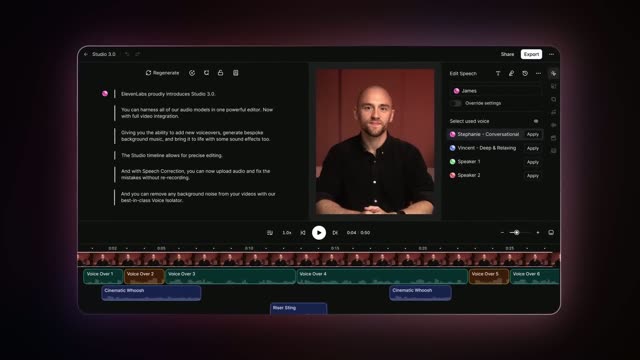

Introducing Studio 3.0 — The Best AI Audio Models in One Editor
ElevenLabs · AI · Sep 2025
Webflow · Oct 2026 · 1:30 · AI-reviewed
Webflow Campaigns moves from a marketer’s waiting problem through creating a brief, refining a landing page, generating matching ads, personalizing audience variants and viewing campaign metrics. Rotating colored solids and an orbital diagram mark the workflow stages; UI examples use the ORD Carbon audit campaign. White headlines sharpen from blur, with blue pixel/scanline wipes between graphic and interface sections. The close returns to urgency lines, an animated Book a demo button and the Webflow Campaigns lockup. Product claims and sample metrics are presented by the film, not independently validated results.
ElevenLabs · AI · Sep 2025
Perplexity · AI · May 2024
Notion · Productivity · Nov 2022
A blue Webflow mark assembles on black, the white wordmark appears, and Campaigns joins the lockup. A blue block-and-scanline wipe carries the title into the next graphic.
On-screen text: “Webflow”, “Webflow Campaigns”
Techniques: Morph, Masking
Camera: Static
Blue blocks settle into a textured circle on black under Every marketer has a campaign to launch. The circle recedes into concentric rings as the line changes to It’s just waiting on someone else and colored solids enter around it. This is one continuous problem graphic.
On-screen text: “Every marketer has a campaign to launch”, “It’s just waiting on someone else”
Techniques: Morph, Kinetic type
Camera: Pull out
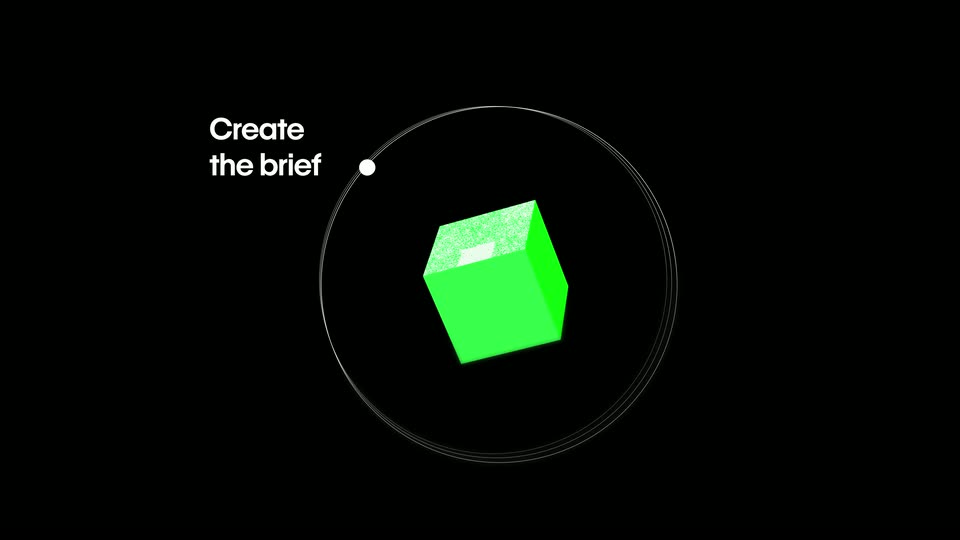
The surrounding colored solids converge into a rotating green cube inside thin orbital rings. Create the brief appears beside a ring node; the diagram enlarges and blurs toward the next interface example. No cut is introduced for a change of cube orientation.
On-screen text: “Create the brief”
Techniques: Morph
Camera: Push in
A white Describe your campaign form appears over a blue textured field, showing campaign notes and audience/topic chips. The form settles, then a bright blur carries it out.
On-screen text: “Describe your campaign”
Camera: Static
A Review the plan before you build headline forms on a warm soft gradient while campaign-brief, control and palette panels slide into an arranged overview around it.
On-screen text: “Review the plan before you build”
Techniques: Kinetic type
Camera: Static
Blue pixelation clears to the ORD Carbon landing-page editor. The hero reads Get a free audit beside a request form; the canvas scrolls downward before returning to the orbit diagram. There is no separate the brief caption.
On-screen text: “Get a free audit”
Camera: Static
The green cube returns to the orbit diagram, turns orange and introduces Build pages & ads at the next node. The view enlarges around the orange solid before the Refine headline moves into the frame.
On-screen text: “Create the brief”, “Build pages & ads”
Techniques: Morph
Camera: Push in
Refine the design yourself assembles on black with a soft blur, holds, then a page preview rises into the frame from below.
On-screen text: “Refine the design yourself”
Techniques: Kinetic type, Masking
Camera: Static
In the ORD Carbon page editor, the hero heading is edited from Get a free audit to Book a free audit. The canvas scrolls to the governance section; a selected H2 and floating prompt demonstrate changing the heading to Consistent claims need connected teams.
On-screen text: “Book a free audit”, “Consistent claims need connected teams”
Techniques: Cursor demo
Camera: Static
Or with your AI tools. sharpens as a centered black headline on white. The background becomes blue scanlines while a white prompt field enters in perspective.
On-screen text: “Or with your AI tools.”
Techniques: Kinetic type
Camera: Static
A white prompt box floats over the blue noise field as Update the governance gap section to a three-column card layout. types into it. The prompt remains the focus as the textured background moves.
On-screen text: “Update the governance gap section to a three-column card layout.”
Techniques: Kinetic type
Camera: Static
The ORD Carbon governance section is shown, followed by its results section. The heatmap and A mapped, audit-ready foundation you keep heading reflow from a two-column layout into a wide heading-and-image row above three information cards. This is a page-layout demonstration within the same interface, not an invented geographic map zoom.
On-screen text: “Carbon reporting fails when governance is fragmented”, “A mapped, audit-ready foundation you keep”, “Mapped data sources”, “Documented reporting obligations”, “Identified governance gaps”
Camera: Static
Generate matching ads assembles word by word and sharpens in the center of a black card.
On-screen text: “Generate matching ads”
Techniques: Kinetic type
Camera: Static
On white, an outlined document icon is replaced by a sparkling image icon in a pale blue rounded tile. The short icon sequence bridges the headline and generated-ad example.
Camera: Static
A close view of the ORD Carbon page editor pulls back as a matching ad preview with a building photograph appears beside it. The editor and preview share the Get a free audit headline; this is not a new page at45 seconds.
On-screen text: “Get a free audit”
Techniques: UI zoom
Camera: Pull out
The ad preview expands into a grid of six matching creatives in landscape, square and portrait proportions. Several tiles resolve from Understanding layout placeholders into building-photo ads before the grid blurs away. No unsupported exact aspect-ratio values are asserted.
On-screen text: “Get a free audit”, “Understanding layout”
Camera: Pull out
The orange solid returns in the circular workflow diagram and becomes a green pyramid as a third node introduces Personalize content. The view enlarges before the next title.
On-screen text: “Create the brief”, “Build pages & ads”, “Personalize content”
Techniques: Morph
Camera: Push in
Make a version for each audience appears over two lines on black, the trailing words resolving from blur.
On-screen text: “Make a version for each audience”
Techniques: Kinetic type
Camera: Static
A grid of creatives appears with an audience selector in front. Its radio selection changes among Base audience, Operations leaders and Sustainability managers while the corresponding Audience A/B designs slide into view behind it. These are states of one personalization demo, not four independent scenes or email templates.
On-screen text: “Base audience”, “Operations leaders”, “Sustainability managers”, “Audience A”, “Audience B”
Techniques: UI zoom
Camera: Static
The green pyramid reappears inside the orbital workflow, turns into a blue faceted solid and adds Launch & measure as the fourth node. A continuous enlargement carries the diagram out toward the title.
On-screen text: “Create the brief”, “Build pages & ads”, “Personalize content”, “Launch & measure”
Techniques: Morph
Camera: Push in
Launch to your channels assembles and sharpens as a centered white headline on black.
On-screen text: “Launch to your channels”
Techniques: Kinetic type
Camera: Static
A campaign performance card rotates into view on a warm gradient. Last30days and changing metric tiles appear under an Active switch. The card is enclosed by a circular mask and blue scanlines as it transitions to the workflow diagram. The changing numbers are a film example, not verified customer results.
On-screen text: “Last 30 days”, “Active”
Techniques: 3D mockup, Masking
Camera: Static
The performance card contracts into a blue sphere and the four-node workflow returns. Its labels and ring fall away as the sphere flattens into a blue disc behind Works alongside any CMS, then expands toward the next blue field.
On-screen text: “Create the brief”, “Build pages & ads”, “Personalize content”, “Launch & measure”, “Works alongside any CMS”
Techniques: Morph, Kinetic type
Camera: Static
Learn what to improve next appears word by word on the moving blue textured background; a blocky wipe clears it toward the closing black titles.
On-screen text: “Learn what to improve next”
Techniques: Kinetic type, Masking
Camera: Static
White lines replace one another on black: Your pipeline targets won’t wait, Neither should your campaigns, then Book a demo. Each line assembles or sharpens with a brief blur while the graphic context stays the same.
On-screen text: “Your pipeline targets won’t wait”, “Neither should your campaigns”, “Book a demo”
Techniques: Kinetic type
Camera: Static
Book a demo becomes a blue button on black. A cursor enters and changes to a pointing hand over the button; the button resolves into the blue Webflow mark. This is a designed CTA animation, not evidence of submitting a real demo request.
On-screen text: “Book a demo”
Techniques: Cursor demo, Morph
Camera: Static
On black, the blue Webflow mark holds while the Webflow and Campaigns wordmarks fade into place and remain as the final lockup.
On-screen text: “Webflow Campaigns”
Camera: Static