0:36
Framer Convert: Understand, Test, and Optimize.
Framer Convert · Mar 2026
Cline’s 1:01 launch film runs 19 scenes, about 3.2 s each. The product is on screen from the first frame and 6 features are revealed. The call to action lands at 0:54 (89% in). The video opens on a title card, then chains six feature beats, each announced by a white headline over a 3D-tilted or flat terminal demo with typing and camera push-ins, and closes on a typed URL card. Pacing is brisk at roughly nine cuts a minute, with each feature held for three to ten seconds against a consistent black-and-purple palette.
Is this your launch? to your site or press kit.
Framer Convert · Mar 2026
FlowFuel (built by MystiqueMide) · Sep 2026
On a black background, centered white text reads Introducing above purple Cline CLI, while the version number below rolls through blurred digits before settling on 2.0.
On-screen text: “Introducing”, “Cline CLI”, “2.0”
Techniques: Kinetic type
Camera: Static
A near-black background with a faint gray glow in the top right holds a centered three-line title. White 'Introducing' sits above purple 'Cline CLI' and '2.0'. The frame is locked off and the text stays static throughout.
On-screen text: “Introducing”, “Cline CLI”, “2.0”
Camera: Static
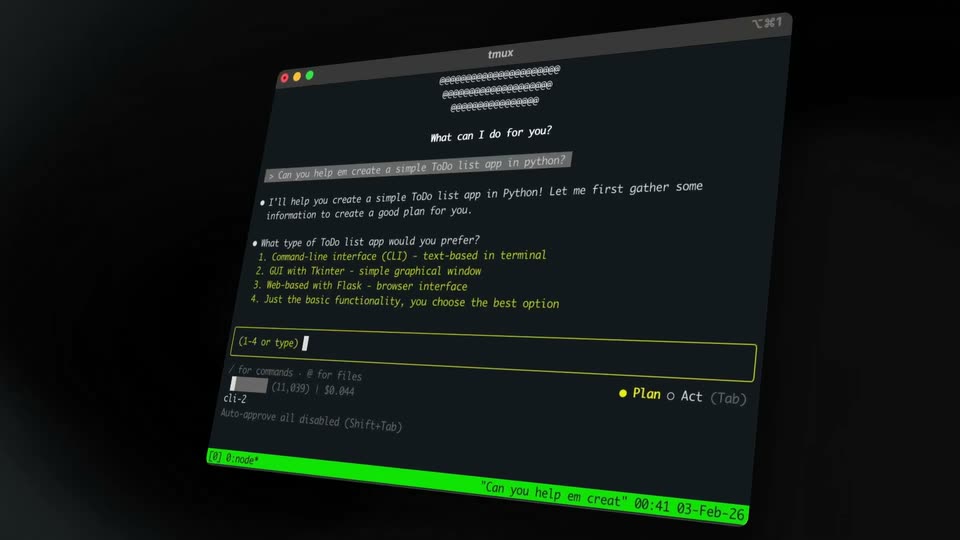
A tilted tmux terminal floats in 3D on black beside the static white headline Launch Interactive Mode. An ASCII logo assembles, a prompt types a request, then the camera pushes in on the numbered options as the answer fills.
On-screen text: “Launch Interactive Mode”
Techniques: 3D mockup, UI zoom
Camera: Push in
A tilted terminal window floats in 3D on black, showing a chat log and a Plan/Act toggle beside the headline Plan and Act Mode. It rotates to reveal green diff lines, then the camera zooms into the status bar under the headline Track your context window and token consumption.
On-screen text: “Plan and Act Mode”, “Track your context window and token consumption”
Techniques: 3D mockup, Kinetic type, UI zoom
Camera: Pan
A purple-framed ToDo web page sits in a tilted browser window on a black background. The shot opens tight on the title and input row, then pulls back to the full window as the address bar appears, and “Work on new demo” types into the field.
On-screen text: “token consumption”
Techniques: UI zoom, 3D mockup
Camera: Static
A tilted browser window mockup of a to-do app floats on a black background. The camera pushes in toward the form as a small dark tooltip reading 'Please fill out this field.' pops in beside the empty input box.
Techniques: 3D mockup, UI zoom
Camera: Static
A dark tmux terminal on a black background dissolves in from a previous screen. An ASCII-art logo and the line 'What can I do for you?' sit above an input field where a caret types '/se', with two slash-command suggestions listed below.
Camera: Pull out
A dark terminal window shows a settings panel whose option list scrolls and overlaps in a ghosted stack. On the left, a white headline fades in over the black background.
On-screen text: “Select any model or provider”
Camera: Static
A dark terminal window shows a CLI chat interface, cycling from a settings panel to a model list, then to the main prompt with a blinking cursor. White captions on the left swap from 'Select any model or provider' to 'Bring your own keys' and fade.
On-screen text: “Select any model or provider”, “Bring your own keys”
Techniques: UI zoom
Camera: Push in
A dark terminal window fills the frame, then a divider splits it into two panes. The camera pulls back to reveal a white headline above both, each pane showing an ASCII cat, a prompt line and a green status bar.
On-screen text: “Run agents in parallel across your project”
Techniques: Split screen, UI zoom
Camera: Static
Two dark CLI windows sit side by side beneath a white headline. The left window types a prompt into a yellow-bordered input field, the right shows a blinking cursor in a blue field.
On-screen text: “Run agents in parallel across your project”
Techniques: Split screen, Cursor demo
Camera: Static
A white headline sits above two dark terminal windows shown side by side. The left window types a prompt, then shows a planning response, while the right window types a new command into its highlighted input box.
On-screen text: “Run agents in parallel across your project”
Techniques: Split screen
Camera: Static
A white headline reads above two side-by-side terminal windows. The left window scrolls a list of file-read entries upward, while the right window types a prompt beneath an ASCII face.
On-screen text: “Run agents in parallel across your project”
Techniques: Split screen
Camera: Static
Two terminal panels sit side by side, each cycling through file paths and a ticking planning timer as the agents work. A white headline holds at the top, then fades out as the camera zooms into the right panel.
On-screen text: “Run agents in parallel across your project”
Techniques: Split screen, UI zoom
Camera: Push in
On a dark background, a terminal window on the right types the command git diff at the prompt, a green status bar below it. On the left, the white headline Headless mode to integrate Cline in your CI/CD fades in from dim to full brightness.
On-screen text: “Headless mode to integrate Cline in your CI/CD”
Camera: Pull out
A dark terminal types the command git diff piped to cline, then scrolls a markdown code review with quality scores. A white headline sits to its left, then fades as the terminal expands to full width and zooms in on the text.
On-screen text: “Headless mode to integrate Cline in your CI/CD”
Techniques: UI zoom
Camera: Push in
A white code editor window slides left from the right edge onto a black backdrop, coming to rest in frame. The editor shows a single line reading Hello Zed, with a black cursor arrow parked in the empty body.
Camera: Pull out
A flat editor window on a dark background splits into a code pane and a chat panel. A white headline builds letter by letter on the left as 'Hello Cline!' is typed and sent, then the window zooms to center on the AI's reply.
On-screen text: “Connect to more IDEs via ACP”
Techniques: Kinetic type, UI zoom
Camera: Push in
A dark card opens with “Hello Cline!” sliding in, then “Get started today” holds in white while the purple URL types out letter by letter, and both lines fade to black.
On-screen text: “Hello Cline!”, “Get started today”, “cline.bot/cli”
Techniques: Kinetic type
Camera: Static