0:39

Sam Bhagwat - Today we're excited to launch something we've been cooking for a whil
Mastra · B2B · Nov 2026
Layers · Oct 2025 · 2:36 · Full motion · AI-annotated
Layers’s 2:36 launch film runs 9 scenes, about 17 s each. The product is on screen from the first frame. There is no explicit call to action; a voiceover carries the film. The video is structured as a long-take screen recording with a pinned circular facecam: it opens on a 3D-tilted landing page that names the product, then holds on each interface for many seconds while a whip-zoom or perspective tilt carries the camera between the customer help center and the agent console. The defining style is the diagonal orange-blue gradient framing, the 3D tilt on every screen, and typewriter chat text that demonstrates the AI in real time.
Is this your launch? to your site or press kit.
Mastra · B2B · Nov 2026
Timper · Jan 2026
Factory · Jun 2026
Films whose music sounds like this one, voice left out
A tilted 3D laptop mockup floats over a striped orange and blue gradient, with a presenter webcam circle in the top right. The screen shows a dark landing page of scrolling code columns; a white cursor hovers center while the Telemetron AI chat panel on the right types out support messages and scrolls upward.
Techniques: 3D mockup, Cursor demo
Camera: Push in
A dark corridor of code panels recedes in 3D perspective behind a white headline, a support chat card, and a circular presenter webcam top right. The view then whips into a fast blur as it zooms into a help center page with a left sidebar.
On-screen text: “The support platform that understands hardware”, “You're not building SaaS. Why are you using customer support software built for it?”, “built by engineers from”
Techniques: 3D mockup, UI zoom
Camera: Push in
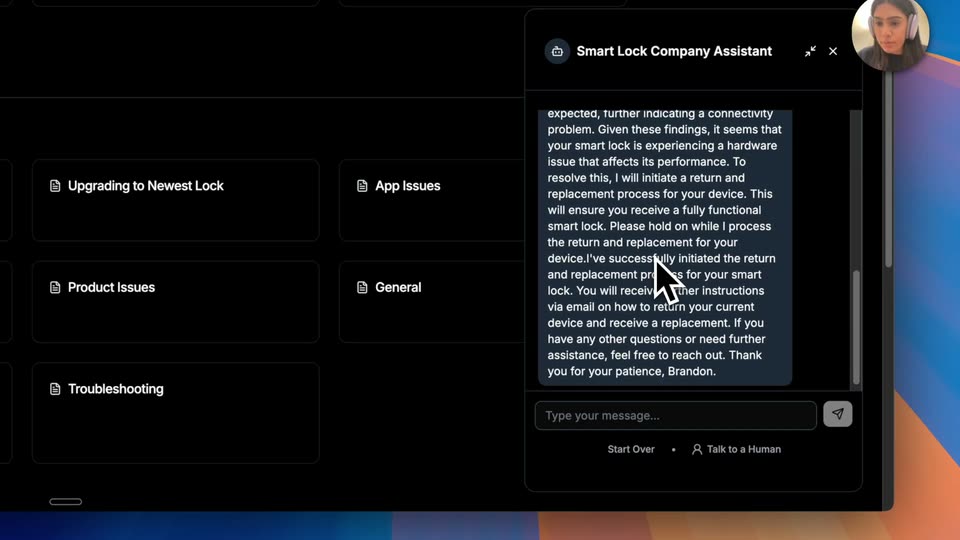
A dark help-center website fills the frame as the cursor moves to the chat widget. The view zooms into the chat panel, where a customer message appears and the assistant reply types out word by word, then the camera zooms back to the full page.
Techniques: Cursor demo, UI zoom, Kinetic type
Camera: Pull out
A dark help-center interface zooms in on a chat widget as the cursor moves to the Talk to a Human button. A circular webcam feed of a presenter sits in the top right corner over a blue and orange gradient.
Techniques: UI zoom, Cursor demo
Camera: Push in
A close-up of a dark support dialog zooms out to frame the whole help-center window as a cursor rests on the Request Human Support button. A circular webcam of the presenter stays pinned top-right against a colorful gradient backdrop.
Techniques: UI zoom, Cursor demo
Camera: Pull out
A support case screen shows a long email about a faulty smart lock, with a customer info panel and a telemetry events list on the right. A woman's video feed sits in the top-right corner while the cursor glides down to hover the Action row.
Techniques: Cursor demo
Camera: Static
A support interface fills the frame, a presenter in a circular video bubble at the top right. A cursor hovers over an expanded telemetry code block, then collapses it to one line. The cursor moves down to the reply field as the presenter speaks.
Techniques: Cursor demo
Camera: Push in
A close-up of the AI assistant panel reframes out to a two-pane support screen with a black callout box over the prompt. The query is typed, and a numbered list of affected customers with device IDs scrolls down the right panel.
On-screen text: “find all the customers that are experiencing the same issue”
Techniques: UI zoom, Cursor demo
Camera: Push in
Close-up of the AI assistant panel zooms out to the full helpdesk window, tilted in perspective over a striped blue and orange backdrop. A cursor types a command into the chat input, clicks send, and the panel fills with executing task rows. A presenter's facecam sits in the top right.
Techniques: UI zoom, 3D mockup, Cursor demo
Camera: Pull out