0:54
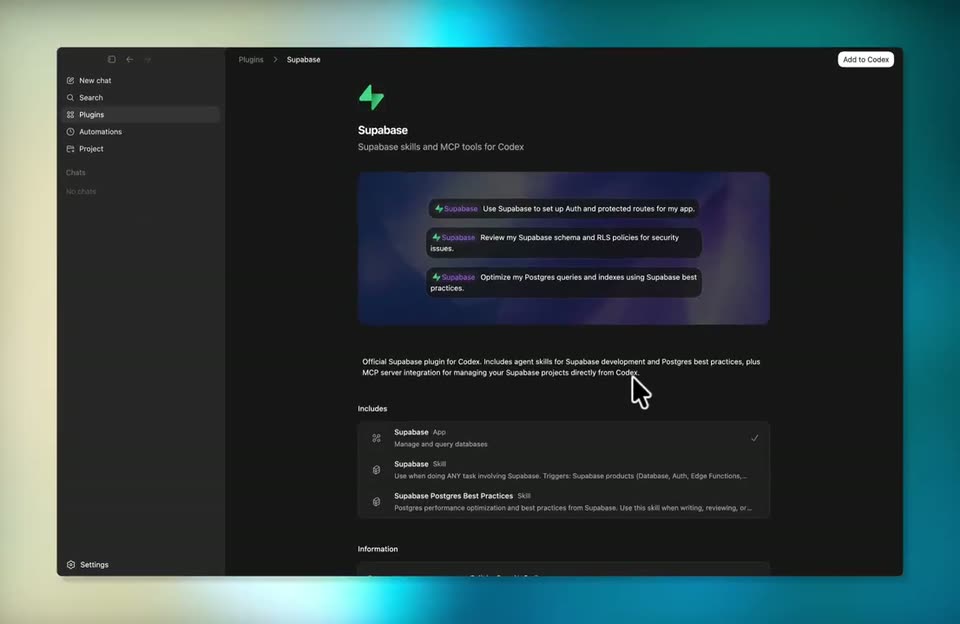

Supabase - You asked, we delivered! Supabase is now available as a Codex plugin!
Supabase · Developer tools · Apr 2026
co.dev · Nov 2024 · 1:05 · Full motion · AI-annotated
co.dev’s 1:05 launch film runs 25 scenes, about 2.6 s each. The product is on screen from the first frame. There is no explicit call to action. The video is one continuous demo: a landing-page prompt launches a fast-cut montage of the IDE generating and iterating on apps, synced to a 142 BPM pulse. Signature moves are letter-by-letter typed prompts, crossfading app previews, and green success toasts on a near-black canvas.
Is this your launch? to your site or press kit.
Supabase · Developer tools · Apr 2026
Speko · B2B · Nov 2026
Films whose music sounds like this one, voice left out
Kalshi · Cinematic percussion
Rork · Electronic dance music
Vetnio · Electronic
A dark landing page holds a hero headline and an input field beneath a gradient-bordered badge. A cursor clicks the field, types “Create a Twitter clone” letter by letter, then clicks the green Generate App button, triggering a ripple.
Techniques: Cursor demo
Camera: Static
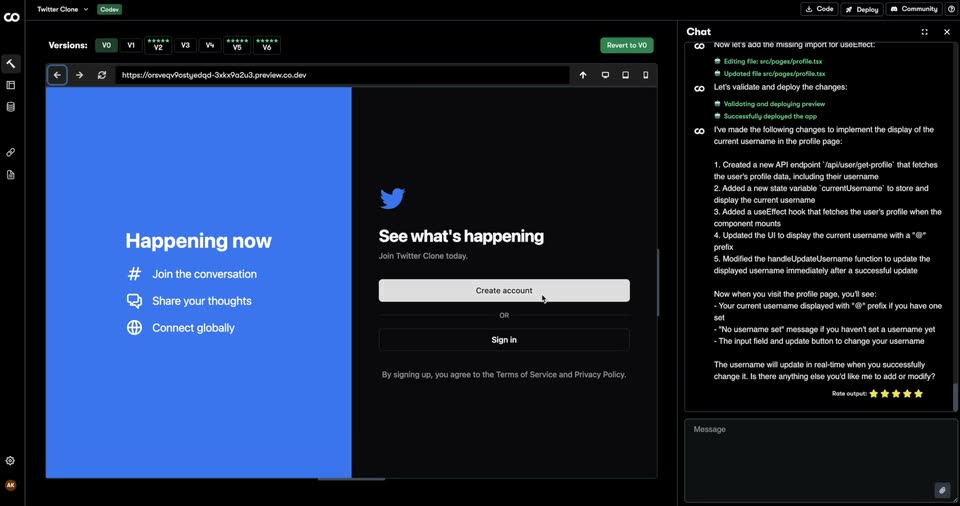
A dark product interface shows a two-pane layout: a live web preview of a Twitter clone landing page on the left and an AI chat panel on the right. A cursor hovers over the Create account button.
Techniques: Cursor demo
Camera: Static
A dark app interface fills the frame, a left icon rail, a top bar, and a right-hand chat panel streaming numbered notes. The central browser view crossfades from a sign-up form to a Twitter-style feed as a cursor moves through the fields.
Techniques: Cursor demo
Camera: Static
A cursor types “Hello world!” into the tweet box and clicks Tweet, posting it to the feed with a success toast. The view then switches to version V0, showing two tweets while the chat rating fills to five stars.
Techniques: Cursor demo
Camera: Static
Locked-off close-up of a dark chat screen. A static assistant reply with five yellow stars sits above a blue-outlined input box where a prompt types out word by word behind a blinking caret, a paperclip and green send button resting at the box's lower right.
Techniques: Kinetic type
Camera: Static
A dark profile page crossfades in beside an AI chat panel. A cursor clicks the username field, types 'andrew', and presses Update; the label updates to '@andrew' and a success toast appears at the bottom.
Techniques: Cursor demo
Camera: Static
A dark table editor fills the frame. A cursor clicks the empty username cell, types “andrew”, and a small action menu with Save and Cancel options drops in below, then vanishes as the value commits.
Techniques: Cursor demo
Camera: Static
A dark theme editor sits left of a dashboard demo. The demo panel flips from dark to light as the cursor presses the green Confirm button, then a green check toast slides down from the top center.
Techniques: Cursor demo
Camera: Static
A product screen shows a Twitter clone in a left browser pane beside an AI chat panel. A cursor types a tweet and clicks Tweet, posting it to the feed, while a new prompt types itself into the chat input.
Techniques: Cursor demo
Camera: Static
A dark IDE shows a Hacker News preview on the left and an AI chat panel on the right. In the chat input box at the bottom, a prompt is typed out character by character.
Techniques: Cursor demo
Camera: Static
A dark code editor with a travel-site preview sits left of an AI chat panel; in the chat's input box a prompt types itself out letter by letter.
Techniques: Kinetic type
Camera: Static
A dark chat interface in a locked-off close-up. A prompt is typed character by character into a blue-outlined input field, “Add the ability to direct message other users,” while a static assistant message and a five-star rating row sit above.
Techniques: Cursor demo
Camera: Static
A dark node graph editor fills the frame on a black canvas, six labeled boxes joined by dotted lines. A cursor drags the Subskills node from the top left toward the middle, and the connection lines re-route as it moves. The top bar shows the project name and Code, Deploy, Community buttons.
Techniques: Cursor demo
Camera: Static
A dark chat interface in close-up: a message bubble with a star rating sits above a blue-bordered input field where a prompt is typed out letter by letter, ending with “Implement text-to-speech functionality to read out app content to.”
Camera: Static
A dark settings screen shows an environment variable form. The cursor moves from the key field to the value field, then clicks Save Variables. A green confirmation toast drops in at the top while a new variable row fades into the saved list below.
Techniques: Cursor demo
Camera: Static
A dark chat interface in close-up. A text input box outlined in blue sits below an assistant message. A prompt is typed into the box with a blinking caret, then the message above changes and a new prompt is typed.
Techniques: Cursor demo
Camera: Static
A split-screen dev tool view holds a static dark travel page on the left, its green headline and three image cards fixed, while the right chat panel scrolls upward as assistant messages and file reads stream in.
Techniques: Split screen
Camera: Static
A dark code editor shows a travel website preview on the left with a revert confirmation dialog open, and an AI chat panel on the right. A mouse cursor glides from the Cancel button to the Confirm button.
Techniques: Cursor demo
Camera: Static
A dark editor window fills the frame: a browser preview on the left shows a travel site with a green headline and three place cards, while a chat panel on the right scrolls upward as a small toast appears at the top center.
Camera: Static
The full IDE view zooms into the right-hand chat panel, then tighter onto the message box, where the prompt about adding a Google Maps pin is typed out character by character.
Techniques: UI zoom
Camera: Static
A dark game board with colored hexagons and two dice fills the main window while a deploy dialog opens on the right. A cursor moves to the Deploy button and clicks, then a green success toast slides in at the top center.
Techniques: Cursor demo
Camera: Static
A close-up of a dark chat interface, the assistant's message scrolling to a fresh question above a blue-rimmed input box. Prompts type out letter by letter in the box, each cleared and replaced by the next.
Techniques: Kinetic type
Camera: Static
A dark chat interface fills the frame, a static AI reply with star ratings sits at the top, and a blue-outlined input box at the bottom types out a user prompt letter by letter behind a blinking caret.
Camera: Static
A dark chat window fills the frame. Above, a finished response bubble shows a five-star rating row. Below, the blue-bordered input field fills in letter by letter as a prompt is typed, ending mid-word.
Techniques: Kinetic type
Camera: Static
A white 3D tubular logo, an open c joined to a closed o, sits centered on a pure black field. The mark holds perfectly still, locked off, for the full length of the clip.
Camera: Static