0:50

Topaz Labs - @Adobe + Topaz Labs 🤝🙌 Just announced—you can now access select Topaz
Topaz Labs · Oct 2025
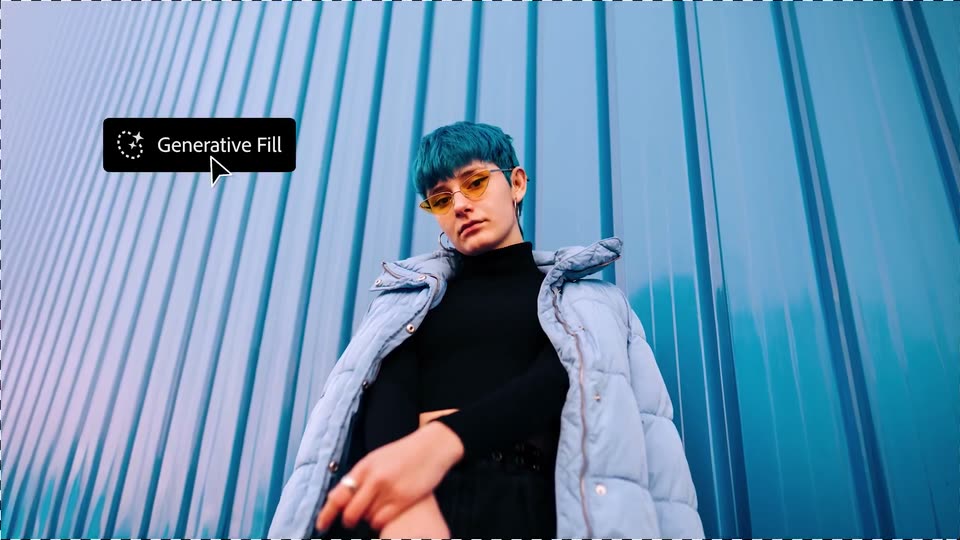
Adobe’s 1:01 launch film runs 29 scenes, about 2.1 s each. The product is on screen from the first frame and 1 feature is revealed. There is no explicit call to action. The video opens with the Adobe lockup, runs three back-to-back Generative Fill demos (cyclist road, forest stag, glacier) in fast-cut screen recordings, and closes on the Dream Bigger tagline and A logo. Its signature moves are the dashed white selection paths, the character-by-character typed prompts, and the thick red frame that bookends the piece.
Is this your launch? to your site or press kit.
Topaz Labs · Oct 2025
Miro · Productivity · Oct 2023
Films whose music sounds like this one, voice left out
Stord · Electronic dance music
Logitech · Nu-disco, indie dance, funk
Maket · Lo-fi hip-hop / boom-bap
The red Adobe wordmark sits centered on a plain white background, remaining static throughout the clip.
On-screen text: “Adobe”
Camera: Static
A red frame surrounds a checkered transparency grid, with the black headline Photoshop and Adobe Firefly centered and held still on a locked-off frame.
On-screen text: “Photoshop”, “and”, “Adobe Firefly”
Camera: Static
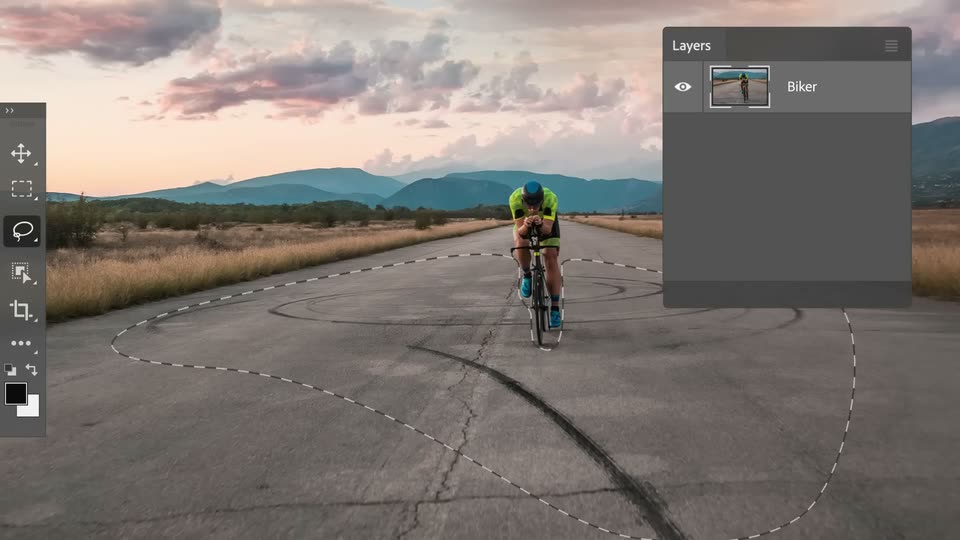
Over a locked-off desert road shot of a cyclist, a left tool rail and a Layers panel sit on the frame. Two pen cursors trace a white line that wraps around the rider and resolves into a dashed path isolating the biker.
On-screen text: “Photoshop”, “and”, “Adobe Firefly”
Techniques: Cursor demo
Camera: Static
Locked-off close-up of a photo canvas: a cyclist's legs and rear wheel ride on cracked asphalt, traced by a dashed white selection path that loops across the road. A cursor glides down as a dark Generative Fill button with a sparkle icon scales in at the lower left.
Techniques: Cursor demo
Camera: Static
A photo editor interface frames a cyclist on a desert road. A cursor taps Generative Fill, a new layer pops into the panel, then a dashed selection is drawn on the pavement as a prompt bar slides up.
Techniques: Cursor demo, Masking
Camera: Static
A cyclist rides away on an asphalt road while a dashed white line curves across the pavement. A dark prompt bar sits at the bottom, and the words yellow road lines type out inside it character by character.
On-screen text: “yellow road lines”
Techniques: Kinetic type
Camera: Static
A photo editor interface shows a cyclist on a desert road. A cursor clicks the Generate button beside the prompt reading yellow road lines, then the frame reframes to a cropped, gridded view where the road center line is now a solid yellow double line.
Techniques: Cursor demo, UI zoom
Camera: Pull out
A cursor drags a dashed crop handle, shrinking a cyclist photo on a desert road over a checkerboard canvas, while a Layers panel on the right lists Gen 2, Gen 1 and Biker.
Techniques: Cursor demo
Camera: Static
A close-up of an editor interface: a checkerboard transparency panel sits left of a road clip showing a cyclist. White cursors hover on the footage, then one moves down to the Generative Fill button, which brightens as it is selected.
Techniques: Cursor demo
Camera: Static
A screen recording of an image editor shows a cyclist on a sunset road inside the canvas, with a transparent checkerboard on both sides that shrinks as the photo expands horizontally. A layers panel sits at the right listing Biker and Gen layers, and a cursor hovers a Generative Fill tooltip at the lower left before it vanishes.
Techniques: Cursor demo
Camera: Static
A cyclist in a neon yellow jersey and blue helmet rides toward the camera down the center of a straight desert road at sunset. The shot tracks backward, the asphalt and dry grass blurring past the double yellow line under a cloudy sky.
Camera: Static
A cursor clicks Select subject over a forest photo of a stag, tracing a white outline around it. A Layers panel slides in right, the canvas gains a dashed frame, and the bottom bar becomes a prompt field whose placeholder text scales in beside a Generate button.
Techniques: Cursor demo
Camera: Static
A stag stands in a green forest, outlined in white as a selected object. A dark input bar at the bottom shows a placeholder, then typed text 'Wet alley at night' appears as a mouse cursor moves near the Generate button.
Techniques: Cursor demo
Camera: Static
A forest photo with a stag fills the canvas inside a dashed border. A Layers panel on the right lists one layer, Forest. A bottom bar shows the prompt Wet alley at night next to a Generate button, where the cursor hovers.
Techniques: Cursor demo
Camera: Static
A stag stands in a dark, wet alley with a Layers panel on the right. A cursor draws a white lasso around a left window, then the image dims as a prompt bar and the line 'Describe what you would like to generate' appear across the center.
On-screen text: “Describe what you would like to generate”
Techniques: Cursor demo
Camera: Static
A generated alley image with a deer head sits behind a dark prompt bar that fills with the text Red arrow sign. A Layers panel and a Generate button slide in from the right as a cursor rests on the button.
Techniques: Cursor demo
Camera: Static
A screen recording of the editing interface: a cursor clicks the Generate button beside the prompt field, then the interface overlays fade out, revealing the finished image of a wet night alley with a stag and a curved neon red arrow sign on the brick wall.
Techniques: Cursor demo
Camera: Push in
A dark glacier landscape fills the frame with a small Layers panel in the top right holding one thumbnail named Glacier. The photo drifts slightly while the panel header scales into place.
Camera: Pull out
A design tool canvas shows a glacier photo on a thirds grid, with a Layers panel at top right. A cursor drags the bottom edge down, stretching the canvas into a transparent checkerboard strip, then a prompt bar with a Generate button fades in over the lower image.
Techniques: Cursor demo
Camera: Static
A dark blue frozen-lake image fills the frame behind a rounded input bar at the bottom. The placeholder line clears as the prompt frozen lake with reflections types in letter by letter.
Techniques: Kinetic type
Camera: Static
A dark editor canvas shows a mountain image split diagonally to reveal an ice-cave version. A Layers panel with a Glacier thumbnail sits top-right, and a bottom prompt bar holds 'frozen lake with reflections' beside a Generate button that a cursor hovers over.
Techniques: Cursor demo
Camera: Static
A full-screen photo editor shows a glacier photo with a centered prompt bar and three result thumbnails. A cursor clicks Generate, the bar and thumbnails clear, then the cursor drags a dashed selection rectangle over the top half while a Generative Fill tooltip pops up.
Techniques: Cursor demo
Camera: Static
A dark blue mountain range fills the editing canvas. A gray Generative Fill pill with a sparkle icon sits center, a white cursor arrow hovers on it, and a dashed line crosses the bottom. A right panel shows an eye icon; the button scales gently.
Techniques: Cursor demo
Camera: Static
A dark blue mountain ridge fills the frame behind a prompt bar at the bottom. The italic placeholder line is replaced as the words type in letter by letter behind a blinking caret, while thin dashed lines drift across the image.
Camera: Pan
A flat image-generation UI overlays a dark mountain scene, a Layers panel top right and a prompt bar reading 'northern lights' below. Both fade out as three result thumbnails brighten in the center, the first ringed in purple, while a cursor slides across them.
Techniques: Cursor demo
Camera: Static
A full-bleed mountain and aurora photo fills the frame. A centered rounded filmstrip holds three thumbnails of the same scene, the middle one outlined in purple. A white cursor glides rightward from the middle thumbnail to the third.
Techniques: Cursor demo
Camera: Static
A horizontal filmstrip of three photo thumbnails sits over a full-frame aurora landscape, a white cursor resting on the selected frame. The strip fades out and the landscape zooms in to fill the screen.
Techniques: Cursor demo, UI zoom
Camera: Push in
A dark mountain peak glows under green aurora, a small figure stands in a bright cave mouth at right. A thick red rectangle snaps into the center, framing the white headline “Dream Bigger.”, which then holds still.
On-screen text: “Dream Bigger.”
Camera: Static
A red square with a white A cutout sits centered on a plain white field. The square's fill recedes, turning the cutout into a solid red A mark, which then holds still in a locked-off frame.
Techniques: Morph
Camera: Static