0:24
Explore
Topaz Labs - @Adobe + Topaz Labs 🤝🙌 Just announced—you can now access select Topaz
Topaz Labs · Oct 2025 · 0:50 · AI-annotated
- Length
- 0:50
- Scenes
- 31 · 1.6 s avg
- Product on screen
- 0:00
- Features shown
- 6
- Voiceover
- Yes
00:00:00 / 00:50:12
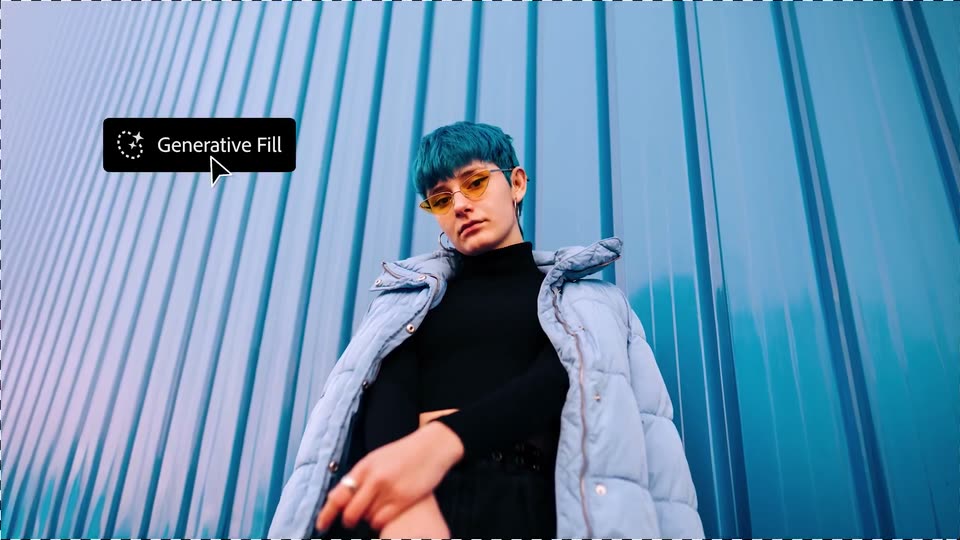
Topaz Labs’s 0:50 launch film runs 31 scenes, about 1.6 s each. The product is on screen from the first frame and 6 features are revealed. There is no explicit call to action; a voiceover carries the film. The video is a rapid feature montage: a static brand card, then four back-to-back demos (Generative Fill, Generative Upscale, background removal and harmonize, Effects) cut between black UI pills, white control panels and full-bleed results at roughly 20 cuts per minute. Its signature moves are the cursor click, the slider drag and the instant before/after snap, and it ends by contracting the final live shot into a red inset that resolves into the Adobe lockup.
Footage neededEstimated needs: 5 capture groups — your screens or recordings · 1 official logo — reused across the film · 7 filmed passages — shoot, supply or replace · 1 graphic passage — draw or supply
Is this your launch? to your site or press kit.
More like this

0:38

Miro - Meet your AI partner for innovation, launching November 1. What wil
Miro · Productivity · Oct 2023
0:48

Greg Joswiak - Everyday tasks? No sweat. Faster graphics? Nailed it. On-device AI? Y
Apple · Hardware · Oct 2026
Topaz Labs - @Adobe + Topaz Labs 🤝🙌 Just announced—you can now access select Topaz, scene by scene
· 31 scenes as text
01 · Product intro · 0:00–0:01
A white “Adobe Photoshop” wordmark holds centered on a dark blue gradient field, static and locked-off with no motion or reveal.
On-screen text: “Adobe Photoshop”
Camera: Static
02 · Product intro · 0:01–0:02
A gray “Adobe Photoshop” title sits centered on a dark blue gradient, then dissolves to black as a dim live-action figure in a slatted room fades in.
On-screen text: “Adobe Photoshop”
Camera: Static
03 · Feature reveal · 0:02–0:03
A photo of a blue-haired person in yellow sunglasses and a pale puffer jacket fills the editor canvas against a blue corrugated wall. A dark Generative Fill pill sits top left while a white cursor hovers over it, then the view zooms in on the person.
Techniques: Cursor demo, UI zoom
Camera: Push in
04 · Feature reveal · 0:03–0:05
A black prompt panel overlays a filmed model with teal hair and yellow glasses against blue corrugated metal. A cursor hovers the empty text field, then a long prompt line types out across two lines, leaving the Generate button below.
Techniques: Cursor demo
Camera: Static
05 · Feature reveal · 0:05–0:08
A teal-haired model in amber sunglasses and a pale blue puffer jacket stands before a blue ribbed wall. On the left, a black UI panel switches from a prompt box to a Partner models list, its rows scaling in as a white cursor hovers over the options.
Techniques: Cursor demo
Camera: Push in
06 · Feature reveal · 0:08–0:10
A person in a pink fur coat holds a yellow bird against blue sky as a dark dropdown on the left lists partner models, cursor on the Gemini row. The panel closes, then a dark canvas shows a small orange-cat photo sliding in under the cursor.
Techniques: Cursor demo
Camera: Pull out
07 · Feature reveal · 0:10–0:15
A small orange cat photo on a dark canvas zooms into a pixelated close-up of its face. A black Generative Upscale tooltip appears, then a settings panel with a 2x scale dropdown. The cursor clicks the dropdown and the image snaps to high resolution.
Techniques: UI zoom, Cursor demo
Camera: Pull out
08 · Feature reveal · 0:15–0:16
A long-haired orange cat is framed in close profile against a flat blue backdrop. It lifts its head and parts its mouth slightly toward the end of the clip.
Camera: Pull out
09 · Feature reveal · 0:16–0:20
A photo of a man on a yellow wall sits right on a white canvas as a smaller photo of a woman in a beige coat scales up to fill the center. A black button reading Remove background slides in from the left under a hovering cursor.
Techniques: UI zoom, Cursor demo
Camera: Push in
10 · Feature reveal · 0:20–0:24
Low-angle live-action shot: a woman in white sunglasses and a beige coat stands before a yellow wall while a man in a white tee sits atop it. A dark tooltip with a cursor swaps from 'Remove background' to 'Harmonize,' then vanishes as the frame widens to a two-shot.
Techniques: Cursor demo
Camera: Pull out
11 · Feature reveal · 0:24–0:25
The Photoshop web interface slides up to the center of a dark frame. Inside the canvas, a man with blonde dreadlocks in a denim jacket fades from a dim silhouette to full color against a pink and blue leopard print background.
Camera: Push in
12 · Feature reveal · 0:25–0:29
A man with blonde dreadlocks against a pink and blue leopard print background, his head outlined by a dashed selection. A cursor clicks effect thumbnails in a left panel as his face dithers into brown dots, then black and white halftone.
On-screen text: “9”
Techniques: Cursor demo
Camera: Push in
13 · Feature reveal · 0:29–0:30
A black halftone dot pattern forms a person's head and shoulders over a pink and blue mottled background. A white Halftone control panel with sliders fades in on the left as the dots enlarge and straighten.
Camera: Static
14 · Feature reveal · 0:30–0:30
A white Halftone control panel with sliders and a dial sits on the left over a halftone-dotted portrait of a woman against a pink and blue tie-dye backdrop. A cursor hovers over the Highlight and Shadow radio buttons. The frame is locked-off.
Techniques: Cursor demo
Camera: Static
15 · Feature reveal · 0:30–0:31
A white Halftone control panel sits over a halftone-dotted portrait against a pink and blue mottled background. A cursor lifts off the magenta Highlight swatch and slides up to the Size slider.
Techniques: Cursor demo
Camera: Static
16 · Feature reveal · 0:31–0:33
A white Halftone control panel with sliders sits over a magenta-and-black halftone portrait on a blue tie-dye background. A cursor drags the Size and Definition sliders, then the panel vanishes to reveal the treated neck and denim jacket.
Techniques: Cursor demo
Camera: Pan
17 · Feature reveal · 0:33–0:34
A close-up of a man in a denim jacket, his face and neck in purple halftone dots inside a dashed outline, over a pink and blue tie-dye background. An Effects panel with stylize thumbnails sits at left while the cursor moves to the Photocopy thumbnail.
Techniques: Cursor demo
Camera: Static
18 · Feature reveal · 0:34–0:35
A halftone portrait with a purple dotted face and black jacket sits against a blue and pink cloud backdrop. On the left, an effects panel switches from a grid of stylize thumbnails to the Photocopy settings, while a cursor moves from the Photocopy tile to the Contrast slider.
Techniques: Cursor demo
Camera: Static
19 · Feature reveal · 0:35–0:35
A magenta halftone portrait of a person in a blue striped shirt fills the frame against pink and blue clouds. A white Photocopy panel with a cursor on the Highlight button sits at left, then fades out, leaving the portrait alone.
Techniques: Cursor demo
Camera: Static
20 · Feature reveal · 0:35–0:36
A halftone portrait in magenta and blue sits against a pink cloud background while a white Layers panel lists four thumbnails on the left. A cursor slides down from Layer 2 to Layer 1.
On-screen text: “Photocopy”
Techniques: Cursor demo
Camera: Static
21 · Feature reveal · 0:36–0:37
A pink and blue leopard-print texture fills the frame while a white Effects panel with a grid of stylized face thumbnails sits on the left. The panel settles into place at the start, and a cursor hovers in the center of the pattern.
Techniques: Cursor demo
Camera: Static
22 · Feature reveal · 0:37–0:38
A white effects panel floats left over a pink and blue tie-dye background. It lists a search field and six stylize thumbnails: Glitch, Dither, Halftone, Halftone color, Comic, Photocopy. The panel eases to a slightly smaller size.
Camera: Pull out
23 · Feature reveal · 0:38–0:40
A halftone portrait of a dreadlocked person in a dark jacket sits against a shifting pink and blue animal-print pattern. The figure is built from magenta dots while the background pattern morphs fluidly and the frame slowly zooms in.
Techniques: Morph
Camera: Pull out
24 · Feature reveal · 0:40–0:41
A yellow train car fills the frame at a station platform, its dark windows reflecting the arched roof structure above. White car numbers sit on the right panel. The shot holds steady with no camera movement or animation.
Camera: Static
25 · Feature reveal · 0:41–0:42
A white Effects panel with a search field and three blur thumbnails pops in on the left over a side view of a yellow train car. A black cursor glides from the center to the Bokeh blur tile, which carries a dark outline.
Techniques: Cursor demo
Camera: Static
26 · Feature reveal · 0:42–0:43
A white Effects panel with a search field and three blur thumbnails floats over a yellow train. The cursor hovers the Motion blur card, then the panel switches to its settings, showing an angle dial, strength slider, and wrap-mode dropdown.
Techniques: Cursor demo
Camera: Push in
27 · Feature reveal · 0:43–0:45
A white settings panel titled Motion blur floats over a yellow train passing by. A cursor drags the Strength slider from 0 to 30 percent, and the train behind streaks into horizontal motion blur lines.
Techniques: Cursor demo
Camera: Pull out
28 · Feature reveal · 0:45–0:46
A screen shows a louvered slatted wall under a pink header and dark rail, with a defocused horizontal band across the middle. A person in a yellow beanie slides in from the left edge while a mouse cursor drifts downward.
Techniques: Cursor demo
Camera: Static
29 · Feature reveal · 0:46–0:47
A young man with bleached hair, a yellow beanie, white headphones and a blue puffer jacket glances sideways with his mouth open. Behind him a pink and gold train blurs horizontally. Two small white cursor arrows appear on the right and vanish.
Camera: Static
30 · Outro · 0:47–0:48
A young man in a yellow beanie and white headphones looks aside against a blurred, streaking train. The live shot then contracts into a red-bordered inset over a matching red and gold striped field.
Techniques: Masking
Camera: Static
31 · Outro · 0:48–0:50
A red square Adobe icon centered on white morphs into the red Adobe wordmark, then Photoshop slides in beside it in black to complete the lockup. The frame stays locked off on the centered logo.
On-screen text: “Adobe”, “Adobe Photoshop”
Techniques: Morph, Kinetic type
Camera: Static