0:19
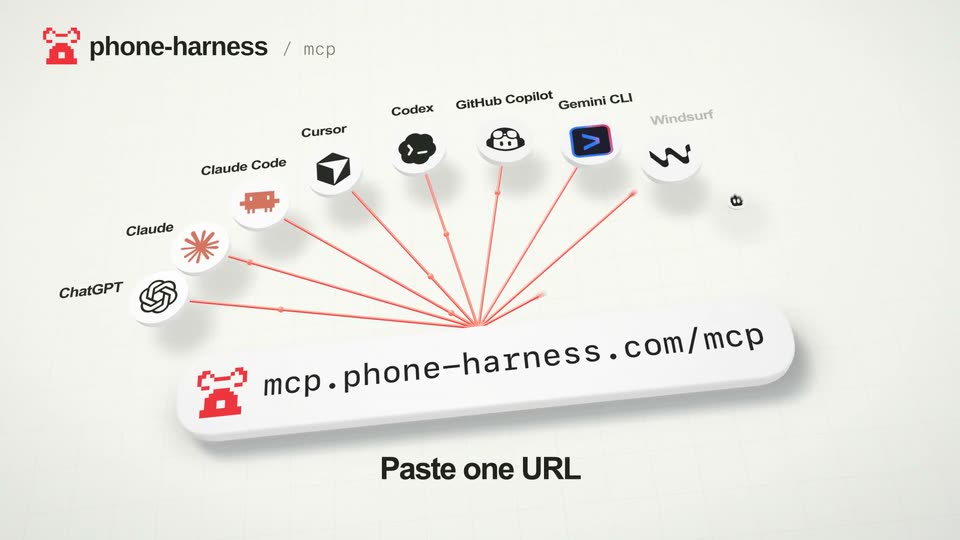
shawn - Introducing: Phone Harness MCP 🔌 Any agent that supports MCP can now
Phone Harness · B2B · Nov 2026
Warp · Feb 2023 · 0:41 · Full motion · AI-annotated
Warp’s 0:41 launch film runs 21 scenes, about 2.0 s each. The product is on screen from the first frame and 7 features are revealed. The call to action lands at 0:38 (92% in). A product update video for the Warp terminal, structured as a logo title card, a rapid run of short feature demos, a blog call to action and a closing logo. Each feature is announced with a bold white headline and demoed inside a terminal window that tilts into 3D, drifts or reflows over a static purple low-poly mountain landscape. Pacing is brisk at roughly 16 cuts per minute, with perspective tilts and smooth window slides as the signature moves.
Is this your launch? to your site or press kit.
Phone Harness · B2B · Nov 2026
Runway · AI · May 2026
Clueso · B2B · Jul 2026
Films whose music sounds like this one, voice left out
Voltalis · Electronic dance music, nu-disco, future funk
Synthesia · Electronic dance music with funk, disco, and Eurodance influences.
Alai · Modern funk, disco, and EDM
A flat purple mountain landscape under a starry night sky. The teal warp cube and white wordmark scale up at center; the headline Small Mighty Updates fades in below, then is replaced by 12 new features. The scene cuts to the Warp app with a Settings panel open.
On-screen text: “warp”, “Small Mighty Updates”, “12 new features”
Techniques: Kinetic type
Camera: Push in
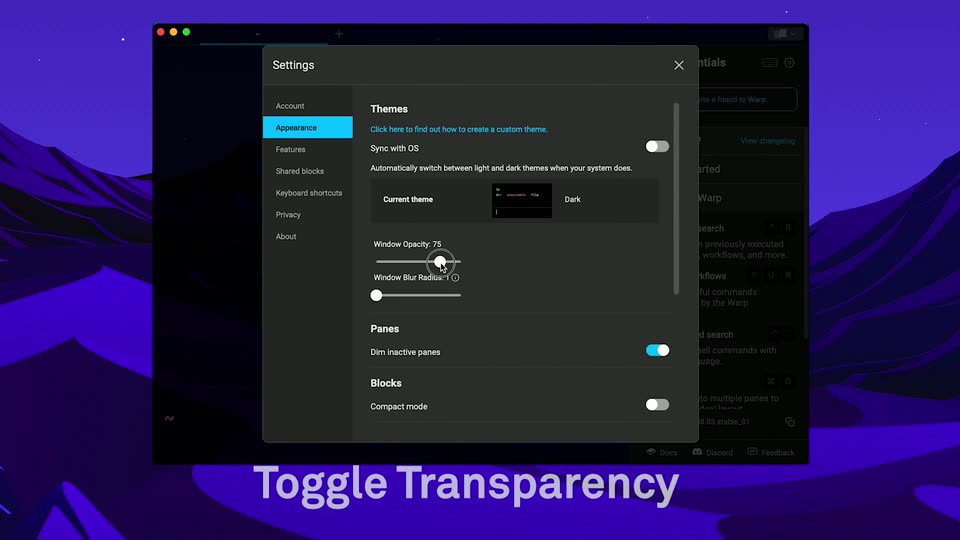
A dark settings window of a terminal app sits over a purple abstract background. A cursor drags the Window Opacity slider upward as the value climbs from 29 to 90, then a white caption appears along the bottom edge.
On-screen text: “Toggle Transparency”
Techniques: Cursor demo
Camera: Static
A flat terminal window over a purple low-poly mountain backdrop lists home-directory folders; a cd command is typed and an autocomplete dropdown slides in, while the caption Code beautifully. appears beside the title Toggle Transparency at the bottom.
On-screen text: “Toggle Transparency”, “Code beautifully.”
Camera: Static
A terminal window floats over a purple low-poly mountain landscape, tilting into 3D perspective as its line numbers scroll and the seq 100 header stays pinned at the top. White captions appear on the left, then the scene cuts to a flat terminal showing a VIM splash screen.
On-screen text: “Jump to the top of long command output”, “Sticky Command Header”
Techniques: 3D mockup
Camera: Static
A terminal window showing a vim splash screen sits on a purple rocky landscape. A cursor moves to the top-left corner, then a Quit Warp dialog pops up in the center while the caption Warning Dialogue fades in below.
On-screen text: “Warning Dialogue”
Techniques: Cursor demo
Camera: Push in
A gray quit-confirmation dialog sits centered over a terminal window on a purple abstract background. A cursor slides in and hovers the Show running processes button while a white caption fades in beneath the Warning Dialogue title.
On-screen text: “Warning Dialogue”, “No more accidentally quitting important sessions”
Techniques: Cursor demo
Camera: Static
A dark terminal window shows an open session dropdown, the vi row highlighted cyan with a Current badge and a cursor hovering the python row. Below, on a purple abstract background, a bold white headline and a two-line caption sit static.
On-screen text: “Warning Dialogue”, “No more accidentally quitting important sessions”
Techniques: Cursor demo
Camera: Static
A bold white headline reads 'Drag & Drop Tabs To Reorder' above a terminal window. A cursor drags the Session 3 tab and releases it between Session 1 and Session 2, swapping the tab order.
On-screen text: “Drag & Drop Tabs To Reorder”
Techniques: Cursor demo
Camera: Pan
A dark terminal window with a tab bar sits on a purple low-poly landscape. A cursor grabs the Session 3 tab and drags it left, landing before Session 1, while the headline stays fixed above.
On-screen text: “Drag & Drop Tabs To Reorder”
Techniques: Cursor demo
Camera: Static
A dark terminal window sits on a purple low-poly mountain backdrop under the white headline “Drag & Drop Tabs To Reorder”. A cursor drags the Session 1 tab from left to right, reordering the tabs, then the window enlarges and the cursor moves to the Trash icon.
On-screen text: “Drag & Drop Tabs To Reorder”
Techniques: Cursor demo, UI zoom
Camera: Pull out
A dark terminal window with a cyan border, three session tabs and a numbered list drifts right over a purple low-poly mountain background, then settles in place. A cursor arrow hovers over a home folder icon with a green plus at the window's bottom.
Camera: Pan
A macOS-style terminal window with three session tabs floats over a purple low-poly mountain landscape. The prompt reads 'seq 100' above a numbered list from 1 to 17. A cursor hovers over a small 'themes' desktop icon at the bottom left, shifting slightly.
Techniques: Cursor demo
Camera: Static
A terminal window tilted in 3D perspective floats over a purple abstract mountain backdrop. The window shows a scrolling number list and a file path at the bottom, while a white two-line headline sits at the left edge.
On-screen text: “Access file path just by dragging”
Techniques: 3D mockup
Camera: Static
A dark terminal window, tilted in 3D over a purple low-poly mountain backdrop, rotates and settles into a flat front-facing frame. Inside, a code block titled Optimize CosmWasm Workspace Project sits above a syntax-highlighted docker command.
Techniques: 3D mockup
Camera: Pan
A dark terminal window with an AI assistant panel sits over a purple low-poly mountain landscape. The window slides left across the frame as the panel exits, and a gray headline, Soft Wrapping, fades in on the right before fading out.
On-screen text: “Soft Wrapping”
Techniques: Kinetic type
Camera: Pan
A dark terminal window on the left reflows a long docker command into wrapped lines, while a large white Soft Wrapping heading holds the right side over a purple 3D mountain backdrop. A smaller white caption fades in beneath the heading.
On-screen text: “Soft Wrapping”, “No more scrolling horizontally to read long commands.”
Techniques: Morph
Camera: Push in
A dark Warp terminal panel with an open Essentials dropdown sits left over a purple starry landscape, a cursor glides down the menu list. Two white lines, Keyboard Shortcuts and Resource Center, fade in on the right.
On-screen text: “Keyboard Shortcuts”, “Resource Center”
Techniques: Cursor demo
Camera: Push in
A Warp terminal window sits on the left of a purple 3D landscape. A cursor opens the menu, selects Keyboard Shortcuts, and types 'split' to filter the shortcut list, while a static headline and subline hold the right side.
On-screen text: “Keyboard Shortcuts Resource Center”, “Look up how to easily do anything in Warp.”
Techniques: Cursor demo
Camera: Static
A terminal window with an open Keyboard Shortcuts panel sits on the left over a purple abstract background. The panel's search field is typed into, while a white headline and subline hold on the right.
On-screen text: “Keyboard Shortcuts Resource Center”, “Look up how to easily do anything in Warp.”
Techniques: Cursor demo
Camera: Static
A flat purple mountain landscape at night with scattered stars stays static as two centered lines of white text scale down toward the frame's center.
On-screen text: “Check out our blog”, “for an entire list of updates”
Techniques: Kinetic type
Camera: Static
A flat-illustrated purple mountain range under a starry night sky frames a centered cyan cube icon and white lowercase warp wordmark. The logo brightens from a dim state to full white over the static landscape.
On-screen text: “warp”
Camera: Static