
0:21
Explore
Quivr Demo Launch YC
The Vibe Company · Feb 2024 · 1:54 · Full motion · AI-annotated
- Length
- 1:54
- Scenes
- 9 · 12.7 s avg
- Product on screen
- 0:00
- Features shown
- 4
- Call to action
- 1:48 · 94%
- Voiceover
- Yes
- Views
- 2.6K on YouTube
as of November 26, 2026
00:00:00 / 01:54:34
- Length
- 1:54
- Scenes
- 9 · 12.7 s avg
- Product on screen
- 0:00
- Features shown
- 4
- Call to action
- 1:48 · 94%
- Voiceover
- Yes
- Views
- 2.6K on YouTube
as of November 26, 2026
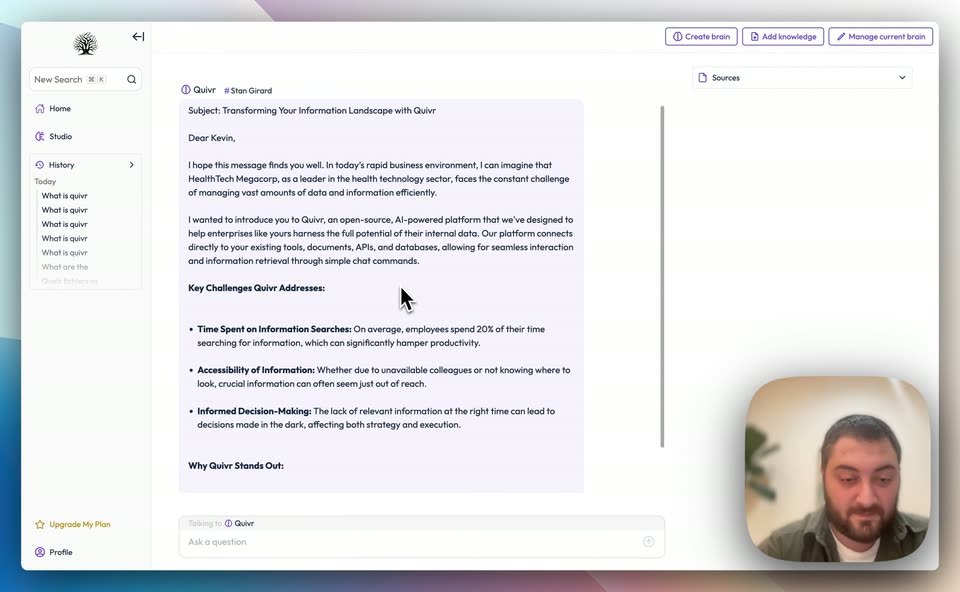
The Vibe Company’s 1:54 launch film runs 9 scenes, about 13 s each. The product is on screen from the first frame and 4 features are revealed. The call to action lands at 1:48 (94% in), over a voiceover. A single unbroken screen recording of the Quivr UI with a picture-in-picture host and a rolling subtitle bar, so the pacing is driven by the cursor and the typing rather than by cuts. The look is clean and UI-first, with only two signature moves: a slow push-in on the search field at the open and a 3D tilt of the window on the knowledge step.
No filming indicatedEstimated needs: 6 capture groups — your screens or recordings
Is this your launch? to your site or press kit.
More like this
1:31

What’s New in Craft: Shortcuts, Widgets & More Powerful Plus Plan
Craft · Productivity · Oct 2026
0:22

Quivr Demo Launch YC, scene by scene
· 9 scenes as text
01 · Product intro · 0:00–0:17
A screen recording of the Quivr home screen: sidebar, tree logo, search field. The cursor moves to the search bar as the view zooms in, then back out, and a prompt is typed in. A small webcam video of the presenter sits bottom right; white subtitles roll along the bottom.
On-screen text: “Hello guys and welcome to a”, “demo of Quivr. What I've done”, “previously is I've uploaded files”, “about what Quivr does into a brain”, “and now I'm going to ask Quivr to”, “write an email to Kevin. He's the”, “CEO of a HealthTech MegaCorp”, “and I want him to know why he”, “needs Quivr. What we do here is”
Techniques: Cursor demo, UI zoom
Camera: Static
02 · Feature reveal · 0:17–0:46
Static screen recording of the Quivr chat app: a prompt bubble sits at the top while the generated email types out line by line; a small webcam video of the presenter plays bottom right and caption lines roll in a dark bar below.
On-screen text: “needs Quivr. What we do here is”, “we ask Quivr a question and now”, “Quivr finds the best brain to”, “answer the question and with the”, “information that we have in the”, “brain it answers the question. So”, “here it says everything about”, “Quivr and why the CEO should”, “need Quivr. It's saying smart”
Camera: Static
03 · Feature reveal · 0:46–1:02
A Quivr interface types an email signature while a presenter's webcam inset runs in the corner. The cursor selects a source PDF, the screen zooms in, and a brain menu opens with GPT4 highlighted.
On-screen text: “yeah. Okay and so it used this file”, “as sources. Now what I'm going to”, “do is I'm going to use a custom”, “brain which is called GPT4 and I'm”
Techniques: Cursor demo, UI zoom
Camera: Static
04 · Feature reveal · 1:02–1:27
The Quivr interface fills the frame: a long email in the main pane, a Sources panel on the right. A presenter in a rounded video-call window at bottom right gestures while a dark caption bar updates with his speech. A GPT4 reply with a rewritten email types out below.
On-screen text: “brain which is called GPT4 and I'm”, “going to give him more”, “instructions based on this email”, “and I'm going to say make this”, “email shorter. So now what it's”, “going to do is it's going to call a”, “custom brain which is just GPT4”, “and it's going to simplify the mail”, “with all of the information that it”, “already has. So let's see what it gives. Okay. Pretty cool. So now what we can do is we can go into”
Techniques: Cursor demo
Camera: Push in
05 · Feature reveal · 1:27–1:31
A product interface shows a left sidebar; a hand cursor clicks Home then Studio, revealing a brains list. The frame reframes onto the Name and Description table as the cursor hovers the Quivr row. A small face-cam of the presenter sits in the lower right corner.
On-screen text: “what we can do is we can go into”, “Quivr and we can look at this brain”
Techniques: Cursor demo, UI zoom
Camera: Pan
06 · Feature reveal · 1:31–1:42
A Quivr settings page scrolls downward as a cursor hovers over the Brain name, Model and Prompt fields. A small rounded video of a man talking sits in the bottom right corner, and white caption lines cycle in a dark bar at the bottom.
On-screen text: “Quivr and we can look at this brain”, “and you can see what I've done.”, “So I'm using GPT4 here to answer”, “the questions and I've done some”, “prompt engineering telling him”, “how I want him to answer the”, “information that he needs and”
Techniques: Cursor demo
Camera: Push in
07 · Feature reveal · 1:42–1:43
A light Quivr settings page scrolls up to reveal the top navigation bar and logo as a hand cursor taps the Knowledge tab. A small face-cam of a bearded presenter sits in the lower right corner above a dark subtitle bar.
On-screen text: “information that he needs and”
Techniques: Cursor demo
Camera: Pan
08 · Feature reveal · 1:43–1:48
The Quivr Knowledge page is shown in a screen recording as a cursor taps the Knowledge tab and hovers over an uploaded PDF. The interface tilts into a 3D perspective against a blue-purple gradient, then flattens. A presenter's face sits in a rounded box at the lower right.
On-screen text: “information that he needs and”, “here I have the knowledge that”, “was used to answer the question”, “and you can even go further and”
Techniques: Cursor demo, UI zoom, 3D mockup
Camera: Pull out
09 · CTA · 1:48–1:54
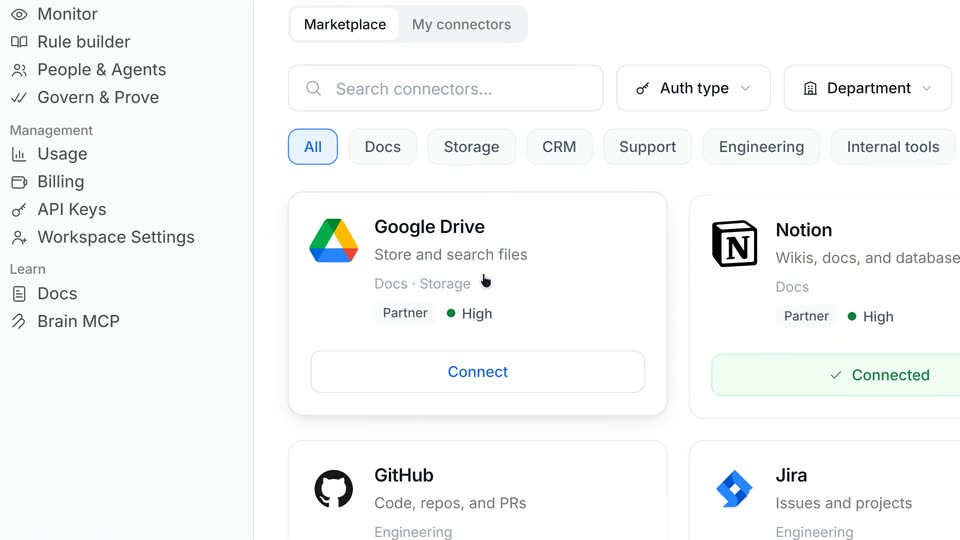
The Quivr People page zooms in on the Add new users email field, then pulls back to the full app with its left sidebar. A small face-cam of the presenter sits bottom-right while a dark caption box rolls new phrases across the bottom.
On-screen text: “and you can even go further and”, “share your brain with people. So”, “have fun and let me know how it”, “goes.”
Techniques: UI zoom, Cursor demo
Camera: Static