
0:35
Explore
00:00:00 / 01:36:02
- Length
- 1:36
- Scenes
- 62 · 1.5 s avg
- Product on screen
- 0:00
- Features shown
- 1
- Call to action
- 1:31 · 95%
- Voiceover
- No
- Views
- 749 on YouTube
as of November 24, 2026
Sharpe’s 1:36 launch film runs 62 scenes, about 1.5 s each. The product shows up at 0:00 and 1 feature is revealed. The call to action lands at 1:31 (95% in). The video opens with locked-off black text cards that light up word by word, then cuts into fast screen recordings of apps built on solarapp, with the camera panning and zooming across parallel browser windows and 3D-tilted desktop mockups floating over the Bliss landscape. Pacing runs near 26 cuts per minute, driven by zoom-ins on UI details, letter-by-letter typing, and crossfades between code diffs and live previews, closing on a typed URL.
Footage neededEstimated needs: 3 capture groups — your screens or recordings · 1 filmed passage — shoot, supply or replace · 3 3D passages — build or supply
Is this your launch? to your site or press kit.
More like this
0:56

Runway - Introducing Runway App Studio. Build the creative app you wish exist
Runway · AI · Oct 2026
1:13
HyperFrames - script based editing is live in HyperFrames Studio edit long-form an
HyperFrames · Oct 2026
Similar soundtrack
Films whose music sounds like this one, voice left out
1:08

Introducing Echo by Tracer
Tracer · Classical
0:45

WorkOS - Introducing @AuthKit — an open source auth UI built on @radix_ui.
AuthKit · Solo violin transitioning to full orchestral
0:34

Island: Screen Time - Trailer
SideKit · Classical
Introducing Solar by Lumenary, scene by scene
· 62 scenes as text
01 · Hook · 0:00–0:00
A single line of text on a black background reads “Everything you're about to see”. The words light up from gray to white one by one, left to right, on a locked-off frame.
On-screen text: “Everything you're about to see”
Techniques: Kinetic type
Camera: Static
02 · Product intro · 0:00–0:02
A black title card holds the line 'Everything you're about to see' in white and gray. A second line, 'was made in solarapp.dev', appears below it with 'solarapp' in bold white. The frame stays locked and still throughout.
On-screen text: “Everything you're about to see”, “was made in solarapp.dev”
Camera: Static
03 · Product intro · 0:02–0:04
White and gray text on a black background reads “Everything you're about to see / was made in solarapp.dev / in under an hour.”, with “Everything” and “solarapp” in white. The last line fades in, then the gray words fade out, leaving “Everything” alone.
On-screen text: “Everything you're about to see”, “was made in solarapp.dev”, “in under an hour.”
Camera: Static
04 · Product intro · 0:04–0:05
White sans-serif text reads on a flat black background, then fades out as a black disc ringed with a bright white glow blooms into view center-right with a soft radial halo.
On-screen text: “Everything you're about to see”
Camera: Static
05 · Demo · 0:05–0:06
A white vertical edge wipes across, opening a panel that reveals a smiling woman in a red top holding a red dress over a blue-sky landscape. The headline and dress icon settle center, then dim as the panel fills the frame and a desktop with icons shows at left.
On-screen text: “Try Before You Buy, Virtually”, “Transform your wardrobe with AI-powered try-ons”
Techniques: Masking
Camera: Pull out
06 · Demo · 0:06–0:07
Desktop screen with a green hill wallpaper and a vertical product panel centered, showing a woman at a mirror whose outfit swaps from a beige top to a houndstooth suit. A white dress illustration and sparkles sit above the headline, and the cursor moves down to click the Get Started button.
On-screen text: “Try Before You Buy, Virtually”, “Transform your wardrobe with AI-powered try-ons”
Techniques: Cursor demo
Camera: Static
07 · Demo · 0:07–0:09
A Windows XP desktop shows a browser window. A cursor clicks the Create First Try-On button, the view switches to a New Outfit Try-On form, a file picker opens, and a portrait of a man loads into the upload slot.
Techniques: Cursor demo
Camera: Pan
08 · Demo · 0:09–0:11
A file picker overlay clears from a try-on page, then the view widens to three browser windows on a desktop: left shows an Einstein photo and shirt, middle shows a satellite article and form, right shows a highway video. Small captions and the shirt logo scale and slide.
Techniques: Split screen
Camera: Pull out
09 · Demo · 0:11–0:12
On a Windows XP desktop, three browser windows sit side by side: a virtual try-on panel with a portrait and a printed tee, a satellite-map analysis panel, and a highway game view. The camera pans and zooms toward the middle window.
Techniques: UI zoom
Camera: Push in
10 · Demo · 0:12–0:13
A white-framed satellite map of San Francisco floats in a 3D landscape of green hills and blue sky. The map zooms from a wide bay view to street level, a blue pin and a hand cursor rest on the grid.
Techniques: 3D mockup, UI zoom, Cursor demo
Camera: Pan
11 · Demo · 0:13–0:15
A map on a tablet mockup zooms from city blocks to a parking lot, two hand cursors and a blue pin held steady, set in a 3D scene of green hills and a cloudy sky.
Techniques: 3D mockup, UI zoom, Cursor demo
Camera: Push in
12 · Demo · 0:15–0:20
Three browser windows sit side by side on a desktop. The left switches from a Processing spinner to a Complete state, revealing a man in a white t-shirt with a face print and 'Good Vibes Only'. The middle scrolls a satellite report; the right plays a highway feed.
Camera: Push in
13 · Demo · 0:20–0:21
A framed black-and-white photo of a young man zooms from his face down to his torso, revealing a white T-shirt printed with a script slogan and a red figure. A caption line with Share and Download buttons sits below the photo.
On-screen text: “EINSTEIN AS A YOUNG MAN”
Techniques: UI zoom
Camera: Pull out
14 · Demo · 0:21–0:24
A desktop shows three browser windows of an analysis app. The view zooms into a satellite parking lot marked with red bounding boxes, a cursor hovers, then it settles on a results page with a portrait, detection summary, and a bottom bar.
Techniques: UI zoom, Cursor demo
Camera: Pull out
15 · Demo · 0:24–0:25
A Windows desktop with two open browser windows zooms into the green hill wallpaper, ending on a close-up of the grass with the taskbar and a cursor at the bottom.
Techniques: UI zoom
Camera: Push in
16 · Feature reveal · 0:25–0:27
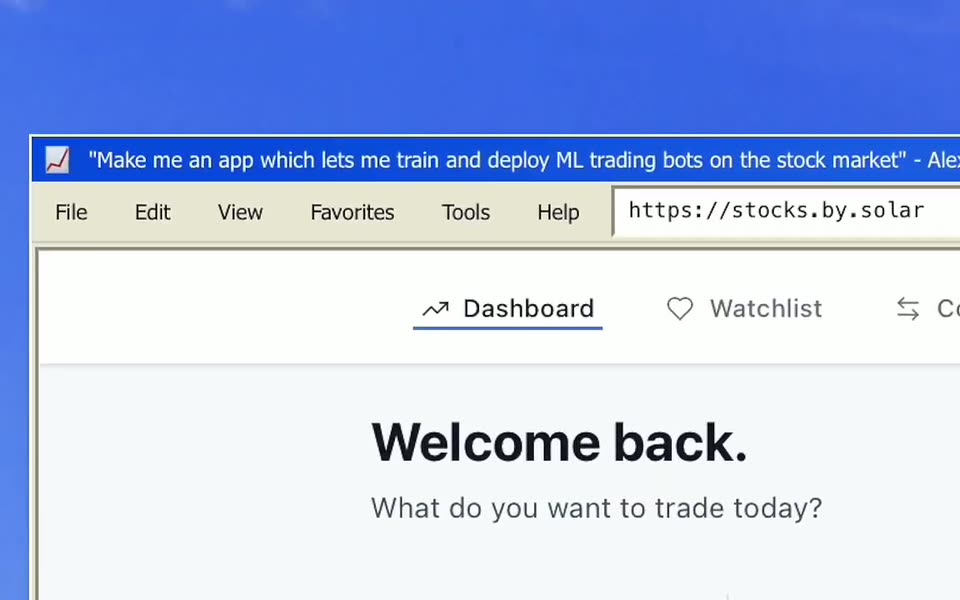
A retro browser window with a blue title bar and beige menu bar wipes in from the right over a green field, settling on a blue sky. Inside, the app dashboard shows a bold black welcome headline and a gray subline.
On-screen text: “Make me an app which lets me train and deploy ML trading bots on the stock market”
Techniques: Masking
Camera: Pan
17 · Feature reveal · 0:27–0:29
A retro browser window with a prompt in its title bar and the URL stocks.by.solar frames the app. The view then reframes to the full trading dashboard, which scrolls down to reveal simulation result cards and a trending stock list.
On-screen text: ““Make me an app which lets me train and deploy ML trading bots on the stock market” - Alex”, “https://stocks.by.solar”
Techniques: UI zoom
Camera: Pull out
18 · Feature reveal · 0:29–0:29
A cursor hovers the New Agent button on a stock trading dashboard, then the screen switches to a Create New Trading Agent form showing a three-step header, a ticker field, and strategy options.
Techniques: Cursor demo
Camera: Static
19 · Feature reveal · 0:29–0:31
A trading bot setup form fills the frame, then the view zooms into the stock search field. The ticker PLTR is typed letter by letter, and the validation hint beneath updates to match. Strategy cards sit below with Moving Average Crossover selected.
Techniques: UI zoom
Camera: Push in
20 · Feature reveal · 0:31–0:32
A light trading-bot setup form scrolls down past the stock and strategy fields. A cursor opens a data-range dropdown and rests on the one-year option, which then takes the checkmark.
Techniques: Cursor demo
Camera: Pull out
21 · Feature reveal · 0:32–0:35
A close-up of a training form shows the Epochs value changing from 5 to 50, then the view pulls back as the cursor clicks the blue Start Training button. The screen switches to a dashboard where the button reads Training... and a stock list sits on the right.
Techniques: UI zoom, Cursor demo
Camera: Pull out
22 · Feature reveal · 0:35–0:41
A trading agent dashboard zooms into its metrics panel while the Training button runs. Loss and accuracy values fill in from N/A, a red loss curve draws downward, a log of training events stacks up, and the header bar turns green.
Techniques: UI zoom
Camera: Push in
23 · Feature reveal · 0:41–0:44
A light trading dashboard fills the frame, the view scrolling up to reveal a header reading PLTR Moving Average Crossover, Training Complete. Stat cards for return, win rate and trades sit above a red loss line chart and a monospace training events log.
Camera: Static
24 · Feature reveal · 0:44–0:46
A trading dashboard interface shifts left as a stock list panel slides in from the right, listing MSFT, TSLA, AMZN and META with prices and change arrows. The left side keeps its metrics cards and a red loss curve.
Camera: Push in
25 · Demo · 0:46–0:47
A green grassy hillside slopes diagonally across the lower half of the frame beneath a bright blue sky filled with scattered white clouds. The camera holds a static wide shot with no movement.
Camera: Pull out
26 · Demo · 0:47–0:48
A web interface sits over a Windows XP hill-and-sky desktop, with a right-hand vertical menu and a bottom-left prompt box. A darkened overlay fades in showing three icon-and-label pairs, Drag to move, Double click to use, Button to expand, plus a reload hint line.
On-screen text: “Drag to move”, “Double click to use”, “Button to expand”, “Not loading? Hit “Reload app” on top right corner.”
Camera: Pull out
27 · Demo · 0:48–0:50
A dark build interface fills the frame: a code panel with public badges on the left, a Windows XP desktop with instructional captions in the center, a design plan and side menu on the right. The view reframes and zooms toward the left panel and the XP desktop.
Techniques: UI zoom
Camera: Push in
28 · Demo · 0:50–0:51
A dark app window overlays a green landscape render. A code panel sits top left, a chat panel center with a circular icon and greeting. In the input bar at the bottom, a prompt types out letter by letter behind a blinking caret.
Techniques: Cursor demo
Camera: Push in
29 · Demo · 0:51–0:53
A dark chat assistant panel sits over a blurred workspace showing a code list and a green field image. Inside the panel, a prompt is typed into the input line, growing from a URL to a solitaire request, while a circular icon and the heading stay still.
Techniques: Kinetic type
Camera: Static
30 · Demo · 0:53–0:55
A dark app-builder UI with a code panel left and a design-plan panel right. A Windows XP desktop with the Bliss wallpaper opens as a small window center and scales up to fill the canvas as a prompt caption fades out above it.
On-screen text: “Now, use this background instead https://i.redd.it/w6hb4pwmOfz3l.jpg and also I want you to add in Solitaire”
Techniques: UI zoom
Camera: Pull out
31 · Demo · 0:55–0:55
A dark app screen centers a Windows XP desktop with the Bliss wallpaper, while a left chat panel shows an assistant message, a Thinking bar and a hovering cursor. The Todo, Plan and code panels fade out.
Techniques: Cursor demo
Camera: Static
32 · Demo · 0:55–0:56
A dark app screen shows a chat panel on the left and a Windows XP desktop window on the right. The left panel fades to a ghost as the desktop window recenters and enlarges, and a small hint overlay with drag, double-click and esc labels appears over the desktop.
Techniques: UI zoom
Camera: Static
33 · Demo · 0:56–1:01
A dark builder interface shows a chat panel on the left reading project files while a Windows XP desktop mockup sits in a grid canvas on the right. A cursor drags the window's corner to resize it, then the viewport pans left to reveal code files.
Techniques: Cursor demo
Camera: Push in
34 · Demo · 1:01–1:02
A desktop interface with a sky and grass background sits next to a dark vertical menu. A hand cursor moves down the menu, hovering over different options.
Techniques: Cursor demo
Camera: Pull out
35 · Demo · 1:02–1:05
A dark deployment panel spins a loading indicator, then the log view fills with timestamped build lines. The frame zooms onto the top toolbar as the cursor hovers the Redeploy button beside Stop and Download Repo.
Techniques: Cursor demo, UI zoom
Camera: Push in
36 · Demo · 1:05–1:06
A dark project bar labeled solar with a Download button and a commit hash sits behind a white line logo that rotates in the center. The view then cuts to a logs panel where a hand cursor points at the Logs History tab.
Techniques: Cursor demo
Camera: Static
37 · Demo · 1:06–1:07
A close-up of a dark status bar with a blue PREPARING badge, Processing 1s ago, and History and Logs tabs pulls back to reveal the full editor: file tree, Python code, an empty logs panel, and a deploy sidebar.
Techniques: UI zoom
Camera: Pull out
38 · Demo · 1:07–1:07
A dark app interface holds a code panel with two Python files and PUBLIC badges on the left, and a Windows XP desktop mockup labeled Frontend on the right. A status list runs down the top right corner. The frame stays locked and still.
Camera: Pan
39 · Demo · 1:07–1:08
A dark interface shows a blank white panel split by a vertical line at center, flanked by Python function lists on the left and a status checklist on the right. A cursor moves across the screen as the panel narrows.
Techniques: Cursor demo
Camera: Static
40 · Demo · 1:08–1:09
A tilted 3D window of a Windows desktop sits in the center of a dark dev-tool interface, flanked by file lists and a status sidebar. The desktop wallpaper and icons clear to a blank white screen as the top-right status updates to a reload count.
Techniques: 3D mockup
Camera: Static
41 · Demo · 1:09–1:10
A dark dev-tool screen shows code panels on the left and a Windows XP desktop preview with a beach wallpaper. The preview window slides up and enlarges toward top center as the code panel and right menu compress to the edges.
Techniques: UI zoom
Camera: Pan
42 · Demo · 1:10–1:11
A dark IDE zooms out from a tight list of Python function cards to a wider layout: a code editor on the right, a chat box at bottom left, and a Windows desktop strip on the far right. A cursor sits in the code panel.
Techniques: UI zoom, Cursor demo
Camera: Static
43 · Demo · 1:11–1:11
A dark code-editor screen holds a file-tree panel on the left, a Windows 98 desktop image in the center, and a Python code panel on the right, while a small Frontend tag slides in above the desktop.
Camera: Static
44 · Demo · 1:11–1:15
A dark interface shows Python code files on the left and a Windows XP desktop with a palm-tree wallpaper on the right. The view pans left to expose more code cards, then zooms into the desktop while the status line cycles through short phrases.
Techniques: UI zoom
Camera: Static
45 · Demo · 1:15–1:17
A dark product interface splits the frame: code panels for clippy_service.py and admin_service.py slide up on the left while a 3D-tilted Windows 98 desktop with a beach wallpaper sits on the right, briefly flashing a three-icon hint overlay.
Techniques: 3D mockup
Camera: Pull out
46 · Demo · 1:17–1:17
A dark code editor lists two Python service files with public badges while a retro Windows desktop window, showing a tropical beach wallpaper, slides diagonally down and left across it. A hand cursor rests on the window's bottom edge.
Techniques: Parallax
Camera: Push in
47 · Demo · 1:17–1:19
A dark agent chat screen. A Windows desktop mockup with a beach wallpaper dissolves out, revealing a white paragraph about creating a Solitaire component. A status line at the bottom fades from 'Asking someone on Stack Overflow..' to 'Talking to my rubber duck.'
Camera: Push in
48 · Demo · 1:19–1:20
A dark chat interface scrolls upward through an AI coding session. A white response paragraph and two file cards with EDITED and CREATED badges move off the top as a green-tinted CSS code block slides into view.
Camera: Static
49 · Demo · 1:20–1:21
A dark code panel lists CSS rules for Solitaire.module.css beneath a file-created notification card. The code crossfades out as the panel switches to Desktop.tsx, showing a centered Loading diff... message.
Camera: Static
50 · Demo · 1:21–1:22
A dark code editor panel shows a Desktop.tsx diff with one red and one green highlighted line. The code block crossfades into a new version while a faint loading caption fades in at the center; the header keeps the file name, an additions count and an EDITED badge.
Techniques: Morph
Camera: Static
51 · Demo · 1:22–1:22
A dark code editor displays a TypeScript file with a switch statement, the solitaire case block highlighted in green. The header badge reads EDITED and the additions counter in the top left ticks from 2 to 3.
Camera: Static
52 · Demo · 1:22–1:23
A dark diff panel labeled Desktop.tsx shows a centered Loading diff... message, then the empty area fills with red-tinted code lines. The top bar keeps a TS badge and a blue EDITED tag. The view holds still while the content swaps from the loading state to the highlighted additions.
Camera: Static
53 · Demo · 1:23–1:24
A split view pairs a dark assistant panel on the left with a Windows XP desktop on the right. The left file list scrolls up, revealing a new CREATED entry and a green highlighted code block, while the XP desktop with its sea wallpaper stays static.
Techniques: Split screen
Camera: Pull out
54 · Demo · 1:24–1:24
A dark code editor panel sits left of a Windows desktop preview with an ocean wallpaper and app icons. The code block on the left refreshes, swapping JSX for switch-case lines with a green highlight, while a faint Generating new content label fades in over it.
Camera: Static
55 · Demo · 1:24–1:25
A split screen shows a dark code panel on the left with edited Desktop.tsx entries and a highlighted block, beside a retro desktop on the right with a blue sea wallpaper and a green start button. The right desktop fades to black while the left stays still.
Techniques: Split screen
Camera: Static
56 · Demo · 1:25–1:27
A dark code editor with a green-highlighted block sits beside a Windows XP desktop. The frame zooms onto the desktop as the cursor moves to the Solitaire icon and clicks it, the icon lighting up with a dotted border.
Techniques: Split screen, UI zoom, Cursor demo
Camera: Push in
57 · Demo · 1:27–1:29
A Windows desktop mockup shows a Solitaire window dealing its cards while a left panel logs file edits. The view then reframes onto the file list, where Desktop.tsx entries and a Frontend Logs block stack up.
Techniques: Cursor demo, UI zoom
Camera: Pull out
58 · Demo · 1:29–1:30
A dark code interface scrolls vertically through stacked panels. The top Desktop.tsx and Frontend Logs rows slide up and out, centering a Reading Frontend Logs card that displays a JSON snippet, while a faint Thinking line fades in above the code.
Camera: Pan
59 · Demo · 1:30–1:31
A dark interface card titled 'Thinking' displays a JSON object in gray monospace type, then the frame zooms in tightly on the word 'successfully'.
Techniques: UI zoom
Camera: Static
60 · CTA · 1:31–1:31
On a black background, a faint horizontal light streak fades as the URL types out letter by letter behind a blinking cursor, ending with the full address centered in the frame.
On-screen text: “solarapp.dev”
Techniques: Kinetic type
Camera: Static
61 · CTA · 1:31–1:33
A plain black frame holds the centered URL solarapp.dev in lowercase sans, the first half white and the .dev gray. A thin vertical cursor blinks after the text at the start, then the line sits still.
On-screen text: “solarapp.dev”
Camera: Static
62 · CTA · 1:33–1:36
A black frame holds the URL solarapp.dev centered, with solarapp in white and .dev in gray. The text stays static throughout the locked-off shot.
On-screen text: “solarapp.dev”
Camera: Static