3:10

TensorPool (W25) - The Easiest Way to Access GPUs
TensorPool · B2B · Feb 2025
Pipeshift’s 1:38 clip runs 8 scenes, about 12 s each. The product is on screen from the first frame and 5 features are revealed. A single unedited screen recording that hard-cuts between dark dashboard screens, each introducing one workflow in order: sandbox, models, datasets, fine-tune, deploy. The cursor and streaming text carry all motion, with purple accents marking buttons and live states.
Is this your launch? to your site or press kit.
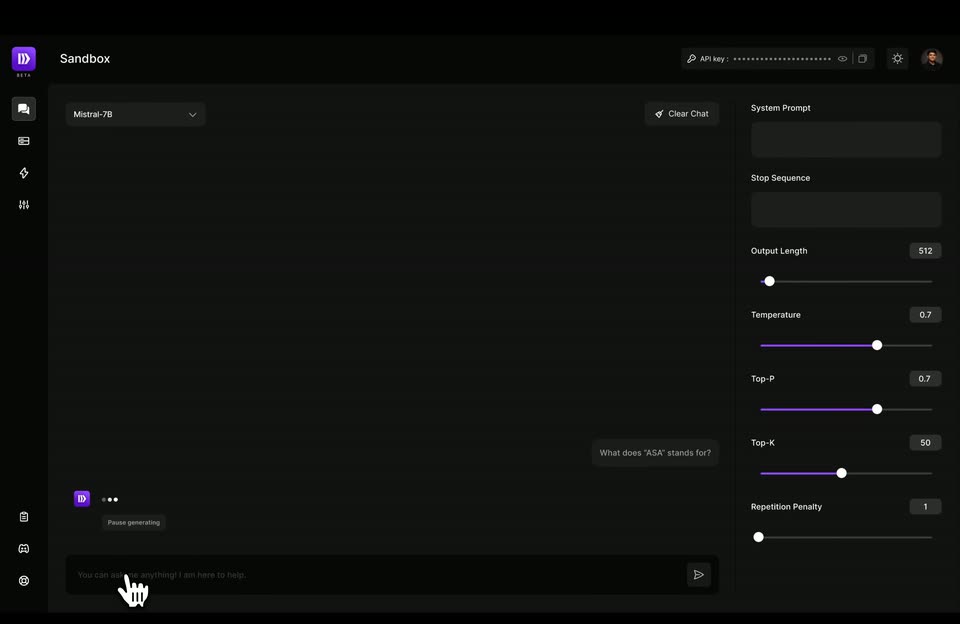
A dark landing screen centers the pipeshift logo over a 'Welcome to our BETA access!' headline, a hand cursor resting on the Google sign-in button. It cuts to the Sandbox dashboard with a model dropdown and a right column of sliders.
Techniques: Cursor demo
Camera: Static
A dark chat interface with a left icon rail and a right parameter panel. A white hand cursor opens the model dropdown, scrolls the list, then clicks the input box and types a question; a response streams in below. The sidebar finally expands to reveal menu labels.
Techniques: Cursor demo
Camera: Static
A dark dashboard lists two tables, Your Models and Base Models, with model names, authors, prices and Live status. A white cursor glides across the screen, pausing at the API key field and over the model rows.
Techniques: Cursor demo
Camera: Static
A hand cursor hovers over the Datasets item in the left sidebar of a dark dashboard, then clicks it. The main panel refreshes, sliding from the models table into a datasets table that lists JSON files with columns for author, file name and status.
Techniques: Cursor demo
Camera: Static
A dark datasets table fills the screen. A cursor clicks Upload Dataset, a modal opens, the cursor types a name, selects a JSON file, and clicks Upload. The modal closes and a new row appears in the list.
Techniques: Cursor demo
Camera: Static
A dark fine-tune dashboard lists training jobs in a table. A hand cursor clicks Create Job, opens a form modal, types a model name, selects a dataset and base model from dropdowns, expands the hyperparameters grid, then clicks Confirm, which shows a Processing bar.
Techniques: Cursor demo
Camera: Static
A dark fine-tune jobs table fills the screen. A white cursor slides left, expanding the icon rail into a labeled sidebar, then rests on the Models item as the view cross-fades to two model tables.
Techniques: Cursor demo
Camera: Static
A dark models dashboard with two tables sits static. A cursor glides to the Deploy button on the top row and clicks it; the button flashes a purple loading state, then the row swaps to an Open Sandbox button with a green Live dot. The cursor rests mid-screen.
Techniques: Cursor demo
Camera: Static