1:36

Confident AI Launch YC
Confident AI · B2B · Feb 2025
Paragon · Oct 2023 · 3:15 · Full motion · AI-annotated
Paragon’s 3:15 launch film runs 8 scenes, about 24 s each. The product is on screen from the first frame and 1 feature is revealed. There is no explicit call to action; a voiceover carries the film. Built as a single presenter-led screen recording: a constant bottom-right face cam and a rolling caption bar frame a slow, zoom-driven tour of the TaskLab interface. The signature move is a push-in on the active UI element (a card, a warning, a modal) followed by a pull-back to the full window, with no hard cuts between steps.
Is this your launch? to your site or press kit.
Confident AI · B2B · Feb 2025
Dreamscale Labs · Industrials
Dreamscale Labs · Industrials · Nov 2026
A TaskLab Release Environments screen fills the frame, three cards Main, Staging, Production linked by arrows over a projects table. A man's webcam sits bottom-right; white captions roll in a dark bar. The view zooms into the cards, pans right, then out as the cursor clicks a Create Release button.
On-screen text: “Hi everyone, my name is Ethan, I'm”, “the lead PM at Paragon, and today I'll”, “tell you a little bit about Release”, “Environments. We built release”, “environments to make it easy to”, “control the lifecycle of integrations”, “from development into production. So”, “what we heard from customers is that”, “it's difficult and time consuming to”, “make changes to integrations every time you make a change to each change will affect existing users of those integrations. So what we did is to build in Paragon”
Techniques: UI zoom, Cursor demo
Camera: Push in
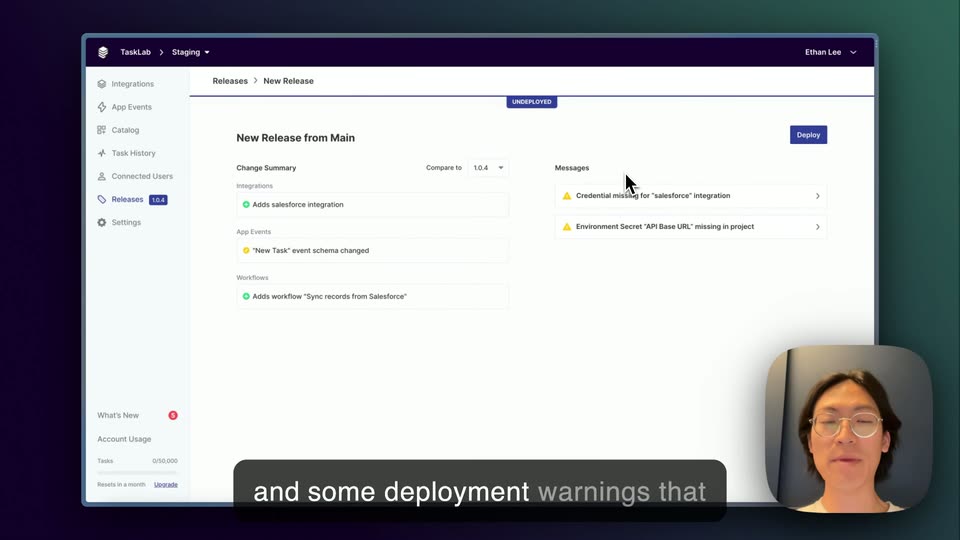
The TaskLab New Release screen opens zoomed in on the Change Summary with skeleton bars, then pulls back to the full window with a presenter's webcam in the corner. A hand cursor hovers the summary, then an arrow cursor moves to the Messages panel as the view zooms in.
On-screen text: “I'll go ahead and click create release.”, “And on the left hand side you'll see a”, “change summary of some of the”, “updates that I've made to my main”, “environment since I last deployed to”, “staging. So it looks like I've added a”, “Salesforce integration and also a”, “corresponding workflow as well as”, “updating the new task event schema.”, “On the right hand side you can see some of the effects of those changes and some deployment warnings that I'll need to address before rolling out these updates.”
Techniques: UI zoom, Cursor demo
Camera: Push in
A Salesforce app configuration modal sits over a dimmed dashboard. The view zooms out to the full browser window, then back in as a cursor types client-id and client-secret into the fields and clicks Save. A presenter webcam and rolling subtitles occupy the lower right.
On-screen text: “integration I'll need to add some”, “additional app details so that my”, “Salesforce integration continues to”, “work in my staging environment. So”, “I'll fill out a client ID and secret that”, “corresponds to my staging”, “environment. I'll save that. And it also”
Techniques: UI zoom, Cursor demo
Camera: Pan
A cropped view of a warning list reframes to the full release page as a cursor clicks the warning to expand it. A modal opens and the cursor types a URL into the API Base URL field, with a presenter face-cam in the corner.
On-screen text: “environment. I'll save that. And it also”, “looks like I have a new environment”, “secret called API base URL that”, “doesn't exist inside of the staging”, “environment yet. So I'll also fill in a”, “corresponding API base URL for”, “staging. Now that I've resolved those”
Techniques: Cursor demo, UI zoom
Camera: Pull out
A screen recording of a deployment tool: the 'Add environment secret' modal closes after the cursor clicks Save, then the frame pulls back to show the page header with an UNDEPLOYED badge and a Deploy button the cursor approaches. A webcam self-view sits in the corner; subtitles run below.
On-screen text: “staging. Now that I've resolved those”, “deployment messages I'm ready to”, “deploy. So I'll go ahead and start the”
Techniques: Cursor demo, UI zoom
Camera: Pan
A web app's release page opens a Confirm release dialog; a cursor types a version number and a description, while the view zooms in and out on the fields. A small webcam of the presenter sits in the corner and captions run along the bottom.
On-screen text: “deploy. So let's go ahead and start the”, “deployment. I'll fill out a version”, “number to identify this set of changes”, “and I'll leave a quick description for”, “internal reference.”, “I click deploy and the changes that”
Techniques: Cursor demo, UI zoom
Camera: Pan
A close-up of a product release page shows a warning card with a Resolved button and a hand cursor, then the view pulls back to reveal the full page with a DEPLOYING status. A presenter's webcam sits in the bottom-right corner while a dark subtitle bar rolls across the bottom.
On-screen text: “I click deploy and the changes that”, “I've made will start applying to”
Techniques: Cursor demo, UI zoom, 3D mockup
Camera: Pull out
The TaskLab Releases screen shows a release detail, then a version history table, while a presenter talks from a small webcam inset at bottom right. A cursor navigates the UI and opens the environment dropdown; subtitles run along the bottom.
On-screen text: “I've made will start applying to”, “staging. Once these changes have”, “finished applying the release will be”, “marked as live where I can see it later”, “in a list of historical releases that”, “have been made to the staging”, “environment over time. So I can see”, “exactly how this environment has”, “been modified and what impacts it”, “has had on users of the integration. Once I've validated my changes on staging, I can also deploy into a similar process to deploy into my production envioronm.”
Techniques: Cursor demo, UI zoom
Camera: Static