0:30
Dreamscale Labs (YC F26) - Dreamscale Datasets is now live!
Dreamscale Labs · Industrials · Nov 2026
Dreamscale Labs · 0:50 · Full motion · AI-annotated
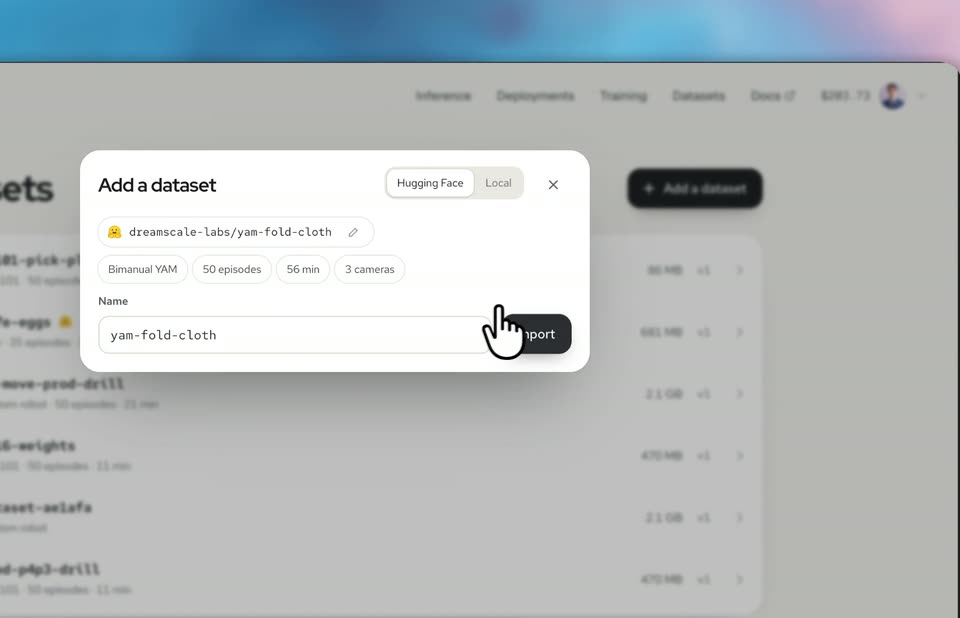
Dreamscale Labs’s 0:50 launch film runs 8 scenes, about 6.3 s each. The product is on screen from the first frame and 1 feature is revealed. There is no explicit call to action; a voiceover carries the film. A single continuous screen recording of the Training flow, shown as a white card floating over a painted pink-and-blue backdrop, with smooth push-in zooms timed to each cursor click. A persistent presenter webcam in the corner and a black cursor anchor the tutorial feel, while monospace labels and pill badges keep the interface crisp.
Is this your launch? to your site or press kit.
Dreamscale Labs · Industrials · Nov 2026
Simantic · B2B · Oct 2026
Letters Abroad · Sep 2026
A white Training dashboard floats over a pink and blue painted backdrop, listing model rows with Ready and Failed pills. The frame zooms into the interface as the cursor clicks the Train a model button, opening a Base model form. A presenter's webcam stays in the lower corner.
Techniques: Cursor demo, UI zoom
Camera: Push in
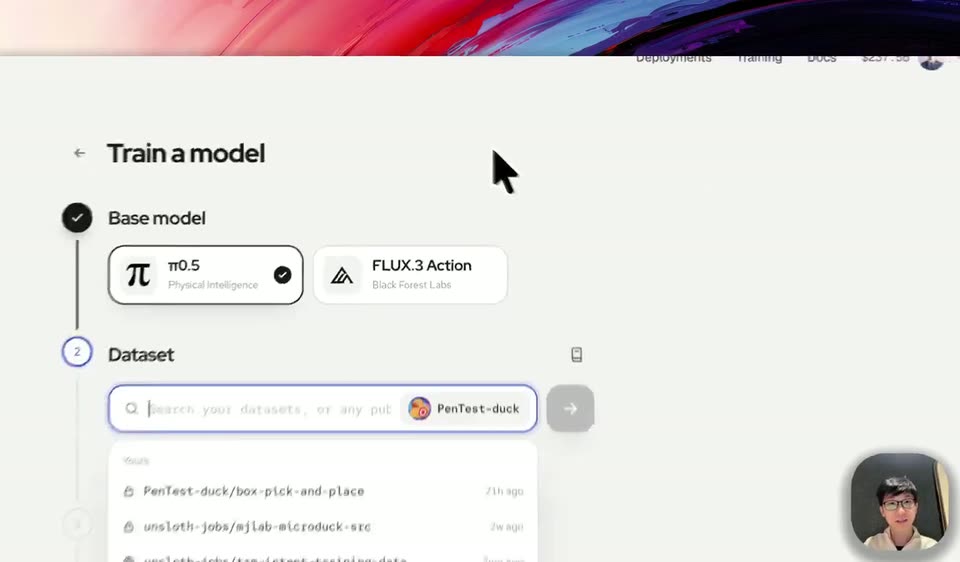
A light gray Train a model screen shows two base-model cards. A black cursor glides down to the checked π 0.5 card, then a small FLUX.3 Action tooltip pops up beside it while the dataset search field lights up.
Techniques: Cursor demo
Camera: Pull out
A rounded product window over a painted backdrop shows a model-training form. A cursor selects a base model and dataset, the view scrolls to a price and start button, then a gear opens an advanced panel with toggles and tooltips. A presenter's webcam feed sits in the corner.
Techniques: Cursor demo, UI zoom
Camera: Pan
A training-run card zooms out to reveal the full interface over a pink-and-blue paint background, then zooms back in on the Queued progress bar. A cursor hovers near the Details row as the timer ticks; a small face-cam circle sits in the bottom-right corner.
Techniques: UI zoom, Cursor demo
Camera: Pull out
A light dashboard panel for a run titled box-pick-and-place shows a Queued progress bar and step chips, with a hand cursor pointing at a back arrow tagged All training runs and a small webcam circle of a presenter at the lower right.
Techniques: Cursor demo
Camera: Pan
A light interface titled Training lists rows of pi-logo checkpoints that scroll upward as a cursor moves and clicks a row; a small circular webcam of the presenter sits in the corner.
Techniques: Cursor demo
Camera: Static
A light gray list of checkpoint rows, each with a pi icon and monospace label, sits in a white panel. A hand cursor drifts down the rows, and a trash icon fades in at the right edge of the hovered row. A small video-call avatar stays in the corner.
Techniques: Cursor demo
Camera: Static
A product panel floats over a painted pink-and-blue backdrop, with a small presenter webcam in the corner. A cursor scrolls the training run, hovers the loss chart and checkpoint rows to reveal tooltips, then opens the deployment page showing a CLI command.
Techniques: 3D mockup, Cursor demo, UI zoom
Camera: Pull out