0:30
Dreamscale Labs (YC F26) - Dreamscale Datasets is now live!
Dreamscale Labs · Industrials · Nov 2026
Dreamscale Labs · Oct 2026 · 0:50 · AI-annotated
Dreamscale Labs’s 0:50 launch film runs 9 scenes, about 5.6 s each. The product is on screen from the first frame and 3 features are revealed. There is no explicit call to action; a voiceover carries the film. A single continuous screen recording of the DreamScale fine-tune flow, shaped by smooth zoom-ins and zoom-outs on the active UI element instead of cuts. The presenter's facecam stays pinned in the corner while the cursor walks through base model, dataset, settings, training run and deployment.
Is this your launch? to your site or press kit.
Dreamscale Labs · Industrials · Nov 2026
Ploid · B2B · Oct 2026
A flat UI view of a Training dashboard lists model entries with status badges and prices on a colorful paint-textured background. A cursor drifts across the top, then the frame zooms into the header as a hand cursor hovers the Train a model button.
Techniques: Cursor demo, UI zoom
Camera: Push in
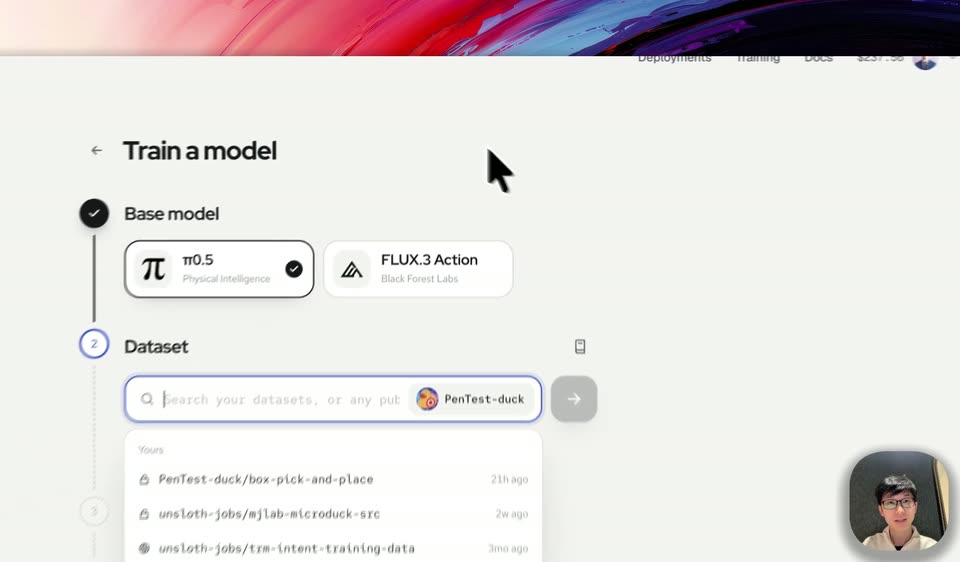
A flat product UI for training a model fills the frame, with a small circular presenter webcam in the lower right. A cursor drifts to the base model row where a tap icon flashes, then a dataset dropdown expands beneath the search field.
Techniques: Cursor demo
Camera: Pull out
A browser window shows the Train a model form over an abstract pink-and-blue background, with a presenter's webcam in the corner. A cursor picks the π0.5 base model and a dataset, the Read and Start steps auto-fill, and the view zooms into the form twice.
Techniques: Cursor demo, UI zoom
Camera: Push in
A close-up of a training settings panel zooms out to the full card; a cursor hovers over the Real-time and Auto-clean toggles, then the view scrolls up to the Start section, a hand cursor on the Start training button, with a facecam in the corner.
Techniques: UI zoom, Cursor demo
Camera: Static
A training-run detail page opens zoomed in on the progress bar, then pulls back to show the full window with its title and action buttons over a colorful paint-splash background, before zooming back into the status rows. A presenter's webcam feed sits in the bottom-right corner.
Techniques: UI zoom
Camera: Static
A training-run detail page settles in with a quick zoom-out from the title. A hand cursor hovers the back arrow, opening an “All training runs” tooltip, while a Queued progress bar and a Checkpoints card sit below.
Techniques: UI zoom, Cursor demo
Camera: Pan
A light gray interface titled Training lists rows with pi icons and monospace task names such as box-pick-and-place. The list scrolls up as a cursor glides across the rows, and a small circular video of a presenter sits in the lower right corner.
Techniques: Cursor demo
Camera: Pan
A list of training runs with pi icons fills the screen; a cursor hovers over one entry and the view crossfades into a detail page showing a descending loss chart.
Techniques: Cursor demo
Camera: Static
A light training dashboard floats over a colorful painted backdrop, with a small webcam self-view in the corner. A cursor hovers the Deploy button, a tooltip pops in, then the view cuts to the deployment page showing the run command.
Techniques: UI zoom, Cursor demo
Camera: Pull out