
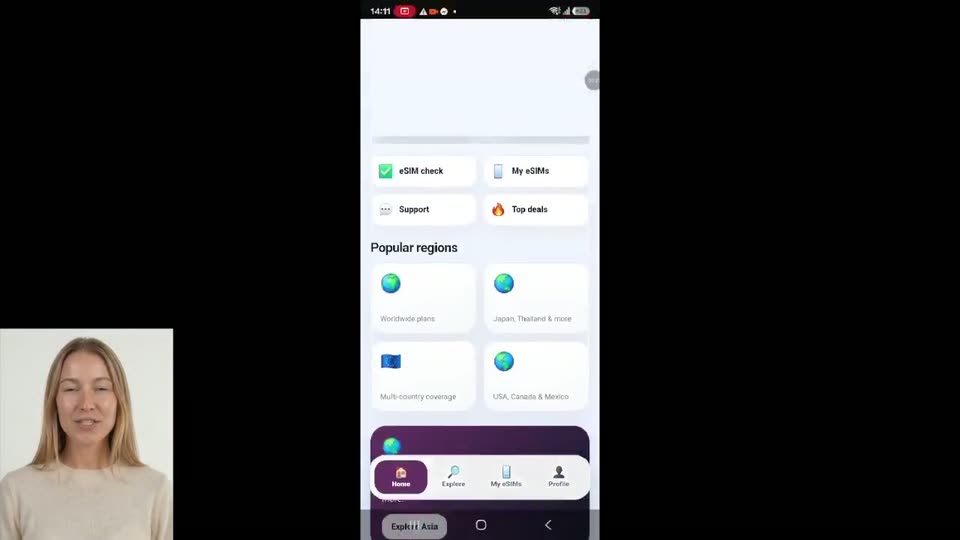
0:33
Explore
SimBlox: apps demo
SimBlox · 2:49 · AI-annotated
- Length
- 2:49
- Scenes
- 50 · 3.4 s avg
- Product on screen
- 0:00
- Features shown
- 5
- Voiceover
- Yes
00:00:00 / 02:49:03
- Length
- 2:49
- Scenes
- 50 · 3.4 s avg
- Product on screen
- 0:00
- Features shown
- 5
- Voiceover
- Yes
SimBlox’s 2:49 launch film runs 50 scenes, about 3.4 s each. The product is on screen from the first frame and 5 features are revealed. There is no explicit call to action; a voiceover carries the film. The video is a single continuous product tour: a presenter inset in the lower-left corner narrates over a phone screen recording and a desktop dashboard recording, with the on-screen UI changing in step with the voiceover. It opens by naming the product, walks the mobile app feature by feature, then the admin dashboard, then the SDK docs, and closes on a 3D brand cube. Pacing is steady and informational, cut on sentence boundaries, with no music-driven montage; the signature move is the small Pi
Footage neededEstimated needs: 9 capture groups — your screens or recordings · 1 official logo — reused across the film · 2 filmed passages — shoot, supply or replace · 7 3D passages — build or supply
Is this your launch? to your site or press kit.
More like this
2:17
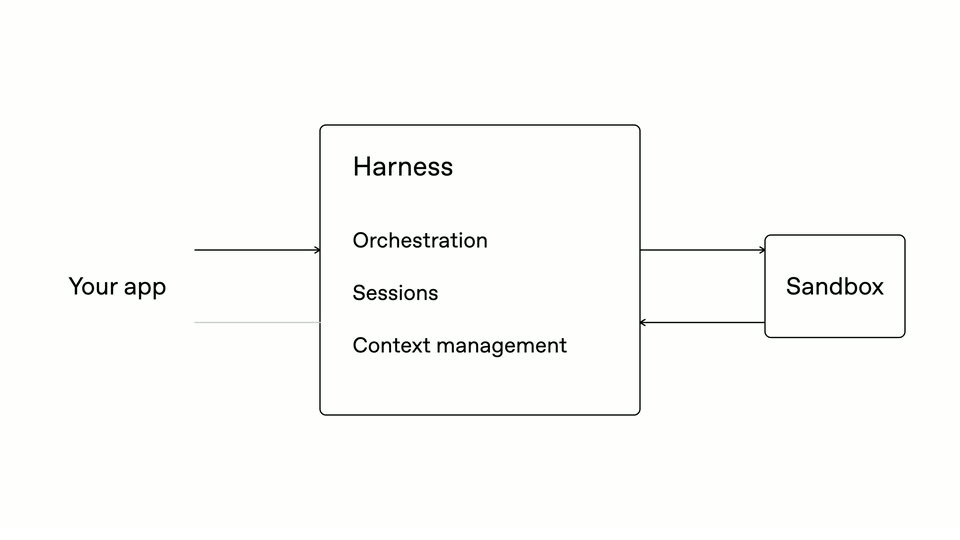

Introducing the Agents API
OpenAI · AI · Sep 2026
0:42

Shopify Editions Winter ’23 is live
Shopify · Business software · Feb 2023
SimBlox: apps demo, scene by scene
· 50 scenes as text
01 · Product intro · 0:00–0:05
A phone screen recording on black swipes from the home screen into the app drawer, scrolls through rows of app icons, then closes to a home screen with a single eSim.co.uk icon. A live-action presenter talks in the lower-left corner.
Techniques: Split screen
Camera: Static
02 · Product intro · 0:05–0:07
A green phone screen fills the center of a black frame, its three-color fan logo (blue, green, orange) pulsing gently in the middle. A small video of a smiling woman in a cream top sits in the lower-left corner.
Camera: Static
03 · Product intro · 0:07–0:08
A white phone screen with a rotating loading spinner and “Loading...” text sits centered on a black background, while a small live-action presenter speaks in the bottom-left corner.
Techniques: Split screen
Camera: Static
04 · Feature reveal · 0:08–0:16
A flat phone mockup of the esim.co.uk app scrolls down its home feed and back, destination cards filling with flag and city images, beside a small live presenter inset on a black background.
Techniques: Split screen
Camera: Static
05 · Feature reveal · 0:16–0:17
A presenter sits in a small webcam box at the lower left while a phone app drawer fills the right, showing a grid of eSIM and utility icons above a search bar.
Techniques: Split screen
Camera: Static
06 · Feature reveal · 0:17–0:20
A phone screen centered on black shows the Horizon logo on a teal splash, then a white card with the company name and two sign-in buttons, then a blank white screen. A small video of a smiling woman stays in the lower-left corner throughout.
Techniques: Split screen
Camera: Static
07 · Feature reveal · 0:20–0:28
A centered phone screen scrolls through the eSIM app: home banner, destination cards, region tiles, then the Explore and My eSIMs tabs. A presenter's webcam inset sits at the lower left on black.
Techniques: Split screen
Camera: Static
08 · Feature reveal · 0:28–0:29
A flat mobile app interface scrolls vertically past email verification and device compatibility panels, settling on an empty My eSIMs list with an Explore plans button, while a woman's headshot video holds still in the lower-left corner against a black field.
Camera: Static
09 · Feature reveal · 0:29–0:36
A phone screen scrolls vertically through an eSIM app, moving from an account access form to a list of delivered eSIMs with QR codes, then to a detail page with an install QR code. A presenter in a beige top speaks from a small box at the lower left.
Techniques: Split screen
Camera: Static
10 · Feature reveal · 0:36–0:40
A blonde woman in a cream sweater talks in the lower left corner while a phone screen on the right shows a dimmed eSIM page with a white dialog reading Set up your eSIM and Cancel and Setup buttons.
Techniques: Split screen
Camera: Static
11 · Feature reveal · 0:40–0:48
A phone screen scrolls down through an eSIM app, passing a blue plan card, status panels, and a QR code, while a presenter in a beige top speaks from a small window at the lower left.
Techniques: Split screen
Camera: Push in
12 · Feature reveal · 0:48–0:50
A split screen pairs a blonde support agent on the left with a phone on the right. The phone scrolls down an eSIM installation guide, passing iPhone and Android steps, a dark manual-activation card, and a troubleshooting list.
Techniques: Split screen
Camera: Static
13 · Feature reveal · 0:50–0:53
A blonde presenter in a beige sweater fills a small box at the lower left beside a centered phone showing an eSIM screen with a QR code; the screen scrolls, then shows a blue order card for Singapore, Malaysia and Thailand.
Camera: Static
14 · Feature reveal · 0:53–0:53
A phone screen on a black background displays an eSIM app, with a woman presenter seated in the lower left at the start. The interface switches from the My eSIMs plan card to the Profile page as the bottom tab highlight moves to Profile.
Camera: Static
15 · Feature reveal · 0:53–0:55
A phone home screen with a grid of colorful app icons fills the center on a black background, while a small video of a blonde woman in a cream sweater sits in the bottom-left corner. The frame is locked off; the woman's expression shifts to a smile.
Techniques: Split screen
Camera: Static
16 · Feature reveal · 0:55–0:57
A portrait phone screen on black shows the blue Roami splash, then cuts to a white BetterM2M onboarding card with a dotted globe icon and two buttons. A presenter's inset stays in the lower-left corner; a text caret appears in the email field.
Techniques: Split screen, Cursor demo
Camera: Static
17 · Feature reveal · 0:57–1:02
A presenter sits in a small inset at the lower left while a phone screen on the right scrolls through the app's support section, moving from the eSIM account view to a support centre and then a ticket conversation.
On-screen text: “one app.”
Techniques: Split screen, UI zoom
Camera: Static
18 · Feature reveal · 1:02–1:03
A tilted smartphone mockup floats on a black field, its support-ticket screen scrolling from the conversation to the header. A small video-call inset of a blonde woman in a cream sweater sits in the lower left, talking and smiling.
Techniques: 3D mockup
Camera: Static
19 · Feature reveal · 1:03–1:08
A presenter in a beige top holds a small box at left while a flat phone screen at right scrolls through the app: a support ticket, the new-ticket form, a profile page, and the eSIM page.
Techniques: Split screen
Camera: Static
20 · Feature reveal · 1:08–1:10
A vertical phone screen displays an eSIM app that loads from a waiting state into a My eSIMs list with a QR code card. A small live-action presenter in a cream sweater speaks from the bottom-left corner against a black background.
Camera: Static
21 · Feature reveal · 1:10–1:11
A woman with long blonde hair in a cream top talks in a small box at the lower left. To her right, a flat phone screen on a black background shows an eSIM plan list with a search field and filter chips. The two areas sit side by side.
Techniques: Split screen
Camera: Static
22 · Other · 1:11–1:15
A blonde woman in a cream sweater speaks in a small frame at lower left, while a mobile eSIM app screen stands at center showing a blue 'Stay connected' banner, a search field, and destination cards for Thailand and the United States. The screen stays static.
Techniques: Split screen
Camera: Static
23 · Other · 1:15–1:16
A vertical mobile app screen centered on black cross-fades from an eSIM search results list into a home screen with destination cards. A small webcam feed of a smiling woman in the lower-left corner fades out as the views change.
Camera: Static
24 · Other · 1:16–1:18
A woman in a cream top talks on the left against a white wall, while a phone app screen on the right shows a blue travel banner and a row of destination cards that shift into place.
Techniques: Split screen
Camera: Static
25 · Demo · 1:18–1:20
A dashboard screen scrolls up to reveal the top row of stat cards while the mouse cursor moves to hover the eSIMs item in the left sidebar. A presenter appears in a small video inset at the bottom left corner.
Techniques: Cursor demo
Camera: Static
26 · Demo · 1:20–1:21
A light admin dashboard lists one expired eSIM in a table; a cursor hovers the row and the screen cuts to that eSIM's detail page, a grid of cards showing days left, data usage, plan and end user. A small presenter webcam sits bottom left.
Techniques: Cursor demo
Camera: Static
27 · Demo · 1:21–1:22
The eSIM dashboard scrolls down past cards for QR install, days left, data usage and plan details, ending on an orders table and control icons. A presenter talks in a small window at the bottom left. A mouse cursor hovers near the QR code.
Techniques: Cursor demo
Camera: Pan
28 · Demo · 1:22–1:23
A dashboard screen scrolls down through customer, order and payment panels while a presenter's head-and-shoulders video sits in the lower-left corner. The cursor hovers over an order row in the renewals table.
Camera: Static
29 · Demo · 1:23–1:26
A dashboard order page scrolls down past customer details, fulfillment steps, and action buttons, with a small video of a woman fixed in the lower-left corner. The page then dims as a notes field and a Cancel button appear at the top, the cursor resting on the button.
Techniques: Cursor demo
Camera: Pan
30 · Demo · 1:26–1:28
A dashboard screen shows a left menu where the cursor moves from the eSIMs item to Orders, and the main panel fills with a table of orders, prices and status labels. A small live-action video of a woman speaking sits in the bottom left corner.
Techniques: Cursor demo
Camera: Static
31 · Demo · 1:28–1:29
A screen recording of an eSIM admin dashboard displays an Orders table with colored status pills. A cursor hovers and highlights one row in blue. A blonde presenter in a cream sweater appears in a small lower-left picture-in-picture, speaking.
Techniques: Cursor demo
Camera: Static
32 · Demo · 1:29–1:31
A screen recording of an admin dashboard scrolls down through order detail cards while a presenter sits in a small webcam window at the bottom left and a cursor hovers over the panels.
Techniques: Cursor demo
Camera: Pan
33 · Demo · 1:31–1:32
A white admin panel fills the frame, its left sidebar listing Dashboard, eSIMs and Orders. A woman's webcam feed sits in the lower-left corner. The main area populates with an Orders table bearing orange, red and green status tags, then the webcam feed and right panel drop away.
Camera: Static
34 · Demo · 1:32–1:33
A light admin dashboard shows an Emails table. A cursor clicks the first row, which expands to reveal the full email body, then the second row opens and a green Opened badge appears. A presenter's video sits in the bottom-left corner.
Techniques: Cursor demo
Camera: Static
35 · Demo · 1:33–1:34
A light-gray admin dashboard shows an Emails table with two recipient rows; a small live-action presenter sits in the bottom-left corner while a cursor moves up to highlight the first row.
Techniques: Cursor demo
Camera: Static
36 · Demo · 1:34–1:37
A dimmed admin dashboard with a left sidebar sits behind a purple modal previewing an eSim.co.uk email. The modal scrolls down to show a QR code and plan details, then back up. A small video call of a woman in a cream top sits in the lower left corner.
Camera: Static
37 · Demo · 1:37–1:37
A presenter sits in a small window at the lower left of a dashboard Emails screen. An email preview card with a purple outline fades away, revealing the table with its second row highlighted blue under a hovering cursor.
Techniques: Cursor demo
Camera: Static
38 · Demo · 1:37–1:42
A dashboard screen recording with a small presenter webcam in the corner. A modal email preview opens over the Emails table, scrolls through order and profit details, then closes as the cursor clicks Accounts in the sidebar to reveal stat cards.
Techniques: Cursor demo
Camera: Pan
39 · Demo · 1:42–1:47
A white admin dashboard scrolls down past stat cards and settings panels while a presenter speaks from a small window in the lower left. A cursor then moves into the left menu, highlights Dashboard and Listings, and the panel swaps to Recent Orders and Recent Customers lists.
Techniques: Cursor demo
Camera: Static
40 · Demo · 1:47–1:51
A Symblox admin screen shows the Retail Listings table of eSIM plans. The list scrolls down through country rows, then back up to the top. A presenter's webcam sits in the lower-left corner, and a cursor rests on the menu and the page heading.
Techniques: Cursor demo
Camera: Pan
41 · Demo · 1:51–2:07
A SimBlox documentation page scrolls steadily down past its hero headline, code block, and architecture diagram, while a presenter talks in a small video window at the lower left.
Camera: Pan
42 · Demo · 2:07–2:20
A documentation page scrolls vertically through sections titled Three Integration Modes, SDK Features, and Supported Platforms, while a presenter speaks from a small webcam window in the lower-left corner. A cursor drifts across the feature cards and platform icons.
Techniques: Cursor demo
Camera: Pan
43 · Demo · 2:20–2:23
A documentation page scrolls top to bottom through an events table, dark code blocks and feature cards. A presenter video plays in a small corner inset at the lower left.
Camera: Pan
44 · Demo · 2:23–2:33
A woman's talking-head video sits in the lower-left corner on a black field. The bold white title Native eSIM App fades in, then five two-column lines, red keyword left and white label right, appear one by one and scroll up out of frame.
On-screen text: “Native eSIM App”, “1 Click”, “eSIM Installation”, “Push”, “Notifications”, “Integrated”, “Customer support”, “eSIM”, “Purchasing”, “Mobile SDK Embeddable”
Techniques: Kinetic type
Camera: Push in
45 · Outro · 2:33–2:37
A black 3D SimBlox cube sits at the center of a diagram, with category lists on the left and product panels on the right feeding into it. A woman speaks in a lower-left window as the camera slowly zooms toward the cube.
On-screen text: “Complexity in. Simplicity out.”, “SimBlox turns fragmented telecom infrastructure into launch-ready experiences for your brand.”, “One Operating System”, “Managed from one SimBlox partner portal”
Techniques: 3D mockup
Camera: Push in
46 · Outro · 2:37–2:39
A white infographic holds still. A dark 3D cube bearing the SimBlox logo sits center on a glowing base, thin blue lines linking left-side category lists to the cube and to right-side mockup cards for widgets, website and mobile apps. A bold headline caps the frame.
On-screen text: “Complexity in. Simplicity out.”, “SimBlox turns fragmented telecom infrastructure into launch-ready experiences for your brand.”, “One Operating System”, “Managed from one SimBlox partner portal”
Techniques: 3D mockup
Camera: Static
47 · Outro · 2:39–2:41
A dark blue cube with the SimBlox logo sits on a glowing blue base at right. At left, a stacked list of feature labels grows row by row, and pink particle streams travel along connector lines into the cube as it tilts slightly.
Techniques: 3D mockup, Particles
Camera: Static
48 · Outro · 2:41–2:43
A dark blue cube with the SimBlox logo sits on a silver base. Pink energy streams flow from a stack of labeled white blocks on the left into the cube, which rotates to bring the full wordmark into view.
Techniques: 3D mockup
Camera: Pull out
49 · Outro · 2:43–2:45
A dark blue SimBlox cube scales up on a glowing base as a pink energy line passes through it. Blue connector lines branch right to a website card and two phone mockups. The caption One Operating System fades in below.
On-screen text: “One Operating System”
Techniques: 3D mockup
Camera: Pull out
50 · Outro · 2:45–2:49
An isometric 3D cube labeled SimBlox with a glowing blue top sits center, flanked by feature lists on the left and device mockups on the right, linked by blue lines. The camera slowly pushes in, enlarging the cube and cropping the headline.
On-screen text: “Complexity in. Simplicity out.”, “SimBlox turns fragmented telecom infrastructure into launch-ready experiences for your brand.”, “One Operating System”, “Managed from one SimBlox partner portal”
Techniques: 3D mockup
Camera: Push in