1:15

Screenpipe YC Launch Video
Screenpipe · Sep 2026
Okara · Nov 2026 · 1:21 · Full motion · AI-annotated
Okara’s 1:21 launch film runs 44 scenes, about 1.9 s each. The product shows up at 0:01 and 3 features are revealed. The call to action lands at 1:13 (90% in). The video opens with a typed-in promise and the Okara MCP logo lockup, then runs three parallel feature demos (organic traffic, AI search visibility, ad optimization) built from one repeating pattern: a prompt types itself in, a 'Used Okara' breadcrumb appears, a report card fills with data, and a fix is applied. Signature moves are the letter-by-letter typing, the slow zoom into flat UI cards, and the pixel robot badge anchoring transitions on a near-white field with faint grid or dashed rings.
Is this your launch? to your site or press kit.
Films whose music sounds like this one, voice left out
NotebookLM · Funk, Disco, Eurodance, Italo House
Google · Electronic Dance Music (House, Nu-Disco)
Duolingo · Eurodance / Italo House
On a plain white field, the word Introducing types out letter by letter in black sans, a thin cursor bar trailing the last letter as the text scales into place.
On-screen text: “Introducing”
Techniques: Kinetic type
Camera: Static
A black pixelated robot icon on a white circular button sits centered over faint dashed concentric rings. The circle stretches into a horizontal pill, the icon slides left, and the bold black wordmark Okara MCP scales in beside it.
On-screen text: “Okara MCP”
Techniques: Morph
Camera: Static
A white pill badge with a robot icon and Okara MCP sits center while the headline assembles beneath it. Rounded app icons scale into position around the edges, completing a loose ring.
On-screen text: “Okara MCP”, “Your AI CMO, now in”, “your favorite Al tools”
Techniques: Kinetic type
Camera: Static
App icons float around a central badge and headline on white. The composition zooms into the headline, a dark Connect to chip pops in over it, then exits, and a white pill slides in from the top edge.
On-screen text: “Okara MCP”, “Your AI CMO, now in”, “your favorite AI tools”, “Connect to”
Techniques: Kinetic type
Camera: Static
A black Connect to pill with overlapping app icons expands into a white bar showing the endpoint URL. Captions Set up once, then Then just ask appear below. The frame zooms in as a cursor clicks the pill, collapsing the icons to one and graying it.
On-screen text: “https://okara.ai/api/mcp”, “Set up once”, “Then just ask”
Techniques: UI zoom, Cursor demo
Camera: Pan
Two overlapping Claude app windows sit on white, the rear one faded. The view zooms into the front window, settling on the chat input where a prompt begins to type, while a large “Grow organic traffic” headline holds over the interface.
On-screen text: “Grow organic traffic”
Techniques: UI zoom
Camera: Pan
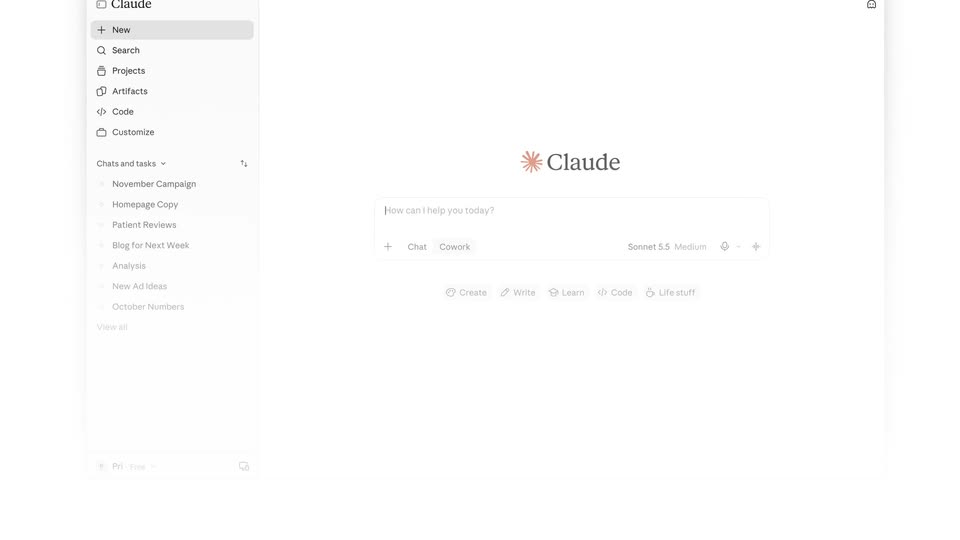
A white input field on a plain background. The question types out letter by letter behind a blinking caret, above a Chat/Cowork toggle with Chat highlighted in white.
Techniques: Cursor demo, Kinetic type
Camera: Static
On a plain white field, a gray action line with a small robot icon types out, then a second line fades in below, its key phrase set in bold serif. The text builds left to right at a calm pace.
On-screen text: “Used Okara > Checked your traffic, rankings and site health”, “You lost rankings for 8 high-intent keywords. Organic clicks dropped 32%.”
Techniques: Kinetic type
Camera: Static
A gray tool-use line and a dark serif message sit on white. The block scrolls up as two more lines of body copy appear, then a white chart card fades in below with a red −32% figure, weekday axis labels and three empty stat boxes.
Techniques: Kinetic type
Camera: Static
A white report card on a light background. A gray line draws left to right across a weekly chart, a shaded gap opens between it and a dashed line, end values and three stat boxes fill in, and a new paragraph appears below.
Camera: Pan
The dashboard scrolls down from a line chart and stat cards to a 'WHERE THE CLICKS WENT' card. A large serif headline '3 pages caused half the drop.' enters on the left, then fades as a segmented bar and a list of three pages with red losses load in.
On-screen text: “3 pages caused half the drop.”
Techniques: Kinetic type
Camera: Pull out
A white analytics dashboard card lists three pages with negative click counts, each row pairing a page name with a rank change and a red loss figure. The view then zooms out and scrolls up to reveal a top summary row showing clicks lost, keywords down, and pages left.
Techniques: UI zoom
Camera: Pull out
A large rounded “Fix it” button slides from the center to the top-right corner, shrinking into a small pinned button. The caption “Used Okara” with a robot icon fades in at the left edge, then the frame holds still.
On-screen text: “Used Okara Updating 3 pages”
Techniques: Morph
Camera: Pull out
A pale review panel holds a clinic website inside a browser frame, with a status line and a Fix it button above it. The view zooms in on the browser mockup, sliding the header and button out of frame as the page enlarges.
Techniques: UI zoom
Camera: Push in
A flat browser window on cream shows a clinic homepage. The hero headline “Find a family doctor near you” shifts from gray to green and the body copy fades in, while a green halo lights the View providers button. A card on the right lists two new-patient doctors.
Camera: Static
Two tilted browser mockups of a clinic site sit in 3D perspective, then the camera pulls back to reveal the full review workspace card holding three page mockups side by side.
Techniques: 3D mockup, UI zoom
Camera: Pull out
A product panel titled “Harborview - Page updates” holds three overlapping browser mockups of a clinic website. The mockups pan downward inside the fixed panel, settling to show each full page: find a doctor, urgent care, and online booking.
Camera: Pull out
A product interface scrolls down, sliding three feature cards off the top while a list under the heading Changes prepared fills with rows for Find a doctor, Urgent care and Book an appointment, then a row of action icons appears at the bottom.
Camera: Static
A close-up of a light interface list titled Changes prepared shows three rows, each with a title, a path and a Review link. Green checkmarks fill in one by one on the left while the Review labels on the right resolve into place.
Camera: Static
The OpenAI line logo scales up at center on white as the headline “Get found in AI search” builds word by word beside it. The lockup then shrinks to the top while a flat ChatGPT screen slides up from below to fill the frame.
On-screen text: “Get found in AI search”
Techniques: Kinetic type
Camera: Static
A ChatGPT window sits beneath a black headline. The view zooms into the prompt box as a query types itself out, then the frame clears to white and a small gray credit line appears at left.
On-screen text: “Get found in AI search”, “Used Okara”
Techniques: UI zoom
Camera: Static
A gray breadcrumb reads “Used Okara >” on white, then “Analyzing buyer questions” fades in beside it. A white panel titled “How Harborview appears in ChatGPT” slides up from the bottom, revealing a grid of question cards with green or red dots.
On-screen text: “Used Okara > Analyzing buyer questions”
Techniques: Kinetic type
Camera: Pull out
A light dashboard card titled “How Harborview appears in ChatGPT” holds a grid of question tiles, each tagged with a provider name in green or red. The grid slides and settles into a four by three layout beneath a static top caption.
On-screen text: “Cited in 4 of 12 buyer questions. Competitors win the rest.”
Camera: Static
A light dashboard panel shows a grid of patient-question cards, each tagged with a brand name; Harborview cards glow green with a checkmark. A caption line above fades out, then the view zooms in and pans right across the grid as a cursor appears.
On-screen text: “Cited in 4 of 12 buyer questions. Competitors win the rest.”
Techniques: UI zoom, Cursor demo
Camera: Push in
A flat ChatGPT dashboard shows a headline, a row of colored provider tags and a grid of question cards. A white search pill expands over the center while the background dims, and text types into the field.
On-screen text: “How Harborview appears in ChatGPT”
Camera: Static
A white dashboard panel titled “How Harborview appears in ChatGPT” holds a prompt line that types out “Write a comparison blog targeting this query.” A row of colored result chips sits below, and a “Used Okara” credit fades in at the lower left.
Techniques: Kinetic type
Camera: Static
A horizontal line of gray text, 'Used Okara' plus a chevron and 'Drafting a comparison article', drifts left across a white field while a pale circle bearing the word 'Writing' slides in from the top right corner.
On-screen text: “Used Okara › Drafting a comparison article”, “Writing”
Techniques: Kinetic type
Camera: Static
A white frame splits into a left column with a gray prompt pill and a breadcrumb caption, and a right column where an article page fades in and scrolls down from its headline through a green quick-answer box, a clinic photo, and a numbered list.
On-screen text: “Write a comparison blog targeting that query.”, “Used Okara > Drafting a comparison article”
Techniques: Split screen
Camera: Pull out
A document editor scrolls down through a comparison article; the left sidebar heading slides off as the right column reveals a green quote card, a Common questions list, and a light green booking box.
Camera: Push in
A blog article on the right scrolls upward while a left caption reads “Used Okara, Drafting a comparison article” with a green check. The caption gains the word “ready,” then a phone mockup with a chat screen asking “What can I take off your plate?” fades in at the center.
On-screen text: “Used Okara”, “Drafting a comparison article”, “Article draft ready”
Camera: Pan
A white phone mockup, showing an AI assistant app, tilts and slides to the right in 3D space as a blue M logo fades in on the left, revealing the task list and message bar.
Techniques: 3D mockup
Camera: Pull out
A tilted 3D phone shows an AI assistant home screen beside a blue logo and the headline Improve your ads. The view zooms into the message field, where How can we improve our Meta ads? is typed, then the field grays out.
On-screen text: “Improve your ads”
Techniques: 3D mockup, UI zoom
Camera: Push in
A flat phone screen shows a chat interface. The list scrolls up, pushing the Muse avatar off the top while an Okara bubble completes its text to “Analyzing your Meta ads.” The motion is a quick vertical scroll over a short beat.
Camera: Static
A light gray chat card on white types out an analysis line by line, the header pill reading Okara stays fixed above. As the text fills, the view scrolls up to reveal a two-item list beneath the heading.
Techniques: Kinetic type
Camera: Static
A close-up of a smartphone chat screen scrolls up through an AI assistant thread: a cost-per-booking card, two clinic ad previews, a recommendation list, then the view reframes onto the input bar where the command 'Create 3 better variations' is typed with a text caret.
Techniques: UI zoom, Cursor demo
Camera: Push in
A flat iPhone mockup, centered on white, shows the Muse chat interface. An Okara bubble types 'Creating new ad creatives' with an animated dot indicator, then the screen scrolls down through generated ad variations for Harborview Family Clinic, ending on a doctor photo ad with a green banner.
Camera: Push in
A mobile phone frame on a pale blue background shows a sponsored post for Harborview Family Clinic, with a photo of a clinician taking a patient's blood pressure and a serif headline card. The top variation label and a bottom benefit tagline fade in.
Camera: Static
A white icon field wipes in from the right over a product UI panel showing a draft card and a portrait. A pixel-art robot head in a white circle sits at the center as a ring of small circular feature icons scales in around it.
On-screen text: “①”
Techniques: Masking
Camera: Static
A pixel robot badge sits at the center of a radial cluster of gray icon circles on white. The camera pulls back, shrinking the cluster to the left as a gray sans label slides in on the right.
On-screen text: “Organic AI Search Social”
Camera: Pull out
A pixel robot in a white circle anchors a slowly rotating ring of small gray line icons on a white field. To the right, a column of large dark sans words cycles vertically, each term sliding up and fading as the next takes its place.
On-screen text: “Organic”, “Search”, “Social”, “Paid”, “Strategy”, “Strategies”, “Analysis”
Techniques: Kinetic type
Camera: Push in
A light gray rounded prompt card on a white background. The headline types in word by word above an Okara pill with a plug icon, then the card slides left to reveal a black send button with a white up arrow.
On-screen text: “Just one prompt away”
Techniques: Kinetic type
Camera: Static
On a white grid background, a pixel robot icon and the word Okara fade in at center; MCP then slides in from the right to complete the lockup, and a small four-point sparkle pops in at the top right.
On-screen text: “Okara MCP”
Techniques: Kinetic type
Camera: Static
A white pill badge holding a pixel robot icon and the words Okara MCP slides left into place on a faint grid, while small app icons fade in around it, then the whole frame fades to white.
Camera: Static
On a light grid backdrop, a cluster of AI app icons sits on the right. A white Okara MCP pill anchors the left as the headline lines fade in one by one, then a dark button appears with the URL typed out.
On-screen text: “Okara MCP”, “Your AI CMO. Now in your favorite AI tools.”, “Try it → okara.ai/mcp”
Techniques: Kinetic type
Camera: Pan