0:51

Runway - Introducing Project Continuum by @runwayml_labs, a new operating syst
Runway · AI · Oct 2026
Microsoft · Jun 2026 · 1:31 · Full motion · AI-annotated
Microsoft’s 1:31 launch film runs 41 scenes, about 2.2 s each. The product shows up at 0:05 and 1 feature is revealed. There is no explicit call to action. A minimalist launch film built on a near-white paper field, where typed text, a dashed ring spinner, and a pixel mark carry the story through a single end-to-end task. Pacing is slow and deliberate, with locked-off frames, word-by-word type reveals, and soft zoom transitions that let each UI state settle before the next.
Is this your launch? to your site or press kit.
Runway · AI · Oct 2026
Anthropic · AI · Mar 2026
Figma · Design · Nov 2025
Films whose music sounds like this one, voice left out
Aviro · Electronic, Chiptune
Polylane · Electronic, synth-pop, and lo-fi hip-hop
OpenAI · Upbeat electronic dance music with funk and hip-hop influences
On a white background, gray text phrases fade in word by word: “Sometimes you” in sans-serif, “ask for help...” in italic serif, “Sometimes you” again with a subtle scale, then “hand it off...”. The clip ends on a close-up of the Copilot browser window.
On-screen text: “Sometimes you”, “ask for help...”, “Sometimes you”, “hand it off...”
Techniques: Kinetic type
Camera: Static
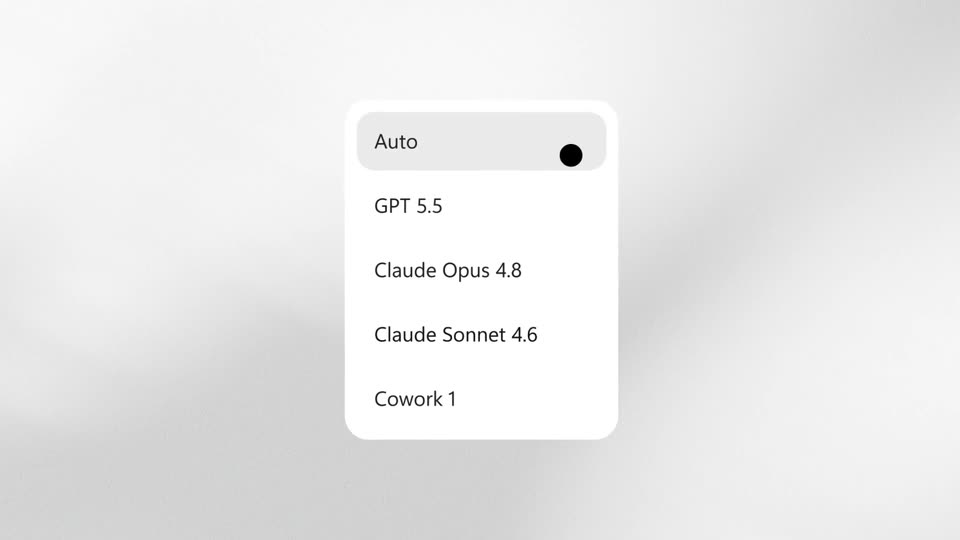
A browser window shows the Copilot app. A cursor clicks the Cowork tab, and the sidebar switches from New chat and Library to New task and Scheduled. The cursor then clicks the Auto selector, opening a dropdown that lists GPT 5.5 and two Claude models.
Techniques: Cursor demo
Camera: Static
A white rounded card listing five model names slides up into the center of a soft off-white background. A gray highlight bar with a black dot moves from GPT 5.5 to Claude Opus 4.8, then to Auto, where the dot shrinks to a point.
Camera: Static
A white pill command bar on a light gray background types “Help me launch a new Zava product” over its placeholder. A menu card with “Add work content” and “Customize” scales up from behind it, then integration rows for Adobe, Canva and Dynamics 365 slide in as toggles flip on.
Techniques: Kinetic type, UI zoom
Camera: Pull out
A gray chat bubble holding the prompt “Help me launch a new Zava product” sits centered on a plain light background, while a response line types out below it word by word.
Techniques: Kinetic type
Camera: Static
A white modal card titled “Who is the audience?” lists three numbered options. Two caption lines, a gray pill and a larger dark headline, fade out over the card, then the first option’s number badge becomes a dark square with a white check.
On-screen text: “Help me launch a new Zava product”, “Got it —quick question before I start...”
Camera: Static
On a light paper-textured field, a thin construction grid, a dashed arrow and size annotations frame the oversized word Creates. The grid fades as the type scales down and reflows to Creates the plan, centered inside a thin circle and crosshair lines.
On-screen text: “Creates the plan”
Techniques: Kinetic type
Camera: Static
On white paper with a dashed grid, a pencil-sketch ring of eight dashes rotates and darkens while the frame pans left, revealing a large outlined G at the right edge. Blueprint annotations such as Dash 16 and Gap 2 mark the lines.
On-screen text: “Creates the plan”
Camera: Pull out
On a plain off-white card, four step lines with dashed-circle bullets fade in one by one, top to bottom. The camera then zooms into the first line, leaving a large “Gath” beside the rotating dashed circle.
On-screen text: “Gather all relevant information”, “Create a market analysis report”, “Create a project plan”, “Mock up product website”, “Gath”
Techniques: Kinetic type
Camera: Static
A black dash spinner spins at the center of a white field, then dissolves as the gray status line rewrites from Searching to Searched relevant sources for Zava, 12 results beside a small pixel logo.
Camera: Static
On a light background, a pixel logo and a status line type out, then search and thought-process sub-lines fade in. A shield turns green as the permission line updates. The list scrolls up, the headline rewrites to the results count, and six source chips pop in.
Techniques: Kinetic type
Camera: Static
A black checkmark inside a circle draws itself in the center of a white background, then the icon slides left as a four-line gray task list appears on the right, the first line paired with a check icon and the rest with dashed circles.
On-screen text: “Gather all relevant information”, “Create a market analysis report”, “Create a project plan”, “Mock up product website”
Techniques: Masking
Camera: Pull out
A vertical task list on a light gray field. The checked top line scrolls up and off frame, shifting the remaining three lines into view, while the middle line fades to light gray.
On-screen text: “Gather all relevant information”, “Create a market analysis report”, “Create a project plan”, “Mock up product website”
Camera: Static
A large headline “Create a market analysis report” beside a dashed spinner is replaced by three status lines: a pixel logo with “Now pulling market analysis data.”, a line that types out “I have gathered reliable market data”, and a folder icon with “Preparing the output folder”.
On-screen text: “Create a market analysis report”, “Now pulling market analysis data.”, “I have gathered reliable market data”, “Preparing the output folder”
Techniques: Kinetic type
Camera: Static
A gray folder outline on a white field morphs into a stacked two-folder shape as a pale gray pill beside it fills with the number 1.
On-screen text: “Now pulling market analysis data.”, “I have gathered reliable market data”, “Preparing the output folder”
Techniques: Morph
Camera: Static
A light UI panel shows the label Output beside a folder icon, a count badge and a dropdown chevron. A file row with a green spreadsheet icon and the name Market_Analysis.xlsx fades in beneath it. Camera locked off.
Camera: Static
On a white grid of dashed vertical lines, a stacked bar chart animates in: teal bars rise from the baseline across seven months, each topped by a paler segment, while short horizontal line markers hover at varying heights.
Camera: Static
A stacked bar chart sits on a white field with dotted gridlines. The dark teal lower segments of the seven monthly bars rise to new heights while the pale mint caps adjust, animating the data in place.
Camera: Static
A close-up of a donut chart on a white background, framed on its right side. Teal, blue and green arcs sit beside static labels, while the segments shift slowly, suggesting a gentle rotation of the chart.
Camera: Static
A teal and green donut chart sits centered on a white background, ringed by six percentage labels from Brand A to Others. The colored segments ease to their final proportions as the chart settles.
Camera: Static
A spreadsheet grid shows a green header row with empty cells. A white dashboard panel with bar and donut charts drops in on top, and the table fills with four scenario rows of revenue and growth values.
Camera: Static
A spreadsheet dashboard fills the frame: a bar chart, a donut chart and a scenarios table on the left, a steps panel on the right. The view holds steady, then the whole interface blurs into a fast zoom-out transition.
Camera: Push in
A blurred product workspace sits behind a sharp four-line step list with circular check and dashed icons. The background fades to plain white while the lines scale in and the last line slides into place.
On-screen text: “Gather all relevant information”, “Create a market analysis report”, “Create a project plan”, “Mock up product website”
Techniques: Kinetic type
Camera: Push in
A four-item checklist on a white background scrolls up as the two completed lines fade out. The third line, Create a project plan, scales up to lead the frame while the last line slides in beneath it.
Techniques: Kinetic type
Camera: Static
On a plain off-white background, a dashed circle icon sits left of the black line “Create a project plan,” with a thin rule extending to the right. The whole lockup scales up slowly while the line lengthens, holding on a locked-off frame.
On-screen text: “Gather all relevant information”, “Create a project plan”
Camera: Static
A close-up of a Notion database table. The view pans horizontally across the columns, sliding the row titles and revealing a Priority column filled with blue Low and orange Medium tags. The Notion logo sits in the top-left corner.
Techniques: UI zoom
Camera: Static
A light gray project table titled Launch & Scale, marked by a green accent bar, lists three task rows with comment icons, blank owner avatars and due dates; a blue-barred copy sits below as the view shifts a few pixels.
Camera: Static
A white project-management card on a gray gradient shows a table with two color-coded sections; its text briefly doubles as it snaps into focus. The view then switches to a gray screen with a four-line checklist, three lines with solid check circles and the last gray with a dashed circle.
Camera: Static
A four-item checklist with circular check icons sits on a light gray field, the last row showing a dashed circle. The list clears and a large serif word Meet appears in the center beside a thin vertical line.
On-screen text: “Gather all relevant information”, “Create a market analysis report”, “Create a project plan”, “Mock up product website”, “Meet”
Camera: Static
On a white background, a black serif headline builds word by word above a thin rule. A purple button fills in below it, and a gray italic line types in beneath, all on a locked frame.
On-screen text: “Meet Zava Fabric”, “Every thread of Zava Fabric shapes how”
Techniques: Kinetic type
Camera: Static
A white hero panel with the serif headline, a purple Buy now button and a link slides out to the left, revealing an empty white card outlined in thin indigo. Locked-off frame, quick slide between sections.
On-screen text: “Meet Zava Fabric”
Camera: Static
A 3D render of rippling silk in pink, yellow, orange and purple fills the frame against a pale lavender background. The cloth fades in from a translucent state to full saturation as a thin blue outline retracts at the top and bottom edges.
Techniques: Masking
Camera: Static
A white navigation bar lists menu items and a purple Buy now button above a band of pink and orange silk fabric on a light gray backdrop. The composition holds nearly still with a faint upward drift.
Camera: Pull out
Two interface panels slide into place: a website mockup on the left and a workspace steps list on the right. The mockup scrolls down past headings and a radar chart, then the frame zooms into the four-item steps list on a plain background.
Techniques: UI zoom
Camera: Pull out
A plain white screen holds a four-line checklist in dark gray sans-serif, each line led by a circular check icon. The checkmarks draw in one after another, the last one filling in near the end of the clip.
Camera: Static
A white pill-shaped command bar floats on a soft gray background. A prompt is typed letter by letter with a blinking caret, then the bar morphs into a gray chat bubble as a status line with a small pixel icon fades in below.
Techniques: Kinetic type, Morph
Camera: Static
A white 'Post to channel?' dialog card with three attachment chips and Cancel and Send buttons slides up into place on a soft gray background, a black cursor hovers over the Send button.
Techniques: Cursor demo
Camera: Static
A white modal card eases in and scales up on a soft gray gradient. It previews a Slack message titled Post to channel? with three attachment chips and Cancel and Send buttons at the lower right.
Camera: Static
A light chat window for the Zava Launch Team fills the frame, then the camera pushes into the message list, resting on three file cards under a Copilot Cowork note. A Great work reply lands, and a Copilot ring with the text From t fades in at the end.
On-screen text: “From t”
Techniques: UI zoom, Kinetic type
Camera: Push in
A thin circle checkbox sits left of the black text 'From to-do' on a pale background. The phrase swaps to 'to done' as the circle dashes and draws a checkmark, then the line becomes 'with Copilot Cowork' before the Microsoft 365 Copilot logo settles in.
On-screen text: “From to-do”, “to done”, “with Copilot Cowork”, “Microsoft 365 Copilot”
Techniques: Kinetic type
Camera: Static
A colorful gradient Microsoft 365 Copilot mark holds centered on a plain off-white background, above two lines of dark gray product name text. The locked-off frame stays still, then cuts to black at the end.
On-screen text: “Microsoft 365”, “Copilot”
Camera: Static