0:48

Greg Joswiak - Everyday tasks? No sweat. Faster graphics? Nailed it. On-device AI? Y
Apple · Hardware · Oct 2026
Microsoft’s 1:41 launch film runs 46 scenes, about 2.2 s each. The product is on screen from the first frame and 5 features are revealed. There is no explicit call to action; a voiceover carries the film. The video opens and closes with locked-off gradient title cards, and in between it walks through five agents in a fixed order, each introduced by a single line of voiceover and shown as a 3D-tilted interface that flattens to front-on while a cursor drives the navigation. Its signature moves are the perspective tilt-and-flatten on every app window, self-typing text in notes and chat, and pink-to-blue gradient washes that punctuate the dark navy and lavender palette.
Is this your launch? to your site or press kit.
Apple · Hardware · Oct 2026
Superhuman · Productivity · Dec 2025
ElevenLabs · AI · Mar 2025
Films whose music sounds like this one, voice left out
Papaya · Electronic Dance Music (EDM)
Monid · Upbeat electronic
ClaimKit · Upbeat electronic
On a dark blue gradient background, the centered white headline 'New agents in Microsoft 365' fades in from dim to full brightness, then holds still on a locked-off frame.
On-screen text: “New agents in Microsoft 365”
Camera: Static
A dark navy background holds the small line “New agents in Microsoft 365” in a pink-to-white gradient. The large gradient word “transforming” scales up over it, then scales down and fades out, leaving the headline alone.
On-screen text: “New agents in Microsoft 365”, “transforming”
Techniques: Kinetic type
Camera: Static
On a dark navy gradient background, the word Humans sits centered in white sans-serif, then and AI collaborate fades in word by word, a small pink and blue four-pointed star popping in above the AI.
On-screen text: “Humans and AI collaborate”
Techniques: Kinetic type
Camera: Static
On a dark navy field, the gray phrase “and AI collaborate” sits centered with two four-pointed star icons over the “AI”. The text fades away, leaving the purple and blue stars to rotate slowly in the center.
On-screen text: “and AI collaborate”
Camera: Static
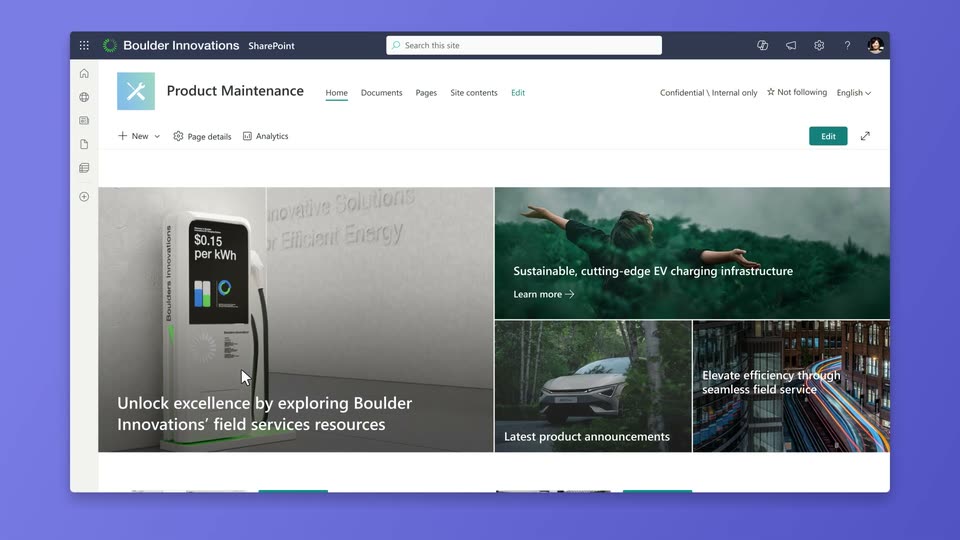
A SharePoint page mockup floats in 3D perspective over a purple gradient. A pink color wash fades out to reveal the full interface, then a cursor slides in and drifts toward the Edit button.
Techniques: 3D mockup, Cursor demo
Camera: Push in
A flat SharePoint site page sits on a purple gradient background. A cursor glides to the top-right corner and clicks an icon, opening a right-side panel that lists agent options and a create-an-agent field.
Techniques: Cursor demo
Camera: Static
A SharePoint site fills the frame, a green hero banner on the left and a white agents panel on the right. A cursor slides down from the top toolbar to hover over the Product Maintenance row, which highlights.
Techniques: Cursor demo
Camera: Static
A SharePoint agent panel on the right shows the intro line for the Product Maintenance agent, then three question suggestions slide in one by one while a cursor hovers down the list. A site editor with a forest hero image sits on the left.
Techniques: Cursor demo
Camera: Pull out
A SharePoint documents list, tilted in 3D perspective, flattens to a front-on view as a cursor ticks blue checkmarks down every row and slides toward the Create an agent button.
Techniques: 3D mockup, Cursor demo
Camera: Pull out
A SharePoint dialog shows a Product Maintenance agent card with a folder source. The cursor moves to the Edit button, and the dialog switches to an edit view with a test panel on the right.
Techniques: Cursor demo
Camera: Static
A SharePoint 'Edit agent' dialog on the Sources tab fills the screen, then the view zooms in on the dialog. The scene cuts to a Teams chat where a message sharing the agent with the team is typed out and sent.
Techniques: UI zoom
Camera: Push in
A Microsoft Teams chat is shown. A Product Maintenance agent card appears mid-thread, then the bot types out a numbered troubleshooting answer. The view reframes onto the finished reply.
Techniques: UI zoom
Camera: Pan
A flat Teams meeting window, showing a grid of eight video participants and a meeting chat panel, slides in from the left and settles at the center of a purple gradient backdrop. A cursor glides across the top toolbar, pausing on the View and React buttons.
Techniques: Cursor demo
Camera: Pan
A Teams-style call screen fills the frame with a top toolbar of icons. A cursor glides to the Notes icon and clicks it, moving the purple active underline from Chat to Notes. Below, two participants sit in video tiles, the woman's tile ringed in purple.
Techniques: Cursor demo
Camera: Static
A split-screen view shows a video call grid on the left and a meeting document on the right. Notes type themselves out word by word with a blinking cursor while the camera scrolls down the page from the agenda to the beta testing results.
Techniques: Split screen, UI zoom
Camera: Pan
A chat interface fills the screen, displaying a conversation history. In the bottom right corner, a new message types itself out character by character inside a light purple speech bubble.
Techniques: Kinetic type
Camera: Pull out
A Microsoft Teams chat window for a device product launch sits flat on a purple backdrop. The chat thread and left sidebar stay still while the right-hand notes panel types itself out, filling in product planning decisions and action items in real time.
Camera: Static
A meeting app's Notes panel types itself out, headings and bulleted lines appearing word by word with a blinking caret as the view eases down to follow, while a chat message slides in on the left.
Techniques: Kinetic type
Camera: Pan
A Microsoft Teams chat window for the Marketing team, with coastal photos and message bubbles, starts full screen and zooms out to sit centered on a purple backdrop. The left sidebar lists chats, channels and a Copilot menu.
Techniques: UI zoom
Camera: Pull out
A team chat scrolls down to an AI-generated Facilitator message and zooms in on its text, then cuts to a nine-panel video call grid showing participants with name tags.
Techniques: UI zoom
Camera: Push in
A video call interface displays a 3x3 grid of nine participants in a meeting. The view reframes slightly to reveal the full window frame and top toolbar.
Techniques: UI zoom
Camera: Pull out
A Microsoft Teams call window showing a 3x3 grid of nine participants floats on a flat lavender backdrop. The window starts tilted at a slight angle, then rotates upright and eases forward as the clip ends.
Techniques: 3D mockup
Camera: Static
A video call grid on a tilted white card against a purple background. Three participant tiles show filmed people; the bottom-right tile, outlined in purple, displays a circular avatar of a smiling man on pink with a name label.
Techniques: 3D mockup
Camera: Push in
A video conferencing window fills the frame, a woman in a black blazer speaks in the central tile while a white cursor hovers over the more options icon in the top toolbar. Other participant tiles peek in at the edges.
Techniques: Cursor demo
Camera: Static
A close-up of a meeting app toolbar. A white cursor opens the More dropdown, slides down to Language and speech, and a submenu expands to the right. The cursor then hovers over Turn on Interpreter.
Techniques: Cursor demo
Camera: Static
A grid of live meeting participants sits behind a centered dialog titled Choose interpretation language. A cursor opens the language dropdown, selects Korean, then clicks the Turn on button.
Techniques: Cursor demo
Camera: Static
A video call grid of eight participants fills the screen behind a centered dialog titled Choose interpretation language, with a Korean dropdown and volume slider. A cursor clicks Turn on and the dialog closes, leaving the full grid.
Techniques: Cursor demo
Camera: Static
A video call grid of four participants sits on a purple gradient; the large tile shows a circular portrait under an Interpreting label with a violet border. The camera slowly pushes in, then cuts to the Planner screen with a sidebar of pinned plans.
Techniques: UI zoom
Camera: Static
A Planner window floats in 3D perspective with a goal input dialog open. The dialog closes to reveal the task board, the view zooms onto the task list as a cursor hovers, then settles into a flat front view.
Techniques: 3D mockup, UI zoom, Cursor demo
Camera: Push in
A project management interface tilts in 3D perspective as a cursor moves to the right column. An agent card tagged 'In-progress' slides in with a 'Creating a draft' progress bar that fills, while the camera eases out to reveal more columns.
Techniques: 3D mockup, Cursor demo, UI zoom
Camera: Static
A white project board shows task columns; a card labeled In-progress fills its progress bar while a cursor hovers, then the card switches to a red Needs your input state and the bar disappears.
Techniques: Cursor demo
Camera: Static
A Planner interface window rotates from a 3D angle into a flat front view over a purple gradient. A cursor glides to the Update button and clicks it inside an open task card.
Techniques: 3D mockup, Cursor demo
Camera: Push in
A tilted Planner interface in 3D perspective shows a Project Manager in Planner card. The generating state, with a Stop Generating button and skeleton loading bars, resolves into a completed status update, and the button swaps to a purple Update.
Techniques: 3D mockup
Camera: Static
A white Copilot Business Chat window on a lavender background shows the Employee Self-Service home with six prompt cards. The frame zooms in as a cursor types a login query into the input bar, then the view switches to the chat thread with the agent's loading reply.
Techniques: UI zoom, Cursor demo
Camera: Pull out
A Microsoft 365 Copilot chat window fills in as the Employee Self-Service agent streams a numbered list of Windows Hello troubleshooting steps and a troubleshooter card, while the view scrolls to follow the growing reply.
Camera: Static
A close-up of a Copilot Business Chat thread from the Employee Self-Service agent stays static while a mouse cursor drifts up and hovers over the Run diagnostics button, highlighting it. A right sidebar lists agents and chat suggestions.
Techniques: Cursor demo
Camera: Static
The Copilot Business Chat window shows an Employee Self-Service conversation with a troubleshooting reply and a Microsoft 365 Troubleshooter card. A cursor rests on the Run diagnostics button while a Windows help dialog flashes in the center and closes.
Techniques: Cursor demo
Camera: Static
A centered Get Help window sits over a left task list and a right Copilot sidebar. A cursor types a camera problem into the search field, clicks Yes, and the recommended solution steps fill in with checkmarks as the panel scrolls to a closing confirmation.
Techniques: Cursor demo
Camera: Static
A white Copilot window on a lavender background shows a centered floating card with a short chat of blue bubbles and a cursor on the last one; the card closes to reveal the full interface with a troubleshooting thread and the cursor resting in the chat.
Techniques: Cursor demo
Camera: Static
A close-up of a Copilot chat interface holds on a Microsoft 365 Troubleshooter card. The card shows a diagnostics button, action buttons, and a status line noting the issue was resolved in Get Help. The frame stays static on the screen.
Camera: Push in
On a near-black gradient field, a single centered white headline fades in from transparent to full opacity, then holds still. No other elements move or appear.
On-screen text: “New agents in Microsoft 365”
Techniques: Kinetic type
Camera: Static
A dark gradient field holds the centered white line New agents in Microsoft 365. A larger blue-to-pink gradient headline, Supercharging Productivity, then scales in over it on the same locked-off frame.
On-screen text: “New agents in Microsoft 365”, “Supercharging Productivity”
Techniques: Kinetic type
Camera: Static
Centered on a dark navy field, the headline Supercharging Productivity stays locked in place while its gradient fill shifts, pink and lavender tones sliding across the light blue letters.
On-screen text: “Supercharging Productivity”
Camera: Static
A pink-to-blue gradient headline “Supercharging Productivity” holds still on a dark navy field, then white text scales in word by word to read “Reinvent how work gets done.”
On-screen text: “Supercharging Productivity”, “Reinvent how work gets done”
Techniques: Kinetic type
Camera: Static
A dark navy gradient fills the frame as the white line “Reinvent how work gets done” scales up from a small size to full size at center, then holds steady on a locked-off shot.
On-screen text: “Reinvent how work gets done”
Techniques: Kinetic type
Camera: Static
On a white field, four small colored squares drift in at center, then align into the Microsoft flag and scale up as the gray wordmark fades in to the right. A gray tagline scales in above the lockup, which then holds static.
On-screen text: “Reinvent how work gets done”, “Microsoft”
Techniques: Kinetic type
Camera: Static