1:01

Meet the new Microsoft Whiteboard designed for Hybrid Work
Microsoft · AI · Jun 2021
Lottielab’s 0:56 launch film runs 34 scenes, about 1.7 s each. The product shows up at 0:08 and 5 features are revealed. There is no explicit call to action. A Figma-plugin promo built as a fast montage of 2 to 3 second shots that cut on a steady beat, alternating clean white grid title cards with full-bleed 3D and UI renders. The signature moves are the oversized black cursor, the pull-back into tilted 3D Figma windows, and the recurring faceted diamond used as a running test asset to demo every feature.
Is this your launch? to your site or press kit.
Microsoft · AI · Jun 2021
Kimi AI · Oct 2026
Films whose music sounds like this one, voice left out
MetaMask · Hip-hop, trap, electronic dance music
Tornyol · Modern trap and electronic dance music
Spotify · A mix of vintage jazz, modern hip-hop/trap, electronic dance-pop, and solo piano ragtime.
A blue headline reads “Prompt animations in Figma” over a white field as a black cursor drags a red frame's corner. The view pulls back into a tilted 3D Figma window showing a red motion-design card and a Magic Animator plugin panel.
On-screen text: “Prompt animations in Figma”
Techniques: Kinetic type, Cursor demo, 3D mockup
Camera: Pull out
A Figma workspace shows overlapping artboards: a red poster, a phone onboarding screen and a rainbow staircase design. The camera pans and zooms across the canvas while the Magic Animator panel on the right loads a preview of the green poster fading in.
Techniques: UI zoom
Camera: Push in
A Figma canvas shows a green poster design with a Magic Animator panel on the right. A white card fades in over the center carrying the headline, while the interface dims behind it.
On-screen text: “Prompt to Motion. Right in Figma.”
Camera: Static
A black cursor hovers over a Figma prompt input field beneath a two-line headline. The frame zooms out, revealing the white input card on a peach background with a thin orange border around the edges.
On-screen text: “Prompt to Motion.”, “Right in Figma.”
Techniques: UI zoom, Cursor demo
Camera: Static
A white prompt card on orange: the prompt types itself into the input field as a black cursor hovers, then the frame pulls back to the full AI Magic Animator panel with a blurred preview and a pulsing sparkle.
Techniques: Cursor demo, UI zoom
Camera: Pull out
A tilted photo of a phone mounted on a bicycle handlebar, with a hand gripping the bar, sits over a white field of repeated orange BOOST and ECO text. A solid orange panel wipes across the photo, covering it.
On-screen text: “BOOST”, “ECO”
Techniques: Masking
Camera: Static
A stack of photo cards in the center flips to reveal a man in a tan shirt carrying a black bike, over a background of repeating orange outlined words BOOST and ECO. Black circular arrow buttons sit at left and right edges.
On-screen text: “BOOST”, “ECO”
Camera: Static
A grid of white line icons on a blue gradient background pans slowly downward. The icons are media controls, including cameras, microphones, volume, play, pause and stop symbols, arranged in even rows that scroll into view.
Camera: Static
A three-panel split screen scrolls quickly: left and right show grids of the word “Bold” moving vertically on dark and yellow fields, while the center blue panel reveals “Transform your vision into reality” line by line over a faint chevron line drawing.
Techniques: Kinetic type, Split screen
Camera: Static
Three vertical panels sit side by side: a black field of repeated white “Bold” type, a blue gradient card with a white headline and a rotating purple zigzag star, and a yellow field of purple “Bold” type. The blue card’s subline completes its reveal as the star shape turns slowly.
On-screen text: “@stellarcreatives”, “Transform your vision into reality”, “Discover innovative solutions tailored to your business needs.”
Techniques: Split screen
Camera: Static
A grid of white phone mockups tiles a light gray backdrop, each showing the same shopping-app feed. The feed scrolls down, revealing a blue sale card, sneaker banners and category tabs across every screen.
Camera: Static
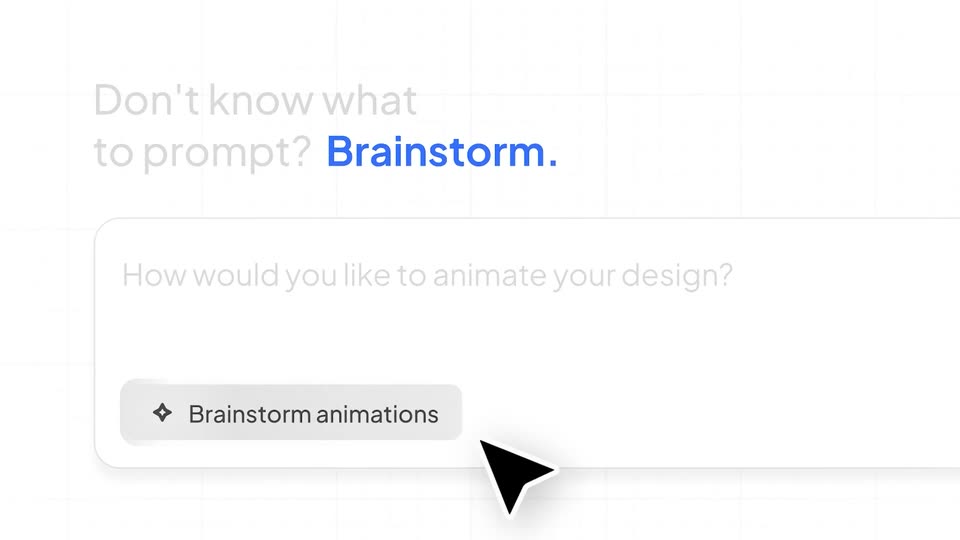
A white card on a faint grid shows a prompt question. Above, 'Don't know what to prompt?' sits as 'Brainstorm.' fades in in blue-purple, then the first line dims. A black cursor glides to the 'Brainstorm animations' chip, which takes a cyan-to-pink outline and fills gray on selection.
On-screen text: “Don't know what to prompt?”, “Brainstorm.”
Techniques: Cursor demo
Camera: Pull out
A flat white product window sits on a blue grid background beside the headline Brainstorm. Inside, a glowing diamond illustration splits into a 2x2 grid of four colored variants as the cursor glides in and hovers over the tiles.
On-screen text: “Brainstorm”, “Generate 4 animations without prompting.”
Techniques: Cursor demo
Camera: Static
A flat product panel on a blue grid shows a 2x2 diamond grid; a black cursor hovers, then the view zooms into one diamond and reframes to a single-illustration edit screen with a prompt field. The left headline swaps from Brainstorm to Refine with prompting.
On-screen text: “Brainstorm”, “Generate 4 animations without prompting.”, “Refine with prompting”
Techniques: Cursor demo, UI zoom, Kinetic type
Camera: Push in
A cropped editor screen sits beside a blue grid panel. A cursor hovers in the prompt field as the instruction appears, with download and open buttons below the input box.
On-screen text: “Refine with prompting”
Techniques: Cursor demo
Camera: Static
A blue grid panel holds the white headline “Refine with prompting” while a cursor moves into the interface’s text field and types a prompt. Above it, the preview’s orange diamond morphs into a white star with small sparkles.
On-screen text: “Refine with prompting”
Techniques: Cursor demo, Morph
Camera: Pan
Split screen: a blue grid panel on the left holds the white headline, while the right panel shows a 3D red-and-yellow diamond with a cursor and sparkles. A small caption slides in at the bottom right.
On-screen text: “Refine with prompting”, “Make the diamond look like it is floating.”
Techniques: Split screen, Cursor demo
Camera: Static
A product UI splits the frame: a blue grid panel holds the headline “Refine with prompting” while the right shows a faceted diamond over a prompt box. The view scrolls down to reveal the typed prompt, an Update animation button, and Download and Open Editor actions.
On-screen text: “Refine with prompting”
Camera: Pan
A white product panel sits on the left with a blue canvas above and action buttons below, while a blue grid fills the right holding the white headline. A black cursor drifts left and right across the panel edge.
On-screen text: “and refine again”
Techniques: Cursor demo
Camera: Static
A white rounded card slides right off frame over a light gray field, revealing the sentence behind it. The line reads in with a blinking caret, the last word tinted blue, then holds still.
On-screen text: “the easings go smoothe”
Techniques: Kinetic type, Masking
Camera: Static
A blue square panel on a white field holds a faceted gem that drifts, scales and tilts as a four-point star sparkles near it. Corner text slides in over the panel.
On-screen text: “Version 3”, “Prompt:”, “Make the easing go smoother.”
Camera: Static
A close-up of a white card on a gray backdrop shows a prompt text block scrolling slowly upward while a black cursor arrow glides across the Update animation button at the card's bottom edge.
Techniques: Cursor demo
Camera: Pull out
A white UI panel with a top bar showing Animations and Free Credits. A cursor clicks the Version history button, opening a dropdown list of versions, then hovers over Version 2. An orange faceted gem sits behind the panel.
Techniques: Cursor demo
Camera: Pan
A light interface scrolls horizontally through square version cards. Each card holds a faceted diamond on a blue or orange gradient, with small prompt text below; the dark gray headline 'Edit with further prompts' stays fixed at left.
On-screen text: “Edit with further prompts”
Camera: Pull out
Two flat cards sit side by side on white, each holding a glowing yellow-orange diamond over a dark red gradient. The left card carries a small caption, the right is tagged Version 5 with a prompt line. The strip slides slowly left while the word endlessly. drifts in on the right.
On-screen text: “Change the background to black to dark orange.”, “Animate the background to reflect the diamond's glow.”, “endlessly.”
Camera: Static
Two square cards with glowing orange diamonds on gradient backgrounds sit on a white field, the left card drifting in from the edge while the Version 5 card holds. The black word endlessly. rests to the right as the small prompt captions slide beneath the diamonds.
On-screen text: “endlessly.”, “Change the background to black to dark orange.”, “Animate the background to reflect the diamond's glow.”
Camera: Static
A dark amber abstract background with glowing curved light ribbons. The caption 'or refine with an editor.' scales up from a small blurred state to a larger sharp one, while a small UI panel with icons and a 'Layers' label fades in at the left edge.
On-screen text: “or refine with an editor.”
Techniques: Kinetic type
Camera: Pull out
A tilted 3D view of a vector editor shows a diamond wireframe on the canvas, a layers panel on the left and a properties panel on the right, set against dark amber light streaks. A white glowing headline scales above the interface as the UI sharpens into focus.
On-screen text: “or refine with an editor.”
Techniques: 3D mockup, Kinetic type
Camera: Static
A vector editor screen sits over golden light streaks, a wireframe diamond in the canvas and the caption above it. The diamond fills with yellow and red as the view zooms into the right panel, where a cursor drags a point on the easing curve.
On-screen text: “or refine with an editor.”
Techniques: UI zoom, Cursor demo
Camera: Static
A tilted view of the editor shows a selected yellow diamond on a red canvas, framed by a selection box and white sparkles. The view reframes down to the timeline, the playhead sliding left while a cursor moves the easing curve handle in the right panel.
Techniques: 3D mockup, Cursor demo, UI zoom
Camera: Pull out
A flat, front-on view of a design app over an amber abstract background. On the center canvas a selected gem shifts its gradient from red to orange as the timeline plays, and small four-point sparkles twinkle around it while the fill panel shows the color picker.
Camera: Static
A white grid canvas holds a slow-drifting ring of small animated thumbnails with blue selection borders. In the center, a gray caption sits above a large black line that builds word by word into the full phrase.
On-screen text: “Export Assets as”, “Video, Lottie & Gif”
Techniques: Kinetic type
Camera: Pull out
A Figma canvas holds the Magic Animator logo, title and Beta 3.0 badge on the left. On the right, a red card staggers in its headline and shifts its gradient strip, beside the plugin panel.
On-screen text: “Magic Animator”, “Beta 3.0”, “Animate anything with a prompt in Figma”
Techniques: Morph
Camera: Static
A Figma canvas holds the Magic Animator lockup on the left and a plugin panel on the right that cycles through animation previews. The blue gradient title turns black, then the tagline enlarges while the logo and title drop to the corners, and the scene fades to white.
On-screen text: “Magic Animator”, “Beta 3.0”, “Animate anything with a prompt in Figma”
Techniques: Kinetic type
Camera: Static