0:47


Introducing Loom AI
Loom · Productivity · Aug 2023
Kimi AI’s 1:14 launch film runs 54 scenes, about 1.4 s each. The product shows up at 0:06 and 5 features are revealed. There is no explicit call to action; a voiceover carries the film. The video is a single-workflow tour: three finished renders hook, a white grid title card names Kimi, then the spiral villa runs through generation, animation, rendering and 3D printing before a category montage and logo sign-off. Signature moves are cursor-driven white pill UI cards, blur-to-focus title snaps, and voxel particle assembly, cut at about 30 cuts per minute on a 120 bpm pulse.
Is this your launch? to your site or press kit.
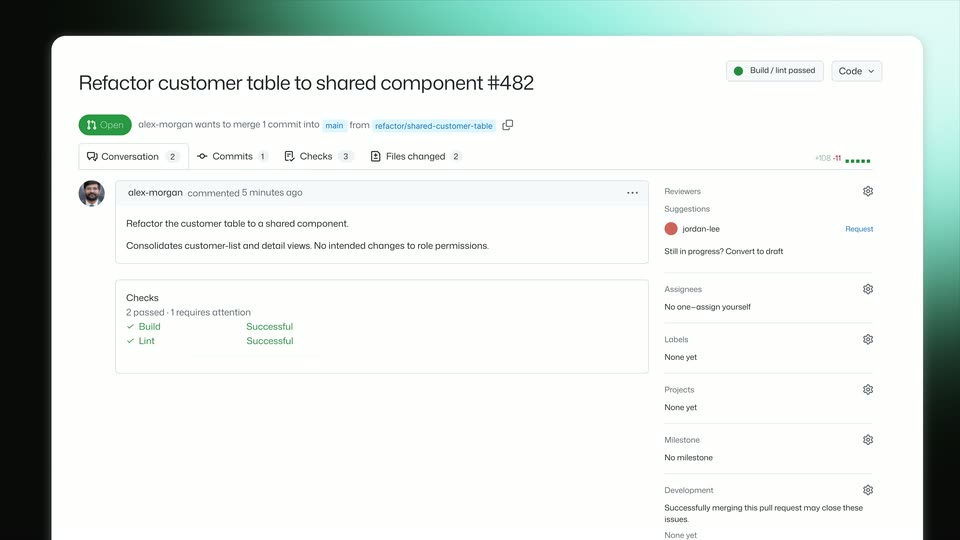
Loom · Productivity · Aug 2023
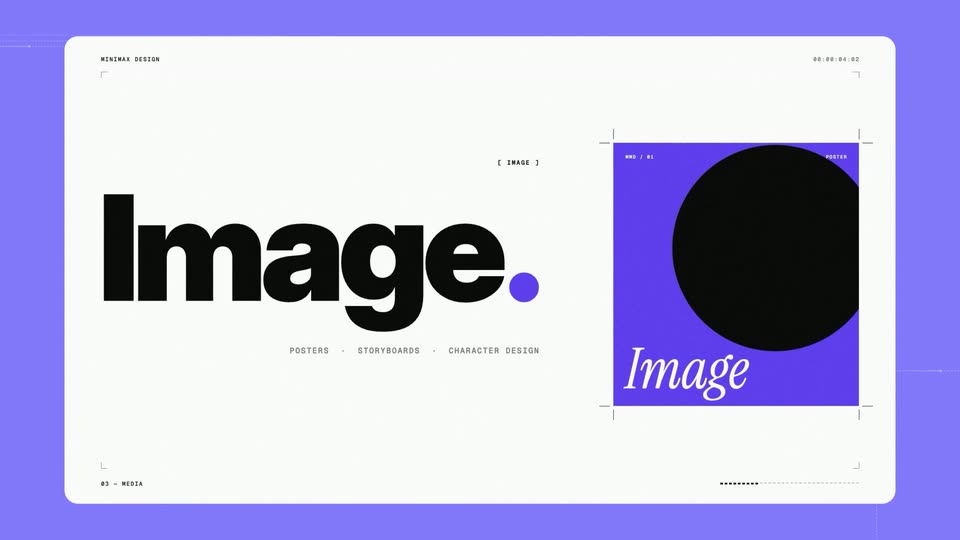
MiniMax Design · Oct 2026
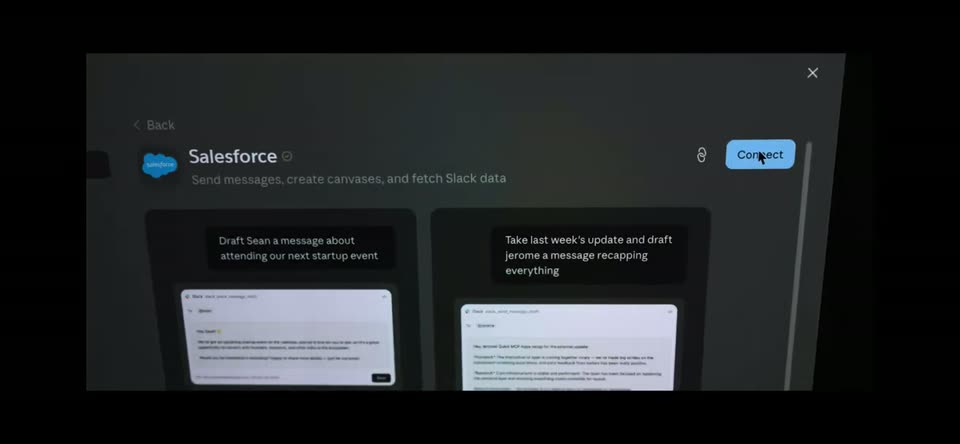
Salesforce · Aug 2026
Films whose music sounds like this one, voice left out
Moonshot AI · Electronic dance music
ContextQA · Electronic, Hip-Hop, Trap
Riffle · Electronic dance music
In a locked-off Blender viewport, a gray 3D cocktail glass sits on a dark grid floor beside a vertical tool bar. A pole rises from the glass and unfurls into a frilled cocktail umbrella. A white pill at the bottom reads “Kimi is controlling Blender...”.
On-screen text: “Kimi is controlling Blender...”
Techniques: 3D mockup
Camera: Static
A 3D rendered lounge with a marble table holding a red cocktail under an orange paper umbrella. The camera slowly pulls back, shrinking the drink toward the left edge while a bonsai and orange armchairs remain in view.
On-screen text: “Kimi is controlling Blender...”
Camera: Static
A 3D render of a white spiral villa on a rocky island. The camera starts on a curved balcony with lounge chairs and a cocktail, then cranes out and up to reveal the full helical building and the surrounding ocean.
Camera: Pull out
A gray stacked-spiral 3D object floats in a white wireframe grid room. It slides left, leaving a blurred swirl trail, then the dark gray word Build appears on the left side of the room.
On-screen text: “Build”
Techniques: Kinetic type
Camera: Push in
A white wireframe 3D room frames the headline, with the inflated blue and green 3D letters flying in from the right and snapping into focus. Small 3D models, a wireframe rotunda, lamp, plant, chandelier, orange armchair and white spheres, fill the corners as the serif line with Kimi fades in below.
On-screen text: “Build in”, “3D”, “with Kimi”
Techniques: 3D mockup
Camera: Pull out
A tilted document card with a play button and an annotated 3D hut model slides right and rotates, leaving a trailing copy, against a blurred grid background showing the headline Build in 3D with Kimi and floating 3D objects.
On-screen text: “Build in 3D with Kimi”
Techniques: 3D mockup
Camera: Static
A white rounded prompt box hovers over a 3D rendered beige spiral interior. A small sketch thumbnail slides in from the left into the box's top corner, followed by a cursor arrow, while the typed prompt text and the K3.1 Pro label stay still.
Techniques: Cursor demo
Camera: Static
A close-up of the chat input card holds the spiral building prompt, then the frame zooms out to reveal the full app window: sidebar, prompt chips, model selector, and a row of 3D building project thumbnails on a soft white background.
Techniques: UI zoom
Camera: Pan
A white KIMI app window sits on a light gray field, its sidebar and a spiral-building prompt filling the pane. A cursor glides in from the right and hovers by the input box, which lights up with a soft glow, while the KIMI wordmark scales into place.
Techniques: Cursor demo
Camera: Static
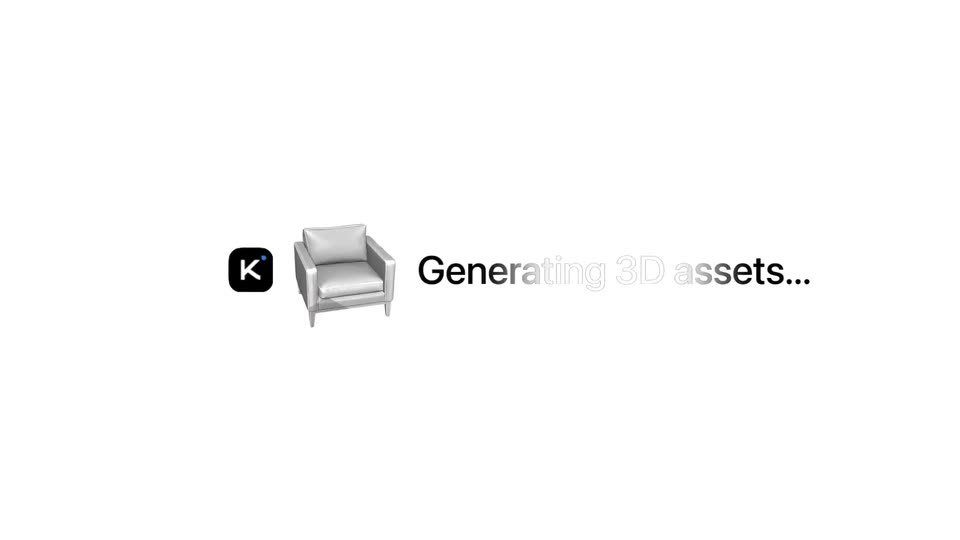
A white loading screen shows the black Kimi logo and the status line Generating 3D assets... as a small white 3D potted plant model materializes beside the logo. The status text fades out while the plant settles into place.
Camera: Static
A split screen shows a white asset list on the left and a dark 3D viewport on the right. The list scrolls upward past numbered cube icons while the low-poly building in the viewport gains a spiral tower as new items load.
On-screen text: “Generating 3D assets...”
Techniques: Split screen, 3D mockup
Camera: Static
A 3D viewer interface displays a gray villa model with trees and a boat in perspective. The frame zooms onto the bottom toolbar, where a cursor moves to a star icon and an Animation editing tooltip appears.
Techniques: 3D mockup, UI zoom, Cursor demo
Camera: Push in
A white editor panel on a gray backdrop scrolls up to reveal a grayscale 3D villa preview above a timeline. A black cursor moves down the track list past camera animation rows while a blue playhead sits at zero.
On-screen text: “Share feedback, I'll help...”, “Auto”, “Animation editing”
Techniques: Cursor demo, UI zoom
Camera: Static
A close-up of a video editor interface. The top shows a grayscale 3D architectural model in a viewport. Below, a track list and two labeled clip blocks sit on a ruler. A black arrow cursor drags the left edge of the lower clip to the right.
Techniques: Cursor demo
Camera: Static
A light 3D editor interface shows a split viewport of a gray circular villa model, a seawater properties panel at right, and a camera timeline below. A pointer cursor slides from the first clip onto the medium shot clip.
Techniques: Cursor demo
Camera: Static
A 3D animation tool screen shows a gray villa model in the top viewport and a timeline panel below. A cursor clicks the play button, the timecode ticks up and a blue playhead slides right across the track.
Techniques: Cursor demo
Camera: Static
A 3D scene editor interface shows a split view of a low-poly circular villa with white foliage in the preview and editing panels, plus a properties panel on the right. The view pushes in toward the editing area, enlarging the model and cropping the right panel.
Techniques: UI zoom
Camera: Push in
A monochrome 3D spiral building with curved balconies, railings and furnished interiors. The camera glides down past the railing into a lounge with a sofa, lamp and table, white blossom trees at the edge.
Techniques: Parallax
Camera: Push in
A monochrome 3D render of a circular lounge with curved white sofas, a central fireplace and floor-to-ceiling windows showing white trees. A dark vertical band wipes across the frame, revealing the room from left to right while the camera holds still.
Techniques: Masking
Camera: Static
A grayscale 3D living room with curved sofas and a fireplace fills the frame. A chat input at the bottom types out a prompt asking to render the interior with photorealistic materials, then a cursor moves to the send button.
Techniques: Kinetic type, Cursor demo
Camera: Static
A 3D app window fills the frame, its viewport holding a living room with a fireplace, curved sofa and potted cactus. A rounded status pill at the lower left slides in with a spinner and a one-line note, then the frame locks off.
Camera: Pull out
The Blender app window, showing a rendered living room with a fireplace and ocean view, sits on a gray desktop and zooms in to fill the frame. A light status pill at the bottom slides in reading the working note.
On-screen text: “Working: Using Blender to add realistic materials...”
Techniques: UI zoom
Camera: Pan
A 3D living room interior sits in a product window beside a scene tree panel. Two numbered pins pop in with bubbles reading 'Create a floor reading lamp here.' and 'Create a spiral sculpture here.' The frame stays locked.
Camera: Static
A white rounded command box floats over a dimmed 3D living room, holding the typed prompt with a blinking cursor. A white cursor glides to the dark send button and clicks it, making the box glow blue.
Techniques: Cursor demo
Camera: Static
A 3D-rendered oceanfront living room with a fireplace and curved brown leather sofas. Glowing cyan voxel particles drift through the air, then assemble into a tall potted swiss cheese plant on the left.
On-screen text: “3”, “Create a tall potted swiss cheese plant here.”
Techniques: Particles
Camera: Static
A static app window frames a 3D villa interior; the viewport camera glides from a wide living-room shot past a fireplace into a corner with two orange leather chairs and a glass table holding a black sculpture. The right panel shows the scene tree and transform fields, locked off.
Camera: Static
A 3D living room with a tulu lamp on a glass table; a cursor sends the typed prompt in the chat bar, and the lamp regenerates from a white lattice with a solid roof to an open-top lattice, then to a charcoal roof and light wood body.
Techniques: Cursor demo
Camera: Static
A 3D living room with an orange armchair and a glass coffee table. A small woven, basket-shaped device rests on the table, then a white cursor lifts and tilts it into the air as a second copy appears in the upper right corner.
Techniques: 3D mockup, Cursor demo
Camera: Static
A GLB file icon with a blue filename tag is dragged by a cursor from the left edge toward a central drop zone. The view then cuts to a horizontal project bar showing the loaded file, with the KIMI logo above.
Techniques: Cursor demo
Camera: Static
A white interface panel sits below the KIMI logo. A file chip for Tulou-lamp anchors the top, and the prompt line types out the request. A cursor glides from the chip to the circular send button at the right edge.
Techniques: Cursor demo
Camera: Static
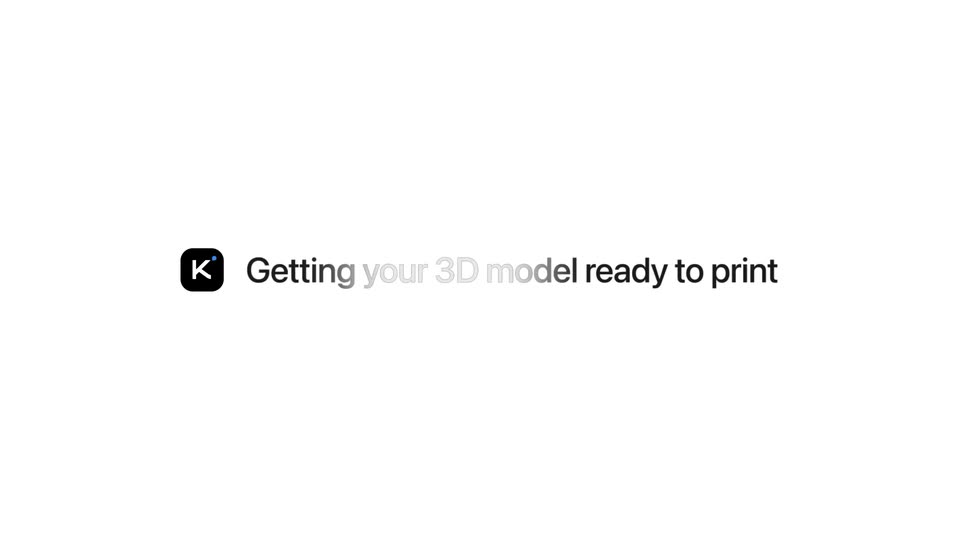
A dark gray sans-serif headline reads “Getting your 3D model ready to print” on a white background, with a black rounded app icon at left. The headline reveals from right to left, the icon stays fixed.
On-screen text: “Getting your 3D model ready to print”
Techniques: Masking
Camera: Static
A flat product window pairs a left chat panel with a 3D lattice lamp model on the right. A cursor clicks Explode, the model breaks into parts, reassembles, and a roof part highlights orange with a position readout.
Techniques: Cursor demo
Camera: Static
A white Export button with a dark cursor hovers on a grey background. The button blurs and slides left as a dark grey panel enters from the right.
Techniques: Cursor demo
Camera: Static
On a light gray background, two rounded cards slide in from the right. The left card shows a dark render of a golden wire cage with a lit house inside, captioned Image with a picture icon. The right card shows a 3D cage model with a conical top, captioned STL with a cube icon.
Camera: Pan
A row of cards slides left across a light gray background, each showing a render of a lattice hive above a white pill button labeled with a file format. The scroll ends on a dark card, then cuts to the printed hive on gravel beside a white car.
Camera: Push in
A fisheye view inside a 3D printer frames a build plate covered in a granular golden sheet, a circular toolhead at center, and the print gantry sliding across the top. The dark machine walls curve around the frame in 3D perspective.
Techniques: 3D mockup
Camera: Static
A wide-angle close-up of a 3D printer bed shows an empty circular build plate, then crossfades into a white lattice tower with an arched opening standing on the same textured bed.
Camera: Static
A glowing 3D-printed house lamp fills the dark frame, then the view reframes to a white interface where the lamp sits in a rounded card on the right and a left menu highlights the 3D Printing option.
Camera: Static
A vertical list of category pills scrolls upward on the left while the highlighted 3D Printing pill travels with it. On the right, a glowing amber lattice hut with a domed roof and arched door rotates slowly inside a black rounded panel.
Techniques: 3D mockup
Camera: Static
A white panel lists category pills on the left, with Industrial Design & Art outlined in black, beside a 3D laptop whose blue screen shows a wireframe cheetah, large blocky letters and a black card with a microphone icon. The 3D view rotates slightly as the menu items pulse.
Techniques: 3D mockup
Camera: Static
A white pill menu sits left of a blue screen panel whose 3D voxel KIMI lettering fills the frame. The panel zooms in and slides right off-frame while two sidebar labels scale up, the RUN KIMI button dropping toward the bottom edge.
Techniques: UI zoom
Camera: Static
A floating tablet mockup tilts on a white stage, its dark screen showing a translucent blue mechanical object rotating over a swirling starfield. To the left, a column of category pills scrolls up as the highlight moves from Industrial Design & Art to Architectural Design.
Techniques: 3D mockup
Camera: Static
A white interface shows a vertical category menu on the left with Architectural Design selected, beside a rounded card on the right. The card crossfades from a geodesic dome interior to the Cologne Cathedral as a serif title and a line of small labels fade in over the image.
Camera: Static
A product page shows a beige card with the title Cologne Cathedral and a 3D model of the cathedral. The camera zooms into the twin spires as the left category list cycles from Architectural Design to Technology to Science.
Techniques: UI zoom
Camera: Static
A light interface shows a vertical category menu on the left with Technology highlighted, while a metallic jet engine rotates inside a rounded panel on the right. The menu pills scale and slide as the engine turns.
Techniques: 3D mockup
Camera: Static
A light interface window shows a 3D robotic arm; the view pulls back from a close-up of the transparent mechanical hand to the full arm on its base. On the left, a vertical list of category pills scrolls so the highlighted Technology pill centers.
Techniques: UI zoom, 3D mockup
Camera: Pull out
A white app screen with a vertical list of category pills on the left, Science outlined in black, slides in as a 3D cell model with a purple nucleus and orange organelles rotates inside a cream rounded card on the right.
Camera: Static
A green 3D plant cell model with a purple nucleus and blue vacuole rotates from a three-quarter view to a flat front view inside a cream rounded card. A left sidebar of pill buttons keeps the Science item outlined in black while the others stay gray.
Camera: Static
A 3D-tilted screen plays a racing game, a red car speeding down a wet autumn road with HUD gauges updating, while a left column of category pills slides and scales, Games highlighted in a white pill.
Techniques: 3D mockup
Camera: Static
A light interface splits into a left column of category pills and a right rounded video card. The active Games pill scales up while Science and 3D Printing slide, and the card plays motion-blurred footage of a red race car with a HUD.
Camera: Static
On a plain white background, the black wordmark Kimi and Make sits locked off while the 3D between them starts as a soft blur and snaps into focus as two textured 3D letters, a blue stucco 3 and a green pleated D.
On-screen text: “Kimi”, “3D”, “Make”
Techniques: Morph
Camera: Static
On a plain white background, the wordmark Kimi and Make flank a puffy green 3D letter in the center. The lockup then gives way to the tagline Where ideas take shape, centered in black.
On-screen text: “Kimi”, “Make”, “Where ideas take shape”
Camera: Static
On a white background, a bold black [KIMI] wordmark centered in frame morphs into the KIMI app icon, a rounded black square with a white K and a small blue dot, set left of the KIMI wordmark whose letters resolve from vertical bars.
On-screen text: “[KIMI]”, “KIMI”
Techniques: Morph, Kinetic type
Camera: Static
A black screen holds the KIMI logo centered in a locked-off frame. The mark remains still for the brief sign-off with no visible movement or reframing.
On-screen text: “KIMI”
Camera: Static