1:12
Introducing Comet: Browse at the Speed of Thought
Perplexity · AI · Jul 2025
Moonshot AI · Oct 2026 · 1:14 · AI-annotated
Moonshot AI’s 1:14 launch film runs 51 scenes, about 1.5 s each. The product shows up at 0:07 and 5 features are revealed. There is no explicit call to action; a voiceover carries the film. The video runs as one continuous prompt-to-print pipeline: a villa is generated from a reference image, its camera animated, its materials rendered in Blender, new objects prompted in place, and a lamp exported to a physical 3D print, capped by a category gallery and a logo lockup. Its style pairs flat white UI cards sliding over wireframe grid rooms with clay-to-color material swaps and pixelated cyan particles that coalesce into objects, all cut at a brisk, steady pace.
Is this your launch? to your site or press kit.
Perplexity · AI · Jul 2025
Executor · B2B · Nov 2026
Apple · Hardware · Sep 2026
A dark Blender viewport with a grid floor and a left icon toolbar. A gray clay cocktail glass appears at center, then a matching gray umbrella drops into the rim. A white pill caption at the bottom reads “Kimi is controlling Blender...” and stays locked.
On-screen text: “Kimi is controlling Blender...”
Camera: Static
A 3D render of a red cocktail with a paper umbrella on a marble table. The camera pans right, revealing a bonsai tree and a living area with orange armchairs in the background.
On-screen text: “Kimi is controllingBlender..”
Techniques: 3D mockup, Parallax
Camera: Static
A 3D render of a white spiral villa on a rocky island. The camera opens on a curved terrace with a lounge chair and an orange umbrella, then pulls back in one smooth move to reveal the full tower, its terraces, trees and a docked boat on blue water.
Camera: Pull out
A grayscale 3D vortex of stacked discs with a central pole spins in a white wireframe grid room, heavy motion blur around it. The view widens and the object drifts to the lower left, leaving a blurred swirl trailing behind it.
Techniques: 3D mockup
Camera: Push in
In a white wireframe grid room, the black headline 'Build in with Kimi' reveals through a white mask as a glossy blue-and-green 3D '3D' slides in from the right. Floating 3D objects, a lamp, plant, wireframe dome and orange chair, populate the corners.
On-screen text: “Build in 3D”, “with Kimi”
Techniques: Masking, 3D mockup
Camera: Pull out
A white page with a pagoda diagram and a dark play button rotates and slides left to right in sharp focus, passing over a blurred heading and scattered 3D objects on a white grid.
On-screen text: “Build in 3D”, “with Kimi”
Techniques: 3D mockup
Camera: Static
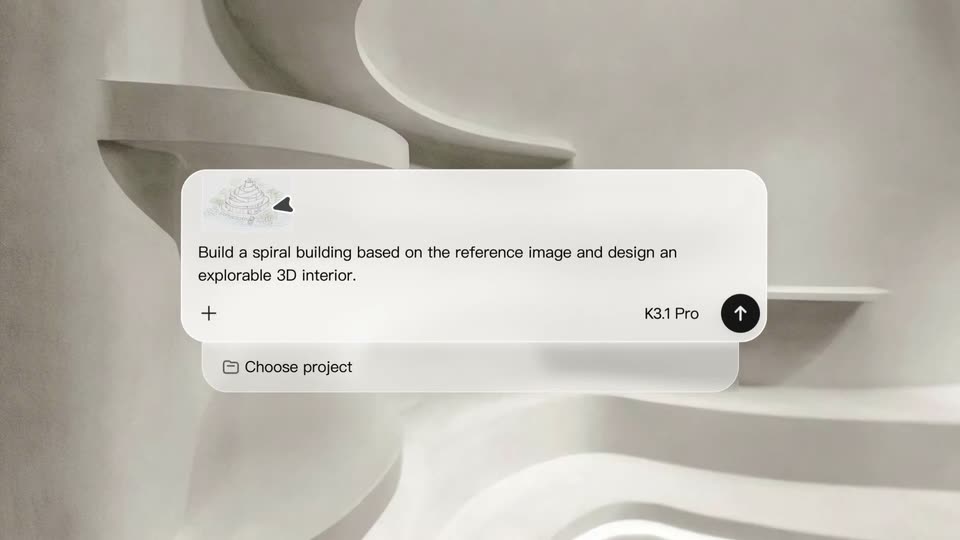
A white rounded chat input box floats over a soft 3D spiral staircase. A small line-drawing thumbnail of a tower slides into the box's top-left corner, while the typed prompt and a Choose project row sit inside.
Camera: Static
A close-up of a light interface card shows a prompt about building a spiral structure. A black cursor glides to the right as a blue 3D Modeling tag fades in beside the 3D Make label.
Techniques: Cursor demo
Camera: Pan
A light gray backdrop holds the KIMI desktop window, which scales up to fill the frame as the central KIMI wordmark enlarges. A cursor appears at the right of the chat input, which flashes a blue highlight, above the prompt line and three 3D building thumbnails.
Techniques: Cursor demo
Camera: Static
On a white field, a black rounded K logo and the gray caption Generating 3D assets sit centered. The logo shifts left and a white wireframe potted plant materializes in the gap as the caption fades out.
On-screen text: “Generating 3D assets...”
Techniques: Kinetic type, 3D mockup
Camera: Static
A split screen pairs a white asset list on the left with a gray 3D building model on a dark field on the right. The list reorders as rows highlight, and the model gains a spiral ramp. A caption slides in reading “Generating 3D assets...”.
On-screen text: “Generating 3D assets...”, “K”
Techniques: Split screen
Camera: Static
The full 3D editor interface shows a grey curved villa model with a scene tree panel on the right. The view zooms into the bottom toolbar as a cursor moves to the star icon, triggering an Animation editing tooltip.
Techniques: UI zoom, Cursor demo
Camera: Push in
A white timeline panel of a video editor fills the lower frame beneath a grayscale 3D preview. Clip rows slide in from the left while a blue playhead line and a black triangle marker travel across the track.
On-screen text: “Share feedback, I'll help...”, “Auto”, “Animation editing”, “C”
Techniques: Cursor demo
Camera: Static
A gray 3D viewport of a villa model sits above a white timeline panel with four camera tracks. A black arrow cursor drifts slowly to the right across two clip blocks labeled with shot names.
Techniques: Cursor demo
Camera: Static
A flat screen recording of a 3D scene editor shows two viewports of a circular villa model beside a properties panel and a bottom timeline. A cursor glides down from the first camera clip to the second. The layout stays static.
Techniques: Cursor demo
Camera: Static
A product interface shows a grayscale 3D villa model in a top viewport above a list of camera animations and a timeline. A black cursor hovers by the play button as the blue playhead advances and the timecode ticks up.
Techniques: Cursor demo
Camera: Static
A flat 3D animation editor window plays its timeline, the playhead gliding right while the dark viewport dollies in on a circular villa model ringed by pale trees. A properties panel on the right lists Seawater Color values.
Techniques: UI zoom
Camera: Push in
A monochrome 3D architectural model of a spiral multi-level building. The camera arcs around the curved balconies and railings, then moves through a lower level into a living room with a sofa, coffee table, and floor lamp.
Techniques: Parallax
Camera: Push in
A 3D rendered living room with a curved white sofa, a tall fireplace, and floor-to-ceiling windows showing trees. A dark vertical panel slides away to reveal the interior, then the view holds on the space.
Techniques: Masking
Camera: Static
A clay 3D render of a living room with curved sofas fills the viewport as a prompt types into the input bar below. A cursor clicks the round send button and the layout reframes.
Techniques: Kinetic type, Cursor demo
Camera: Static
A Blender viewport shows a curved interior in gray clay shading, then the same view switches to full color as materials load. The application window zooms in slightly and shifts left, revealing a white side panel, while a caption bar slides in along the bottom.
On-screen text: “Working: Using Blender to add realistic materials...”
Techniques: UI zoom
Camera: Pull out
A flat product UI frames a 3D villa interior in the viewport, with a scene tree panel on the right. Numbered annotation pins pop in over the room carrying prompt boxes, then a third prompt card slides in at the right edge.
Camera: Static
Over a blurred living room, a white rounded prompt box reads “Create a tall potted swiss cheese plant here.” A cursor presses the black send button and the box flares with a soft white glow.
Techniques: Cursor demo
Camera: Static
A rendered oceanfront villa interior stays locked off as pixelated cyan shapes drift in and coalesce into a lamp and two figures. Then the app UI fades in: top bar, right-hand scene tree, and a bottom toolbar with an Add to chat button.
Techniques: Particles, Morph
Camera: Static
A 3D annotation tool shows an oceanfront villa interior in its viewport, with a scene tree and property panel on the right. The camera dollies from a wide living room with a fireplace and leather sofa to a close-up of orange armchairs around a glass table.
Techniques: 3D mockup
Camera: Static
A rendered living room with orange leather armchairs. A tulou lamp on a glass table morphs from a plain white lattice into an intricate open-top structure, then gains a charcoal roof and light wood body. A cursor presses the prompt's send button, then lifts the lamp to rotate it.
Techniques: Morph, Cursor demo, 3D mockup
Camera: Static
A file icon with a green plus badge is dragged by a cursor from the left toward a central drop zone. The drop zone shows a file outline with a plus sign and upload text. The icon travels right and slightly up.
Techniques: Cursor demo
Camera: Static
On a pale gray field, a black KIMI wordmark with an extruded 3D shadow sits above a rounded input card. A file chip and a prompt line sit inside; a cursor types a 3D print request, then slides right and clicks the dark circular send button.
Techniques: Cursor demo
Camera: Static
A black rounded-square app icon with a white K and a small blue dot sits at left on a plain white field. To its right, a single line of dark gray sans-serif text reads “Getting your 3D model ready to print.” The frame stays locked and static.
On-screen text: “Getting your 3D model ready to print”
Camera: Static
A flat app window shows a 3D preview tool with a text panel left and a lattice lamp model right. The cursor drags the explode slider, pulling the separated parts into an assembled lamp, then hovers over the top ring to reveal a dimension tooltip.
Techniques: Cursor demo
Camera: Static
A dark cursor clicks a white Export pill button on a gray background; the button blurs and scales down as a dark rounded panel slides in from the right edge.
Techniques: Cursor demo
Camera: Static
A row of dark rounded cards, each holding a 3D lattice birdcage in perspective, pans left across a plain gray background. Light pill labels with icons and format names sit under each card and travel with the row.
Camera: Pan
Two rounded file cards sit side by side on a pale gray field, the left showing a lattice 3D print and the right a printer bed. The row slides left so the 3MF card exits while the Video card centers and scales up.
Techniques: UI zoom
Camera: Push in
Inside a 3D printer, a speckled bronze build plate with a circular black build surface sits under the print head. The view crossfades to reveal a white lattice cylinder printed with a serial number.
Camera: Static
A small 3D printed hut-shaped lamp sits on a dark surface, glowing warm orange from within. Its open lattice walls and arched doorway are backlit, with a thin cable trailing off to the right. The shot holds static on the object.
Camera: Static
A white gallery interface shows a scrolling list of category pills on the left, with 3D Printing highlighted, while a dark panel on the right displays a 3D render of a wooden lattice birdcage glowing with warm interior light, slowly rotating.
Techniques: 3D mockup
Camera: Static
A laptop in 3D perspective on a white background shows a blue screen with a rotating wireframe cheetah and large dot-matrix letters. A blurred category menu floats at left as the device turns right; the 3D Printing pill scales and Architectural Design slides.
Techniques: 3D mockup, Parallax
Camera: Static
A white sidebar of category pills sits left, with Industrial Design & Art outlined in black. A tilted blue viewport fills the right, showing KIMI in silver voxel blocks over a white RUN KIMI pill; the viewport scales up as the shot ends.
Techniques: 3D mockup
Camera: Static
A vertical list of category pills on a light background cycles its active item, each scaling to a white pill while the rest fade. To the right, a tilted interface window holds a liquid-metal 3D model that rotates over dark concentric rings.
Techniques: 3D mockup
Camera: Static
A pale interface lists category pills on the left, with Architectural Design outlined in black, while a large rounded card on the right dissolves from a glass dome waterfall render to the Cologne Cathedral, which carries a serif title and small caption.
Camera: Static
A category menu of rounded pills scrolls on the left as the highlight moves from Architectural Design to Technology. On the right, a card labeled Cologne Cathedral shows a gray 3D cathedral model; the view pushes in toward the twin spires until they fill the card.
Techniques: UI zoom
Camera: Push in
A metallic 3D turbine rotates and reshapes inside a rounded preview card on the right, its spiked front collapsing into smooth blades. On the left, a vertical list of category pills slides in, with Technology highlighted in dark text.
Techniques: 3D mockup, Morph
Camera: Static
A vertical stack of category pills scrolls up on the left, Technology then Science taking the dark active outline, while a rounded UI panel on the right shows a 3D robotic arm rotating through poses, from an open hand to a folded jointed arm.
Techniques: 3D mockup
Camera: Pull out
A left menu shows pill buttons for Technology, Science, Games and 3D Printing, with Science outlined in black. A rounded white card on the right holds a 3D cell model, purple nucleus and orange organelles, that turns from a side view to a top view.
Techniques: 3D mockup
Camera: Static
A white app screen: a left column of category pills slides in with Science outlined in black, and a green 3D plant cell with a purple nucleus rotates from profile to front inside a rounded card on the right.
Techniques: 3D mockup
Camera: Static
A white interface shows a vertical category list on the left, the Games pill scaling up while Science and 3D Printing slide. On the right, a rounded panel plays a racing game: a red car speeds down an autumn track, the speedometer climbs from 198 to 239 km/h.
Camera: Static
A light gray screen shows a vertical category list on the left, the Games pill highlighted in white while the others fade, items sliding and scaling. On the right, a tablet tilted in 3D perspective plays a racing game, a red car streaking down a blurred road with a speedometer.
Techniques: 3D mockup
Camera: Static
On a plain white field, the black wordmark Kimi Make holds a soft, out-of-focus 3D between its words. The 3D snaps into focus as a textured blue 3 and a glossy green D, while small labels for Science, Games and 3D Printing slide and scale in around the mark.
On-screen text: “Kimi”, “3D”, “Make”, “Science”, “Games”, “3D Printing”
Techniques: Kinetic type
Camera: Static
On a white background, the wordmark Kimi Make with a green 3D letter D between the words crossfades with the tagline Where ideas take shape. The D and wordmark fade out as the tagline dissolves in, then the tagline fades back to the wordmark.
On-screen text: “Where ideas take shape”
Camera: Static
On a plain white field, the KIMI wordmark assembles across the center through a vertical-scan mask, the rightmost letters filling in last. A black rounded-square icon with a white K and a small blue dot then settles in to the left, locking the logo in place.
Techniques: Masking
Camera: Static
A plain black background holds the word KIMI in static type, locked in the center of the frame with no motion.
On-screen text: “KIMI”, “K”
Camera: Static