1:56
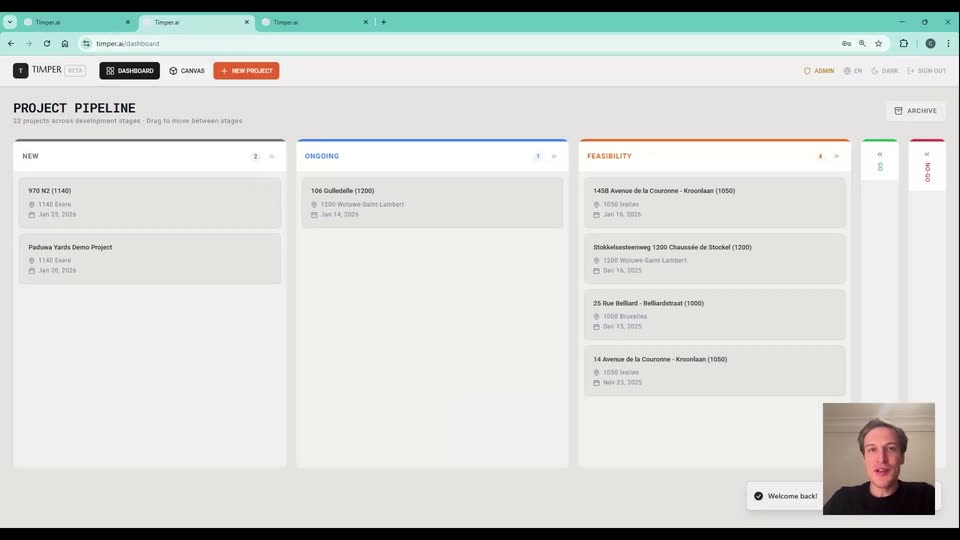

Timper.ai - Demo Jan 2026
Timper · Jan 2026
Figma · Mar 2026 · 0:37 · Full motion · AI-annotated
Figma’s 0:37 launch film runs 17 scenes, about 2.2 s each. The product is on screen from the first frame. There is no explicit call to action. One continuous workflow demo: a 3D stack of app windows opens, then the camera dives into a terminal, a Figma canvas, and a video editor, following a typed prompt, agent logs, and component edits. Signature moves are the perspective tilt of stacked windows, word-by-word typing, and smooth zooms and pans between panels.
Is this your launch? to your site or press kit.
Timper · Jan 2026
Layers · Healthcare · Oct 2025
Mastra · B2B · Nov 2026
Films whose music sounds like this one, voice left out
Dub · Modern funk, disco, and French house
Yenmo · Lo-fi hip-hop
CORSAIR · Instrumental hip-hop transitioning to synthesized video game style
A desktop stacks three app windows: a design tool, a video editor prototype with a desert filmstrip, and a terminal. The windows tilt into 3D perspective as the terminal slides forward and a command types out.
Techniques: UI zoom, 3D mockup
Camera: Push in
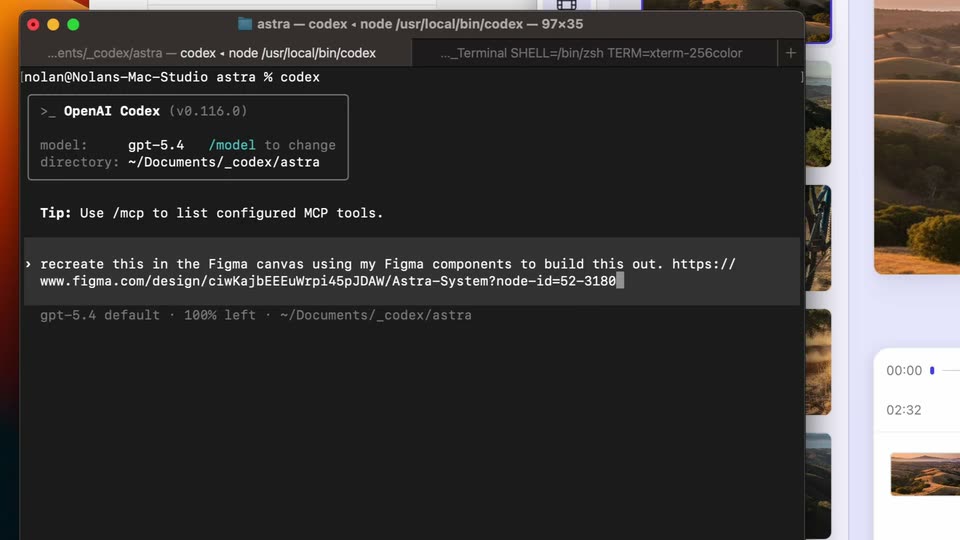
A dark Codex terminal fills the frame. A typed prompt about rebuilding a Figma design appears word by word, then the log scrolls up as tool calls print in monospace. To the right, a Figma panel shows landscape thumbnails and a timeline.
Techniques: Kinetic type
Camera: Push in
A dark terminal fills the frame with white monospace code scrolling at the top. A grey permission dialog slides up from the bottom edge and settles in the lower half, listing three numbered options with right-aligned descriptions. A blinking text cursor sits in the dialog.
Camera: Static
A design-tool interface shows a film-still board with a metadata panel; the view zooms into the right-side inspector as a cursor clicks tag chips, reframing onto the production notes and frame properties.
Techniques: Cursor demo, UI zoom
Camera: Push in
A close-up of a production interface. A cursor clicks the Show Overflow toggle in the right panel, the layout reflows, then the cursor moves down to the Wide Shot dropdown in the center card.
Techniques: Cursor demo
Camera: Static
A light shot-editor card sits center, a filmstrip on the left and a field inspector panel on the right. A cursor selects the Shot Type field, a purple size badge pops up, then the cursor moves to a corner handle showing resize arrows.
Techniques: Cursor demo
Camera: Static
A production tool interface shows a shot detail card with a black-and-white street image and a timeline, beside a properties panel. The view reframes right to expose layout and transform controls while a cursor glides across the cards.
Techniques: UI zoom, Cursor demo
Camera: Static
A production interface fills the frame, a black and white film still above a narrator timeline on the left, a properties panel on the right. The view pans right and zooms into the panel, settling on the layout and typography controls.
Techniques: UI zoom
Camera: Push in
A light product interface shows a shot metadata panel with a black-and-white still. A cursor clicks a details button, selects a related shot placeholder, then changes layout width and appearance scale values.
Techniques: Cursor demo
Camera: Static
A cursor drags a black and white shot thumbnail from a detail panel into a container, which expands to hold two thumbnails side by side while the auto layout width value updates on the right.
Techniques: Cursor demo, UI zoom
Camera: Pan
A dark dropdown menu overlays a design canvas showing a Related Shots component with two grayscale frames. A white cursor arrow glides down the menu list and pauses over Create component, which fills with solid blue.
Techniques: Cursor demo
Camera: Static
A front-on view of a design tool interface. A purple selection outline frames a Related Shots component with three thumbnails, a purple 411 × 170 Hug label sits below, and a cursor rests at the right edge. Small red and blue tick marks fade in on the selection border.
Camera: Static
A design tool canvas displays a grid of purple-labeled component placeholders on a gray field, beside a white light-mode panel on the right. A black cursor hovers over the Related card, which carries a red selection outline with corner handles.
Techniques: Cursor demo
Camera: Static
A dark terminal window occupies the left of the frame, layered over a Figma canvas on the right. Static log output of Figma metadata fills the top, while a prompt line at the bottom types out a sentence and a Figma URL character by character.
Techniques: Kinetic type
Camera: Static
A dark terminal window fills the left of the frame, its agent output scrolling upward as a block caret types a new command at the prompt. A partial Figma canvas with its toolbar and a paragraph of body copy sits to the right.
Techniques: Cursor demo
Camera: Static
A screen recording shows three stacked windows: a file browser, a terminal, and a video editor. A cursor travels down the right-hand panel and clicks a row of tag chips, each flipping to a blue selected state as it goes.
Techniques: Cursor demo
Camera: Static
The Related Shots panel of the video app zooms from a full window view to a close-up of two shot cards. A cursor glides to the Jack Reacts thumbnail and selects it, tinting the card indigo.
Techniques: UI zoom, Cursor demo
Camera: Static