4:00
ClickUp Release 4.09: List Templates in Automations, Parent Task Date Sync, and more!
ClickUp · Productivity · Oct 2026
ClickUp · Mar 2024 · 1:56 · Full motion · AI-annotated
ClickUp’s 1:56 launch film runs 29 scenes, about 4.0 s each. The product is on screen from the first frame and 3 features are revealed. The call to action lands at 1:44 (90% in), over a voiceover. The video is a linear feature walkthrough: a logo open, then three feature blocks (clips, Clips Hub, AI transcription) shown as screen recordings inside a tilted browser window floating on a purple gradient, closed by flat gradient text cards. Pacing holds near seven cuts per minute with smooth zooms and pans that track the cursor, and each feature block is introduced by a bold headline card on the same gradient.
Is this your launch? to your site or press kit.
ClickUp · Productivity · Oct 2026
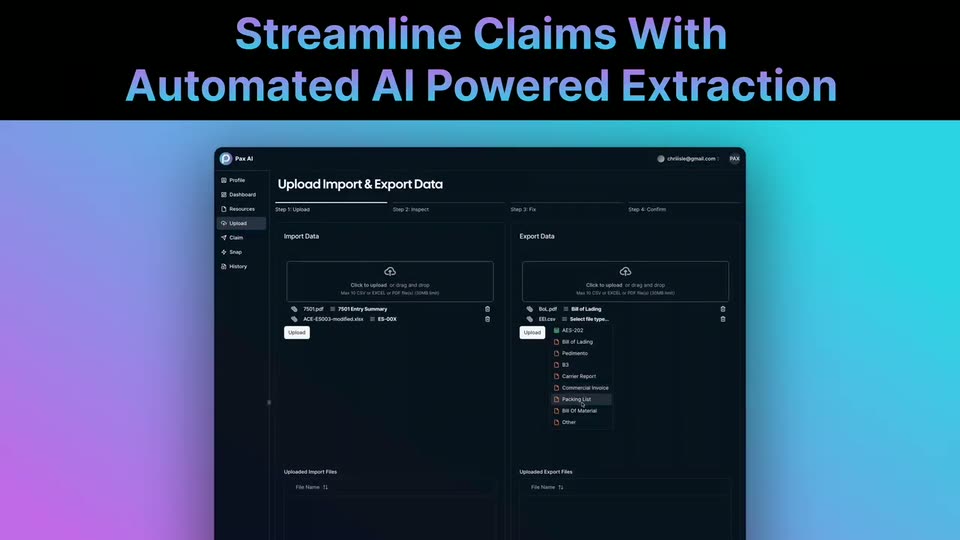
Pax · B2B · Aug 2024
Films whose music sounds like this one, voice left out
Microsoft · Corporate Tech / Electronic
Motives · Upbeat modern electronic
Fish Audio · Upbeat electronic
A white field holds the ClickUp sign-off. The gradient chevron mark and the bold wordmark blur into focus and slide into place, then the whole lockup softens as the scene ends.
On-screen text: “ClickUp”
Techniques: Kinetic type
Camera: Static
The ClickUp wordmark and gradient chevron icon sit centered on a soft lavender-to-pink gradient background. The muted purple wordmark slides into place as the lockup settles, camera locked off.
On-screen text: “ClickUp”
Techniques: Kinetic type
Camera: Static
A bold white headline sits centered on a purple-to-magenta gradient, holding still. In the final moment the ClickUp list view appears beneath the same headline.
On-screen text: “Supercharge your productivity with Clips!”
Techniques: Kinetic type
Camera: Static
A ClickUp list view sits in a browser window on a purple gradient background, showing grouped tasks with avatar stacks, colored team chips and priority flags. The screen holds still.
Camera: Static
The ClickUp interface zooms in on a task detail panel. A cursor clicks a video icon in the top right, then the view shifts to the comment box where the cursor clicks a video icon in the input field.
Techniques: UI zoom, Cursor demo
Camera: Push in
A flat project tool interface sits on a magenta gradient. A cursor clicks the video icon in the comment box, opening a Record Clip panel. The cursor expands the microphone and screen-share dropdowns, hovers the red Start recording button, then the panel closes.
Techniques: Cursor demo
Camera: Static
A flat browser window on a purple gradient shows a dark permission dialog with a tab preview and Cancel and Allow buttons, floating over a task page and comment thread. A cursor glides in from the comment field and hovers on the Allow button.
Techniques: Cursor demo
Camera: Pull out
A tilted ClickUp task window floats on a purple gradient as a cursor sets Priority to High, adds the phase 2 tag, records a clip, and posts it in a comment. The view zooms into the comment box, then pulls back to the full window after Send.
Techniques: 3D mockup, Cursor demo, UI zoom
Camera: Static
A browser window on a purple background shows a task page that scrolls down to reveal an embedded video clip. A cursor types a short comment referencing the clip, then moves right and posts it into the activity panel.
Techniques: Cursor demo
Camera: Static
A browser window over a purple field zooms into the player's top-right toolbar. A cursor hovers the share icon, raising a Copy URL tooltip that turns into a check mark, then slides to the Download button, which shows its own tooltip.
Techniques: UI zoom, Cursor demo
Camera: Push in
A tilted browser window on a purple gradient shows a Save As dialog over a video player. The cursor glides to the blue Save button and clicks it, the dialog fades, and the whole window scales down to reveal the full clip page with the saved file listed below.
Techniques: 3D mockup, Cursor demo
Camera: Pull out
A browser window on a purple gradient plays a screen-recording player. A cursor opens a file list, then clicks the share icon. The view zooms into the product interface, revealing a task page whose activity feed gains a new comment with an attached clip.
Techniques: Cursor demo, UI zoom
Camera: Static
A browser window showing a ClickUp page titled Landing Page Redesign sits on a purple gradient. The cursor moves to the top-right corner and hovers the close button, popping a Close window Esc tooltip.
Techniques: Cursor demo
Camera: Static
A tilted browser window showing a ClickUp task list floats on a purple gradient. The view zooms into the top-right toolbar as a cursor clicks the record icon and a white Record Clip popover pops open over the dimmed screen.
Techniques: 3D mockup, UI zoom, Cursor demo
Camera: Push in
A cursor selects an option from an open dropdown menu, and the interface transitions to the Clips Hub, showing a grid of saved video clip thumbnails.
Techniques: Cursor demo
Camera: Pull out
A cursor opens the sort dropdown on a clip library grid, picks Date updated, and the cards reorder. The cursor then clicks the list toggle, switching the grid into a table, and hovers a row to reveal edit icons.
Techniques: Cursor demo
Camera: Static
A flat screen recording of a ClickUp clip view. The center shows a paused video of a strategy brief with a blue play button, and the right panel lists an Activity comment. The cursor slides right and clicks the Transcript tab, which lights up.
Techniques: Cursor demo
Camera: Static
A product screen pairs a video player with a transcript panel; the highlighted line travels down the transcript while a cursor hovers over copy icons, then the cursor clicks the AI button at the top, opening a Use ClickUp AI tooltip.
Techniques: Cursor demo
Camera: Static
A ClickUp workspace shows a content brief document with an embedded video player on the left. The right-hand ClickUp AI panel updates, its header changing to an AI prompt heading above a timestamped list of questions.
Camera: Static
On a purple gradient background, a video clip player and a document sit on the left while an AI panel lists suggested questions on the right. The camera zooms and reframes toward the right panel, bringing its heading and question list into focus.
Techniques: UI zoom
Camera: Pan
A screen recording opens zoomed on an AI prompt panel. A cursor types a question into the input box and clicks send, then the panel shrinks into a small floating chat window as the view pulls back to reveal the full workspace.
Techniques: Cursor demo, Morph, UI zoom
Camera: Pull out
A browser view of the ClickUp app on a purple background. In the right AI panel, an answer types itself out word by word, then source links and action buttons fade in. A cursor glides to a link and a URL tooltip pops up below.
Techniques: Cursor demo
Camera: Static
A flat Chrome browser window sits on a purple-to-blue gradient. The page inside loads from black to white, the rainbow ClickUp logo drawing in at center, a few colored specks flickering beside it. The cursor rests idle on the right.
On-screen text: “staging.clickup.com/301169/hubs/clips/5d0166b1-c2f3-4481-a32f-50227db92b6a.webm”
Camera: Static
A browser window on a purple background shows the ClickUp clip page for a content strategy brief. A blue play button scales up over the document, then disappears as the cursor moves to the tab's close button.
Techniques: Cursor demo
Camera: Static
A tilted browser window of the ClickUp workspace floats on a purple gradient. A cursor glides to the top of the AI side panel and clicks its close button.
Techniques: 3D mockup, Cursor demo
Camera: Static
A browser window shows the ClickUp Clips page with a transcript panel on the right. A cursor hovers the Copy link button, which highlights blue, then the view switches to a My Clips list table with rows of recordings.
Techniques: Cursor demo
Camera: Static
A flat browser window showing the ClickUp Clips page sits on a purple gradient. The window dims and a large white two-line headline fades in over it.
On-screen text: “Start using Clips today and supercharge”, “productivity for your entire team!”
Camera: Static
A centered two-line white headline holds still on a purple-to-magenta gradient. The text stays locked for the duration, then fades out, leaving the bare gradient.
On-screen text: “Start using Clips today and supercharge”, “productivity for your entire team!”
Camera: Static
On a white background, the gradient ClickUp mark and black wordmark settle from a blur into a locked center position. The tagline The everything app for work. then slides in below, and the frame holds still.
On-screen text: “ClickUp”, “The everything app for work.”
Techniques: Kinetic type
Camera: Static