0:32


Hemut launch film
Hemut · B2B
ClickUp · Aug 2025 · 1:48 · Full motion · AI-annotated
ClickUp’s 1:48 launch film runs 15 scenes, about 7.2 s each. The product shows up at 0:08 and 5 features are revealed. The call to action lands at 1:32 (86% in), over a voiceover. The edit chains short cursor-driven UI demos on tilted white cards, using blur snaps, zoom-outs, and white flashes to move between features. A steady 120 bpm pace and consistent purple backdrop keep the sequence rhythmic and easy to follow.
Is this your launch? to your site or press kit.
Hemut · B2B
ClickUp · Productivity · Nov 2026
Films whose music sounds like this one, voice left out
Oasis Simulations · Electronic
Windsurf · Upbeat electronic
Recursive · Modern electronic
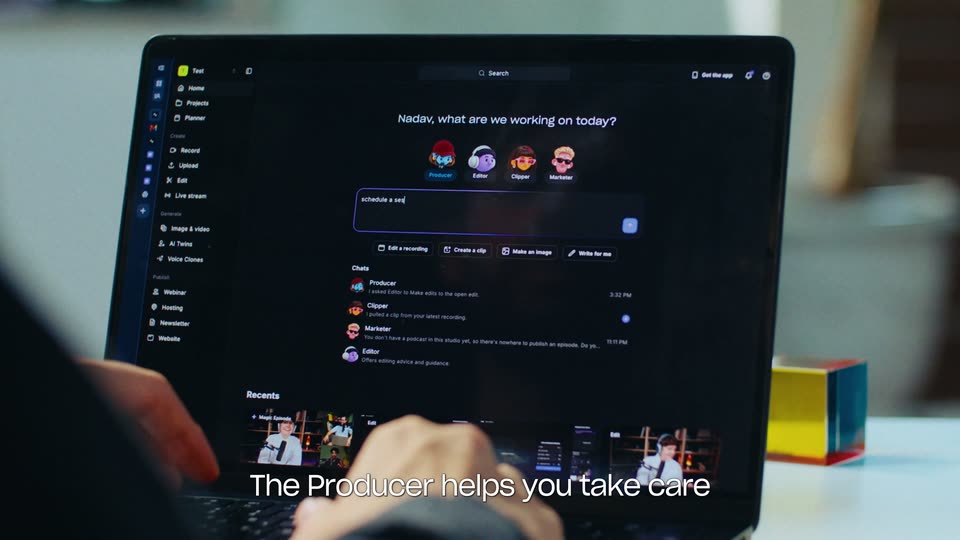
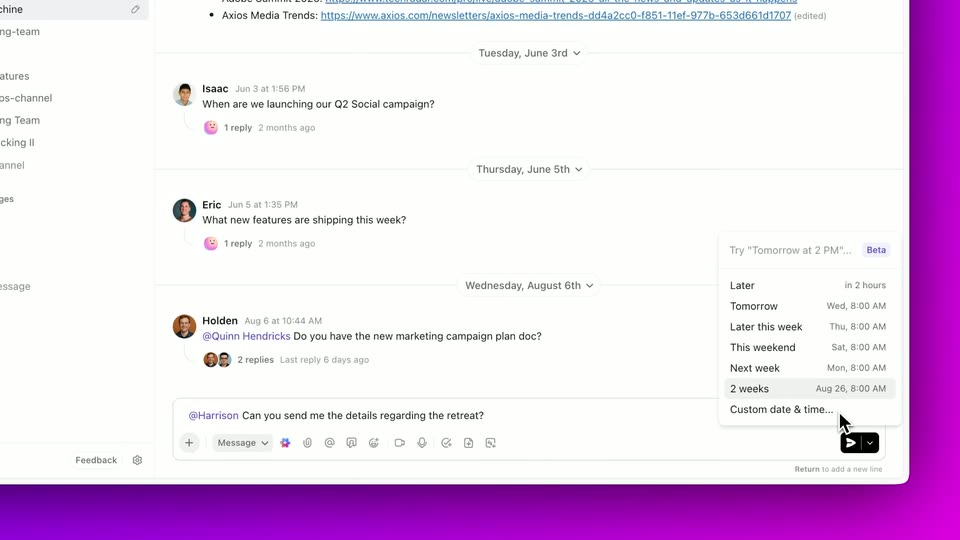
A chat thread with avatars and date dividers fills a tilted white card over a purple gradient. A cursor clicks the chevron beside the send button, opening a scheduling dropdown; it selects an option, and a gray banner confirms the message will be sent tomorrow.
Techniques: 3D mockup, Cursor demo
Camera: Static
A white AI chat panel overlays a CRM leads list. A cursor clicks the Ask AI button, and the query 'List the tasks with the final' is typed into the input field, updating a suggestion row beneath it. The framing stays fixed on the panel.
Techniques: Cursor demo
Camera: Static
A two-panel project interface fills the frame. A cursor slides down the right sidebar, hovers Deep Search, and the input field types a query before the screen fades to white.
Techniques: Cursor demo
Camera: Static
On a plain white background, the ClickUp logo mark, a pink-to-orange chevron over a blue-purple arc, rotates and scales into place beside the black wordmark, then the tagline fades in below.
On-screen text: “The everything app, for work.”
Camera: Static
A chat window on a purple gradient shows a typed message. A cursor clicks the send chevron, a scheduling dropdown opens at right, the cursor hovers the time rows, then the input bar updates to confirm the message will be sent tomorrow at 8:00 AM.
Techniques: Cursor demo
Camera: Static
A chat window tilted in 3D on a purple gradient shows a cursor typing a message and choosing a send time from a dropdown. The frame then widens to a CRM leads table, where the cursor opens an Ask AI panel, types a query, and a task list fills in.
Techniques: 3D mockup, Cursor demo, UI zoom
Camera: Pan
A purple-framed project interface begins as a horizontal blur and snaps into sharp focus, revealing a page titled Walkthrough with an AI assistant panel open on the right.
Camera: Static
A flat ClickUp task screen sits on a purple gradient. A cursor types a request into the Ask AI panel, the window tilts into 3D, then the panel shows a drafted meeting invite before closing to the activity feed.
Techniques: Cursor demo, 3D mockup
Camera: Push in
A week-view calendar sits on a purple gradient. A cursor glides to a blue event block on Wednesday and clicks it, opening a detail card with the event title and time below. The view scrolls down, then a white flash wipes the frame.
Techniques: Cursor demo
Camera: Pan
Task board on the left, AI panel on the right. A white overlay clears to reveal suggested prompts, the cursor clicks Deep Search, and a prompt is typed into the search box. The screen then zooms out into a small window over a purple background.
Techniques: Cursor demo, UI zoom
Camera: Static
A cursor slides to the Ask AI button at the top of a task list view and clicks it. A right-hand panel opens, showing an AI greeting and a list of suggested prompts. The locked-off frame sits on a purple gradient.
Techniques: Cursor demo
Camera: Static
Close-up of the ClickUp Brain chat panel; a cursor picks Deep Search and a query is typed, then the frame zooms out to the full window as the AI streams a bulleted answer into the right panel.
Techniques: UI zoom, Cursor demo
Camera: Static
A flat project-management UI sits on a purple gradient. In the right panel, a cursor scrolls the Create field list, clicks Button, and a form opens; Ship is typed into the field name, then the cursor hovers a green swatch and the Add button.
Techniques: Cursor demo
Camera: Pan
A cursor works through a workflow dialog in a desktop app over a purple backdrop. It opens the action menu, swaps Change status for Add to list, picks a list from a nested dropdown, and the Create button turns black as the screen fades to white.
Techniques: Cursor demo
Camera: Static
On a white background, the gradient ClickUp mark and black wordmark resolve from a blur in the center. The tagline fades in beneath with a few yellow sparkles, then the frame holds on the lockup.
On-screen text: “The everything app, for work.”
Techniques: Particles
Camera: Static