
1:29
Explore
Meet Microsoft Copilot Lab: Your everyday AI companion
Microsoft · Apr 2024 · 1:59 · Full motion · AI-annotated
- Length
- 1:59
- Scenes
- 23 · 5.2 s avg
- Product on screen
- 0:00
- Features shown
- 2
- Call to action
- 1:38 · 83%
- Voiceover
- Yes
- Views
- 50K on YouTube
as of November 27, 2026
00:00:00 / 01:59:02
- Length
- 1:59
- Scenes
- 23 · 5.2 s avg
- Product on screen
- 0:00
- Features shown
- 2
- Call to action
- 1:38 · 83%
- Voiceover
- Yes
- Views
- 50K on YouTube
as of November 27, 2026
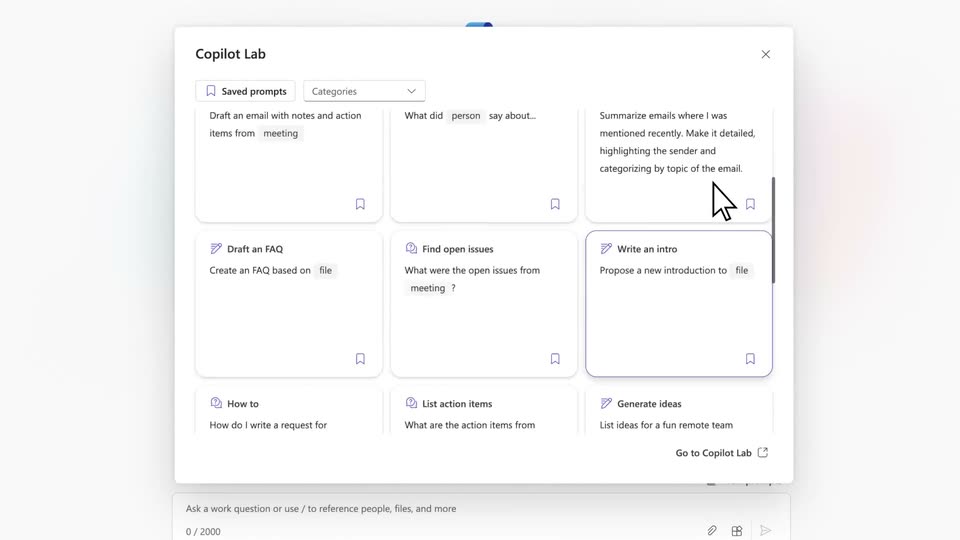
Microsoft’s 1:59 launch film runs 23 scenes, about 5.2 s each. The product is on screen from the first frame and 2 features are revealed. The call to action lands at 1:38 (83% in), over a voiceover. The video is built as a product tour: a 3D meet-the-product card, a scroll-through of the Copilot Lab page, two cursor-driven prompt demos (a meeting recap and a Word introduction), a typed-URL call to action, and the Microsoft logo. Its signature moves are smooth camera push-ins into the screen, scroll reveals of card grids, and flat UI close-ups with a calm, steady pace over a soft pastel 3D desk.
No filming indicatedEstimated needs: 5 capture groups — your screens or recordings · 1 official logo — reused across the film · 4 3D passages — build or supply
Is this your launch? to your site or press kit.
More like this
0:49

Jinba (YC W26) - Workflow Builder for Enterprise AI Automation
Jinba · B2B · Feb 2026
3:47

Lucidic HN Demo
Lucidic AI · B2B · Jul 2025
Similar soundtrack
Films whose music sounds like this one, voice left out
1:22
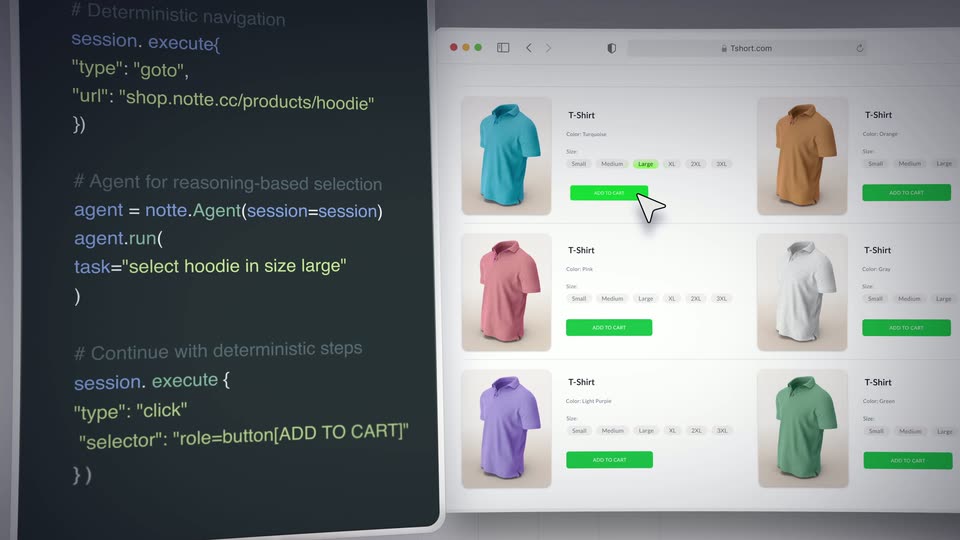

Notte - Reliable Web Agent Workflows
Notte · Modern electronic
1:05

Beltic Launch Video | Unveil Studio
Beltic · Modern electronic, cinematic
1:00

TrueMile Launch Video (YC F26) | Unveil Studio
TrueMile · Modern electronic
Meet Microsoft Copilot Lab: Your everyday AI companion, scene by scene
· 23 scenes as text
01 · Product intro · 0:00–0:00
A white desk surface holds small pastel objects on the left, where the headline Meet Copilot Lab sits in black, while a Copilot Lab webpage stands tilted in 3D perspective on the right. The composition holds still across the half second.
On-screen text: “Meet Copilot Lab”
Techniques: 3D mockup
Camera: Static
02 · Product intro · 0:00–0:05
A top-down 3D desk holds a tablet showing the Copilot Lab webpage while the headline “Meet Copilot Lab” sits on the left. The camera then pushes into the screen, blurring the desk as the interface fills the frame.
On-screen text: “Meet Copilot Lab”
Techniques: 3D mockup, UI zoom
Camera: Pull out
03 · Demo · 0:05–0:11
A Copilot Lab webpage sits on a rounded screen mockup over a light speckled desk. The camera zooms in as the page scrolls down, passing the three journey cards, a row of colorful app icons, and a grid of prompt cards, ending on the art of prompting heading.
Techniques: 3D mockup, UI zoom
Camera: Push in
04 · Demo · 0:11–0:13
A white product window on a textured gray background scrolls downward, moving past a row of prompt cards to reveal a centered “The art of prompting” heading and two example cards, one with a floral image and one with a Goal and Context diagram.
Camera: Pan
05 · Demo · 0:13–0:18
A white rounded card holds the Copilot interface over a speckled paper background. The view scrolls, the top search bars slide out, and the gray heading rises to center above two article cards.
Camera: Pan
06 · Demo · 0:18–0:30
The camera starts on a tight close-up of the Copilot sidebar, then zooms out to frame the full Microsoft 365 window showing the Copilot home page and a grid of prompt cards. After a hold, it zooms in as a cursor glides to the View prompts link.
Techniques: UI zoom, Cursor demo
Camera: Pull out
07 · Demo · 0:30–0:31
A flat screen capture of the Copilot home view displays six prompt cards in a two-by-three grid under the logo. A mouse cursor rests on the View prompts link at the lower right while the frame settles with a slight upward shift.
Techniques: Cursor demo
Camera: Push in
08 · Feature reveal · 0:31–0:37
A white Copilot Lab panel shows a grid of saved prompt cards. A cursor scrolls down, hovers the Write an intro card, which gains a blue outline, then scrolls back up. The view cuts to the Copilot panel, where the cursor moves toward the Summarize meeting tab.
Techniques: Cursor demo
Camera: Static
09 · Feature reveal · 0:37–0:44
A grid of Copilot prompt cards fills the screen, then the view zooms in on a dropdown listing recorded meetings. A cursor moves down and clicks the Design Strategy entry, which highlights blue. The prompt bar below holds a typed recap request.
Techniques: UI zoom, Cursor demo
Camera: Push in
10 · Feature reveal · 0:44–0:48
A close-up of a light interface showing three prompt suggestion cards above a text box holding a long recap prompt. The cursor glides from the prompt bar to the send arrow and clicks, and the box clears back to its placeholder.
Techniques: Cursor demo
Camera: Static
11 · Feature reveal · 0:48–0:49
A light interface scrolls upward on a locked-off frame: the prompt input bar with gray placeholder text and a View prompts label sit at the bottom, while a blue button and a Stop generating label slide into view at the top.
Techniques: UI zoom
Camera: Static
12 · Feature reveal · 0:49–0:56
A light UI screen shows a lavender prompt box at the top. Below, a white response card first displays a “Combing through” status with a filling progress bar and a Stop generating button, then expands to reveal a bulleted recap of key takeaways and action items.
Camera: Static
13 · Feature reveal · 0:56–1:01
A Microsoft Word window with the Copilot panel open rests on a white desk dotted with specks and flanked by blue 3D props. The window starts tilted in perspective, then rotates flat to face the camera and holds still.
Techniques: 3D mockup
Camera: Static
14 · Feature reveal · 1:01–1:03
A Word window fills the frame, a document on the left and an open Copilot panel on the right. A cursor glides down the panel and rests on the Summarize this doc button near the bottom.
Techniques: Cursor demo
Camera: Static
15 · Feature reveal · 1:03–1:09
A Word window with the Copilot pane zooms in as a cursor clicks the View Prompts icon. A menu of prompt categories slides open, the cursor selects View more prompts, and a grid of prompt cards fades in over a dimmed background.
Techniques: UI zoom, Cursor demo
Camera: Push in
16 · Feature reveal · 1:09–1:14
A white Copilot Lab dialog floats centered over a Word document, its four prompt tiles arranged in a two-by-two grid. The view eases out from a tight crop to the full window, then a mouse cursor drifts across the grid, hovering over List pros and cons and Write an introduction.
Techniques: UI zoom, Cursor demo
Camera: Pull out
17 · Feature reveal · 1:14–1:38
The Copilot Lab dialog closes and the view zooms into the Copilot pane as a prompt is typed and sent. A generated paragraph appears; the cursor clicks Copy, the view zooms out, and the text is pasted into the Word document.
Techniques: UI zoom, Cursor demo
Camera: Pan
18 · CTA · 1:38–1:44
A soft, blurred pastel sky fills the locked-off frame. The line 'To discover more prompt ideas' types in letter by letter, then clears as the URL 'aka.ms/copilotlab' types in behind a blinking cursor.
On-screen text: “To discover more prompt ideas”, “aka.ms/copilotlab”
Techniques: Kinetic type
Camera: Static
19 · CTA · 1:44–1:45
A locked-off view of the Copilot Lab webpage, showing a hero banner and three video cards. A cursor glides across the top navigation bar, moving from the first menu item to the second.
On-screen text: “aka.ms/copilotlab”
Techniques: Cursor demo
Camera: Static
20 · CTA · 1:45–1:50
A cursor hovers over the Prompts to try tab on the Copilot Lab page, then the grid of prompt cards scrolls down to reveal more cards.
On-screen text: “aka.ms/copilotlab”
Techniques: Cursor demo
Camera: Static
21 · Outro · 1:50–1:51
A light Copilot prompt panel fills the frame; the example text inside each card scrolls vertically, then the whole panel scales down and settles as a rounded card with a soft drop shadow on a plain gray background.
Camera: Static
22 · Outro · 1:51–1:56
A browser window of the Copilot Lab page floats in 3D perspective over a white desk scattered with pens and sticky notes. The page shows a pastel banner, a heading and three tutorial cards, all static in a locked-off frame.
Techniques: 3D mockup
Camera: Static
23 · Outro · 1:56–1:59
On a plain white background, the four colored Microsoft squares scale up from a small cluster at center, then the gray Microsoft wordmark fades in to their right. The lockup settles and holds static for the rest of the clip.
Camera: Static