1:26

Introducing Claude Science (now in beta)
Anthropic · AI · Jun 2026
Microsoft · Oct 2026 · 1:49 · AI-annotated
The video opens with the animated logo and a scrolling capability list, then walks through four single-feature demos, each opened by a centered headline with one italicized word on a blue gradient and closed by a cross-fade into live Word or Copilot UI. It bookends the demos with the rainbow logo and floating Office icons, and uses zoom-ins on document text plus the recurring italic accent word as its signature moves.
Anthropic · AI · Jun 2026
ElevenLabs · AI · Oct 2026
Cal.com · Productivity · Aug 2022
A small rainbow-gradient squircle logo with a white 0 holds the center of a cream frame while large rounded rectangles in blue, magenta, green and purple pop in around it, sharpening from soft pastel blur to full color. The camera is locked off.
On-screen text: “0”
Camera: Static
A gradient Copilot logo and the title “Copilot for legal” hold the center of a cream field as the title fades in. Around them, rounded color tiles carrying Office app icons (PowerPoint, Excel, Outlook, Teams, Word, OneDrive) drift slowly.
On-screen text: “Copilot for legal”
Camera: Static
The Copilot logo and the title “Copilot for legal” hold still at center on a pale cream background. Rounded shapes carrying P, W, X and T icons scale up and drift outward, growing into large green, pink and blue fields at the frame edges.
On-screen text: “Copilot for legal”
Techniques: Parallax
Camera: Push in
Three white rounded chips with a scales icon stack in on a soft blue gradient as diagonal green and magenta bands wipe away: Analyze related contracts, Build case chronology, then Check against agreed terms fading in last.
Techniques: Masking
Camera: Static
A vertical list of white rounded pills, each with a line-drawn scales icon and a task label, scrolls upward against a light blue gradient, items fading in at the bottom and out at the top.
Techniques: Kinetic type
Camera: Pan
On a blue gradient, a right-aligned list of rounded legal-task cards with small icons dissolves away while the dark gray headline “Purpose-built for lawyers” types on, centered.
On-screen text: “Purpose-built for lawyers”
Techniques: Kinetic type
Camera: Static
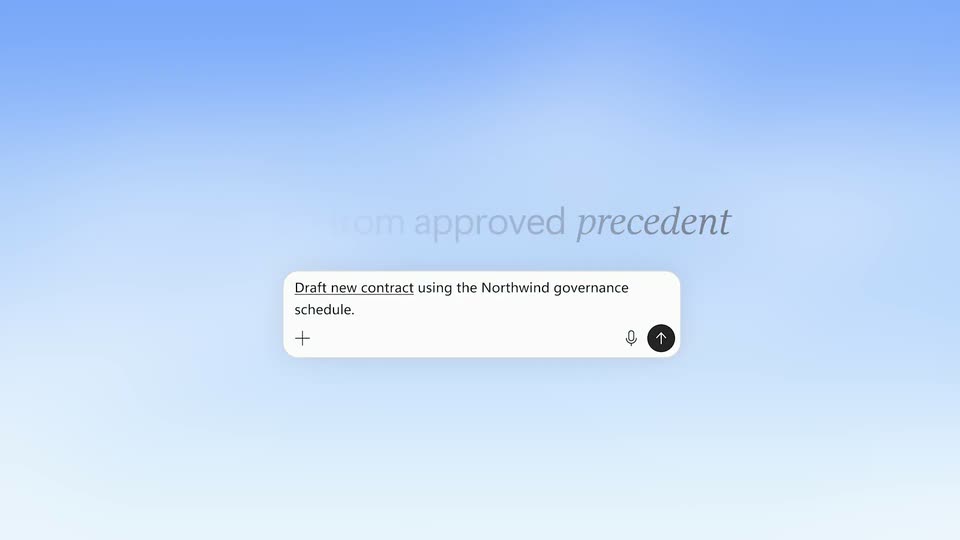
A centered line reads “Purpose-built for lawyers” on a light blue gradient, fading in, holding, then fading out. A white rounded UI card titled “Draft” fades in below, showing a prompt line, a plus icon, a mic icon and an up-arrow button.
On-screen text: “Purpose-built for lawyers”
Camera: Static
A white prompt card with a blue-to-pink gradient border sits centered under the headline on a blue gradient. It shrinks and slides to the bottom right as the headline fades and the background cross-fades to a Word document.
On-screen text: “Draft from approved precedent”
Camera: Static
A Microsoft Word window shows a legal document while the Copilot pane on the right submits a prompt, spins a loading indicator, then reveals a generated draft with a file link.
Camera: Static
A Word document titled AI Governance Schedule sits with the Copilot panel open on the right. The prompt box flashes a purple outline, then the outline fades and a circular spinner spins as the draft loads.
Camera: Static
A full-screen Word window shows the AI Governance Schedule document while the right Copilot pane displays a created-draft card and a Word Copilot input box. A soft pink gradient orb drifts slowly upward along the right edge.
Camera: Pan
A Word document titled AI Governance Schedule fills the left side beside a Copilot panel listing editable fields for Effective Date, Customer Name and Supplier Name. The Supplier Name field gains a purple ring, then the matching text in the document is outlined in purple with a label above it.
Camera: Pan
A Microsoft Word window displays an AI Governance Schedule legal document beside a Copilot panel with fill-in fields for date, customer and supplier. The view stays static while the cursor hovers on the ribbon.
Camera: Pan
A centered headline fades in on a soft blue-to-white gradient, holds, then fades out. The word “playbook” is set in italics while the rest stays upright.
On-screen text: “Review against your playbook”
Camera: Pan
A Word contract with a Copilot review pane listing flagged clauses. A cursor clicks the Material Model and Service Changes row; the document scrolls to section 7 and the pane expands to show the suggested edit. After Apply, the clause turns green and a comment bubble appears.
On-screen text: “Review against your playbook”
Techniques: Cursor demo
Camera: Pan
The view opens zoomed into a highlighted contract clause and its AI comment card, then pulls back to the full document with the comment docked in the right panel. A centered white headline settles over the page.
On-screen text: “Every defined term, one click away”
Techniques: UI zoom
Camera: Pan
A single line of text reveals left to right on a pale blue gradient, the last three words set in italic. Near the end a white panel slides in from the left edge, sliding over the text and exiting the frame.
On-screen text: “Every defined term, one click away”
Techniques: Kinetic type
Camera: Pan
A Word window in Review mode displays a legal document. The Show Defined Terms button is highlighted, then underlined terms appear across the page as the view zooms into the body text.
Techniques: UI zoom
Camera: Push in
A legal document page with a circular Arc watermark cuts to a word processor window. The view jumps up and zooms into the definitions list, where a purple outline highlights the Security Incident clause while a Back button sits below.
Techniques: UI zoom
Camera: Pull out
A Word document window blurs and slides off to the left, revealing a light blue gradient. The headline fades in word by word, the word “end” set in italics and still fading as it lands.
On-screen text: “Run legal work end to end”
Techniques: Kinetic type
Camera: Pan
A blue gradient backdrop holds the headline “Run legal work end to end”, which fades in and out. A Chat/Cowork toggle pill then appears, morphs into a rainbow-bordered prompt card with a typed legal task, and expands into the full Copilot window.
On-screen text: “Run legal work end to end”
Techniques: Kinetic type, Morph
Camera: Static
A static Copilot window on a blue backdrop shows the greeting and a prefilled prompt about extracting obligations from contracts. A small multicolored ring orbits the send button at the input field's right edge.
Camera: Static
A Copilot chat window on a blue gradient fills in: task checkmarks tick, then a summary line, an Excel file card and a draft email card fade into the center while the right Workspace panel populates. A cursor glides onto the Excel card.
Techniques: Cursor demo
Camera: Static
A Copilot chat, an Outlook email and an Excel tracker sit in 3D perspective on a blue gradient. The Excel window pushes forward to fill the frame as the others shrink and blur, its obligation rows scrolling down.
Techniques: 3D mockup, UI zoom
Camera: Static
A split view shows an AI chat card on the left and an Excel obligations tracker on the right. The chat card scrolls up to reveal a draft email with the tracker attached, while the spreadsheet of obligation rows stays static.
Techniques: Split screen
Camera: Static
A sharp chat panel on the left scrolls through a Cowork conversation as a draft email with the tracker attached is sent, then a calendar-event request is typed and answered with an event card. A blurred Excel tracker window sits static on the right.
Techniques: Split screen
Camera: Static
A Copilot chat panel and a blurred Excel tracker sit on a blue gradient, then the whole interface blurs and fades away. The tagline “Grounded in sources lawyers trust” fades in word by word at center.
On-screen text: “Grounded in sources lawyers trust”
Techniques: Kinetic type
Camera: Pull out
A light blue gradient holds the centered tagline, the italic word 'trust' fading in. The line then fades out as a four-row grid of partner logos fades in and settles into place.
On-screen text: “Grounded in sources lawyers trust”
Camera: Static
A grid of legal tech company logos on a pale blue background is wiped away by large, rounded gradient shapes in green, yellow, orange, and purple sweeping across the screen.
On-screen text: “Bloomberg Law”, “box”, “DeepJudge”, “docusign”, “Everlaw”, “Harvey”, “iManage”, “juro”, “LAWVU”, “LEGALZOOM LEGORA LITERA netdocuments Relativity Solve Intelligence Thomson Reuters trellis P X W”
Techniques: Masking
Camera: Pull out
Locked-off frame on a cream field. The Microsoft Copilot logo and wordmark sit center, the wordmark scaling up slightly. Around them, 3D icons for PowerPoint, Excel, Outlook, Teams and Word, plus soft document cards, float and rotate gently at the edges.
Techniques: Kinetic type
Camera: Static
The Microsoft Copilot lockup sits centered on a cream background. A red P badge slides off and a green X badge scales away with pastel rounded shapes, leaving the logo alone as the sign-off.
On-screen text: “Microsoft”, “Copilot”
Camera: Static