1:58
MagiCode: Your Proactive Pair Programmer
MagiCode · B2B · Sep 2024
Candor · Feb 2025 · 3:03 · Full motion · AI-annotated
Candor’s 3:03 launch film runs 15 scenes, about 12 s each. The product is on screen from the first frame. There is no explicit call to action; a voiceover carries the film. One continuous screen-recording demo with a fixed presenter webcam in the corner and the app window framed on a warm blue-to-orange gradient, with no title cards. Pacing is slow and voice-driven at about one cut per minute, using zoom-ins and blur-scale transitions to mark each step of the grant workflow.
Is this your launch? to your site or press kit.
MagiCode · B2B · Sep 2024
cocreate · Consumer · Aug 2025
Hoplite · B2B · Jul 2026
Films whose music sounds like this one, voice left out
Playgent · Corporate tech demo / Explainer
Probe · Electronic, Corporate
Goodfire · Modern electronic, tech promotional
A static Candor dashboard shows a Projects page with four grant cards and a left sidebar over a blue-orange gradient. A small rounded webcam inset in the corner shows a presenter talking. A hand cursor clicks Discover, and the view zooms into the Discover page with filter dropdowns.
Techniques: Cursor demo, UI zoom
Camera: Push in
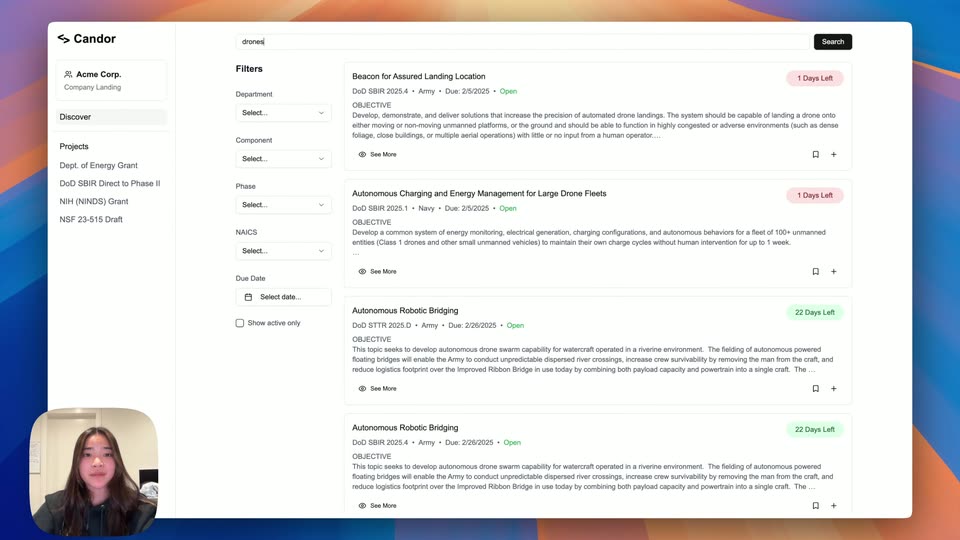
A flat interface card on a colorful gradient, with a presenter webcam inset bottom left, resolves from a quick transition. A cursor types 'drones' in the search bar, the opportunity list refreshes, then the pointer clicks the first result, which expands into a detail panel.
Techniques: Cursor demo
Camera: Pull out
The Candor interface shows a grant detail page titled Beacon for Assured Landing Location. The view scrolls down past the header and metadata to the long description body, while a pointer cursor drifts across the screen. A small rounded webcam feed of a woman anchors the lower left corner.
Techniques: Cursor demo, UI zoom
Camera: Pan
A Candor app screen shows a grant detail page; the cursor taps the Analytics tab, the frame zooms in, then scrolls past contact cards and funding charts. A presenter's webcam stays pinned in the lower-left corner.
Techniques: Cursor demo, UI zoom
Camera: Pull out
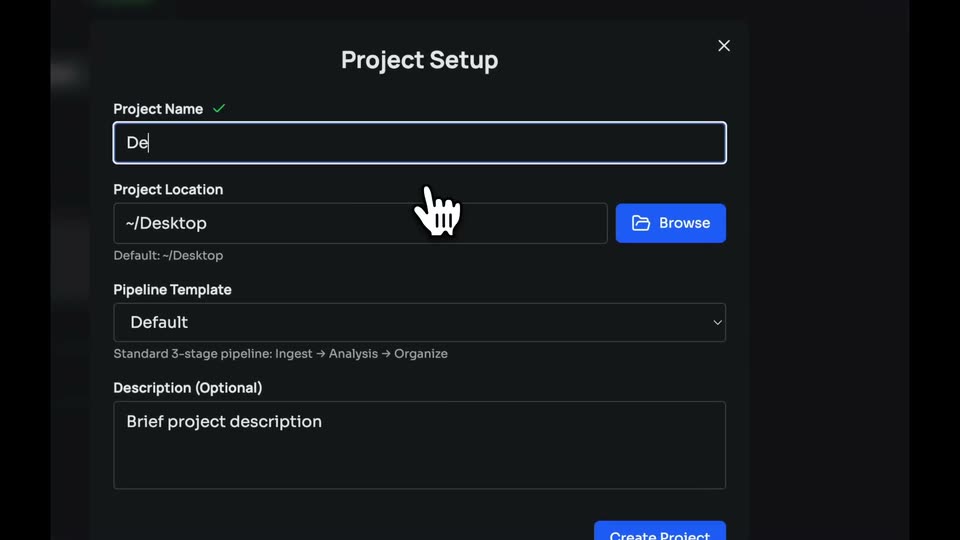
The Candor dashboard scrolls up to a project summary, then the view zooms toward the Add Project button. A hand cursor clicks it, a modal opens, and the cursor types a project name and picks a phase from a dropdown.
Techniques: UI zoom, Cursor demo
Camera: Push in
A project dashboard with a card grid and left sidebar fades in from white, framed by a blue and orange gradient border. A hand cursor hovers over a card then vanishes. A small webcam feed of a presenter sits in the bottom left corner.
Techniques: Cursor demo
Camera: Pull out
A presenter webcam sits in the lower left corner over a Candor app screen showing a grid of project cards. A hand cursor hovers on the Draft Drones card, then the view switches to a Data Shelf list of PDF files with colored tags.
Techniques: Cursor demo
Camera: Static
The Data Shelf screen lists seven PDF documents with colored category tags; a hand cursor slides down the list, ticks the Pitch-Deck checkbox, then clicks Outline Generation in the sidebar as the view blurs and scales. A round webcam inset of the presenter sits bottom-left over a gradient background.
Techniques: Cursor demo
Camera: Push in
A white product interface shows the Outline Builder, with a small live video of a presenter in the lower-left corner. A cursor selects the default outline, the screen switches to a template step, the cursor chooses a template and clicks Next, ending on a loading spinner.
Techniques: Cursor demo
Camera: Pull out
A cursor clicks Next through the Outline Builder steps: a spinner loads, then context cards appear with a source tooltip on hover. Another click shows 'Creating your draft...', then a document editor with generated text and an AI panel opens. A webcam feed sits bottom-left.
Techniques: Cursor demo
Camera: Push in
A document app shows a Compliance Matrix modal: a loading spinner fills into a requirements table that scrolls down and back up. The view zooms to the top right as a cursor clicks the Evaluate button, starting a new spinner. A webcam of the presenter sits in the corner.
Techniques: Cursor demo, UI zoom
Camera: Pan
A screen recording of a document editor's Compliance Matrix. The cursor clicks Evaluate, and 85% and 0% badges with reasoning text fill the rows. The cursor clicks View Suggestion, opening a Suggested Changes card, and the view zooms in on it. A small webcam window sits in the corner.
Techniques: Cursor demo, UI zoom
Camera: Push in
A grant-proposal editor shows an outline, a document body, and a Candor AI side panel. A cursor types a prompt into the AI box, the panel then fills with generated text, and a presenter's video avatar stays in the lower-left corner.
Techniques: UI zoom, Cursor demo
Camera: Pull out
A document editor fills the screen, showing a technical proposal with a left navigation pane and a right outline panel. A small video-call tile in the lower-left corner shows a smiling presenter, and the background shifts to a warm gradient as the layout settles.
Camera: Static
On a black field, a white mark of two offset chevrons forms above the word CANDOR, centered and locked off for the hold.
On-screen text: “CANDOR”
Camera: Static