3:35
Meet the Data Agent in ChatGPT Work
OpenAI · AI · Sep 2026
Uptale · Nov 2026 · 2:33 · Full motion · AI-annotated
Uptale’s 2:33 launch film runs 27 scenes, about 5.7 s each. The product is on screen from the first frame and 2 features are revealed. There is no explicit call to action. The video is one unbroken screen capture that alternates between a dark chat composer and the browser editor, where each typed prompt resolves into a checklist of green ticks and a result card before the editor shows the change. Pacing is slow with long holds on each state; the signature moves are word-by-word typing, a blur-to-sharp image reveal, and smooth zooms that push from the full window into the 360° canvas.
Is this your launch? to your site or press kit.
OpenAI · AI · Sep 2026
ElevenLabs · AI · Aug 2026
Replit · Developer tools · Jul 2024
A dark chat window zooms in over a purple gradient backdrop. A cursor clicks the Plugins button, a menu opens, the cursor picks Uptale, a chip drops into the input field, then the cursor opens the add-files menu.
Techniques: UI zoom, Cursor demo
Camera: Push in
A macOS file picker with six factory photo thumbnails fades out to reveal the main app screen under the heading. The cursor then glides down to hover the Open desktop app button.
Techniques: Cursor demo
Camera: Static
A dark prompt screen titled “What should we build today?” reframes onto the composer, where a 360° photo thumbnail is attached and a prompt is typed out word by word. The cursor then clicks the white send button as the screen fades.
Techniques: UI zoom, Cursor demo
Camera: Push in
A dark chat screen shows a user prompt with a 360° factory photo. The assistant reply streams in, then a step checklist fills with green checkmarks, finishing with a result card. An idle cursor rests at the lower right.
Techniques: Kinetic type
Camera: Static
A dark AI chat view shows a finished task message with a 360° photo thumbnail and a cursor at center. A blue rounded panel scales up from the input field while the response text above it fades to a dimmed state.
Techniques: Morph
Camera: Static
A browser window of the uptale.io editor fades in from dim to full over a dark purple backdrop. A dotted canvas holds a storyboard of scene cards linked by arrows. The cursor moves to the left panel, selects a scene, and the canvas pans to center on its highlighted card.
Techniques: Cursor demo, UI zoom
Camera: Static
A browser window shows the Update.io experience editor with a 360 crane bay image in the center, a scene list on the left, a tags panel on the right, and a cursor moving from the top toolbar down into the image.
Techniques: Cursor demo
Camera: Static
The Uptale editor displays a 360 crane bay view with a blue welcome card on the left; a yellow warning triangle labeled Suspended load fades in at the center of the image.
Camera: Static
A browser window shows the Uptale editor with a 360° crane-bay panorama in the center canvas. A quiz card with three answer pills slides in top right, then the panorama pans horizontally as the cursor moves, revealing a doorway and the forklift.
Techniques: Cursor demo
Camera: Static
A screen capture of a 360-degree experience editor displays a warehouse crane bay scene with a quiz card and tagged hotspots. The frame zooms in on the central canvas while a cursor drifts across the image.
Techniques: UI zoom, Cursor demo
Camera: Static
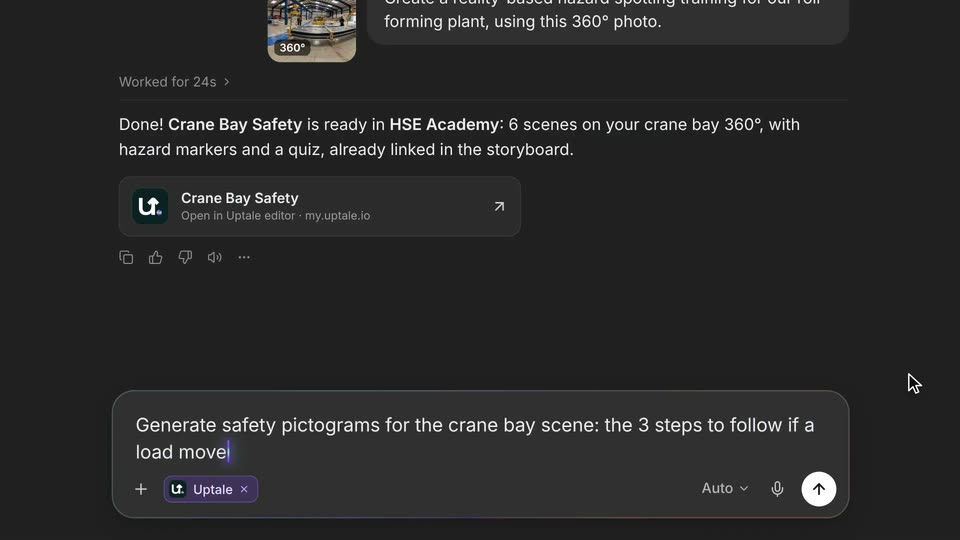
A dark chat interface displays a finished AI reply with a Crane Bay Safety card. A cursor enters the bottom input field, types a prompt for safety pictograms, then presses the purple send button.
Techniques: Cursor demo
Camera: Static
A dark chat interface shows an image request resolving: a blurred placeholder sharpens into a safety pictogram card with three numbered icons, the label flips to Image created, then the cursor types a follow-up prompt into the input bar and clicks send.
Techniques: Cursor demo
Camera: Static
A dark chat screen: a prompt bubble holds at the top while task lines check off in sequence, then the reply types out and a result card slides in; the cursor hovers the card and it gains a purple outline.
Techniques: Cursor demo
Camera: Static
A dark editor screen fills the frame. The center canvas shows a 360 warehouse view with a forklift, a quiz card listing three answer buttons, and purple hotspot dots. A scenes panel sits left, a tags panel right, and a white caption line runs across the top.
On-screen text: “Done! The 3 steps are on the left of 1_crane_bay. Learners tap them in the right order, and a look to their left guides them there. I left a comment so your团队.”
Camera: Static
The update editor UI fills the frame with static Scenes and Tags side panels. The central 360 warehouse view, showing a yellow forklift and stacked steel beams, pans slowly to the right. A question card and three answer pills float over the scene. A cursor appears at the bottom.
Camera: Static
The editor's 360 canvas pans right across a crane bay walkway, past blue briefing labels, then settles on three circular hotspots under the caption “Tap the 3 steps in the right order”. A cursor hovers the hotspots as a notification appears, and the frame zooms in on the interface.
Techniques: Cursor demo, UI zoom
Camera: Push in
A product editor shows a 360-degree warehouse view with three circular safety hotspots. A cursor taps each icon in turn, drawing a teal selection box around the alert, walk and stop symbols. The frame then zooms out to reveal the full editor window and its side panels.
Techniques: Cursor demo, UI zoom
Camera: Pull out
The Uptale experience editor fills a browser window, a 360 warehouse scene with three safety step icons in the center. A cursor moves to the play button top right, then the view zooms into the central 360 preview as the side panels slide out of frame.
Techniques: Cursor demo, UI zoom
Camera: Push in
A browser window shows a warehouse safety preview with three circular icon buttons. A cursor taps each in turn, turning its label green and adding a checkmark. A confirmation banner slides up at the bottom, then the cursor closes the preview to reveal the editor timeline.
Techniques: Cursor demo
Camera: Pull out
A browser window shows the uptale experience editor. The center canvas holds a 360 image of an industrial crane bay with three circular hotspot icons and a teal tap hint. A cursor glides from the Tags header down to the 'Alert the crane operator' label.
Techniques: Cursor demo
Camera: Pull out
A dark-mode chat screen holds a conversation thread above an input bar. A long prompt types itself into the bar, then the view scrolls up as the prompt becomes a bubble and a checklist of green-ticked tasks assembles, finishing on a result card.
Techniques: Cursor demo
Camera: Pan
A close-up of a chat panel with task instructions and a result card zooms out to reveal the full Uptale editor window, with a scene list on the left and a node canvas in the center.
Techniques: UI zoom
Camera: Static
A storyboard canvas of connected scene cards sits inside a browser window. A dark toast at the top notes that Uptale MCP added tags and links. The view zooms in as purple pill badges pop onto the cards, then zooms back out to the full window.
Techniques: UI zoom
Camera: Static
The Upland editor crossfades from a storyboard node graph to a 360° viewer: a warehouse scene with a suspended load and a forklift fills the frame, a quiz question overlay and hotspot labels fade in, and the left panel shows the scene image and audio settings.
Techniques: Cursor demo
Camera: Static
A browser window shows the Uptale editor with a 360 warehouse scene, a quiz overlay and a tags panel. A cursor glides to the blue publish button top right, then the view expands into a full preview of the 360 quiz.
Techniques: Cursor demo, UI zoom
Camera: Push in
A warehouse safety quiz overlays a filmed crane bay: a question card with three options sits center, a cursor clicks an option, and an orange feedback card pops in. The view then zooms out to reveal the scene inside a browser window.
On-screen text: “my.uplate.io/Editor/Medium?id=Wh7Lk2lC9qs4FzOaQ8b”
Techniques: Cursor demo, UI zoom
Camera: Pull out
The lowercase wordmark “uptale” builds into place on a soft purple-to-teal gradient, an iridescent dot settling in as the period. The frame stays locked off as the mark locks up.
On-screen text: “uptale.”
Techniques: Kinetic type
Camera: Static