0:31

Introducing Interactive Knowledge Cards
Perplexity · AI · May 2024
Replit · Jul 2024 · 1:03 · Full motion · AI-annotated
Replit’s 1:03 launch film runs 23 scenes, about 2.8 s each. The product is on screen from the first frame and 3 features are revealed. The call to action lands at 0:47 (74% in). The video is built as one continuous UI workflow: a typed title card hands off to a steady push-in tour from team chat through forking, AI code generation, merge and production deploy, then a row of captioned feature cards. Pacing holds a calm mid-tempo with slow zooms, crossfades between code states, and stacked text rolls that resolve into a typed URL and a slow logo reveal.
Is this your launch? to your site or press kit.
Perplexity · AI · May 2024
Framer · Design · Oct 2025
OpenAI · AI · Nov 2026
Films whose music sounds like this one, voice left out
Relume · Funk, Soul, R&B
HeyClicky · Electronic
HeyGen · Upbeat, modern electronic music with a steady four-on-the-floor beat.
Centered white text types out “Now available: Replit Teams” behind a blinking caret on a dark, softly blurred backdrop. The Replit logo sits top left, and two small monospace labels occupy the top right corner.
On-screen text: “REPLIT TEAMS 2024”, “JULY 16TH GENERALLY AVAILABLE”, “Now available: Replit Teams”
Techniques: Kinetic type
Camera: Static
The dark dashboard is blurred at first, then the frame pushes in on the right column, settling on a Deployments list beside an Acme Corp card that lists two online members with avatars. A white cursor slides in from below and pauses over a member's handle link.
Techniques: UI zoom, Cursor demo
Camera: Push in
A dark code editor reframes into the AI chat panel. A user message asks for help, then the assistant replies with On it! while a large cursor icon rests at the right edge of the reply box.
Techniques: UI zoom
Camera: Push in
A dark code editor with a left file tree and a center chat panel. The hand cursor clicks the Collapse button, the chat panel closes, and the Python code fills the freed space. The cursor then rests at the right edge.
Techniques: Cursor demo
Camera: Push in
A dark code editor. A hand cursor opens the project menu and clicks New fork, then the layout resets to the full IDE. The cursor selects a code line, opens an AI prompt box, types a request, and new Python code types itself in line by line.
Techniques: Cursor demo, UI zoom
Camera: Pan
A dark code editor displays a diff with overlapping red and green lines that crossfade into a clean function block highlighted in green. A text cursor then appears at the end of the final line.
Techniques: Morph, Cursor demo
Camera: Static
A dark chat interface shows a user question above an AI reply that types out sentence by sentence, with library names highlighted in orange. The frame slowly zooms in on the growing text.
Techniques: UI zoom
Camera: Push in
A dark code editor shows a Python file. A pointer cursor glides to the green Run button at the top and clicks it, switching it to a red Stop, as a new import line types itself into the code. The frame tightens on the editor.
Techniques: UI zoom, Cursor demo
Camera: Push in
Split IDE view: the left pane lists project files and Python code in extract.py, the right webview shows a bar chart above a city heat map. Two white hand cursors point at the chart.
Camera: Static
A dark IDE screen shows a file list and a merge panel. A cursor moves to the diff toggle and clicks it, then the frame zooms into the changed file, revealing two side-by-side code panes with green added lines.
Techniques: Cursor demo, UI zoom
Camera: Push in
A dark code editor shows a split diff of extract.py with a blue merge banner across the top. A hand cursor slides up from the Split control to the banner and clicks it, revealing a small tooltip.
Techniques: Cursor demo
Camera: Static
A dark navy field holds a green toast notification centered in frame. The rounded box fades in from a dim green to full brightness, showing white text and a close icon, then holds still.
Camera: Static
A dark deployment screen sits centered with a green globe icon, a heading, four option cards and a blue button. The Autoscale card is highlighted in blue with a Recommended tag, and a white cursor hovers over the Set up your deployment button. The frame stays locked off with only a faint vertical settle.
Techniques: Cursor demo
Camera: Static
A dark code editor console fills the frame. A file tree lines the left edge while a right panel lists autoscale machine settings and a slider. A hand cursor rests on the blue approve button. The view holds static.
Camera: Static
A dark IDE shows a deployment form ending in a blue Deploy button. A cursor clicks it, and the panel switches to a Deploying view with log lines reporting the build connecting to the builder.
Techniques: Cursor demo
Camera: Static
A dark IDE window shows a deployment in progress. A four-step bar fills from Build to Promote as monospace log lines stream upward in the console, and the top banner switches from Deploying to a green Production status.
Camera: Push in
A dark dashboard shows a Production panel listing status, domain and type. A mouse pointer slides in from the right and clicks the resource specification line, the cursor switching to a hand icon on contact.
Techniques: Cursor demo
Camera: Static
A dark bar chart of neighborhood counts and an orange heat map of San Francisco sit stacked on a pale gray field. The chart's axis labels fade from blur into focus while the map holds still.
Camera: Static
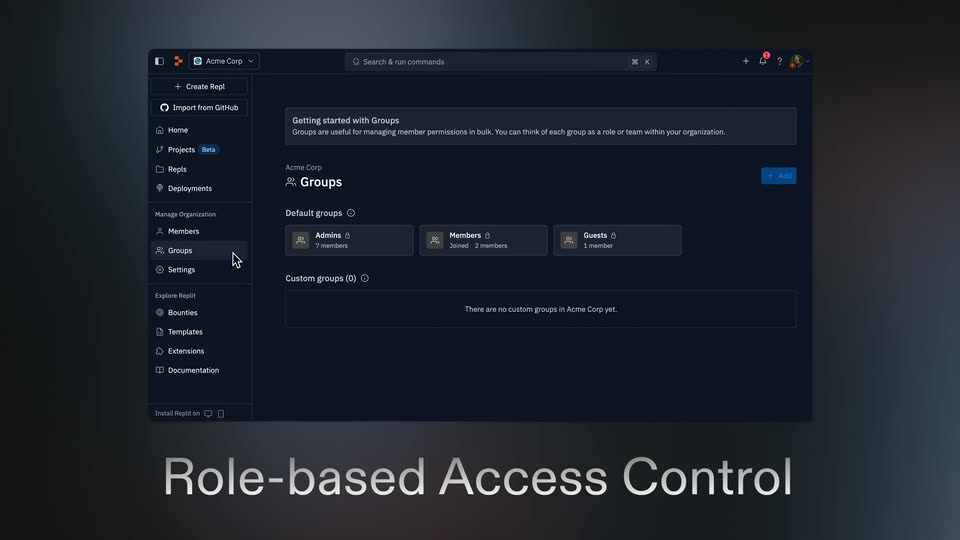
A dark code-hosting interface shows a members table, then the cursor slides to the sidebar and selects Groups, switching the view to default group cards. The whole screen blurs out at the end beneath a fixed caption.
On-screen text: “Role-based Access Control”
Techniques: Cursor demo
Camera: Pull out
A dark profile page for Acme Corp is centered, with a left sidebar and a list of public repls on the right. Below the window, the caption Public Profiles fades in and drifts upward into place.
On-screen text: “Public Profiles”
Techniques: Kinetic type
Camera: Static
The Replit login page fills the frame: a dark left panel with the logo, headline and night-Earth image beside a white form with a peach Log In button. A hand cursor hovers over the Continue with SSO option while the caption SAML SSO sits below.
On-screen text: “SAML SSO”
Techniques: Cursor demo
Camera: Static
On a dark blurred gradient, feature lines stack in the center: each new line slides in below while the previous lines roll up and fade. 'A more powerful Replit' holds, then 'Available now' types in with a blinking cursor and the URL Replit.com/teams settles beneath it.
On-screen text: “Real-time Collaboration”, “SOC-2 Compliance”, “Dedicated Support”, “Contextual AI”, “Branching and Version Control”, “A more powerful Replit”, “Available now”, “Replit.com/teams”
Techniques: Kinetic type
Camera: Pan
An orange logo of three rounded squares sits centered on black, the blocks easing slightly apart in a slow reveal. The URL Replit.com/teams holds static on screen through the locked-off frame.
On-screen text: “Replit.com/teams”
Camera: Static