1:28

October 2026 Launch: MCP
Airtable · Productivity · Oct 2026
HeyClicky · Aug 2026 · 1:06 · AI-annotated
HeyClicky’s 1:06 launch film runs 48 scenes, about 1.4 s each. The product shows up at 0:27 and 3 features are revealed. There is no explicit call to action; a voiceover carries the film. The video is built as a story first: a host introduces a product manager who speed flies, then reveals he made his first desktop edit with HeyClicky, before three short demos show the AI buddy guiding through the screen, the timeline, and color grading. The signature moves are white lowercase captions that scale in word by word, 3x3 grid overlays that reveal footage, and iPhone mockups held against dark textured backdrops.
Is this your launch? to your site or press kit.
Airtable · Productivity · Oct 2026
Airtable · Productivity · Oct 2026
A finger points at a laptop held before a blurred stadium, its screen showing an editing timeline and two video-call tiles. White lowercase text builds word by word on the left while the camera stays locked off.
On-screen text: “ok so this is”
Techniques: Kinetic type
Camera: Static
A shallow-focus close-up of a laptop screen shows a video call with two participant tiles beside a video-editing timeline. A hand points at the screen from the foreground, and a white caption appears over the left side reading the line about Abbas.
On-screen text: “ok so this is”, “Abbas”
Camera: Static
Top-down view of a phone on a dark textured surface showing a LinkedIn profile. A hand enters from the right, taps Follow, and swipes down to the experience list. White text builds line by line on the left, then a caption fades in at the bottom.
On-screen text: “he's been a product manager for last six”, “but in his free time...”
Techniques: 3D mockup, Kinetic type, Cursor demo
Camera: Static
A close-up of a phone screen shows a resume experience list as a finger swipes down past job entries. A white caption sits centered at the bottom of the frame.
On-screen text: “but in his free time...”
Camera: Static
A Google Meet call screen: a shared macOS desktop with Final Cut Pro open fills the left, two webcam tiles stack on the right. The top speaker gestures with his hand while talking; a white caption “So I hike up mountains” sits at the bottom of the shared screen.
On-screen text: “So I hike up mountains”
Camera: Static
A man in a gray t-shirt speaks inside a video-call feed framed by a rounded app window, raising his hand to gesture. White caption lines cycle at the bottom of the feed as he talks. The frame is locked off with a dark blurred background on either side.
On-screen text: “and I fly down”, “really fast”, “and I travel the world for it.”
Camera: Static
A 3D iPhone mockup stands upright on a dark, textured backdrop, its screen playing a vertical clip of a person speed flying over green hills. White bold captions scale in at the bottom of the display in sequence, synced to the voiceover.
On-screen text: “Yeah he's a speed flyer”, “and for years”, “he has been filming and”
Techniques: 3D mockup
Camera: Static
A smartphone rests at a slight angle on a dark textured surface, its screen playing a first-person paragliding clip inside a social feed, as the white subtitle scales in near the bottom.
On-screen text: “he has been filming and”
Techniques: 3D mockup
Camera: Static
A vertical phone mockup rests on a dark woven background, its screen playing a first-person paragliding clip inside an Instagram post layout. A white caption scales in at the bottom and updates to a second line.
On-screen text: “he has been filming and”, “editing everything on his phone”
Techniques: 3D mockup
Camera: Static
A vertical phone rests against a dark fabric background, its screen playing a first-person paragliding clip inside a social feed. A white caption sits at the bottom while the frame stays locked off and the device holds a slight tilt.
On-screen text: “editing everything on his phone”
Techniques: 3D mockup
Camera: Static
A vertical phone on a dark fabric background shows a social feed; the video on screen cuts from a paragliding view to an inverted 360-degree shot while a white caption stays locked at the bottom.
On-screen text: “editing everything on his phone”
Camera: Static
A vertical phone mockup rests centered on a dark leather-textured backdrop, its screen playing a social reel of a paraglider drifting over a green field. A white bold caption sits locked at the bottom edge while the reel loops.
On-screen text: “but last month he opened Final Cut Pro”
Camera: Static
A phone lies on a dark textured surface showing an Instagram profile grid. A hand enters from the right, its index finger taps and swipes up, scrolling the photo grid. A white caption sits at the bottom.
On-screen text: “but last month he opened Final Cut Pro”
Camera: Static
Top-down view of an iPhone on a dark grainy surface, its screen showing an Instagram profile for abbasmoosavi. A finger slides in from the right and taps the photo grid. White captions sit centered at the bottom, swapping mid-shot.
On-screen text: “but last month he opened Final Cut Pro”, “for the very first time on”
Camera: Static
A front-facing phone mockup on a dark textured surface shows an Instagram profile; the view zooms into the screen as a road video plays, with the reel's like and comment icons fixed at the right. A white caption sits at the bottom.
On-screen text: “for the very first time on”
Techniques: UI zoom
Camera: Static
A two-lane road runs toward a snow-capped peak framed by dark pines. The footage is split into a grid of panels that scale up to fill the frame, revealing the full shot. A white caption holds at the bottom.
On-screen text: “for the very first time on”
Techniques: Masking
Camera: Static
A static 3x3 grid of forest footage plays, the center panel bright with a person standing on a road, the side panels dimmed and blurred. A white caption sits at the bottom.
On-screen text: “for the very first time on”, “his laptop and made this.”
Techniques: Split screen
Camera: Static
Live-action travel footage under a black grid overlay. A person stands on a road between tall redwoods, then a hiker with an orange pack climbs a rocky slope before a snowy peak. White captions sit at the bottom of the frame.
On-screen text: “his laptop and made this.”, “It was so good. I just thought that's”
Camera: Static
A hiker in a cap sits on a rocky ridge facing a distant snow-capped peak, the frame split into a 3x3 grid of black lines. The corner cells fill in with sunset mountain views while the center holds the main shot. White subtitles run along the bottom.
On-screen text: “It was so good. I just thought that's”, “maybe a professional are you?”
Techniques: Masking, Split screen
Camera: Static
A video call fills the frame: a man in a gray tee rests his cheek on his fist and speaks, while a dark left sidebar holds a timer and small icons. A white caption, “No.,” sits centered at the bottom. The frame stays locked off as his mouth and head shift slightly.
On-screen text: “No.”
Camera: Static
A locked-off Google Meet call screen shares a Premiere Pro project: a 3x3 grid of mountain landscape frames, a timeline, and an effects panel fill the left, two webcam tiles sit on the right. White caption lines swap in at the bottom center of the share.
On-screen text: “I used to edit stuff just on my phone.”, “I never professionally edited”, “on Final Cut Pro or DaVinci”
Camera: Static
A dark video editor interface fills the frame, showing a project panel on the left, a black preview area in the center, and a timeline across the bottom. A white caption with black outline sits centered below the timeline, matching the voiceover line.
On-screen text: “but dude I used HeyClicky to help me with”
Camera: Static
A static Google Meet screen shows two participant tiles stacked on the right and an Adobe Premiere Pro project in the main area. White centered captions change across the lower area as the speakers talk.
On-screen text: “but dude I used HeyClicky to help me with”, “all this. It was sick.”
Camera: Static
A light beige canvas with a faint grid holds the dark angular HeyClicky logo centered and the URL heyclicky.com above it, with a white caption at the bottom. The frame is locked and static throughout.
On-screen text: “heyclicky.com”, “So HeyClicky is a little AI buddy”
Camera: Static
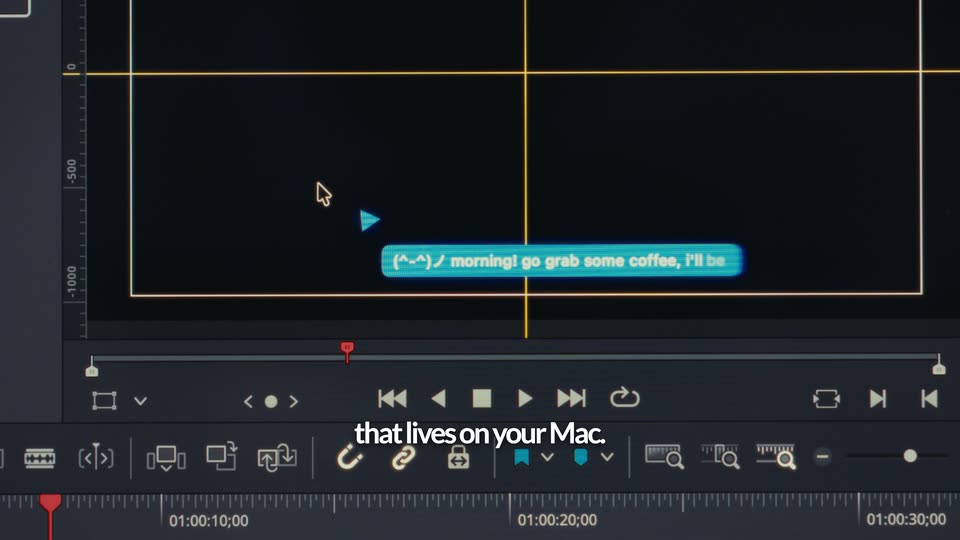
A locked-off screen recording of an After Effects composition. On a black canvas with orange guides, a teal speech bubble types out a greeting beside a white cursor arrow and blue playhead, while white subtitle captions swap at the bottom.
On-screen text: “that lives on your Mac.”, “It can see your screen and guide you”, “heyclicky.com”
Camera: Static
A tilted, shallow-focus close-up of a MacBook on a desk shows an After Effects composition with a red dashed selection box outlining a region of the screen. A white caption at the bottom holds the first line, then cuts to the second.
On-screen text: “It can see your screen and guide you”, “it step by step off the web side you”
Camera: Static
A close-up of a drum step sequencer grid. A mouse cursor hovers over the pads while an orange arrow and a dashed circle mark a step, and an orange tooltip labeled kick step 13 pops in above. A white caption runs along the bottom.
On-screen text: “step-by-step of how to use a”
Techniques: Cursor demo
Camera: Static
A tilted close-up of a motion software timeline on a Mac display, dock icons along the bottom edge. A red arrow draws itself rightward from the blue playhead while a red “move playhead” tag scales in above it.
On-screen text: “complicated piece of software.”
Techniques: Cursor demo
Camera: Static
A locked-off close-up of a laptop screen shows the macOS dock over a starry purple wallpaper. A speech-bubble label above the dock switches from HeyClicky to Final Cut Pro as a cursor hovers the clapperboard icon. A white subtitle sits at the bottom.
On-screen text: “And I would ask like HeyClicky like”
Techniques: Cursor demo
Camera: Static
A Google Meet window fills the frame, sharing a Final Cut Pro project with a forest-road preview and a populated timeline. Two participants sit in stacked video tiles on the right, the top one speaking. A white caption sits centered along the bottom edge.
On-screen text: “And I would ask like HeyClicky like”
Camera: Static
A man in a blue shirt speaks to camera within a video-call screen, a dark left panel holding a timer and icon rows beside him. He lifts both open palms as white captions read his words at the bottom of the frame.
On-screen text: “And I would ask like Hey Clicky like”, “this is the vision I have.”
Camera: Static
A locked-off close-up of a dark app interface with a Listening bar and a pulsing teal audio indicator. A white caption at the bottom reads 'this is the vision I have.' then swaps to 'Can you create a PDF for me?' beside a small blue waveform.
On-screen text: “this is the vision I have.”, “Can you create a PDF for me?”
Camera: Static
A laptop held against a warm, blurred background shows an empty video editor UI. A cursor sits in the center panel and the left library panel gains a dashed blue outline. White subtitles at the bottom carry the voiceover lines. The frame stays locked off.
On-screen text: “Can you create a PDF for me?”, “On directions, on the keyboard shortcuts”
Camera: Static
A screen recording of a video call: the shared screen shows a video editor with a forest-road preview and a timeline, while two webcam tiles on the right show a gesturing man and a man with glasses resting his chin on his hand. White caption lines swap at the bottom.
On-screen text: “On directions, on the keyboard shortcuts”, “and how to create this”
Camera: Static
An angled monitor against a blurred warm wall shows the Final Cut Pro library view. A blue plus button with a Create Library tooltip sits beside a No Media panel. A white caption, great in Final Cut Pro., stays at the lower left.
On-screen text: “great in Final Cut Pro.”
Camera: Static
A close-up of a screen shows the Final Cut Pro Create Library panel with a blue plus icon. A mouse cursor slides in from the right and lands on the icon. A white caption reads at the bottom; a blurred orange frame sits out of focus on the left.
On-screen text: “great in Final Cut Pro.”
Techniques: Cursor demo
Camera: Static
A frontal close-up of a laptop screen running Final Cut Pro, with film strips in the browser and an aerial city clip in the preview window. A cursor rests on the empty timeline. White subtitles at the bottom quote the speaker, swapping between two phrases.
On-screen text: “You know like walk me through everything.”, “I mean look at this this crazy.”
Camera: Static
A man on a rooftop with a city backdrop waves at the camera while holding a laptop. The camera racks focus and reframes onto the laptop screen, showing a video editing timeline with a face in the preview window.
On-screen text: “I mean look at this. This guy is”, “literally walking me”
Camera: Push in
A hand-held MacBook Pro at an angle shows a video editing timeline with two facecam clips, set against a blurred stadium crowd. The frame holds still as white subtitle captions swap in at the bottom.
On-screen text: “literally walking me”, “So it would tell me like where to adjust”
Techniques: 3D mockup
Camera: Push in
A pair of hands holds a laptop against a blurred stadium backdrop. The screen shows a video editor with a forest clip on its timeline, then shifts to a chat window with a man's photo. White subtitles scale in along the bottom edge.
On-screen text: “So it would tell me like where to adjust”, “literally walking me”, “through his entire timeline.”, “the color grading and all that stuff.”
Camera: Pan
A static screen capture of Google Meet: the left shows a shared Premiere Pro timeline with a forest-road clip in the preview, the right stacks two participant webcam tiles. A white caption sits centered at the bottom.
On-screen text: “And then I also asked”, “the color grading and all that stuff.”
Camera: Static
A close-up of a laptop screen shows a video editor's Compositing panel against a warm blurred wall. A cursor moves onto a toolbar icon, raising a blue circular highlight and a Color Inspector tooltip. A white caption reads it about color grading. along the bottom.
On-screen text: “it about color grading.”
Techniques: Cursor demo
Camera: Static
A close-up of a Color Adjustments panel in a video editor shows light and color sliders. A cursor hovers at the Exposure row, then a blue dashed box draws around the Light group. White caption text appears at the bottom.
On-screen text: “it about color grading.”, “So it would tell me like where to adjust”
Techniques: Cursor demo
Camera: Static
A tilted screen shows a dark color-grading panel with labeled sliders. A white cursor hovers at the Exposure and Contrast rows, then a blue tooltip pops up beside it. A white caption line sits across the lower third.
On-screen text: “So it would tell me like where to adjust”
Techniques: Cursor demo
Camera: Static
A close-up of a camera's Color Adjustments panel fills the frame. A cursor drags the Contrast slider to the right while a blue callout labels it, and the value climbs from 19 to 40. Subtitles run along the bottom.
On-screen text: “So I would get a die like where to adjust”, “the color grading and all that stuff.”
Techniques: Cursor demo
Camera: Static
A 3x3 black grid overlays a beach and ocean backdrop. The top-left, top-right and center cells show separate live-action clips: a green SUV parked among redwoods, a white car with a roof box on a forest road, and a tree-lined road. A white caption sits at the bottom.
On-screen text: “the color grading and all that stuff.”
Techniques: Split screen
Camera: Static
A nine-panel grid of live-action clips plays at once, showing a forest, a sensor-topped car, open ocean, a tree-lined road, and a man standing beside a vehicle. The panels stay fixed while the footage inside them changes.
Techniques: Split screen
Camera: Static
The white heyclicky wordmark forms at the center of a black field, the trailing letters fading in until the full mark holds steady.
On-screen text: “heyclicky”
Techniques: Kinetic type
Camera: Static