1:09

Cal.com introducing Dynamic Group Links
Cal.com · Productivity · Aug 2022
Tasklet · Feb 2026 · 3:32 · AI-annotated
Tasklet’s 3:32 launch film runs 40 scenes, about 5.3 s each. The product is on screen from the first frame and 1 feature is revealed. There is no explicit call to action; a voiceover carries the film. A single presenter anchors the launch, cutting between talking-head shots in a plant-filled office and full-screen UI demos that keep a small corner inset of himself. The build is a problem setup followed by two end to end demos, a simple email to task app and a full CRM, with stacked green checkmark pill badges, letter by letter prompt typing, and smooth zooms into app panels as the signature moves.
Is this your launch? to your site or press kit.
Cal.com · Productivity · Aug 2022
Anthropic · AI · Oct 2024
Harvey · Mar 2025
Films whose music sounds like this one, voice left out
Ramp · Upbeat electronic
Salesgraph · Corporate tech pitch with an upbeat electronic music bed
Oki Home · Electronic
A green checkmark-and-T logo mark sits left of the wordmark Tasklet.ai on a pale gray grid background. The mark and wordmark settle into the center and hold as a faint ghosted pattern pulses behind them.
On-screen text: “Tasklet.ai”
Camera: Static
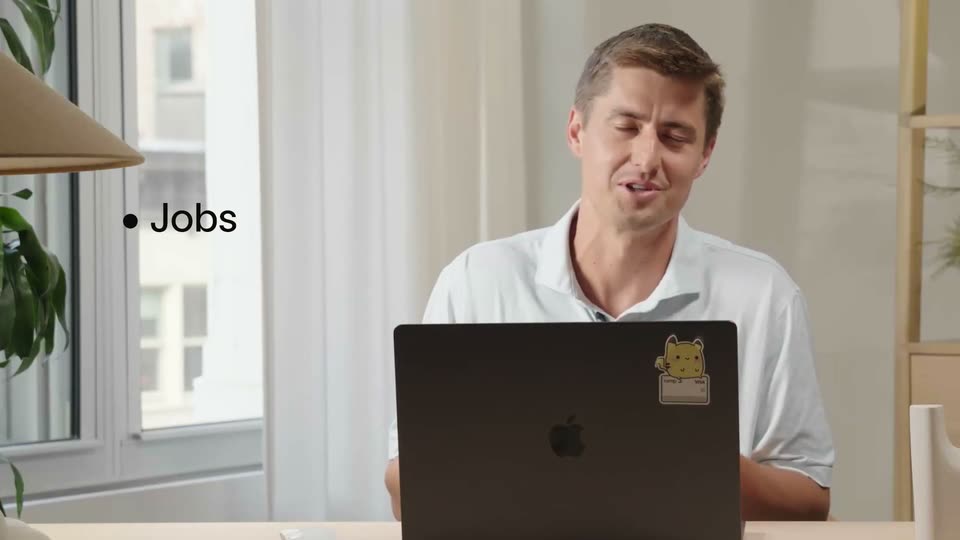
A man in a denim jacket sits at a wooden table with a laptop in front of him, speaking to camera in a plant-filled room. A lower-third name caption fades in and out, then a large white title, Instant Apps, appears split across the frame on either side of him.
On-screen text: “Michael Latman”, “Tech Lead — Instant Apps”, “Instant Apps”
Techniques: Kinetic type
Camera: Static
A bearded man in a blue denim jacket sits at a desk in a sunlit office, speaking to camera and gesturing with his hands. A white rounded caption bar with black text runs along the bottom of the locked-off frame.
On-screen text: “A new way for you to build custom apps for any use case”
Camera: Static
A bearded man in a denim jacket sits at a wooden table behind a gold laptop, talking to the camera before glancing down at the screen. A static medium shot with leafy plants and a gray concrete wall behind him.
On-screen text: “A new way for you to build custom apps for any use case”
Camera: Static
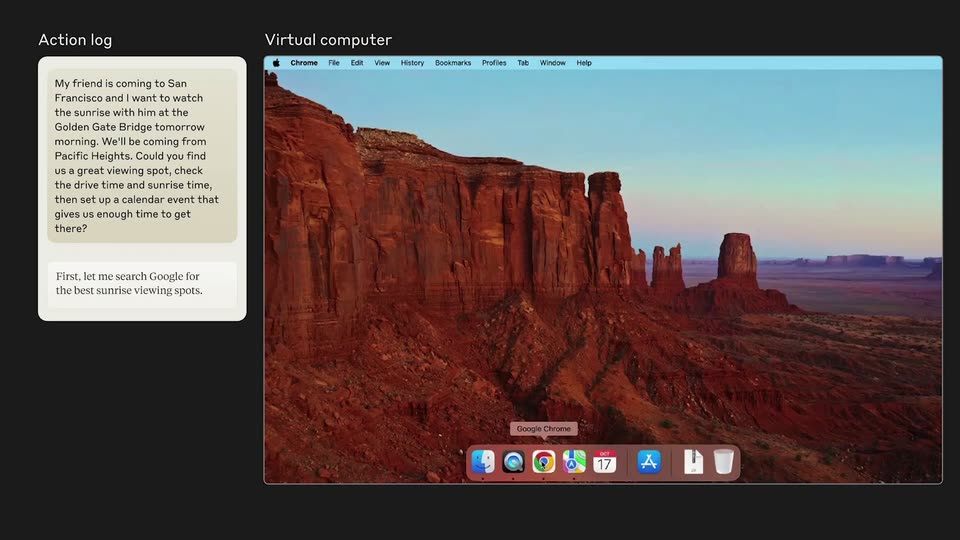
A Gmail inbox list scrolls upward, revealing a long stack of email rows with bold subjects, while a small video of a man at a laptop stays fixed in the lower left corner.
Camera: Push in
The scene opens on a tight close-up of a Gmail inbox list, then zooms out to a full desktop showing Gmail and a Linear task board side by side. A small presenter video sits in the lower-left corner. The two windows hold static for the rest of the clip.
Techniques: UI zoom, Split screen
Camera: Pull out
A man in a denim jacket sits at a wooden table behind a gold laptop, speaking to camera in a concrete office with potted plants. He glances down at the laptop mid-speech. Static medium shot, even lighting.
Camera: Static
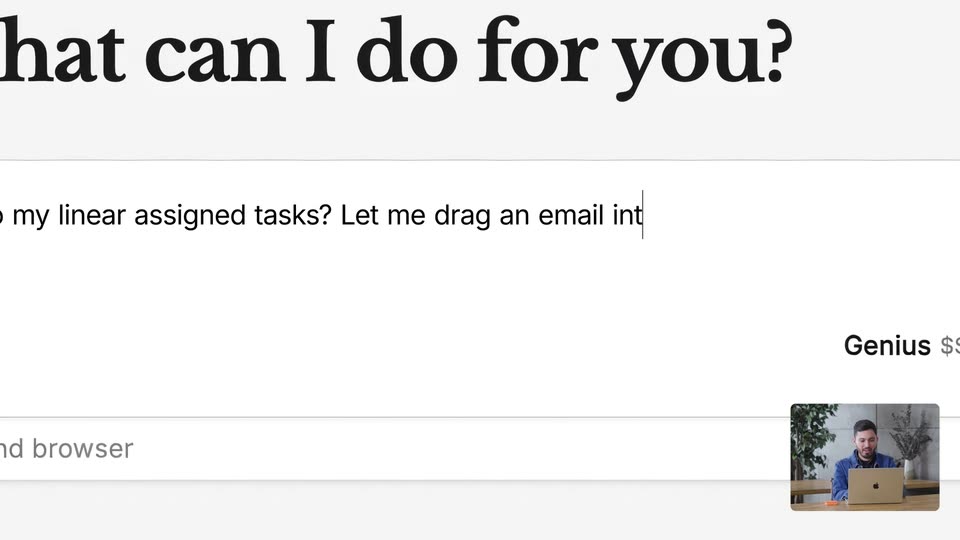
The Tasklet screen fills the frame, then zooms into the prompt field as a sentence is typed letter by letter with a blinking caret. A small video of a man at a laptop stays pinned in the corner, and the view eases back to the full field.
Techniques: UI zoom
Camera: Push in
A screen recording of an AI agent chat. The cursor clicks a permissions button, the thread scrolls to a working state, then the cursor opens a connections menu at the bottom. A presenter video plays in the lower-right corner.
Techniques: Cursor demo
Camera: Static
A three-panel app interface fills the screen, then the frame zooms onto the Gmail inbox and Linear issues columns. A cursor grabs an email row and drags it across, where a dashed drop zone with a plus icon opens in the issues panel.
Techniques: UI zoom, Cursor demo
Camera: Push in
A screen recording shows an agent list, an Email to Linear panel, and a Linear board side by side. A cursor drags the 'Urgent: Login Page' email from the inbox into the issues column; the task appears in the Linear Backlog. A presenter video inset sits bottom right.
Techniques: Cursor demo, Split screen
Camera: Static
A bearded man in a denim jacket sits at a wooden table, laptop lid facing the camera, talking to the lens. Two white pill badges with green checkboxes pop in on the left, stacking vertically, against a plant and concrete wall.
On-screen text: “Weekly Retrospective Agent”, “Connects with your tools”, “Syncs with live data”
Camera: Push in
A bearded man in a blue denim jacket speaks in a medium close-up, offset to the right of frame. The bright office background stays softly blurred with a desk, monitor, and leafy plant. He nods and smiles as he talks.
Camera: Static
A bearded man in a denim jacket sits at a wooden desk with a laptop, speaking to the camera in a bright, plant-filled room. Two white checkmark callouts appear on the left, one above the other, while he keeps talking.
On-screen text: “Design the exact interface you need”, “Fully customizable & flexible”
Camera: Static
A three-panel app screen holds still: an agent list, a chat thread, and a Linear issue list. The view then zooms into the chat's reply box as a cursor drops into the empty space below it.
Techniques: UI zoom, Cursor demo
Camera: Push in
A product screen shows a markdown document on the left and an email list on the right. A green cursor types a question into the reply box, the send button turns green, and a small video of a man at a laptop plays in the corner.
Techniques: Cursor demo
Camera: Static
A three-panel app interface fills the screen. The view zooms out to show the full layout, then reframes onto the Linear issues panel at right. A cursor glides across the panels as a task row updates.
Techniques: UI zoom, Cursor demo
Camera: Pull out
The Linear issue list fills the frame, with Backlog, Done and Canceled groups stacked vertically. Two tasks under Done show checked boxes. A cursor hovers at the right edge near the Done rows. The opening frame slides horizontally through duplicate panels before settling into the static view.
Techniques: Cursor demo
Camera: Push in
A project management app displays an open issue detail page with a left sidebar and a right properties panel. A green cursor moves up to hover the Done status, which highlights gray. A small webcam clip of a man at a laptop sits bottom-left.
Techniques: Cursor demo
Camera: Static
A green cursor hovers over a chat input as a command is typed and sent; the panel scrolls to show the AI listing working steps. The frame zooms out to reveal the full three-panel workspace, with a small webcam video of the presenter at lower left.
Techniques: Cursor demo, UI zoom
Camera: Pull out
A product interface shows a chat panel with an agent listing features and a working status on the left, a Linear issues list on the right, and a small video call of a presenter in the lower-left corner. The chat scrolls to reveal the agent's updates.
Camera: Static
A three-panel app screen: an agent list left, a chat log center, a Gmail inbox and Linear issue board right. The chat scrolls through feature notes while the board switches from Backlog to Done, gaining colored priority borders, as a cursor taps the tabs.
Techniques: Cursor demo
Camera: Static
A man in a blue denim jacket sits at a wooden table behind an open laptop, speaking to the camera and gesturing with his hands. A leafy plant and a vase of dried branches fill the concrete-walled background. The camera slowly pushes in on him.
Camera: Static
A bearded man in a blue denim jacket sits at a desk with a laptop, speaking and smiling while looking off-camera. The bright office background stays softly blurred behind him in a static medium close-up.
Camera: Static
A product screen shows a large input field beneath a serif headline. A caret types the prompt “Build me a full-featured CRM using Notion, Google Calendar, and Gmail” letter by letter. The view then cuts to the generated DealFlow CRM dashboard with pipeline stats and a funnel.
Techniques: Cursor demo
Camera: Static
A screen recording shows a Notion page beside the DealFlow CRM app panel. The cursor hovers over the stat cards and funnel bars, then the view zooms into the dashboard, revealing the pipeline funnel, closing soon, and activity lists.
Techniques: UI zoom, Cursor demo
Camera: Push in
A CRM pipeline board with deal columns fills the frame, a small video-call window of a man at a laptop sits bottom-left. A cursor moves to the green Add Deal button and clicks it, opening a centered Add Deal form with company, name and value fields.
Techniques: Cursor demo
Camera: Static
A dimmed kanban pipeline sits behind a white Add Deal form. A cursor opens the Company dropdown, selects Acme Corp, types a deal name, then clicks Create Deal, which flips to a Saving state.
Techniques: Cursor demo
Camera: Static
A CRM pipeline board fills the screen, with columns for Lead, Discovery, Proposal, Negotiation and Closed Won and their deal cards. A small live-action inset of a man at a laptop sits in the lower left.
Camera: Push in
A CRM kanban board fills the frame, columns of deal cards beside a left sidebar. A green cursor hovers over the Acme Corp card, then the view pulls back to reveal the full board width and top toolbar.
Techniques: Cursor demo, UI zoom
Camera: Pull out
A chat interface holds a DealFlow CRM message at the top while a question is typed letter by letter into the input box below. A small video of a man at a laptop plays in the lower-left corner.
Techniques: Cursor demo
Camera: Static
A Tasklet chat panel with typed build instructions fades out, revealing a three-column Kanban board filled with deal cards. A cursor drifts from the right edge toward the Discovery column as the board settles into view.
Techniques: Cursor demo
Camera: Pull out
Split screen pairs a Kanban CRM board with a Notion deals table. A cursor drags the Acme Corp card from Lead to Discovery, and the matching table row updates its stage label. A small video of a man at a laptop sits in the corner.
Techniques: Split screen, Cursor demo, UI zoom
Camera: Pan
A man in a denim jacket sits at a wooden table behind a closed silver laptop, looking down then up at the camera as he speaks. A green plant and a dried branch in a white vase sit against a gray wall. An orange phone case rests on the table.
Camera: Static
A browser window shows the Tasklet home screen with a task bar and suggestion cards. The view switches to a chat thread in the DealFlow CRM agent as a cursor clicks the sidebar. A webcam clip of a man on a laptop stays in the lower left.
Techniques: Cursor demo
Camera: Static
A light-themed chat interface shows the DealFlow CRM agent thread with timestamped work steps, a left sidebar listing agents, and a corner video window of a man at a laptop. The chat log scrolls upward while the sidebar and call window stay fixed.
Camera: Pan
A full product screen shows an agent list, a chat panel, and a CRM dashboard with pipeline metrics and a funnel chart. A cursor slides to the top-right corner and hovers the close icon, raising a tooltip as the sidebar expands to list the installed apps.
Techniques: Cursor demo
Camera: Static
A man in a denim jacket speaks to the camera behind a closed laptop at a wooden table, office plants blurred behind. The frame slowly pushes in, then four white pill labels with green checkmarks stack up on the left, one after another.
On-screen text: “Easy to build”, “Secure, sandboxed infrastructure”, “Granular agent permissions”, “Connected to real data”
Camera: Push in
A bearded man in a blue denim jacket sits at a desk in a bright office, speaking to camera and gesturing toward a laptop. He smiles as he delivers a closing line, with a blurred plant and windows behind him.
Camera: Static
On a light gray grid background, the green Tasklet mark, a T above a check, sits left of center. The wordmark assembles beside it, Tasklet in bold black and .ai in gray, letters appearing one by one. The frame stays locked off.
On-screen text: “Tasklet.ai”
Techniques: Kinetic type
Camera: Static