1:38

Resend CLI 2.0
Resend · Developer tools · Apr 2026
Tasklet · Feb 2026 · 0:56 · AI-annotated
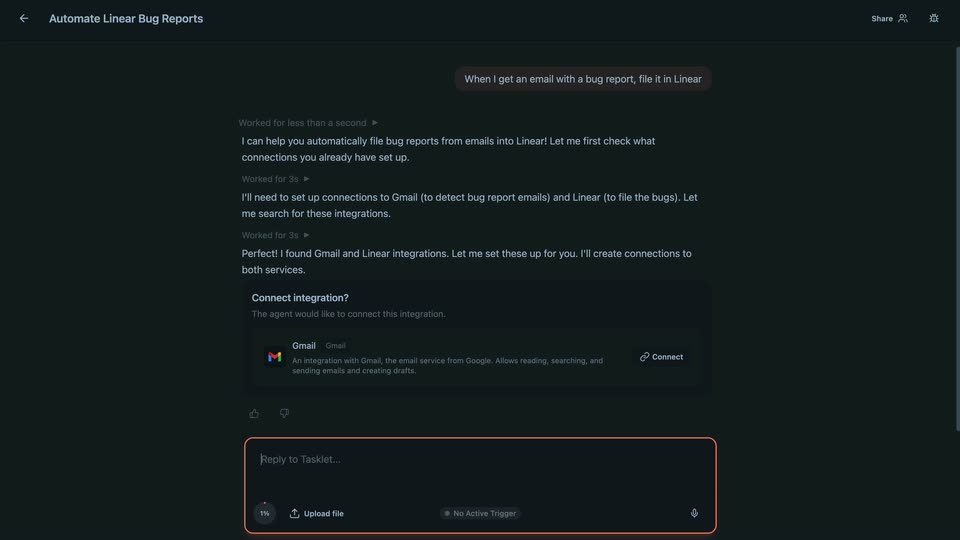
Tasklet’s 0:56 launch film runs 14 scenes, about 4.0 s each. The product shows up at 0:15 and 3 features are revealed. The call to action lands at 0:49 (89% in), over a voiceover. The video alternates a static founder interview in a glass office with a dark UI screen capture, cutting between them at each feature beat. Its signature move is the orange-outlined prompt box and the streaming chat with Working status dots, which carry the demo from plain-English prompt to connected tools, cloud computer, and active trigger.
Is this your launch? to your site or press kit.
Films whose music sounds like this one, voice left out
Revyl · Corporate tech presentation with electronic background music
Confident AI · Voiceover
Dreamscale Labs · Technical tutorial
A man in a lavender sweater stands before a frosted glass office wall, speaking to camera while a city skyline shows through on the left. A white lower-third caption reads his name and title. The shot holds steady with a slow push-in near the end.
On-screen text: “Andrew Lee”, “CEO, Tasklet”
Camera: Push in
A dark Tasklet dashboard shows a prompt box with an orange outline. Text types out inside it, and the Create Agent button switches from dim to bright orange as the line completes.
On-screen text: “Andrew Lee”, “CEO, Tasklet”
Techniques: Kinetic type
Camera: Static
A dark chat interface streams a tasklet reply line by line, with status labels like Working and Checking available connections updating above it. A Gmail integration card appears, then a Connect Gmail modal pops up as a cursor clicks Continue with Google.
Techniques: Cursor demo
Camera: Static
A dark agent chat screen holds a centered browser window that steps through a Google sign-in flow, a cursor clicking from account choice to an Allow prompt. The window then closes, revealing a Gmail integration card marked Connected and a working indicator.
Techniques: Cursor demo
Camera: Static
A dark agent chat scrolls up while a cursor taps the orange Connect button on the Gmail card, then on the Linear card; both cards switch to a Connected state and a three-dot Working indicator fades in below.
Techniques: Cursor demo
Camera: Static
A dark dashboard shows a prompt field where “Use my computer” is typed, then the view switches to a chat thread. The agent reports an existing cloud computer is ready and asks the user to grant LinkedIn permissions.
Camera: Static
A dark agent chat shows a permission card; a cursor clicks to grant access, and a remote desktop window pops in at the right edge, displaying an orange and blue wallpaper.
Techniques: Cursor demo
Camera: Static
A Linux-style desktop with a red and blue swirl wallpaper and a blue T logo sits in a locked-off frame. A translucent agent chat panel and a small Computer Use window fade out over the first moments, leaving the clean desktop and top bar.
Camera: Static
Inside a computer-use viewer, a Chrome window opens the LinkedIn feed with a profile card and a post. The cursor glides from the right edge to the top navigation, and the view reframes to the network page listing connection invitations with Accept buttons.
Techniques: Cursor demo
Camera: Static
A browser window on a dark desktop shows a LinkedIn search field with an open dropdown of recent contacts and suggested queries. Contact avatars load in from a blur as the panel sharpens and the connection list behind dims. A hand cursor rests at the search bar.
Techniques: Cursor demo
Camera: Static
A browser window on a dark desktop loads a LinkedIn profile. The page shifts from gray skeleton placeholders to the full profile card and a right-hand list of suggested contacts, with a hand cursor resting on the card.
Camera: Static
A dark chat view scrolls up as the agent posts replies and a Trigger Active card appears. Working-status dots tick through setup steps, a status pill flips from Running to Completed, and a cursor taps Send then moves to the settings icon.
Techniques: Cursor demo
Camera: Pan
A man in a lavender sweater stands centered before a glass office partition, speaking directly to camera. His silhouette reflects on the glass, with a pale building and frosted panels visible behind him. The shot holds static.
Camera: Static
A static end card on a near-black background. A blue geometric logo, a T above a downward arrow, sits in the upper center. Below it, a bold light gray sans-serif line reads the call to action. The frame is locked off with no motion.
On-screen text: “Get started for free at Tasklet.ai”
Camera: Static