0:24
Explore
AI Lip Sync, Dubbing & Video Translation Demo | SyncMonster
SyncMonster.AI · Sep 2025 · 0:57 · AI-annotated
- Length
- 0:57
- Scenes
- 24 · 2.4 s avg
- Product on screen
- 0:00
- Voiceover
- No
00:00:00 / 00:57:15
- Length
- 0:57
- Scenes
- 24 · 2.4 s avg
- Product on screen
- 0:00
- Voiceover
- No
SyncMonster.AI’s 0:57 launch film runs 24 scenes, about 2.4 s each. The product is on screen from the first frame. There is no explicit call to action. A step by step tutorial built on a black to red gradient, where typed white and red headlines announce each step and white UI mockups float in tilted 3D. Pacing is steady and instructional, with each step introduced by a word by word headline, a soft blur or scale transition, and a 3D panel that rotates flat as the cursor drives the action.
Footage neededEstimated needs: 6 capture groups — your screens or recordings · 1 official logo — reused across the film · 2 filmed passages — shoot, supply or replace · 1 graphic passage — draw or supply · 4 3D passages — build or supply
Is this your launch? to your site or press kit.
More like this
0:54

Supabase - You asked, we delivered! Supabase is now available as a Codex plugin!
Supabase · Developer tools · Apr 2026
0:33
Airtable - Stop talking to a wall of predictive text and start doing real resear
Airtable · Productivity · Jan 2026
AI Lip Sync, Dubbing & Video Translation Demo | SyncMonster, scene by scene
· 24 scenes as text
01 · Product intro · 0:00–0:12
A red glow drifts across a black backdrop as white and red words type in one by one to form the pitch line, then a tilted 3D search bar draws in, syncmonster.ai is typed, and a cursor clicks the red Search button.
On-screen text: “Using Synmonster”, “for your lipsync & voice cloning projects”, “is very easy.”, “Here's how,”, “Go to”, “syncmonster.ai”, “Search”
Techniques: Kinetic type, 3D mockup, Cursor demo
Camera: Static
02 · Demo · 0:12–0:13
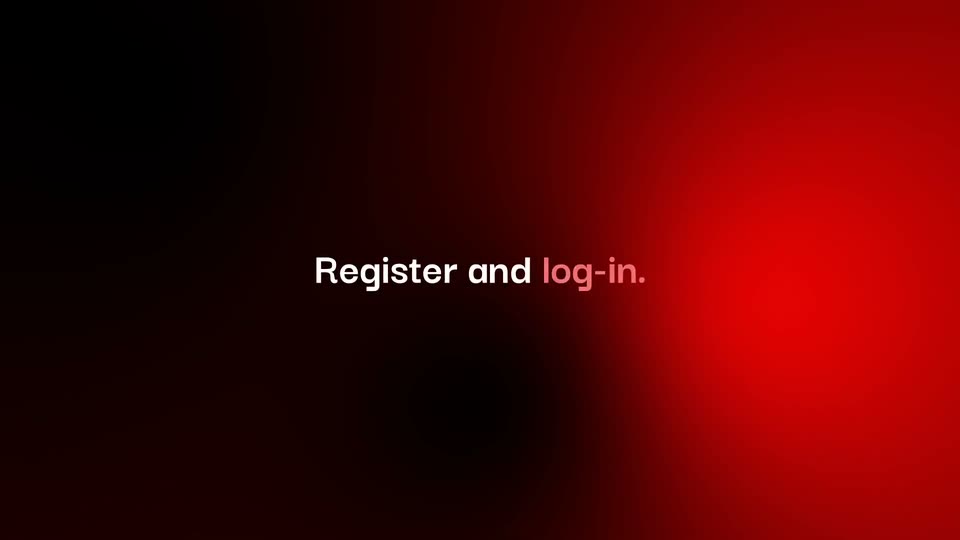
A dark search bar UI with a red glow on the right fades out to a black-to-red gradient. The centered white headline completes to “Register and log-in.”, the last word in pink, while the small “Go to” label above the bar scales.
On-screen text: “Register and log-in.”
Camera: Static
03 · Demo · 0:13–0:15
A centered headline holds still on a dark gradient background while a soft red glow drifts across the frame. The text stays locked in place throughout the short shot.
On-screen text: “Register and log-in.”
Camera: Static
04 · Demo · 0:15–0:17
A form appears on a black background with a red glow: the heading Enter your details: sits above three outlined input fields that slide up and fade in one by one.
Camera: Static
05 · Demo · 0:17–0:18
On a dark red gradient, a blurred onboarding form card slides out to the top left while the heading Choose your workflow settles below. A plan card with the Lite logo and tagline scales in at top center, and a second card blurs in at the bottom right.
Camera: Static
06 · Demo · 0:18–0:19
Two rounded video cards stack on a dark red gradient: a woman speaking into a microphone on top, a man at a mixing console below. The headline “Choose your workflow:” holds between them as the Lite wordmark and caption scale in, while the Studio card stays still.
On-screen text: “Lite”, “Instant video lipsync and dubbing”, “Choose your workflow:”, “Studio”, “Advance lipsync control”
Techniques: Split screen
Camera: Static
07 · Demo · 0:19–0:20
Two rounded video cards, Lite and Studio, stack on a dark red gradient with the headline between them. The top Lite card scales up to fill the frame as a caption fades in at the lower left.
On-screen text: “Choose your workflow:”, “Lite”, “Instant video lipsync and dubbing”, “Studio”, “Advance lipsync control”, “for fast, high-volume Al dubbing and lip sync.”
Camera: Push in
08 · Demo · 0:20–0:22
A rounded card holds a dimmed clip of a woman holding a phone, with the white Opus Lite logo and tagline centered over it. The card slowly zooms in on a red gradient background while a bold white caption sits below it.
On-screen text: “Instant video lipsync and dubbing”, “for fast, high-volume AI dubbing and lip sync.”
Camera: Pull out
09 · Demo · 0:22–0:23
A red-to-black gradient frames a rounded video card of a man at a mixing console, a green waveform screen glowing behind him. A white headline runs across the top while the card carries the Studio logo and a feature line, all locked off.
On-screen text: “for more control and advanced editing tools.”, “Studio”, “Advance lipsync control”
Camera: Static
10 · Demo · 0:23–0:25
A blurred editing screen fades out at left over a black-to-red gradient while the caption at top switches from the tools line to a service prompt. A white Lip Sync tile with a red face icon then fades in at the bottom center.
On-screen text: “for more control and advanced editing tools.”, “Select the service you want:”
Camera: Static
11 · Demo · 0:25–0:27
White service cards scroll upward in a vertical stack over a black-to-red gradient. 'Lip Sync' opens centered, then 'Audio Dubbing' and 'Lip Sync & Dub' rise into focus as the cards above dim and exit. A white headline reads above at the start.
On-screen text: “Select the service you want:”
Camera: Static
12 · Demo · 0:27–0:28
White feature cards scroll upward over a dark background with a red glow at the right. The Lip Sync & Dub card slides out of the top while the Upload video card, showing a red waveform, rises in from the bottom.
Camera: Static
13 · Demo · 0:28–0:30
A white upload dialog mockup floats in 3D perspective against a black-to-red gradient, tilting slightly as it holds. Above it, a bold headline reads “Upload your video file in mp4 or mov format.” with the first word in red.
On-screen text: “Upload your video file in mp4 or mov format.”
Techniques: 3D mockup
Camera: Pull out
14 · Demo · 0:30–0:31
A red radial glow fills a black frame. The centered line resolves from a soft blur into sharp focus, with the first word in red and the rest in white.
On-screen text: “Upload your audio and script files, if any.”
Camera: Static
15 · Demo · 0:31–0:32
A red radial gradient holds a centered headline, the word Upload in red and the rest in white. A white video-player card with an orange thumbnail and a red button scales into the middle, partially covering the text.
On-screen text: “Upload your audio and script files, if any.”
Camera: Static
16 · Demo · 0:32–0:34
A white 'Audio Dubbing' modal on a dark red gradient shows a woman speaking in a video preview. A cursor opens the language dropdown and selects English. The modal slides left and shrinks as the headline 'Choose source' fades in word by word on the right.
On-screen text: “Choose source”
Techniques: Cursor demo, Kinetic type
Camera: Pull out
17 · Demo · 0:34–0:37
A tilted white dubbing panel rotates flat on a red gradient while a cursor selects German in the language list. The white headline builds word by word on the right, then the panel slides to center and the text exits.
On-screen text: “Choose source and target languages”
Techniques: 3D mockup, Kinetic type, Cursor demo
Camera: Push in
18 · Demo · 0:37–0:40
A white Audio Dubbing card floats in 3D perspective on a dark red gradient, tilted and slowly rotating. Inside, a video of a seated woman plays above language dropdowns, while a cursor taps the red button, which cycles to an uploading percentage.
Techniques: 3D mockup, Cursor demo
Camera: Pull out
19 · Demo · 0:40–0:41
A small polaroid card of a woman floats on a red gradient, then the view pulls back as the card dissolves into a dark video-editor interface with a timeline. White text appears at the bottom.
On-screen text: “Adjust voice, sync, or”
Techniques: Morph, UI zoom
Camera: Push in
20 · Demo · 0:41–0:44
A dark lipsync editor interface sits flat and locked in frame while its preview window plays a woman speaking. A red-and-white headline holds at the top, and a white caption assembles word by word along the bottom.
On-screen text: “Studio (Advanced Lipsync Controls)”, “Adjust voice, sync, or timing if needed.”
Techniques: Kinetic type
Camera: Static
21 · Demo · 0:44–0:45
A dark red gradient frame holds the lipsync editor screen, with the title
On-screen text: “Studio (Advanced Lipsync Controls)”, “Adjust voice, sync, or timing if needed.”
Camera: Pull out
22 · Demo · 0:45–0:51
A white video player frame scales up from a small blur into focus on a black-to-red gradient, playing a woman in a striped sweater talking beside a phone on a stand. Below it, the caption 'Review the output.' holds, with 'output.' in red.
On-screen text: “Review the output.”
Camera: Push in
23 · Demo · 0:51–0:53
A black-to-red gradient fills the frame with a small blurred still at the top. White text scales into the center, the word 'satisfied.' shifting to red as it lands.
On-screen text: “Review the output.”, “Reprocess until satisfied.”
Techniques: Kinetic type
Camera: Static
24 · Outro · 0:53–0:57
On a dark red gradient, a red ring with a white swirl morphs into the white sync monster wordmark. Below it, a white tagline blurs in word by word: helps you localize videos easily for ads, training and more.
On-screen text: “helps you localize videos easily for ads, training and more.”
Techniques: Morph, Kinetic type
Camera: Static