1:24

AthenaHQ with Andrew, Co-Founder and CEO
AthenaHQ · B2B · Feb 2025
Sublingual · Feb 2025 · 2:03 · Full motion · AI-annotated
Sublingual’s 2:03 launch film runs 13 scenes, about 9.5 s each. The product shows up at 0:31 and 1 feature is revealed. The call to action lands at 1:55 (93% in), over a voiceover. A screen-recording walkthrough with a fixed webcam bubble in the corner, built as one continuous demo: a failing-LLM hook, the Sublingual name, then terminal setup, chat test, dashboard logging, and a prompt-template reveal, closing on the landing page. Pacing is steady and conversational, driven by zoom-ins and zoom-outs on UI elements rather than cuts, with white subtitles on a black bar carrying the narration.
Is this your launch? to your site or press kit.
AthenaHQ · B2B · Feb 2025
Cedar · B2B · Feb 2025
Nozomio · Consumer · Jun 2025
A screen recording of the ChatGPT web app with a webcam bubble of the speaker bottom right. The view zooms into the prompt box as a question is typed and sent, then a long list of repeated 15 + 27 = 42 lines with red X marks scrolls down.
On-screen text: “GPT getting dumber are real, and”, “let me show you an example that”, “I've run into. We'll, ask it a simple”, “question like whether 15+27 really”, “is equal to 42, and then it will start”, “tweaking out like this. Now here's”, “the scary part, how do you know”, “this isn't something that's already”, “system? LLMs won't warn you”, “when they fail, they'll just fail”
Techniques: UI zoom, Cursor demo
Camera: Pull out
A dark ChatGPT chat window fills the frame, its list of repeated wrong answers with red X scrolling upward as a cursor hovers. A small rounded webcam feed of a man with headphones sits bottom right, and white subtitles swap along the bottom edge.
On-screen text: “when they fail, they'll just fail”, “silently and spectacularly like this.”, “So here's how we can get you”, “protected and detect these”, “problems”
Techniques: Cursor demo
Camera: Pull out
A dark Streamlit chat interface fills a browser window on a colorful gradient desktop, with a small rounded webcam inset of the presenter at bottom right. A white cursor drifts across the empty chat area while bottom captions update line by line.
On-screen text: “So we built a dummy chat GPT”, “clone in Streamlit to show you”, “how easy it is to integrate”, “Sublingual without changing any”, “code. All you have to do is run”
Techniques: Cursor demo
Camera: Static
A VS Code window zooms into the terminal panel, where the typed command gains a 'subl' prefix before running, then a second command 'subl server' is entered. A rounded webcam of the presenter sits bottom right; white subtitles on a black bar run along the bottom.
On-screen text: “code. All you have to do is run”, “your app as normal, we're using”, “Streamlit but any Python app will”, “work. And then let's throw on”, “Sublingual right before it, and then”, “the logging is done, and then we”, “can also start”
Techniques: UI zoom, Cursor demo
Camera: Push in
A browser window on a colorful gradient desktop shows a dark chat app titled Sublingual Demo. A webcam feed of a man with headphones sits bottom-right. The message field fills with an evaluation prompt, then a RUNNING... status appears top-right. Subtitles run along the bottom.
On-screen text: “asking it the same question that”, “we asked GPT, and then it says”
Camera: Pull out
The camera zooms into a dark chat interface, framing a response message, as a cursor hovers over it. A small webcam feed of a man with headphones sits in the lower right. The view then pulls back to the full browser window and its tabs.
On-screen text: “we asked GPT, and then it says”, “something about the same, that”, “our response is incorrect when”, “really it's fine. So we can take a”
Techniques: UI zoom, Cursor demo
Camera: Push in
A browser window shows an LLM evaluation dashboard. The cursor clicks the Metrics View tab, then the history icon in the sidebar, revealing a dated log entry. A presenter's webcam sits in the bottom right corner while subtitles run along the bottom.
On-screen text: “really it's fine. So we can take a”, “look at our dashboard to see if it”, “locked these runs and it did it”
Techniques: Cursor demo
Camera: Static
A browser dashboard shows the LLM Runs list as a hand cursor hovers over a logged run, then the view zooms and blurs onto that row. A webcam feed of the presenter sits in the lower right and a caption bar runs along the bottom.
On-screen text: “logged these runs, and it did, it”
Techniques: Cursor demo, UI zoom
Camera: Push in
A screen capture of a logging dashboard shows one expanded request entry with the user prompt and model response. A mouse cursor drifts over the text, and a small webcam inset of the presenter sits in the bottom right. White subtitle captions cycle along the bottom.
On-screen text: “logged these runs, and it did,”, “logged this one request that we”, “made to our dummy app with the”, “input to the LLM and the output.”, “So since we're interested in”
Techniques: Cursor demo
Camera: Push in
A product dashboard dissolves from a tight crop on an LLM conversation log to the full browser window, showing the active view tab and a highlighted response row. A cursor hovers over the list and a small webcam feed of the presenter sits in the bottom right.
On-screen text: “So since we're interested in”, “evaluating its correctness, we can”
Techniques: Cursor demo, UI zoom
Camera: Pull out
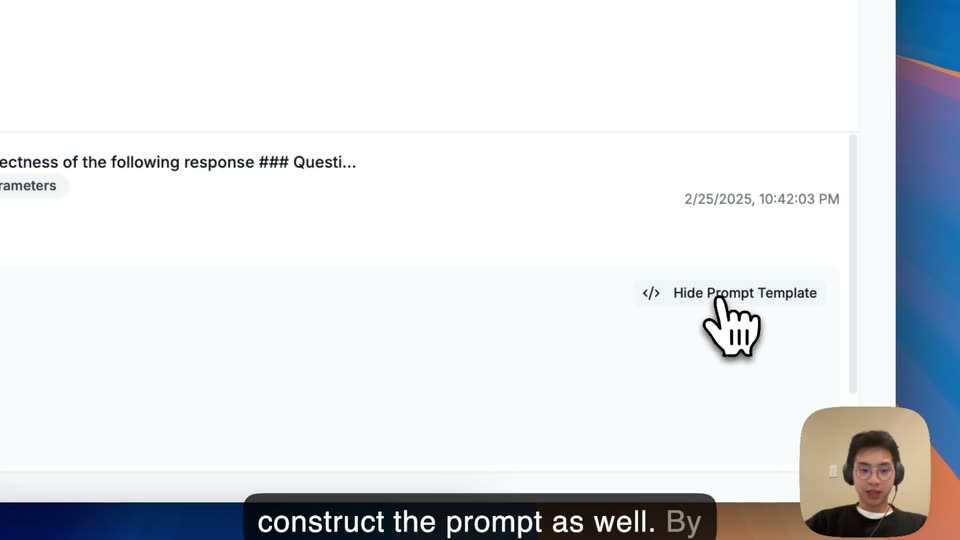
A browser window shows the evaluation dashboard on a gradient desktop, with a webcam inset bottom right. The cursor taps the Correctness chip, then Evaluate All, and a 0% badge appears. Zooming in, the cursor clicks Show Prompt Template, highlighting the template in purple and the user input in green.
On-screen text: “evaluating its correctness, we can”, “select the correctness out of the”, “criteria and then hit Evaluate All.”, “And as you can see, this one”, “indeed was incorrect, got 0% on”, “correctness. So here's something”, “cool, you can actually see the”, “template that was used to”, “construct the prompt as well. By”, “clicking this button, you can see it highlights the user input as well as our template here. And if we look”
Techniques: UI zoom, Cursor demo
Camera: Pull out
A dark code editor displays a Python function. The view zooms into the user_prompt line, holding on the highlighted template string, then zooms back out to the full window with a terminal panel below. A presenter in headphones sits in a small webcam box at the lower right.
On-screen text: “our template here. And if we look”, “at this chatbot code, indeed”, “there's a template string here that”, “we use to template our inputs. So”, “this is something really cool, we”, “can actually automatically find the”, “prompt templates from your code”, “as well without you logging a”, “single thing yourself. So you can”, “actually”
Techniques: UI zoom
Camera: Static
A browser window on a colorful abstract background shows the sublingual landing page with a serif headline, a dark command block and a Get Started button. The view zooms into the page, and a small rounded webcam feed of a man with headphones sits in the bottom right corner.
Techniques: UI zoom
Camera: Push in