
1:00
Explore
SimBlox: web widgets demo
SimBlox · 1:12 · Full motion · AI-annotated
- Length
- 1:12
- Scenes
- 33 · 2.2 s avg
- Product on screen
- 0:00
- Features shown
- 1
- Voiceover
- Yes
00:00:00 / 01:12:01
- Length
- 1:12
- Scenes
- 33 · 2.2 s avg
- Product on screen
- 0:00
- Features shown
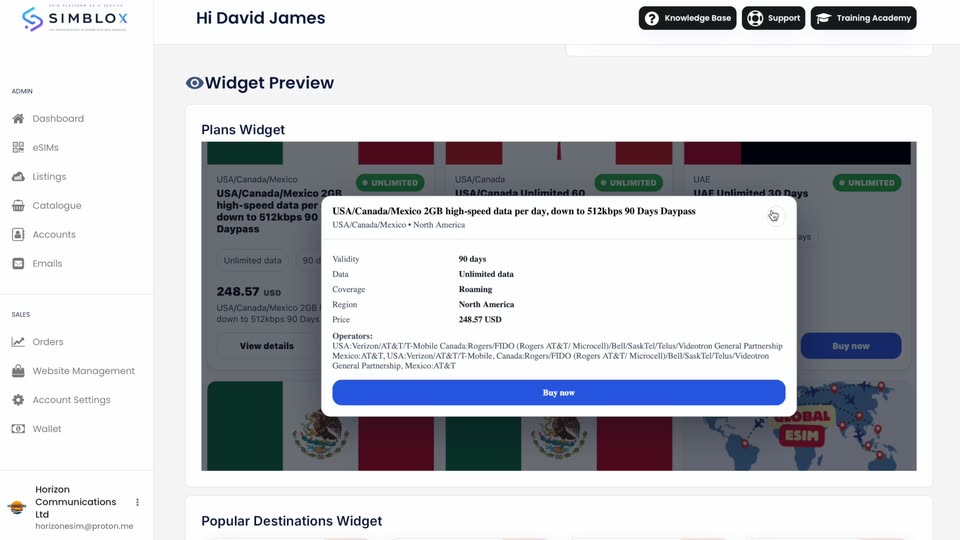
- 1
- Voiceover
- Yes
SimBlox’s 1:12 launch film runs 33 scenes, about 2.2 s each. The product is on screen from the first frame and 1 feature is revealed. There is no explicit call to action; a voiceover carries the film. The video is built as a slow-scroll admin walkthrough, a split code-plus-live-preview segment, a customer-facing website tour, and a rotating 3D cube closer, all cut at a steady ~113 BPM. Its signature moves are cursor-led navigation through the dashboard, hard cuts between HTML snippets and rendered widgets, and glowing pink energy streams feeding the SimBlox cube.
No filming indicatedEstimated needs: 3 capture groups — your screens or recordings · 6 3D passages — build or supply
Is this your launch? to your site or press kit.
More like this


0:43

Firecrawl - Introducing the new Firecrawl CLI 🔥 The toolkit for agents to scrape
Firecrawl · Mar 2026
1:01
Deep Principle - We’re introducing Mira Science, a general-purpose computing platform
Deep Principle · Nov 2026
SimBlox: web widgets demo, scene by scene
· 33 scenes as text
01 · Product intro · 0:00–0:02
A light admin dashboard scrolls slowly downward, passing account status cards and the Stripe Account panel. A mouse cursor drifts in and hovers over the Access Dashboard and Display Settings buttons.
Techniques: Cursor demo
Camera: Pan
02 · Product intro · 0:02–0:07
A web admin screen scrolls vertically down a settings page. A widget settings panel with color pickers and sliders gives way to a live preview of eSIM plan cards with country flags and Buy now buttons, then a world map widget.
Camera: Pan
03 · Feature reveal · 0:07–0:08
A Symblox admin dashboard shows a Plans Widget with eSIM cards and an open details modal listing a 90-day daypass and operators. A cursor glides from the View details button to the right edge of the modal.
Techniques: Cursor demo
Camera: Static
04 · Feature reveal · 0:08–0:09
A flat dashboard screen shows a left sidebar menu and a Widget Preview panel holding three plan cards, each with a flag, price and blue Buy now button. A mouse cursor travels down the right side and hovers over a View details button.
Techniques: Cursor demo
Camera: Static
05 · Feature reveal · 0:09–0:10
A Symblox admin dashboard is shown with a Plans Widget open; a white modal for a UAE 30 day pass lists its details above a blue Buy now button. A cursor drifts from the modal's corner down to the button.
Techniques: Cursor demo
Camera: Static
06 · Feature reveal · 0:10–0:16
A Symblox admin dashboard scrolls down past eSIM plan cards, destination cards, a recommended-plan card and an HTML snippet, then the cursor clicks Account Settings in the sidebar to open widget appearance and layout controls.
Techniques: Cursor demo
Camera: Static
07 · Feature reveal · 0:16–0:17
A flat admin dashboard shows a Widget Preview with three plan cards for Europe, Asia and India, plus a Popular Destinations section below. A cursor hovers the left sidebar menu while a small preview window floats in the corner.
Techniques: Cursor demo
Camera: Static
08 · Feature reveal · 0:17–0:18
A two-column admin dashboard with a left navigation sidebar scrolls down vertically, moving past the Website Management, eSIM Widgets, Discount Vouchers and Mobile Apps sections.
Camera: Static
09 · Feature reveal · 0:18–0:21
A centered modal titled Add Products to the Website overlays a dimmed admin dashboard. Its code panel scrolls downward, exposing blue-highlighted data attributes, then a second section for Monthly Subscription Product search and Tariff Cards.
Camera: Static
10 · Feature reveal · 0:21–0:22
A white code panel titled eSIM Search & Tariff Cards floats over a dimmed dashboard with a left sidebar. The highlighted HTML snippet scrolls upward with motion blur, sliding past its attributes to reveal the next section heading at the bottom.
Camera: Static
11 · Feature reveal · 0:22–0:27
A two-pane web tool: left pane shows an embed code snippet, right pane a live preview of a plan-search widget with a search field, currency dropdown and 'Unlimited only' checkbox. A dark control sidebar lines the left edge. Panes begin blank, then code and widget pop in.
Camera: Static
12 · Feature reveal · 0:27–0:33
A split layout pairs a dark code editor on the left with a live eSIM widget on the right. Flag and price cards load in, then a cursor hovers the Buy now and View details buttons as the grid scrolls down.
Techniques: Split screen, Cursor demo
Camera: Static
13 · Feature reveal · 0:33–0:35
A builder interface shows the widget's source code and a tool sidebar on the left, and a live SIM-plan preview on the right. A plan detail card closes to reveal two offer cards, and a cursor moves onto a Buy now button.
Techniques: Cursor demo
Camera: Static
14 · Feature reveal · 0:35–0:37
A screen recording shows a code editor beside a preview of eSIM plan cards, each topped by a country flag. The plan list scrolls down from Europe and Asia to India as a cursor moves across the cards and rests on a View details button.
Techniques: Cursor demo
Camera: Static
15 · Feature reveal · 0:37–0:39
A three-column screen shows a dark control sidebar, an HTML code panel, and a rendered widget with a data-plan modal over flag cards. A cursor moves to the blue Buy now button and clicks it, where a small loading spinner appears.
Techniques: Cursor demo
Camera: Static
16 · Demo · 0:39–0:41
A locked-off shot of a Chrome browser window. The address bar shows the simbox.betterm2m.com checkout URL, a bookmarks row sits below it, and the page body is blank white with a mouse cursor resting at the right.
Camera: Static
17 · Demo · 0:41–0:44
A screen recording of a white travel eSIM website scrolls down past a large hero heading and feature pills to a two-column section pairing a value-plan pitch with a Japan eSIM card. A small cursor drifts across the page as it scrolls.
Camera: Pan
18 · Demo · 0:44–0:46
A light travel-insurance webpage scrolls vertically past a grid of destination cards. The heading and subtitle sit above four columns of cards, each with a flag, country name, price and a blue View plans button, while a cursor rests near the bottom.
Camera: Pan
19 · Demo · 0:46–0:47
A light eSIM website scrolls downward past a grid of country cards and a flag list, then settles on a search bar and plan cards. A cursor hovers over the list. Centered captions read “Pick a country” then “Find your eSIM” as the page moves.
On-screen text: “DESTINATION GUIDES”, “Pick a country”, “ALL TRAVEL PLANS”, “Find your eSIM”
Techniques: Cursor demo, UI zoom
Camera: Pan
20 · Demo · 0:47–0:48
The eSIM store interface scrolls down past a heading and a search-and-filter bar, bringing three country cards with flags, plan text and prices into view, then a second row of cards slides up from the bottom edge.
Camera: Pan
21 · Demo · 0:48–0:48
A grid of SIM plan cards with country flags fills the screen. A cursor hovers over the View details button on the middle card, briefly highlighting it. The layout stays static.
Techniques: Cursor demo
Camera: Static
22 · Demo · 0:48–0:49
A white plan-detail modal sits centered over a dimmed grid of country flag cards. The cursor glides up to the close icon at the modal's top right corner. The modal lists validity, data, region, price and operators above a blue Buy now bar.
Techniques: Cursor demo
Camera: Static
23 · Demo · 0:49–0:50
A light web interface shows a grid of eSIM plan cards, each with a country flag, title, price and two buttons, under a search bar and filter row. The cursor glides from the Canada flag to the View details button on that card.
Techniques: Cursor demo
Camera: Static
24 · Demo · 0:50–0:50
A white plan-detail modal sits centered over a dimmed grid of country cards with flags. A cursor glides from the right to the close icon at the modal's top corner and rests on it.
Techniques: Cursor demo
Camera: Static
25 · Demo · 0:50–0:51
A light product page lists eSIM cards in a grid, each topped with a national flag and a blue Buy now button. A cursor glides from the Canada card down to the USA Buy now button.
Techniques: Cursor demo
Camera: Static
26 · Demo · 0:51–0:52
A Chrome browser window displays the eSIM checkout URL in its address bar, then the view cuts to a blank white page with the cursor resting near the center. The motion is a single hard cut with no animation.
Camera: Static
27 · Demo · 0:52–0:59
A flat checkout screen titled 'Complete Your eSIM Purchase' opens with a loading banner and spinner. The order summary fills in with a US plan line and USD 4.00 price, the loader clears, and the page settles to show the customer form and checkout buttons.
Camera: Static
28 · Outro · 0:59–1:01
An isometric SimBlox cube glows blue on a white base, flanked by category lists on the left and device mockups on the right, under a bold headline. Thin blue lines link the lists to the cube.
On-screen text: “Complexity in. Simplicity out.”, “SimBlox turns fragmented telecom infrastructure into launch-ready experiences for your brand.”, “One Operating System”, “Managed from one SimBlox partner portal”
Techniques: 3D mockup
Camera: Static
29 · Outro · 1:01–1:03
A 3D diagram on a white background. A vertical wall of gray feature labels on the left feeds glowing pink energy lines into a dark blue SimBox cube on the right, which rotates on a silver pedestal with a blue glowing ring.
Techniques: 3D mockup
Camera: Static
30 · Outro · 1:03–1:05
A dark blue cube bearing the white Simblox logo sits on a silver and blue base in 3D perspective. Pink energy streams flow from a stack of labeled white blocks on the left into the cube and out to the right against a white background.
Techniques: 3D mockup, Particles
Camera: Pull out
31 · Outro · 1:05–1:06
A dark 3D cube marked SimBox rests on a glowing blue base, angled in perspective. A pink electric wave streams across its face from left to right while a thin blue line feeds in from the right. A white server stack stands at the left edge.
Techniques: 3D mockup
Camera: Pull out
32 · Outro · 1:06–1:07
A 3D dark blue cube bearing the SimBlox mark sits on a glowing blue base. Blue lines branch from it to floating UI cards, a widgets panel, a website window and two phones, while a pink energy wave streams across. The cube rotates to face front as the cards and a caption fade in.
On-screen text: “Website”, “Mobile Apps”, “One Operating System”
Techniques: 3D mockup
Camera: Static
33 · Outro · 1:07–1:12
A dark 3D SimBlox cube sits on a glowing base, fed by thin lines from left-side category lists and linked to right-side widget, website and mobile app mockups. The camera slowly pushes in as the headline and captions hold still.
On-screen text: “Complexity in. Simplicity out.”, “SimBlox turns fragmented telecom infrastructure into launch-ready experiences for your brand.”, “One Operating System”, “Managed from one SimBlox partner portal”
Techniques: 3D mockup
Camera: Push in