1:08


Aravind Srinivas - We're introducing hybrid compute for all users of the Perplexity Mac
Perplexity · AI · Sep 2026
SimBlox · 2:41 · AI-annotated
SimBlox’s 2:41 launch film runs 47 scenes, about 3.4 s each. The product is on screen from the first frame and 8 features are revealed. There is no explicit call to action; a voiceover carries the film. A dark, high-tech product tour built on a single blue-purple palette and a recurring particle-wave ground, opening and closing on the SIMBLOX lockup. The middle is a steady sequence of locked-off dashboard and storefront screens driven by a continuous voiceover, with occasional 3D globe and QR hologram beats to punctuate the global and instant-delivery claims.
Is this your launch? to your site or press kit.
Perplexity · AI · Sep 2026
Webflow · Design · Oct 2018
Centered SIMBLOX lockup (gradient S mark, white wordmark, blue-purple tagline, white tagline) over a dark field of rippling blue particles. Four feature icons with labels line the bottom, fading out by the fourth second; a diagonal light beam sweeps the wordmark near the end.
On-screen text: “ESIM PLATFORM-AS-A-SERVICE”, “THE INFRASTRUCTURE TO POWER YOUR ESIM BUSINESS.”, “GLOBAL REACH”, “Sell eSIMs anywhere.”, “INSTANT DELIVERY”, “Activate in seconds.”, “TRUSTED & SECURE”, “Built for reliability.”, “BUILT FOR GROWTH”, “Scale your business.”
Techniques: Particles, Light sweep
Camera: Static
A locked-off view of the SIMBLOX eSIM dashboard, with a greeting, stat cards and a launch checklist. The small tagline slides in beneath the logo at top left while a cursor glides across the recurring total card.
On-screen text: “SIMBLOX”, “THE INFRASTRUCTURE TO POWER YOUR ESIM BUSINESS.”
Techniques: Cursor demo
Camera: Static
A flat eSIM dashboard view with a left sidebar and a grid of metric cards. A cursor moves across the screen as the page scrolls down to reveal Recent Orders and Recent Customers lists, then scrolls back to the top.
Techniques: Cursor demo
Camera: Static
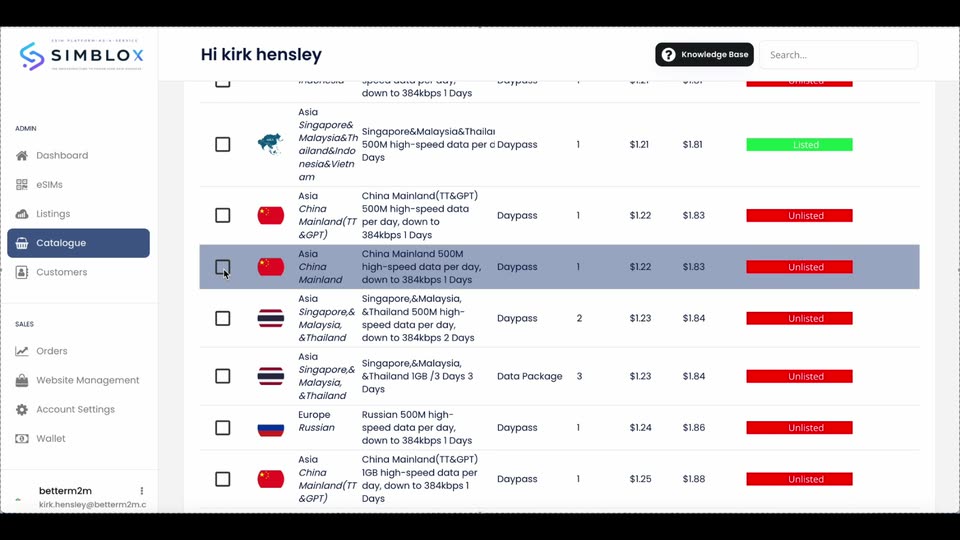
A dashboard catalogue table scrolls down through rows of data plans as the cursor ticks checkboxes on a couple of rows, the selected count rising, then the view returns to the top.
Techniques: Cursor demo
Camera: Static
A dimmed Symblox admin dashboard shows a centered white modal with a green question mark icon and two black buttons. A cursor glides from the right edge to hover over the Create Listings button. The background catalogue table lists country rows with red and green status tags.
Techniques: Cursor demo
Camera: Static
A light admin dashboard for an eSIM platform shows a plan table with country flags, prices and red or green status badges. The sidebar highlight moves from Catalogue to Listings as a cursor hovers a row, where a blue plus icon and a purple One off Purchase button appear.
Techniques: Cursor demo
Camera: Static
A white SIMBLOX admin screen opens on the Listings table, rows of eSIM plans with flags and price columns scrolling down. A cursor taps a retail price cell and types a new number, the profit figure recalculates, then the view scrolls back up to the filter bar.
Techniques: Cursor demo
Camera: Static
A light dashboard fills the frame, a left sidebar and a central chart sit behind a right-hand payment detail panel. A black cursor hovers at the SimBlox fee line. The view stays static.
Techniques: Cursor demo
Camera: Static
A dark travel eSIM website fills the frame: a bold white hero headline and search bar sit left of a four-tile benefits panel, with destination cards for Japan, Russia and Europe below. A mouse cursor hovers over the Europe card.
Techniques: Cursor demo
Camera: Static
A white-label eSIM store page scrolls down from its hero headline and search bar to a three-column grid of destination plan cards, while a cursor moves and clicks the view details buttons.
Techniques: Cursor demo
Camera: Pan
Three columns of eSIM plan cards scroll upward on a dark interface, each card listing a country, data allowance, USD price and a blue Buy now button over a faint world map, with a Simblex badge fixed in the bottom corner.
Camera: Pan
A white detail modal for a Japan eSIM plan sits centered over a dark grid of plan cards. A cursor glides from the lower right to the blue Buy now button and hovers, then a checkout URL flashes in the browser bar.
Techniques: Cursor demo
Camera: Static
A checkout page resolves from a loading spinner, the email and name fields fill in automatically, then the view scrolls down to expose the checkout buttons while a cursor hovers over them.
Techniques: Cursor demo
Camera: Static
A two-column checkout page for a Japan eSIM daypass shows the price US$15.00 on the left and a payment form on the right. A cursor types the card number, expiry and CVC, an autofill dropdown suggests the cardholder name, then the page scrolls down to reveal the blue Pay button.
Techniques: Cursor demo, UI zoom
Camera: Static
A static eSIM order page fills the frame. A heading reads Manage Your eSIM Order above three white cards listing the order summary, a VISA payment method, and an eSIM ICCID with a QR code. A cursor rests idle at the right edge.
Camera: Static
An email client window sits over a checkout page. The email body scrolls down through a QR code, a Japan eSIM plan table, and install steps, then back up, while a cursor moves and clicks. The page behind shows a price and support links.
Techniques: Cursor demo
Camera: Static
A SimBlox order email sits open in a mail client over a payment webpage. The email content scrolls down to reveal the financial breakdown, ending on a green net profit figure. A cursor rests at the right edge of the card.
Camera: Pan
A Simblox admin dashboard fills the frame after a quick crossfade between two card layouts. A cursor moves to the green Access Dashboard button and presses it, then the whole interface fades to white.
Techniques: Cursor demo
Camera: Static
A cursor scrolls the SimBlox dashboard down to the payments table, clicks a row, and a detail panel slides in from the right, expanding a fee line before scrolling to the timeline.
Techniques: Cursor demo
Camera: Static
The SimBlox dashboard switches from a payments table with a yearly chart to a home overview showing balance cards and account status. An orange test-mode banner runs across the top of both views.
Camera: Static
A light Simblox dashboard fills the frame, showing a sidebar menu and a grid of balance and status cards. A cursor drifts from the Available card down to the Website Management item in the sidebar.
Techniques: Cursor demo
Camera: Static
A SimBlox dashboard fills the frame, with a left sidebar and four option cards under a Website Management heading. A mouse cursor glides right and hovers over the Choose a Template button.
Techniques: Cursor demo
Camera: Static
A dimmed admin dashboard sits behind a centered configuration modal for a white-label template store. A cursor drifts across the form fields as the view scrolls down, revealing a live website preview with a purple hero banner and feature cards.
Techniques: Cursor demo
Camera: Pan
A dark eSIM storefront scrolls up inside a modal, passing feature cards and destination tiles, then cuts to a light editor panel with branding and template fields above a live preview strip.
Camera: Pan
A centered white modal titled White-Label Template Store Configuration overlays a dimmed admin dashboard. A cursor opens the Popular Destinations dropdown and clicks Russia and Europe, which appear as small chips with close marks. The form fields and a website preview header stay static.
Techniques: Cursor demo
Camera: Static
The SimBlox admin dashboard displays a Website Management page with four option cards for building or embedding a site. A cursor glides down and hovers over the Launch Page Builder button.
Techniques: Cursor demo
Camera: Static
A web admin dashboard shows a Website Builder canvas with an empty blue row. The right panel switches to a grid of layout blocks, then the cursor drags a tilted two-column block toward the canvas, where a blue pill marks the insertion line.
Techniques: Cursor demo
Camera: Static
The Website Builder view of the SIMBLOX admin panel fills the frame, a hand cursor resting on the canvas. Two empty column placeholders with Add Content buttons sit between a left menu and a right properties panel, then the view scrolls down to reveal action buttons.
Camera: Static
A light dashboard view with a left sidebar and stacked content cards for Stripe Account and Widget Settings. A cursor slides in from the right and hovers over the Widget Settings button, which tints pale blue.
Techniques: Cursor demo
Camera: Static
A light admin dashboard of the Simbox platform scrolls downward past Appearance and Layout control panels, revealing eSIM plan preview cards, country flag tiles, and an embed code block, while a cursor hovers over form fields.
Techniques: Cursor demo
Camera: Pan
A SIMBLOX admin dashboard with a left sidebar and a top bar greeting the user. An EU-flag plan card for Europe slides down as the page scrolls up to reveal a Popular Destinations row with three country cards, Thailand, Japan and Europe, each with a View plans button. A cursor rests at the right edge.
Camera: Static
A light SIMBLOX dashboard scrolls upward, data-plan cards sliding off the top while the Popular Destinations and Monthly Subscription widgets rise into view. A left sidebar stays fixed and a cursor hovers over a View plans button.
Camera: Pan
A light admin dashboard with a left sidebar and a Widget Preview panel. A grid of data-plan cards showing national flags and prices scrolls upward, revealing more plans, while a cursor moves onto a View details button.
Techniques: Cursor demo
Camera: Pan
A light admin dashboard for SIMBLOX fills the frame, a left menu listing Dashboard, eSIMs and Wallet beside a central Widget Preview panel. A white data-plan modal for a Japan daypass sits open, and the cursor glides from the View details button to the modal's close icon.
Techniques: Cursor demo
Camera: Static
A light-themed dashboard scrolls upward, exposing a widget settings panel with background, radius, font and colour controls above a preview of three data-plan cards topped by national flags. A pointer rests over the search field.
Techniques: Cursor demo
Camera: Static
The SIMBLOX admin dashboard transitions to the Wallet page. A cursor opens the Amount to Top Up dropdown, selects $500.00, then moves onto the black Top Up Wallet button. Stat cards for balance and funds sit above the form and transaction table.
Techniques: Cursor demo
Camera: Static
A two-column checkout screen: a light blue summary panel left, a white payment form right. Both panels scroll down to reveal the wallet total and the blue Pay button, while a cursor hovers near the button.
Techniques: Cursor demo
Camera: Pan
A checkout screen splits into a light blue wallet panel and a white payment form. The cursor moves over the blue Processing button, which then turns green with a success message as the form scrolls up to reveal the email field.
Techniques: Cursor demo
Camera: Static
The Simblox admin dashboard scrolls down past the balance cards to the Top Up Wallet form and transactions table, then scrolls back up as a cursor moves to the sidebar and highlights the Catalogue item.
Techniques: Cursor demo
Camera: Static
On the SimBlox dashboard, a cursor clicks a row in the payments table and a details panel slides in from the right. The cursor then expands the processing fee line, revealing the SimBlox fee and net amount.
Techniques: Cursor demo
Camera: Static
A 3D night globe with glowing city lights; cyan and magenta arcs with moving light pulses link six regions tagged eSIM Connected. A headline and four feature lines frame the map, then the camera pulls back to the whole planet as the text fades.
On-screen text: “Sell eSIMs. Anywhere in the world.”, “Global coverage. Instant connection.”, “United States eSIM Connected”, “Europe eSIM Connected”, “Asia eSIM Connected”, “Africa eSIM Connected”, “Brazil eSIM Connected”, “Australia eSIM Connected”, “200+ Countries Global Coverage”, “Instant Delivery In Seconds', 'Secure A Reliable Enterprise Grade', 'High Speed Data Best Networks”
Techniques: Particles
Camera: Pan
A flat dashboard shows an eSIM table with rows of flags, IDs and prices. A cursor slides from the sidebar to the first row, hovers a date, then a detail panel slides in from the right with a QR code, a days-remaining gauge and account fields.
Techniques: Cursor demo
Camera: Static
A white eSIM details modal sits over a dimmed dashboard. Skeleton placeholders in the data-usage card resolve into text, then the modal scrolls down past the QR code, gauges and tables to a notes field and a Cancel button.
Camera: Pan
Three glowing phone mockups stand in 3D perspective on a dark background, each showing a different eSIM interface, under a bold headline. The camera pushes in toward the center phone, ending in a close-up of its builder screen.
On-screen text: “3 Ways to Launch.”, “Built Your Way.”, “Choose the perfect way to bring your eSIM business to life”, “Launch Fast”, “Fully Branded”, “Flexible & Scalable”, “Sell Everywhere”
Techniques: 3D mockup, UI zoom
Camera: Push in
A flat phone on a dark surface projects a glowing blue QR hologram with vertical light beams and drifting particles. Infographic labels sit left and a confirmation card floats right; the camera pushes in until only the QR and phone remain.
On-screen text: “Instant Delivery”, “eSIM delivered in seconds”, “Secure & Reliable”, “Enterprise grade security”
Techniques: 3D mockup, Particles, UI zoom
Camera: Push in
The SIMBLOX logo lockup sits centered on a dark field above an undulating particle wave ground. The lockup eases down as a row of four feature icons with captions fades out, then a diagonal light beam sweeps across the wordmark.
On-screen text: “ESIM PLATFORM-AS-A-SERVICE”, “SIMBLOX”, “THE INFRASTRUCTURE TO POWER YOUR ESIM BUSINESS.”, “GLOBAL REACH”, “Sell eSIMs anywhere.”, “INSTANT DELIVERY”, “Activate in seconds.”, “TRUSTED & SECURE”, “Built for reliability.”, “BUILT FOR GROWTH”
Techniques: Particles, Light sweep
Camera: Static
On a black background, the SIMBLOX wordmark holds still at center while a thin uppercase tagline slides in beneath it. The pace is slow and locked-off, ending on the static brand mark.
On-screen text: “THE INFRASTRUCTURE TO POWER YOUR ESIM BUSINESS.”, “SIMBLOX”
Techniques: Kinetic type
Camera: Static