0:59
Sam K - We’re announcing Sentience out of closed beta today. Your Sentience
Sentience · Sep 2026
Rive · May 2025 · 1:28 · Full motion · AI-annotated
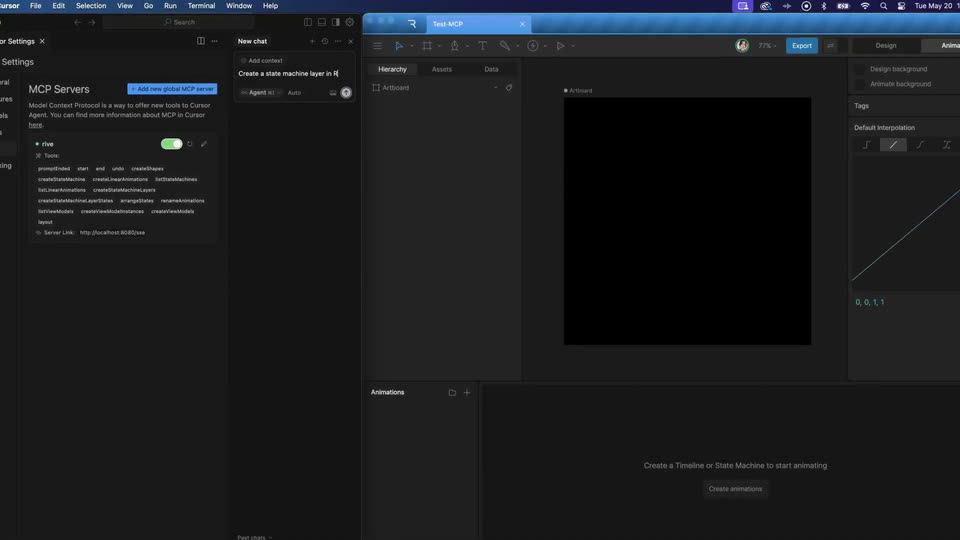
Rive’s 1:28 launch film runs 18 scenes, about 4.9 s each. The product shows up at 0:06 and 5 features are revealed. There is no explicit call to action. The video is one continuous screen recording that pairs a typed prompt in Cursor's chat with the Rive canvas reacting, cutting each capability to a slow push-in on the chat panel. Signature moves are the streaming tool-call cards, the live reflow of the Rive hierarchy and canvas, and the final logo morph on black.
Is this your launch? to your site or press kit.
Sentience · Sep 2026
Anthropic · AI · Jan 2026
Libra Robotics · Industrials · Oct 2026
Films whose music sounds like this one, voice left out
FLUX · Cinematic electronic, industrial, and ambient hybrid
A5 Labs · Electronic dance music (Eurodance/Trance style)
Summer Engine · Electronic dance music
A macOS desktop with a dark design tool in the background. The dock at the bottom magnifies as the cursor glides across it, then settles on the black Cursor app icon, raising a tooltip.
Techniques: Cursor demo
Camera: Static
A Mac desktop holds two apps side by side, the Cursor editor on the left and the Rive interface on the right. The left window fades from a blue gradient to its home screen, where a cube logo and three buttons appear, while a cursor drifts over the panel.
Camera: Static
A dark editor window and a design tool panel sit side by side. A hand cursor clicks the gear icon at the top right, and a settings panel opens on the left with an account section and a vertical menu.
Techniques: Cursor demo
Camera: Static
A dark Cursor editor sits beside a Rive editor. The cursor clicks MCP in the settings sidebar, the panel swaps to an MCP Servers page listing the enabled rive server and its tools, then the window reflows into a new chat view.
Techniques: Cursor demo
Camera: Static
Two dark app windows sit side by side on a desktop: the left shows a Cursor settings panel with an MCP server tool list, the right a design editor with an empty artboard. A hand cursor hovers over the top toolbar. The frame holds static.
Camera: Static
Two dark app windows sit side by side: a code editor with an MCP panel on the left, a Rive design tool on the right. A prompt is typed into the middle chat box as the view zooms in toward the hierarchy and artboard.
Techniques: UI zoom
Camera: Static
A code editor with an AI chat panel sits left of a Rive canvas. A typed prompt about a state machine layer is sent, the cursor clicks a Run tool button, and a streamed reply confirms the layer and five timelines. The view slowly zooms in on the chat.
Techniques: Cursor demo, UI zoom
Camera: Static
A dark screen shows a Cursor chat panel on the left and a design tool on the right. The viewport zooms into the right panel, exposing a state machine graph with five weather states, while the chat text scrolls and updates.
Techniques: Split screen, UI zoom
Camera: Static
A dark code editor and chat panel sit beside a Rive canvas. A typed prompt triggers two MCP tool calls; a cursor clicks Run tool, and the Hierarchy panel fills with ColumnLayout and RowLayout.
Techniques: Cursor demo
Camera: Static
A dark design-tool screen with a chat panel on the left and a canvas on the right. A cursor drags the bottom-right handle of a layout frame, shrinking it as the width and height values in the properties panel tick down.
Techniques: Cursor demo
Camera: Push in
Side by side, Cursor's AI chat (left) and a data inspector (right) are shown in a static screen recording. A cursor sends a prompt, clicks two Run tool buttons, then expands and highlights a new Flavor row in the inspector's View Models list.
Techniques: Cursor demo, Split screen
Camera: Static
A design-tool screen recording. A cursor hovers over the Flavor and AI name rows in the hierarchy panel while the right panel lists flavor instances. The frame then reframes to show the chat panel and a collapsed hierarchy.
Techniques: Cursor demo
Camera: Static
A dark IDE chat panel types a prompt and sends it, then a cursor clicks Run tool. The right design panel's View Models list expands into three entries as the chat fills with a numbered summary.
Techniques: Cursor demo, UI zoom
Camera: Static
A screen recording of a design tool shows a data panel where a cursor expands and selects shopping-cart view-model nodes, the right inspector updates to match, and a left chat panel lists the generated models.
Techniques: Cursor demo
Camera: Static
A dark Figma interface fills the frame. A prompt types itself into the New chat panel, then a cursor clicks Run on a tool call. A response streams in below while the Hierarchy panel on the right adds a new layout node.
Techniques: Cursor demo
Camera: Push in
A dark design-tool canvas shows a wireframe app layout inside a blue selected frame, with side panels on both edges. The cursor grabs the bottom-right handle and drags it, resizing the canvas while the wireframe columns reflow and the width value updates.
Techniques: Cursor demo
Camera: Pull out
A rounded black R mark on a charcoal square sits centered on black, then morphs into a small white pixel-grid icon with a dot and inner outline.
Techniques: Morph
Camera: Static
A small white square bearing a black R glyph holds centered on a black field, then dissolves to full black.
Camera: Static