0:19

Cursor - Cloud agents now start 3x faster so you can hand them ambitious, long
Cursor · Developer tools · Aug 2026
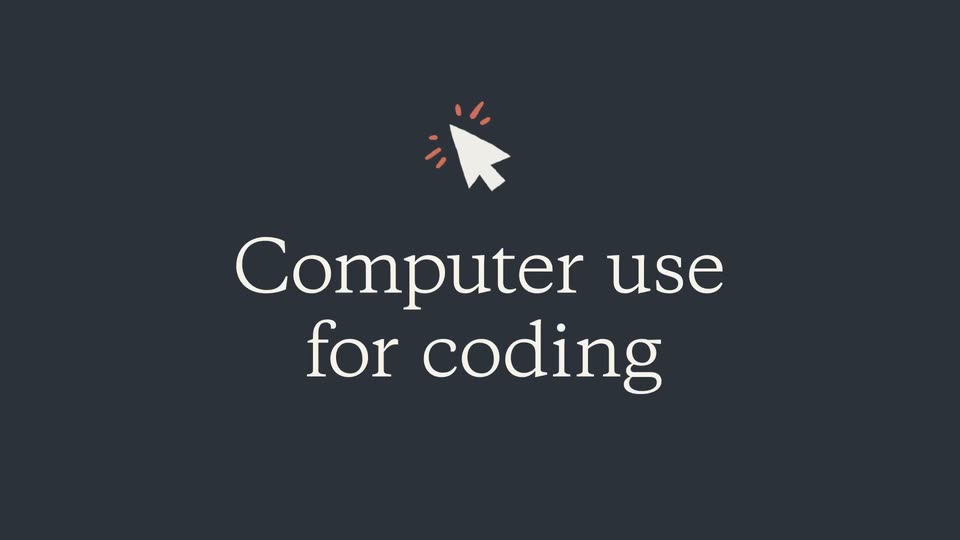
Anthropic’s 3:03 launch film runs 38 scenes, about 4.8 s each. The product shows up at 0:06 and 1 feature is revealed. There is no explicit call to action; a voiceover carries the film. The video alternates a presenter in a whiteboard-lined office with split-screen recordings that pair a scrolling action log beside the live macOS desktop, narrating every Claude action step by step. Its signature moves are the flat dark-slate title cards with a serif headline and orange-accented cursor, and the two-panel action log / virtual computer layout that keeps the agent's plan visible next to the screen it controls.
Is this your launch? to your site or press kit.
Cursor · Developer tools · Aug 2026
Polar Browser · Sep 2026
GodHands · B2B · Nov 2026
Films whose music sounds like this one, voice left out
Warp · Upbeat electronic, lo-fi hip-hop
Runway · Modern electronic
CrowdReply · Upbeat electronic
A man in a gray sweater sits at a green worktable, speaking to camera in front of a whiteboard covered in red marker diagrams. A white nameplate holds at the lower left. A small red wooden model and a closed laptop rest on the table.
On-screen text: “Alex Albert”, “Developer Relations, Anthropic”
Camera: Static
A man in a gray knit sweater talks in a medium close-up, angled slightly left, in front of a whiteboard covered in red marker diagrams. A lower-third caption names him. The locked-off frame holds steady as he speaks.
On-screen text: “Alex Albert”, “Developer Relations, Anthropic”
Camera: Static
A white mouse pointer with small orange accent strokes sits top-center on a dark slate field. The white serif headline “Computer use for coding” fades in on two lines below it, holds, then fades out, leaving only the pointer.
On-screen text: “Computer use”, “for coding”
Techniques: Kinetic type
Camera: Static
A dark navy card holds a white cursor arrow with small orange click lines centered above three lines of gray disclaimer text. The frame is locked off and static for the full duration.
On-screen text: “Claude is generating all the computer actions shown here.”, “This demonstration was recorded in a controlled environment, with some supporting infrastructure simplified to highlight the core capabilities.”
Camera: Static
A man in a grey sweater sits at a green desk with a laptop and a small red robot toy, speaking to the camera. A whiteboard with red marker diagrams fills the background. The frame is a static medium shot; he gestures with one hand near the laptop.
On-screen text: “Claude is generating all the computer actions shown here.”, “This demonstration was recorded in a controlled environment, with some”, “supporting infrastructure simplified to highlight the core capabilities.”
Camera: Static
A man in a gray waffle-knit sweater stands before a whiteboard marked with red diagrams. He speaks while looking down, then turns his head to the side and lifts one hand in a small gesture. The background stays soft and out of focus.
Camera: Static
A macOS desktop with a mesa wallpaper and an app dock sits on a dark field. A white rounded card pops in at center, dimming the desktop, showing four lines of prompt text with a blinking caret and an orange Send button at lower right.
On-screen text: “Please navigate to a new Chrome window, navigate to claude.ai, and once loaded, ask Claude to create a personal website with a 90s style theme.”
Camera: Static
Dark two-panel view: the left action log types a task instruction, then a white plan card appears below it; the right shows a macOS desktop with a red-rock wallpaper and Dock. The log scrolls down to reveal Screenshot and Move to entries.
Techniques: Split screen
Camera: Static
A split view pairs a white task card on the left, listing a prompt, a four-step plan and action rows, with a Mac desktop on the right. A cursor moves to the Chrome icon in the dock and a new Chrome window opens over the desert wallpaper.
Techniques: Split screen, Cursor demo
Camera: Static
A black frame holds a left card with the plan and a right Chrome window over a desktop. The card scrolls as new action lines appear. The cursor glides into the Google search bar, types claude.ai, and an autocomplete list opens with the Claude result highlighted.
Techniques: Cursor demo
Camera: Static
A browser window on a macOS desktop shows Google's homepage with claude.ai in the search bar, then the Claude interface loads with a spinner. A left panel lists the agent's plan and click actions. A cursor hovers over the input field.
Techniques: Cursor demo
Camera: Static
A split screen pairs a cream script card on the left, listing click and type steps with narration, against a Chrome window of Claude on the right. The prompt is typed into the input, then a chat reply and an HTML code artifact panel slide in.
Techniques: Split screen
Camera: Static
A Mac desktop shows a Claude chat window where the response scrolls up line by line, listing website features, while a 90s-style preview with a yellow Under Construction banner and pink Comic Sans title sits in the right pane. A left-side automation panel logs the click and type steps.
Camera: Static
A man in a grey sweater sits at a green table with a dark laptop, gesturing as he speaks. A red pixel robot toy and a notebook rest on the table; a whiteboard with red sketches fills the left background. He lifts his eyes from the laptop to the camera.
Camera: Static
A large instruction line condenses into a chat input card with a Send button over the Claude window. The frame then widens to reveal a left Action log panel as the agent clicks the download button, a file saves, and the cursor hovers the VS Code dock icon.
On-screen text: “Click the download button (right of clipboard icon) to save the file. Then open VS Code and load the downloaded file.”, “Send”, “Action log”, “Virtual computer”, “The plan”, “Move to 897, 649”, “Left click”, “Now I'll open VSCode by clicking on its icon in the dock:”
Techniques: Morph, UI zoom
Camera: Pull out
A macOS desktop shows the VS Code welcome screen centered, with a left-side card listing the assistant's plan and click coordinates. The card scrolls down to reveal the next step while a cursor hovers over the VS Code title.
On-screen text: “I then open VS Code and load the downloaded file.”, “The plan”, “I'll help you with that. Let me break this down into steps: 1. First, I'll click the download button to the right of the clipboard icon 2. Then I'll open VSCode”, “Let me start by clicking the download button:”, “Move to 897, 649”, “Left click”, “Now I'll open VSCode by clicking on its icon in the dock:”, “Move to 897, 649”, “Left click”, “Now I'll click on 'Open...' to locate and open the downloaded file:”
Techniques: Split screen
Camera: Static
A Mac screen recording shows a VS Code window with an open file dialog, while a white instruction card scrolls on the left. The cursor picks the Downloads folder, the dialog closes, and the VS Code welcome page fades in.
On-screen text: “Now I'll open VSCode by clicking on its icon in the dock:”, “Move to 897, 649”, “Left click”, “Now I'll click on 'Open...' to locate and open the downloaded file:”, “Move to 245, 314”, “Left click”, “Now I see the file dialog window. I'll click on the Downloads folder in the sidebar to navigate there:”, “Move to 245, 293”, “Left click”, “Now that we're in the Downloads folder, let's open it. Move to 782, 541 Left click”
Techniques: Split screen, Cursor demo
Camera: Static
A Mac desktop shows Visual Studio Code on the right while a scrolling instruction card lists mouse steps on the left. The cursor moves into the explorer, selects the 90s-website.html file, and the HTML and CSS code opens in the editor.
Techniques: Split screen, Cursor demo
Camera: Static
A man in a gray knit sweater stands before a whiteboard covered in red marker diagrams, speaking and gesturing toward a laptop at the frame's edge. The camera holds a tight medium shot with the background softly out of focus.
Camera: Static
A man in a gray sweater sits at a desk with a dark laptop, a red pixel robot, and a notebook on a green mat. A whiteboard with red diagrams fills the background. He looks at the laptop, then lifts his head and gestures with his hands while speaking.
Camera: Static
A white chat card with a prompt and an orange Send button overlays a VS Code window. The card fades to transparent, exposing the code editor, while a gray Action log panel appears in the top-left corner.
Camera: Pull out
A split layout pairs a scrolling chat and action log on the left with a flat macOS screen on the right. A cursor opens the Terminal menu in VS Code, picks New Terminal, types a Python command that errors. The right side pushes in at the end.
On-screen text: “Action log”, “Virtual computer”
Techniques: Split screen, Cursor demo, UI zoom
Camera: Push in
A macOS screen capture: the assistant chat on the left scrolls down to a new card, while the VS Code terminal on the right types and runs the python3 http.server command, dropping to a fresh prompt.
Camera: Static
A man in a grey sweater sits at a green desk, hands gesturing as he talks to camera, a closed laptop beside him. A whiteboard with red marker flowcharts fills the background, and a small red robot figure rests on the desk.
Camera: Static
A dark stage frames a Chrome window showing the Claude chat on the left and a 90s website preview on the right. A mouse cursor drifts near the tab bar beneath a static white headline.
On-screen text: “Alex takes manual control of cursor”
Techniques: Cursor demo
Camera: Static
A Mac browser window sits on a dark desktop. A cursor moves to the address bar, a localhost URL is typed, the page loads a directory listing, then a retro 90s webpage with pink and cyan blocks appears.
On-screen text: “Alex takes manual control of cursor”
Techniques: Cursor demo
Camera: Static
A macOS desktop shows a Chrome window open to a retro 90s personal homepage with a yellow under-construction banner and a pink links panel. The view zooms in on the browser as a cursor glides over the page and hovers a dock icon, raising a tooltip.
On-screen text: “Alex takes manual control of cursor”
Techniques: UI zoom, Cursor demo
Camera: Push in
A man in a gray sweater sits at a desk facing a laptop, gesturing with one hand as he speaks. A whiteboard covered in red diagrams stands behind him, and a small red robot toy sits on the green desk mat.
Camera: Static
A prompt asking Claude to fix a terminal error sits over VS Code, then the screen splits into a left action log and a virtual computer. Chat messages stack up as the editor scrolls to line 106, finds 'api', deletes the line, and saves.
On-screen text: “Action log”, “Virtual computer”
Techniques: Split screen
Camera: Pan
A man in a gray sweater sits at a green cutting-mat table with a laptop, notebook, and a small red block robot, gesturing with both hands as he speaks. A whiteboard covered in red diagrams and shelves of books fill the background.
Camera: Static
A macOS desktop shows a VS Code window with HTML source and a terminal panel running a Python server. Cyan vertical bars frame the window on both sides. The shot is locked off and static.
On-screen text: “Alex takes manual control of cursor”
Camera: Static
A browser window framed in glowing cyan sits on a dark desktop, captioned at the top. The view zooms into the page, dropping the browser chrome so the retro homepage's pink and cyan blocks fill the frame.
On-screen text: “Alex takes manual control of cursor”, “localhost:8000/90s-website.html”
Techniques: UI zoom
Camera: Push in
A close-up of a bright retro webpage with a yellow under-construction banner, a magenta welcome title and pink link box. The view pulls back to reveal the page inside a Chrome browser window on a striped desktop, the macOS dock visible below.
On-screen text: “localhost:8000/90s-website.html”
Techniques: UI zoom
Camera: Pull out
A static macOS screen shows a Chrome window with a retro 90s homepage; the mouse cursor glides from the page down to the dock and hovers the Visual Studio Code icon, its tooltip popping up. The white headline stays fixed at the top.
On-screen text: “Alex takes manual control of cursor”
Techniques: Cursor demo
Camera: Static
A macOS desktop shows Visual Studio Code with an HTML file and a terminal panel. A white headline reads 'Alex takes manual control of cursor' above the window. The view stays static; a small arrow cursor rests in the terminal.
On-screen text: “Alex takes manual control of cursor”
Camera: Static
A man in a gray sweater sits at a green table, gesturing with his hands as he speaks to the camera. A dark laptop, a notebook and a small red robot figure sit on the table, with a whiteboard of red marker diagrams behind him.
Camera: Static
Medium close-up of a man in a gray knit sweater talking and gesturing in front of a whiteboard with red marker notes and pinned photos. The shot cuts to a black screen showing the Claude by Anthropic logo.
On-screen text: “Claude BY ANTHROPIC”
Camera: Static
A dark navy field holds the centered Claude logo: an orange sunburst mark next to the white serif wordmark and a smaller white sans BY ANTHROPIC line. The orange mark rotates slowly while all type stays fixed on a locked-off frame.
On-screen text: “Claude”, “BY”, “ANTHROPIC”
Camera: Static