3:47
Lucidic HN Demo
Lucidic AI · B2B · Jul 2025
Ramp’s 2:07 launch film runs 21 scenes, about 6.1 s each. The product is on screen from the first frame and 3 features are revealed. The call to action lands at 2:01 (95% in), over a voiceover. The video is built as a single continuous journey across a static blue-sky gradient, with flat product UI cards floating in the center and a dashed flight-path motif marking each phase (admin setup, booking, on-trip expenses, post-trip close). Pacing is slow and even (about two cuts per minute) with cross-fades and cursor-driven demos, so a motion designer should keep transitions soft, let the interface do the storytelling, and reserve the animated plane and green-check beats as the only kinetic
Is this your launch? to your site or press kit.
Lucidic AI · B2B · Jul 2025
Salus · B2B · Feb 2026
Google · AI · Jun 2014
Films whose music sounds like this one, voice left out
Linear · Electronic
River Markets · Modern electronic
Anthropic · Electronic
A filmed blue sky with soft white clouds at the bottom fills a rounded-corner frame. The white title Ramp Travel fades in at center, holds, then fades out while the sky stays still.
On-screen text: “Ramp Travel”
Techniques: Kinetic type
Camera: Static
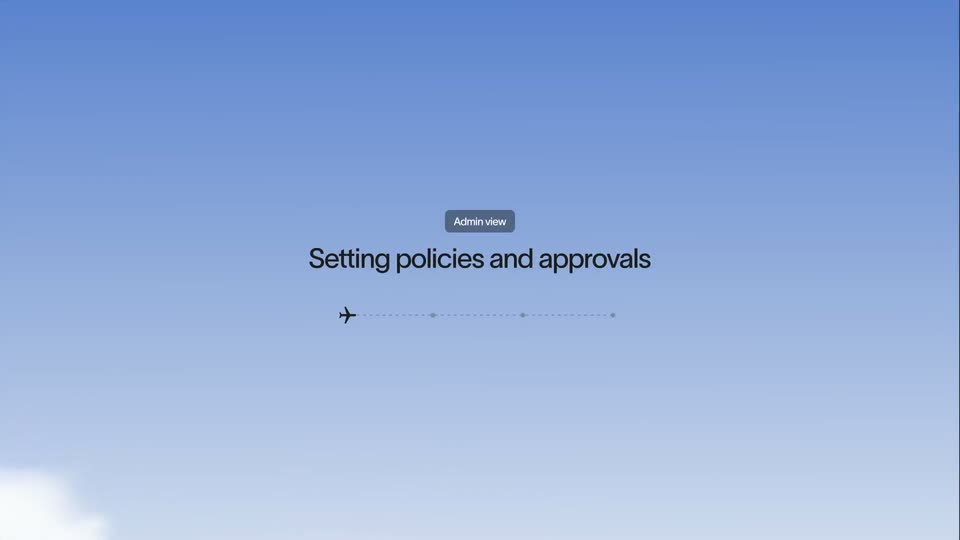
A blue sky gradient fills the locked-off frame. A small gray pill badge and a dark gray headline fade in at the center, above a thin dashed line with a small airplane icon at its left end.
On-screen text: “Admin view”, “Setting policies and approvals”
Techniques: Kinetic type
Camera: Static
A settings screen titled Expense policy fades from dim to full brightness on a blue gradient. A cursor drifts down the approvals list while the Delete button in the right-hand policy panel gains a red outline. A dark pill caption reads Admin view above.
On-screen text: “Admin view”
Techniques: Cursor demo
Camera: Static
A Ramp admin settings page holds on a blue backdrop. A cursor clicks Travel policy, and a side panel slides in from the right. The panel scrolls down past Flights, Cabin class, Hotels, Employee rewards and Per Diem controls, then fades to white.
On-screen text: “Admin view”
Techniques: Cursor demo
Camera: Push in
A settings screen shows an Expense policy sidebar on the left and a Travel policy panel on the right. The panel fades in, then a cursor hovers at the savings-split slider set to 5% to the employee, while toggles and a $100 limit field stay static.
On-screen text: “Admin view”
Techniques: Cursor demo
Camera: Static
A travel rewards screen cross-fades into an admin expense policy view. A cursor moves down the Booking requests panel and hovers an approval option, then the camera zooms into the Advanced workflow builder showing its when and if conditions.
On-screen text: “Admin view”
Techniques: Cursor demo, UI zoom
Camera: Push in
A workflow approval panel fades out to a blue sky gradient, where a small Employee view pill and the headline Booking the trip hold above a dashed line with a plane icon. The card then fades into a hotel booking screen listing New York hotels beside a city map.
On-screen text: “Employee view”, “Booking the trip”
Camera: Static
A flat booking screen, hotel list left and city map right, sits centered on a blue gradient with an Employee view pill above. A cursor glides across the filter row, hovers over nightly prices and the Book a room button, then the whole screen fades to dark.
On-screen text: “Employee view”
Techniques: Cursor demo
Camera: Static
A gradient blue sky with a cloud in the lower left frames a centered title card. A pill badge reads Employee view above the dark headline Submitting expenses on the trip, over a dashed line with a small airplane icon. Elements fade in on a locked-off frame.
On-screen text: “Employee view”, “Submitting expenses on the trip”
Camera: Static
A flat white phone mockup sits centered on a soft blue sky. Inside, a Ramp chat thread builds step by step: a receipt photo, a question bubble, a reply, then a confirmation message, while an 'Employee view' pill floats above the phone.
On-screen text: “Employee view”, “Submitting expenses on the trip”
Camera: Static
Blue sky gradient. An 'Employee view' badge tops the frame as a receipt card fades in at center, then a Gmail card with a green check slides in below. At 7s it cuts to an 'Admin view' badge, the headline 'After the trip', and a dashed timeline with an airplane.
On-screen text: “Employee view”, “Admin view”, “After the trip”
Camera: Static
A light-blue background holds a flat product interface showing a Transactions screen with a left sidebar, a balance figure, a green progress bar and a table of expense rows. A dark pill caption reads Admin view at the top, and a cursor hovers over the Overdue tab as the frame fades in.
On-screen text: “After the trip”, “Admin view”
Camera: Static
An admin transactions screen sits on a blue gradient. A cursor clicks the Out of policy tab, replacing the merchant list with flagged rows carrying red policy tags, then the frame zooms into those rows.
On-screen text: “Admin view”
Techniques: Cursor demo, UI zoom
Camera: Push in
A light expense-review table settles into frame after a quick horizontal slide, listing merchants, amounts, cardholders, charge status, policy tags and resolve buttons. A black arrow cursor rests over a pending row. The list stays static on a soft blue backdrop.
Camera: Push in
A zoomed-in transactions table blurs and pulls back to reveal the full admin dashboard: a world map with numbered markers above a travel report panel with a pie chart. A dark 'Admin view' pill sits centered at the top.
On-screen text: “Admin view”
Techniques: UI zoom
Camera: Static
A flat admin travel dashboard floats on a blue sky backdrop, showing a world map, a spend pie chart and a trip table. A cursor glides over the chart and the repeat-overspenders card, then the view scrolls down to reveal extra trip rows.
On-screen text: “Admin view”
Techniques: Cursor demo
Camera: Static
A light-blue backdrop frames the Ramp Card accounting screen, which fades in from dim. A cursor glides over the transaction table, then a Review & Sync panel slides in from the right over the dimmed view, listing five rows and a green Sync to QuickBooks button.
On-screen text: “Admin view”
Techniques: Cursor demo
Camera: Push in
A white expense panel lists rows with company logos, amounts and green checkmarks over a dimmed background list. The cursor rests on the green action button at the bottom, which switches from a sync label to a checkmark and Done.
Techniques: Cursor demo
Camera: Push in
A cursor clicks a green Done button at the bottom right of a transaction list interface. The screen then fades out to a light blue background.
Techniques: Cursor demo
Camera: Static
White UI cards fade in left to right over a blue sky: a policy panel with an Admin cursor on the approvals toggle, a map with fare tags pass or fail, an Uber receipt auto-matching a route, and an ERP sync ending in green checks. The first card fades out.
Techniques: Cursor demo
Camera: Static
A blue gradient sky fills the frame as faint product UI cards fade out, then a yellow ramp wordmark and curved symbol fade in at center. A small dark URL line appears at the bottom, and the lockup holds before fading to a darker sky.
On-screen text: “Learn more at ramp.com/travel”
Camera: Static