
0:31
Explore
Meet the new Google Drive
Google · Jun 2014 · 1:42 · AI-annotated
- Length
- 1:42
- Scenes
- 22 · 4.6 s avg
- Product on screen
- 0:00
- Features shown
- 5
- Call to action
- 1:33 · 92%
- Voiceover
- Yes
00:00:00 / 01:42:00
Google’s 1:42 launch film runs 22 scenes, about 4.6 s each. The product is on screen from the first frame and 5 features are revealed. The call to action lands at 1:33 (92% in), over a voiceover. A clean white-field product tour that opens on the animated Drive mark, then walks a cursor and a set of device mockups through the desktop grid and the mobile app, pausing on each new control. Pacing is steady and explanatory, with flat UI panels, 3D device renders and a single red accent button as the recurring visual signatures.
No filming indicatedEstimated needs: 7 capture groups — your screens or recordings · 1 official logo — reused across the film · 1 graphic passage — draw or supply · 3 3D passages — build or supply
Is this your launch? to your site or press kit.
More like this
2:30

Introducing Ramp for Accounting Firms
Ramp · Finance · Oct 2026
1:58


Verdant AI launch film
Verdant · Government
Meet the new Google Drive, scene by scene
· 22 scenes as text
01 · Product intro · 0:00–0:01
A plain white field. On the left, a small logo of green, yellow and blue panels forms, its center opening into a white triangle as the shape settles.
On-screen text: “A”
Techniques: Masking
Camera: Static
02 · Product intro · 0:01–0:04
On a white background, the Google Drive wordmark reveals left to right beside the triangular logo, holds, then the text clears and the icon settles to the center of the frame.
Techniques: Masking
Camera: Static
03 · Demo · 0:04–0:05
A gray smartphone mockup sits centered on a white background, its screen showing a small triangular logo in green, yellow, and blue. A tablet mockup rotates in from the left at an angle, and the phone shifts right, so both devices display the same logo.
Techniques: 3D mockup
Camera: Static
04 · Demo · 0:05–0:07
A tablet and phone sit on a plain off-white field, each screen showing a small green, yellow and blue logo. A flat gray desktop monitor slides in from the left and scales up, pushing the tablet and phone right into a neat row of three devices.
Camera: Pan
05 · Demo · 0:07–0:08
Flat vector desktop, tablet, and phone mockups bearing the Drive logo sit before a scrolling file grid. The devices exit as the grid fills the frame, and a cursor glides over a file thumbnail.
Techniques: UI zoom, Cursor demo
Camera: Pan
06 · Demo · 0:08–0:09
A cloud drive view shows a grid of folder and file thumbnails. A left sidebar slides open, growing from small icons to labeled menu items, and the grid shifts right to make room.
Camera: Static
07 · Feature reveal · 0:09–0:21
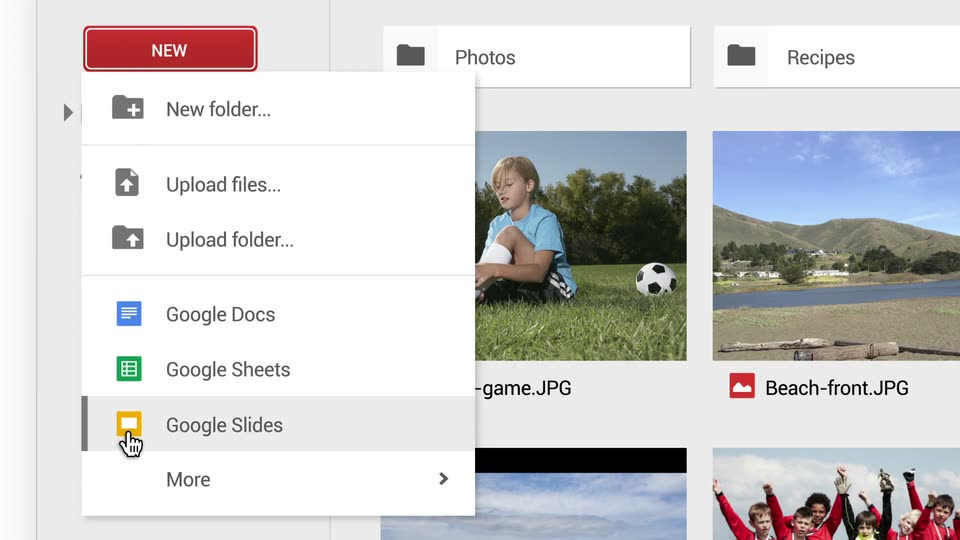
The Google Drive file grid fills the frame, then the view zooms onto the red New button at the top left. A cursor clicks it, opening a dropdown menu, then selects More to reveal a second menu of apps.
Techniques: UI zoom, Cursor demo
Camera: Push in
08 · Feature reveal · 0:21–0:25
A quick dissolve clears a layered list overlay to reveal the My Drive grid of folders and thumbnails. A cursor clicks the Champions.jpg tile, turning it blue, then moves to the top-right info icon, opening a Details and Activity tooltip.
Techniques: Cursor demo
Camera: Static
09 · Feature reveal · 0:25–0:30
A Drive file grid sits beside a details panel that opens for an image. The cursor selects the Activity tab, the log scrolls, then double-clicks a recipe document, which opens in a new window.
Techniques: Cursor demo, UI zoom
Camera: Push in
10 · Feature reveal · 0:30–0:33
A Google Docs recipe page titled Kale with Spring Onions fills a browser window, a hand-drawn green kale illustration on the right. A cursor drifts from the illustration up toward the browser tab at the top edge.
Techniques: Cursor demo
Camera: Static
11 · Feature reveal · 0:33–0:45
A full-screen browser view of Google Drive shows a grid of photo and document thumbnails. The cursor clicks and drags across the grid, highlighting several files in blue, then a right-click context menu with Preview, Share, Move to, Add star, Download and Remove options opens over a selected file.
Techniques: Cursor demo
Camera: Push in
12 · Feature reveal · 0:45–0:48
A white context menu listing file actions sits over a grid of Drive thumbnails, with a cursor resting beside it. The view then zooms out to reveal the full Drive window, its left sidebar and top bar, as the menu closes.
Techniques: Cursor demo, UI zoom
Camera: Pull out
13 · Feature reveal · 0:48–0:52
The Drive desktop grid shows a cursor dragging a group of selected photo files toward the Stompers Soccer folder. At the end, a smartphone rises in the center, its screen showing the mobile app's list view of the same Drive items.
Techniques: Cursor demo
Camera: Pan
14 · Feature reveal · 0:52–1:07
A tablet in 3D perspective shows a file list that switches to a thumbnail grid. The camera zooms in as a plus menu opens, revealing Albums and a Camera Roll panel with photo thumbnails. The view pulls back to the grid, now with a new photo added.
Techniques: 3D mockup, UI zoom
Camera: Pull out
15 · Feature reveal · 1:07–1:13
A tablet showing a photo grid slides up out of frame as a phone with an Open from menu centers on white. The view zooms into the menu list, then the screen switches to a file grid with folders and image thumbnails.
Techniques: UI zoom
Camera: Push in
16 · Feature reveal · 1:13–1:13
A phone file grid with image thumbnails sits behind a context menu that slides in from the right. The view then opens a file detail card for Beach-front.jpg over a dimmed background, showing action buttons and a Keep on device toggle.
Camera: Static
17 · Feature reveal · 1:13–1:15
A front-on phone shows a Google Drive file panel for Beach-front.jpg. The Keep on device toggle flips from gray OFF to blue ON as its row flashes a gray highlight, then the panel scrolls down to reveal Who has access.
Camera: Pull out
18 · Feature reveal · 1:15–1:19
A flat front-facing phone mockup on a white background shows the Drive file details screen for Beach-front.jpg. The list scrolls down to reveal the Who has access and Activity rows, then scrolls back up to the Keep on device toggle and file details.
Camera: Pan
19 · Feature reveal · 1:19–1:30
A phone screen close-up shows a Google Drive file page for Beach-front.jpg. A share dialog opens, a contact is typed and selected, the permission moves from Can edit to Can comment, a saving spinner spins, and the camera pulls back to the full device.
Techniques: UI zoom
Camera: Pull out
20 · Other · 1:30–1:33
A front-facing phone on a white background shows the Google Drive My Drive view. Over the first second a file-detail panel, listing image metadata and a Keep on device row, dissolves away to reveal the folder and thumbnail grid, which then holds.
Camera: Pull out
21 · CTA · 1:33–1:35
On white, the multicolor Google Drive logo shrinks toward the top as a black smartphone mockup scales up in the center, its screen filling with the My Drive view of folders and image files.
Techniques: 3D mockup
Camera: Static
22 · CTA · 1:35–1:42
The Google Drive logo, a green, yellow and blue triangle, sits centered on a white background and eases down in size to settle. Below it, the URL g.co/getdrive types in letter by letter in gray, completing by the fourth second.
On-screen text: “g.co/getdrive”
Techniques: Kinetic type
Camera: Static