1:01
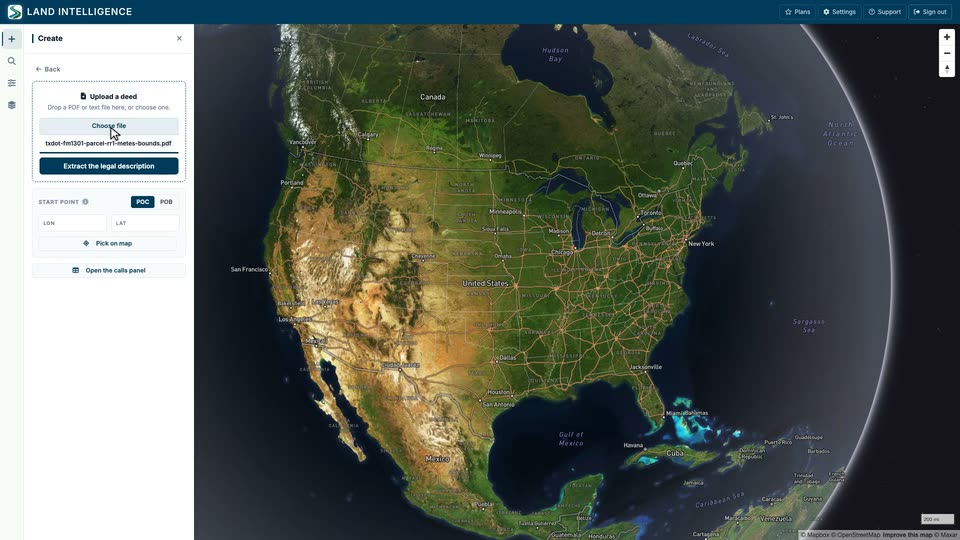
Kyle Walker - Launching today: Land Intelligence. Upload a deed and AI reads the l
Clearfork Intelligence · Nov 2026
Ramp · Jan 2026 · 2:03 · Full motion · AI-annotated
Ramp’s 2:03 launch film runs 15 scenes, about 8.2 s each. The product is on screen from the first frame and 3 features are revealed, with social proof. The call to action lands at 1:54 (92% in), over a voiceover. The video is a slow, slide-by-slide feature tour: a black title card, a blue hero collage, then a run of locked-off white and pale-blue slides that each pair a bold left-aligned headline with flat product screenshots, and finally a comparison table, a dashboard, a setup screen and the logo. Pacing is deliberate at about one cut per 40 seconds, every transition is a simple fade to black, and the only on-screen motion comes from cursors and the color-coded green, yellow and red recommendation tags
Is this your launch? to your site or press kit.
Clearfork Intelligence · Nov 2026
Google · AI · Oct 2008
OpenWhispr · Sep 2026
Films whose music sounds like this one, voice left out
Anthropic · Electronic
Granola · Upbeat electronic
Belvedir · Electronic
On a black screen, the white headline 'Introducing Policy Agent' fades in at center while the small ramp logo resolves in the top-left corner. The line holds steady, then fades out to black.
On-screen text: “Introducing Policy Agent”, “ramp”
Camera: Static
A solid black screen holds for the entire clip. No graphics, text or interface appear; the voiceover alone introduces Ramps Policy Agent as an automated expense reviewer.
Camera: Static
A blue gradient field holds a collage of interface elements: a Potential Fraud badge with orange rings, a chat bubble over a chair photo, a central Policy Agent pill, and green approval cards. The scene fades in from black, holds still, then fades out.
Camera: Static
A white feature slide holds the Policy agent panel: a bold headline and four icon bullets on the left, a green checkmark approval card on the right, and plan and audience tags along the bottom. The frame stays static while the voiceover plays.
On-screen text: “Policy agent”, “Automates 85% of expense reviews and enforces policy with 99%+ accuracy”, “Reviews and approves in-policy expenses, automating 85% of reviews with 99%+ accuracy”, “Answers “is this in policy” with a text. Employees just text our agent – no more “Can I expense this” emails.”, “Provides insights on policy trends and outliers, so you can spot issues before they arise”, “Surfaces policy improvements based on spend patterns to keep policies compliant and up to date”, “Customers are saving 4-5 hours/month and catching 7x more out of policy spend”, “Available to:”, “Ramp Plus”, “Ramp Ent”
Camera: Static
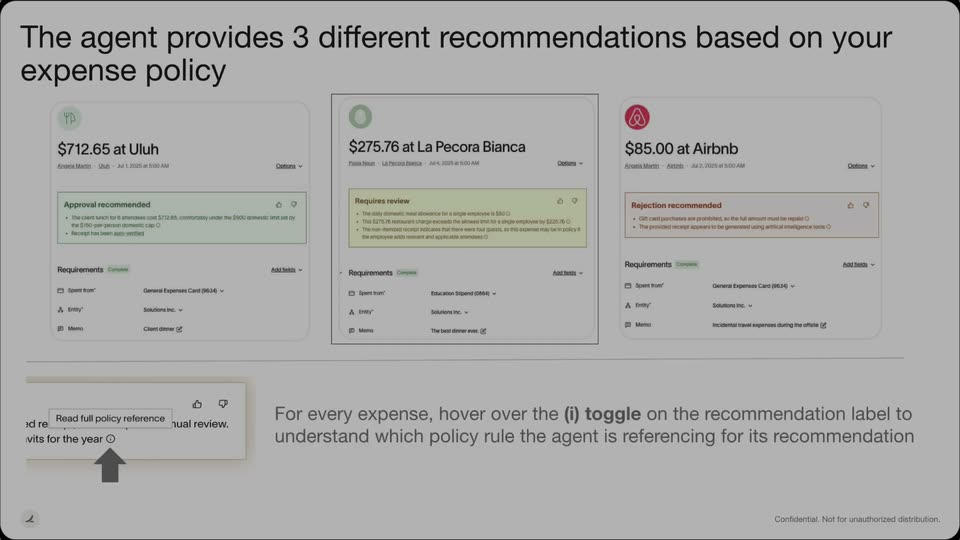
A dimmed policy-agent panel fades to a bright view: a bold headline sits top-left above three expense cards, each tagged approval, review, or rejection. A tooltip with an up arrow and an instructional caption appear along the bottom.
On-screen text: “The agent provides 3 different recommendations based on your expense policy”, “For every expense, hover over the (i) toggle on the recommendation label to understand which policy rule the agent is referencing for its recommendation”
Camera: Static
A static slide presents three expense cards in a row, each tagged with a colored recommendation label: green approval, yellow review, red rejection. A headline spans the top and a body caption with a small tooltip inset sits below, both held still.
On-screen text: “The agent provides 3 different recommendations based on your expense policy”, “For every expense, hover over the (i) toggle on the recommendation label to understand which policy rule the agent is referencing for its recommendation”
Camera: Static
The dimmed three-card recommendation view fades out as a two-panel layout fades in beneath a new headline: an approval policy builder on the left and a Starbucks expense detail with a receipt photo on the right.
On-screen text: “Agentic approvals can help eliminate the bulk of expense review”, “Define guardrails to automate low risk, in policy transactions”
Camera: Static
A two-line headline sits above a pale blue rounded panel holding two flat product screens side by side: an approval-policy builder on the left and an expense detail view with a receipt on the right. The frame stays locked and still.
On-screen text: “Agentic approvals can help eliminate the bulk of expense review”, “Define guardrails to automate low risk, in policy transactions”
Camera: Static
A locked-off slide pairs a two-line headline with three flat product mockups in a row: a policy builder, a Starbucks transaction detail, and an AI-verified receipt. The whole frame fades to black at the end.
On-screen text: “Agentic approvals can help eliminate the bulk of expense review”, “Define guardrails to automate low risk, in policy transactions”
Camera: Static
A static two-column comparison table on a pale blue gradient, headed Manager in gray and Ramp Agent in bold black. Four rows pair small blue line icons with gray text on the left and bold black text on the right, held without motion.
On-screen text: “Manager”, “Ramp Agent”, “Can review max of 50–100 transactions per day”, “Can review 10,000+ transactions per day simultaneously”, “Often approves out-of-policy spend and has vague knowledge of policy.”, “Approves with 99%+ accuracy, trained on policy and historical context”, “No dedicated time, and generally restricted to business hours”, “Works 24/7 with 100% focus (escalates only 10-15% that need human review)”, “Leaves manual notes or inconsistent comments”, “Automatically logs rationale for every decision made”
Camera: Static
A slide fades in from black. A black headline spans the top, a bulleted callout box sits left, and a policy dashboard with department, employee and risk tables plus colored area charts fills the rest. The frame holds static, then fades to black.
On-screen text: “Track compliance, ensure agent alignment with reviewers, and surface high-risk spend in real-time on the Policy dashboard”, “In addition to Spend reports, Policy reports showcase:”, “Trends in how closely reviewers align with the agents' policy decisions”, “Which employees or groups are contributing most to policy violations and why”, “Which compliance flags may become policy issues”
Camera: Static
A finance dashboard fills the frame with a left navigation rail. A cursor drifts from the top greeting down the menu, pausing over Vendors, then Policy, as the active item highlights.
Techniques: Cursor demo
Camera: Static
A finance dashboard fills the frame with a left menu and a greeting panel of balance cards. A hand cursor slides down the sidebar and clicks Policy, the main view switching to a Policy page with a play-button video and rows of spend controls.
Techniques: Cursor demo
Camera: Static
The Policy settings page fills the frame, navigation sidebar on the left. The cursor drifts down to the yellow Get started button in the policy agent card, then the whole screen fades to black.
Techniques: Cursor demo
Camera: Static
A black frame holds a small white crescent mark and the lowercase word 'ramp' at the top left; both fade and scale in, then hold on a locked-off shot.
Camera: Static