0:39
Explore
00:00:00 / 03:13:19
- Length
- 3:13
- Scenes
- 38 · 5.1 s avg
- Product on screen
- 0:00
- Call to action
- 3:01 · 93%
- Voiceover
- Yes
- Views
- 4.2K on X
as of November 23, 2026
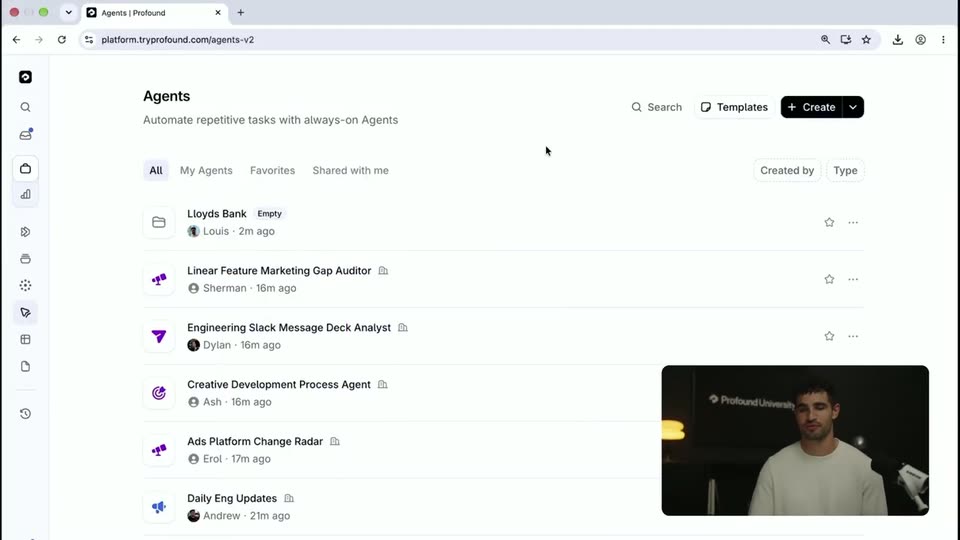
Profound’s 3:13 launch film runs 38 scenes, about 5.1 s each. The product is on screen from the first frame. The call to action lands at 3:01 (93% in), over a voiceover. The video intercuts a static studio talking head with long, real time screen recordings, keeping the presenter present through a facecam inset that scales between a corner thumbnail and a full frame. Pacing is slow and deliberate, with cursor led zooms into panels, dropdowns and slide thumbnails as the signature move.
Footage neededEstimated needs: 6 capture groups — your screens or recordings · 1 official logo — reused across the film · 5 filmed passages — shoot, supply or replace
Is this your launch? to your site or press kit.
More like this

Similar soundtrack
Films whose music sounds like this one, voice left out
3:29
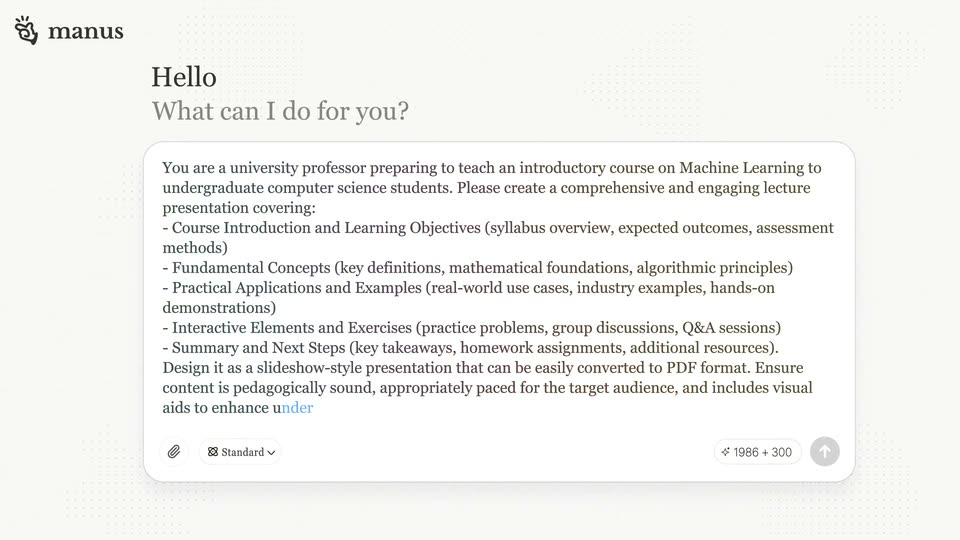
Joel Edholm - Today, we’re releasing screen-aware one-click writing to everyone. T
Goldfish · Electronic
0:48

Wispr Flow - We launched Notetaker today, and there's a few key features we're exc
Wispr Flow · Upbeat electronic
2:17

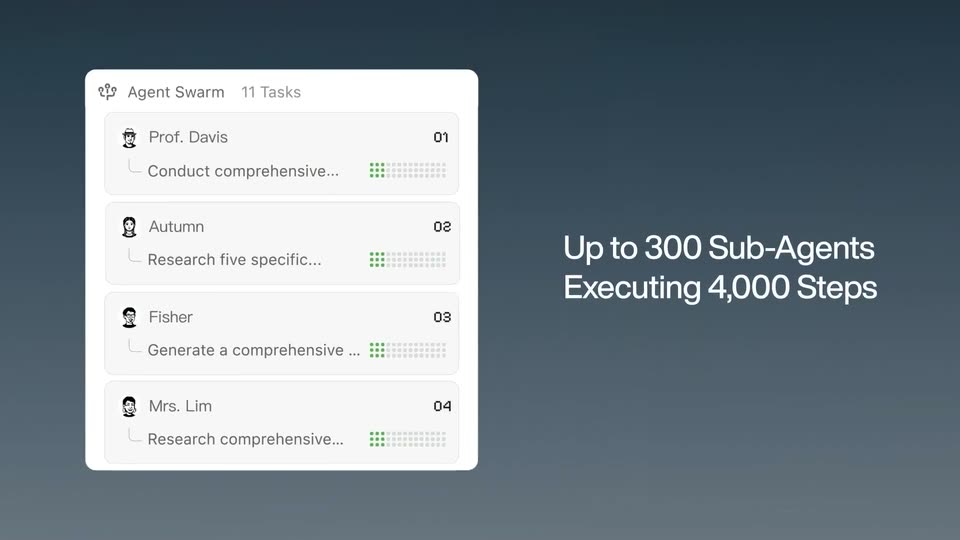
Sawyer Covington - This is what having a creative team of 100 could look like. Introduci
General Context · Electronic
Dylan Babbs - Today we're launching a new generation of Agents in @profound, now po, scene by scene
· 38 scenes as text
01 · Product intro · 0:00–0:06
A man in a white sweater speaks to camera in a dark studio, a Shure microphone in the right foreground and a Profound University sign on the back wall. A white lower-third caption fades in at the lower left. Static medium shot.
On-screen text: “Jack Traina”, “Product Manager, Profound”
Camera: Pull out
02 · Demo · 0:06–0:06
A browser window displays the platform's Agents list. A floating video window of a man speaking in front of a dark backdrop with the Profound University wordmark shrinks from the center to the bottom-right corner.
Camera: Pull out
03 · Demo · 0:06–0:07
A browser window shows the Agents dashboard, a vertical list of agent cards with icons and timestamps. A cursor hovers near the top. A small video of a man in a white shirt sits in the bottom right corner.
Camera: Static
04 · Demo · 0:07–0:33
A browser shows the 'Create an agent' page, icon tiles cycling above the heading. The view zooms into the prompt box as text is typed, then send is clicked. A chat view follows, with a 'Working' timer, a black 'Aim is creating your agent' pill, and a speaker inset.
Techniques: UI zoom, Cursor demo
Camera: Static
05 · Demo · 0:33–0:34
A browser window of the Profound agent interface shows a chat prompt and a status pill. The embedded video of a presenter in a white sweater scales up from the corner until it fills the frame, leaving only the left sidebar visible.
Techniques: UI zoom
Camera: Push in
06 · Demo · 0:34–0:37
A man in a white sweater speaks in a dark studio, a Profound University logo on the wall and a Shure mic at his shoulder. The frame then becomes a product interface, his video shrinking into a left window beside a white agent panel.
Camera: Pull out
07 · Demo · 0:37–1:04
A browser window shows the agent builder UI with a small video of the presenter in the top-left corner. The view zooms into the right-hand settings panel and scrolls past Triggers, Inputs and Instructions. The cursor clicks the Add button under Context, opening a menu of sources.
Techniques: UI zoom, Cursor demo
Camera: Push in
08 · Demo · 1:04–1:16
A white integration modal floats over a blurred dashboard, with a small live-action inset of a presenter in the top-left corner. The cursor clicks the connect button, the panel updates to a connected state, then a tool list opens and scrolls as the cursor hovers the rows.
Techniques: Cursor demo
Camera: Static
09 · Demo · 1:16–1:23
A screen capture of an agent editor. The right panel scrolls up, replacing a list of outputs and tools with an Instructions block holding Role and Inputs fields. A cursor hovers a link, then the view zooms in, cropping the left icon rail.
Techniques: Cursor demo, UI zoom
Camera: Push in
10 · Demo · 1:23–1:24
A light product interface shows an agent editor: a speaker's video clip and a short caption sit on the left, while the right panel scrolls up to bring the Role and Inputs instructions into view.
Camera: Static
11 · Demo · 1:24–1:27
A two-pane agent interface scrolls vertically. The left pane keeps a video thumbnail and a prompt line, while the right pane's instruction markdown, listing Role, Inputs and Outputs, pans upward to reveal the Steps heading.
Camera: Static
12 · Demo · 1:27–1:27
A product interface splits into a video player on the left, showing a man in a white shirt speaking into a microphone, and a documentation panel on the right with Inputs, Outputs and Steps headings. The view zooms in on the video player.
Techniques: UI zoom
Camera: Push in
13 · Demo · 1:27–1:33
A man in a white sweater sits in a dark studio, speaking into a Shure microphone. Behind him a screen shows the Profound University logo, and a yellow lamp glows at the left edge. The shot is a static medium close-up.
Camera: Push in
14 · Demo · 1:33–1:40
A man with curly dark hair in a cream waffle-knit sweater sits in a dim room, speaking toward an off-screen interviewer. A black microphone fills the lower right, with a silver lamp and a framed wall sign behind him. He glances down, then lifts his eyes as he talks.
Camera: Pull out
15 · Demo · 1:40–1:50
The dashboard zooms into the prompt field of an AI agent page. A blinking caret types a trigger instruction letter by letter in time with the voiceover, then the field resets to a follow-up state showing a stop button.
Techniques: UI zoom, Cursor demo
Camera: Static
16 · Demo · 1:50–1:57
Screen capture of an AI agent builder with a small webcam feed of the presenter top-left. The interface updates in place: a Working timer counts up, task steps list in, and the right panel's Triggers section fills with a toggle and a trigger label.
Camera: Push in
17 · Demo · 1:57–2:00
A product interface with a video thumbnail and prompt text on the left and an agent settings card on the right. A cursor clicks Add beside Triggers, opening a menu with Schedule, Monitor, Profound data, Slack, Outlook; hovering Schedule reveals Hourly, Daily, Weekly, Custom.
Techniques: Cursor demo
Camera: Static
18 · Demo · 2:00–2:01
A product panel shows the CMO AI Visibility Deck card with an open dropdown under the Triggers toggle, listing Hourly, Daily, Weekly, Custom and Schedule, Monitor, Slack, Outlook options. A cursor hovers over Schedule. On the left, a man in a video thumbnail overlays a paragraph of text.
Techniques: Cursor demo
Camera: Static
19 · Demo · 2:01–2:02
A product interface shows an agent card with two open dropdowns listing trigger options. A cursor hovers over the Schedule row while a small video of a presenter plays in the top left corner.
Techniques: Cursor demo
Camera: Static
20 · Demo · 2:02–2:05
A product interface fills the frame. On the right, a panel titled CMO AI Visibility Deck opens a Triggers dropdown, and a cursor glides down the list, highlighting Monitor then Profound data. On the left, a small video of a man speaking sits over a page of body text.
Techniques: Cursor demo
Camera: Static
21 · Demo · 2:05–2:15
A close-up of an agent builder screen as a cursor moves through a trigger dropdown, hovering Slack and Outlook to reveal their submenus. The frame then zooms out to the full panel, with a small facecam video of a presenter in the left chat column.
Techniques: Cursor demo, UI zoom
Camera: Pull out
22 · Demo · 2:15–2:18
Split view of an AI agent workspace: a chat thread with a video clip and bullet notes on the left, the agent's configuration panel on the right. A cursor glides across the panel, then moves to the Run Agent button in the top bar and clicks it.
Techniques: Cursor demo
Camera: Static
23 · Demo · 2:18–2:28
A screen recording of an AI agent dashboard. A cursor opens the date range dropdown, picks a range, types CMO into the audience field, then clicks Start run. The form collapses into a Working counter that ticks up while the first agent step lights up.
Techniques: Cursor demo
Camera: Static
24 · Demo · 2:28–2:30
A screen recording of a product interface: a chat panel lists findings on the left while a slide-deck preview with black slides sits on the right. A small video of a presenter in a white shirt overlays the top-left corner. The frame pans slightly left to reveal the sidebar icons.
Camera: Push in
25 · Demo · 2:30–2:32
A product interface shows a video call window and a slide deck preview. A cursor moves down a vertical list of dark slide thumbnails, highlighting each one in turn.
Techniques: Cursor demo
Camera: Push in
26 · Demo · 2:32–2:32
A light product interface shows a slide deck editor with a small presenter video at the left. A cursor selects a thumbnail, and the main slide changes from an executive summary with large percentages to a competitor visibility table.
Techniques: Cursor demo
Camera: Static
27 · Demo · 2:32–2:33
A product screen splits into a left panel with a talking head video and a transcript, and a right panel showing a slide deck. A hand cursor hovers the thumbnail column as the main slide switches from a visibility table to a platform bar chart.
Techniques: Cursor demo
Camera: Static
28 · Demo · 2:33–2:35
A screen recording of a slide-deck tool fills the frame. A left pane pairs a man on video with a chat and a Run Agent button, a middle strip lists slide thumbnails, and a right pane shows a data slide on competitor visibility. A cursor hovers across the thumbnails.
Techniques: Cursor demo
Camera: Static
29 · Demo · 2:35–2:35
A three-panel product interface: a chat column scrolls on the left, a vertical strip of dark slide thumbnails sits in the middle under a hand cursor, and a static dark data slide with a citations table fills the right.
Techniques: Split screen, Cursor demo
Camera: Static
30 · Demo · 2:35–2:36
Interface panels drift at different speeds: a dark citation report table on the right, a vertical strip of terminal screens with a cursor in the center, body copy with a Run Agent button on the left, and a small video of a man speaking top left.
Techniques: Split screen, Parallax, Cursor demo
Camera: Static
31 · Demo · 2:36–2:37
A three-panel interface fills the frame: a chat window with a video thumbnail on the left, a vertical stack of dark slide cards in the center, and a sentiment table on the right. A cursor scrolls down the center stack while the left and right panels hold still.
Techniques: Split screen, Cursor demo
Camera: Static
32 · Demo · 2:37–2:38
A three-pane interface fills the frame: a chat column with a presenter's video thumbnail on the left, a vertical strip of dark slide thumbnails with a hand cursor in the center, and a report panel on the right that flips from a recommendations table to a sources appendix.
Camera: Static
33 · Demo · 2:38–2:41
A three-pane interface fills the frame. On the left, a chat thread with a video of a man speaking scrolls; in the middle, a vertical feed of report thumbnails scrolls under a hovering cursor; on the right, a document turns pages between a black appendix page and a white title page.
Techniques: Cursor demo
Camera: Static
34 · Demo · 2:41–2:49
A static three-panel interface shows a chat with a small video of a man in a white shirt, a column of dark slide thumbnails, and a black title slide on the right. A cursor glides across the top bar, hovering over the Convert to PowerPoint and Export buttons.
Techniques: Cursor demo
Camera: Static
35 · Demo · 2:49–3:01
A screen recording of the product interface, with a small talking-head video pinned to the top-left corner. The cursor clicks Share, a centered modal opens over the dimmed and blurred screen, then the access dropdown expands to list two options.
Techniques: Cursor demo
Camera: Static
36 · CTA · 3:01–3:01
A product interface fills the screen, then a video card of a smiling man in a white shirt, with a Profound University logo behind him, scales up from a small thumbnail to a large centered overlay while the surrounding UI dims.
Camera: Push in
37 · CTA · 3:01–3:09
A man in a cream sweater sits in a dim studio, speaking to camera. A Shure microphone angles in from the right, a yellow lamp glows left, and the Profound University logo sits on the dark wall behind him. He smiles, delivers his closing line, and the shot fades out.
Camera: Static
38 · Outro · 3:09–3:13
On a black background, a white hexagonal logo mark appears at center, then slides left as the wordmark Profound blurs in beside it. The lockup holds centered for a beat, then fades to black.
On-screen text: “Profound”
Techniques: Kinetic type
Camera: Static