1:04
Explore
OneGrep | An Engineer's Personal DevOps Copilot
OneGrep · Mar 2024 · 0:43 · Full motion · AI-annotated
- Length
- 0:43
- Scenes
- 10 · 4.3 s avg
- Product on screen
- 0:00
- Features shown
- 3
- Voiceover
- No
- Views
- 266 on YouTube
as of November 26, 2026
00:00:00 / 00:43:23
- Length
- 0:43
- Scenes
- 10 · 4.3 s avg
- Product on screen
- 0:00
- Features shown
- 3
- Voiceover
- No
- Views
- 266 on YouTube
as of November 26, 2026
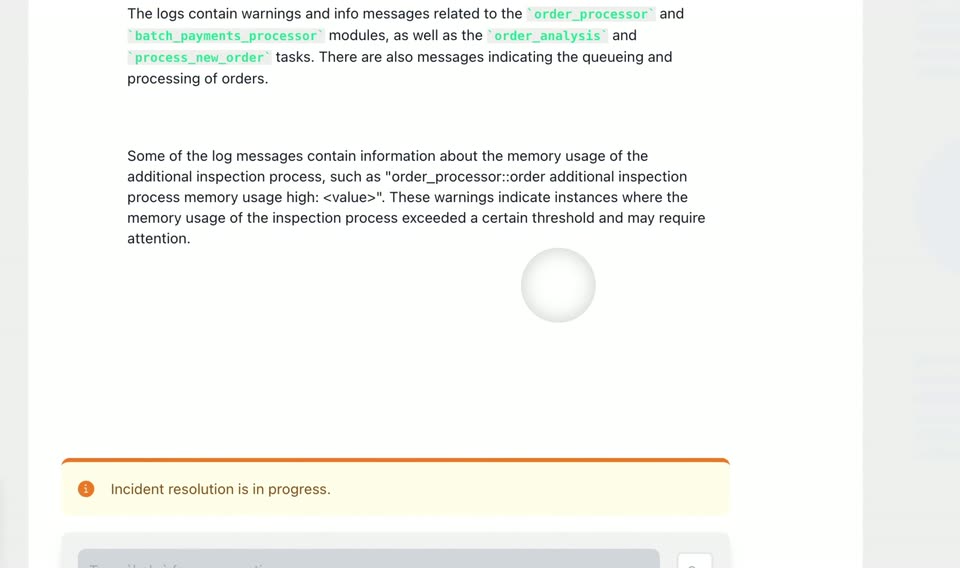
OneGrep’s 0:43 launch film runs 10 scenes, about 4.3 s each. The product is on screen from the first frame and 3 features are revealed. There is no explicit call to action. The video is one continuous light-interface walkthrough cut into three feature beats, each advanced by slow push-ins and pans across flat panels with crossfades between views. Signature moves are the zoom to a button, the parallax two-column scroll, the 3D laptop tilt for the typed query, and a soft white circle that drifts across the screen as a recurring accent.
No filming indicatedEstimated needs: 3 capture groups — your screens or recordings · 1 3D passage — build or supply
Is this your launch? to your site or press kit.
More like this



OneGrep | An Engineer's Personal DevOps Copilot, scene by scene
· 10 scenes as text
01 · Feature reveal · 0:00–0:08
A light chat interface streams OneGrep messages about a detected incident, then the view zooms onto a More Details button that a circular cursor taps. A left navigation panel with Insights and New badges slides in over the conversation.
Techniques: UI zoom, Cursor demo
Camera: Push in
02 · Feature reveal · 0:08–0:10
A product interface shows a chat feed of OneGrep messages about a detected incident, then crossfades to an Incident Details panel with first detected time, affected services, and a red High severity tag.
Camera: Push in
03 · Feature reveal · 0:10–0:13
A close-up of an Incident Details panel sharpens as a soft circular glow drifts across the severity row and a green bar highlights the affected services line. The view then pulls back with motion blur to reveal the surrounding dashboard, sidebar and signal table.
Techniques: UI zoom
Camera: Pull out
04 · Feature reveal · 0:13–0:16
A full view of the OneGrep Insights interface, with a chat thread in the center and a signals panel on the right, zooms in toward the Related Dashboards section. The Order Analysis Pipeline button gains a gray highlight as the frame settles.
Techniques: UI zoom
Camera: Push in
05 · Feature reveal · 0:16–0:22
A 3D laptop mockup of the OneGrep app rests on a purple gradient. The view zooms into the chat input while the query 'Tell me about any historical events like this' is typed, then pulls back to show the AI reply about a similar past incident.
Techniques: 3D mockup, UI zoom
Camera: Push in
06 · Feature reveal · 0:22–0:25
A light dashboard shows a chat thread where an assistant replies about a past incident. A right panel slides in with the incident timeline and affected services, then the frame zooms into the assistant's paragraph.
Techniques: UI zoom
Camera: Push in
07 · Feature reveal · 0:25–0:32
A dashboard UI scrolls down an incident report. The right column passes a 'Historically Similar Incident' header with two colored service tags and a resolution card, then an 'Incident Timeline' of blue icon nodes on a vertical line. A left text column scrolls slower while a faint circle drifts down.
Techniques: Parallax
Camera: Pan
08 · Feature reveal · 0:32–0:33
A white OneGrep chat interface fills the frame, its feed of agent messages settling into place. The view reframes toward the right, where a hand cursor moves down and clicks the “No, I'm good” button.
Techniques: UI zoom, Cursor demo
Camera: Pan
09 · Feature reveal · 0:33–0:37
A OneGrep chat panel scrolls upward, revealing three numbered optimization recommendations in sequence, while a separate INSIGHT list card on the right stays fixed. A soft white circular element sits near the center and disappears by the end.
Camera: Pan
10 · Feature reveal · 0:37–0:43
A product chat view auto-scrolls a numbered list of memory-optimization notes upward while a soft white circular highlight drifts across the text. The right-hand INSIGHT panel slides out of frame as the view recenters on the document column.
Techniques: UI zoom
Camera: Push in